Summary created by Smart Answers AI
In summary:
- Macworld showcases ten iPhone accessibility features that benefit all users, not just those with disabilities, including Face ID customization, Back Tap gestures, and background sounds.
- Key features include restoring the volume slider removed in iOS 26, enabling haptic feedback for Face ID, and using built-in sounds like Ocean and Rain for relaxation.
- These accessibility tools enhance security, convenience, and readability through settings like Reduce Transparency and customizable tap gestures for various iPhone functions.
Apple has always been renowned for adapting its systems to meet the needs of people with disabilities. Anyone who selects Accessibility in the Settings app on an iPhone will be overwhelmed by the sheer range of options available. There are settings for short-sighted people like me, and there are settings for people with age-related vision impairment. There are settings for hearing aids, and a voice can read out the screen content.
As is always the case with Apple’s Accessibility features, there are sliders and buttons tucked away in unexpected places that make life a little easier for all users. Here is a collection of our favorite Accessibility features you could be using.
Face ID attention check
Foundry
There’s a rather clever option for Face ID: the biometric module only unlocks the iPhone when you’re looking directly at it. This prevents accidental unlocks. The setting is tucked away in Accessibility under Face ID and Attention.
The system warns you about certain types of sunglasses, but in practice, the unlocking works quite reliably. I’ve never had any problems with my polarized sunglasses. Another useful option is haptic feedback upon successful authentication. You’ll receive a brief vibration when Apple Pay is successful or when the iPhone is unlocked using Face ID.
Notifications with a flash
Foundry
You can choose to have notifications on your iPhone signaled visually rather than with an audio alert. This uses the LED flash on the rear camera or a flashing display. The setting can be found under Audio and Visual and is called Flash for Alerts.
Receiving a large number of notifications can drain the battery more quickly, as the flash or screen is actively switched on.
Always show volume controls
Foundry
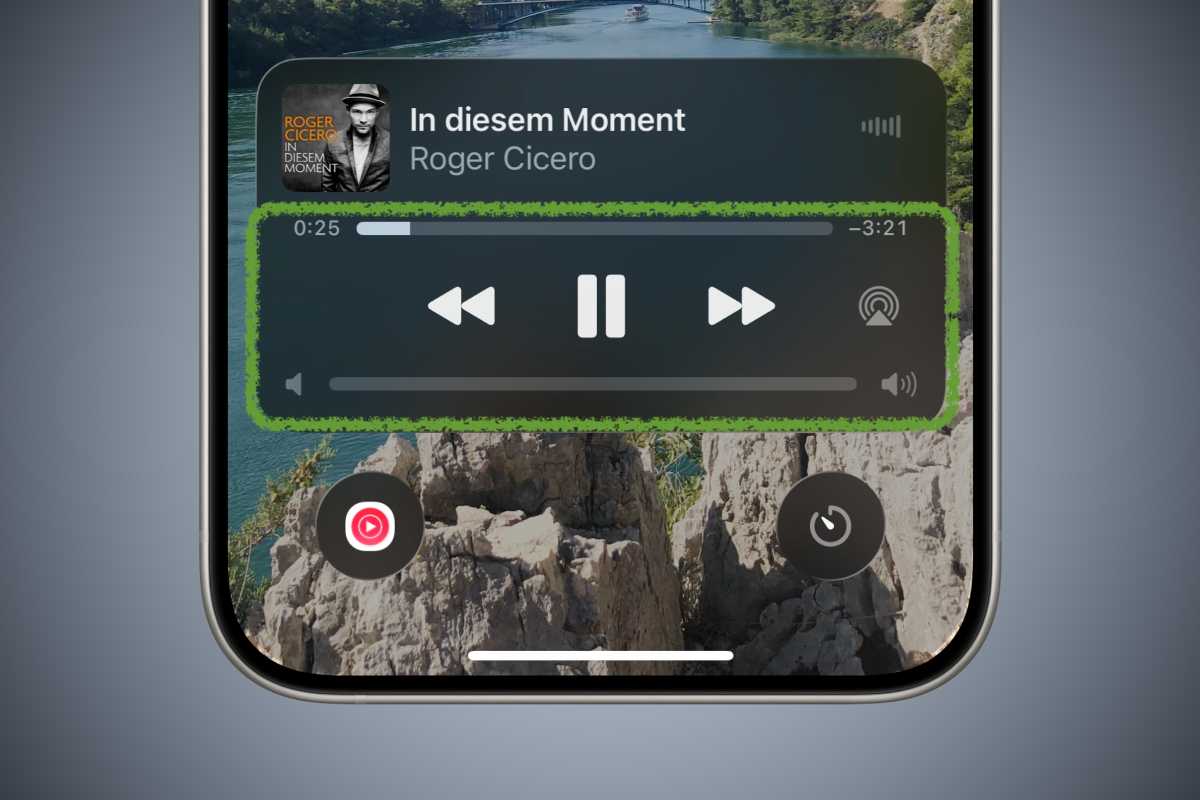
As part of the Liquid Glass design for iOS 26, Apple removed the volume slider from the widgets. The volume itself could still be controlled via dedicated buttons, gestures on the AirPods, or the Digital Crown on the Apple Watch. The only thing missing was an overview of just how loud AC/DC were rocking or how softly Lana Del Rey was whispering.
However, the slider has never actually disappeared; it can be reactivated in Accessibility under the Audio and Visual section.
No Liquid Glass
Foundry
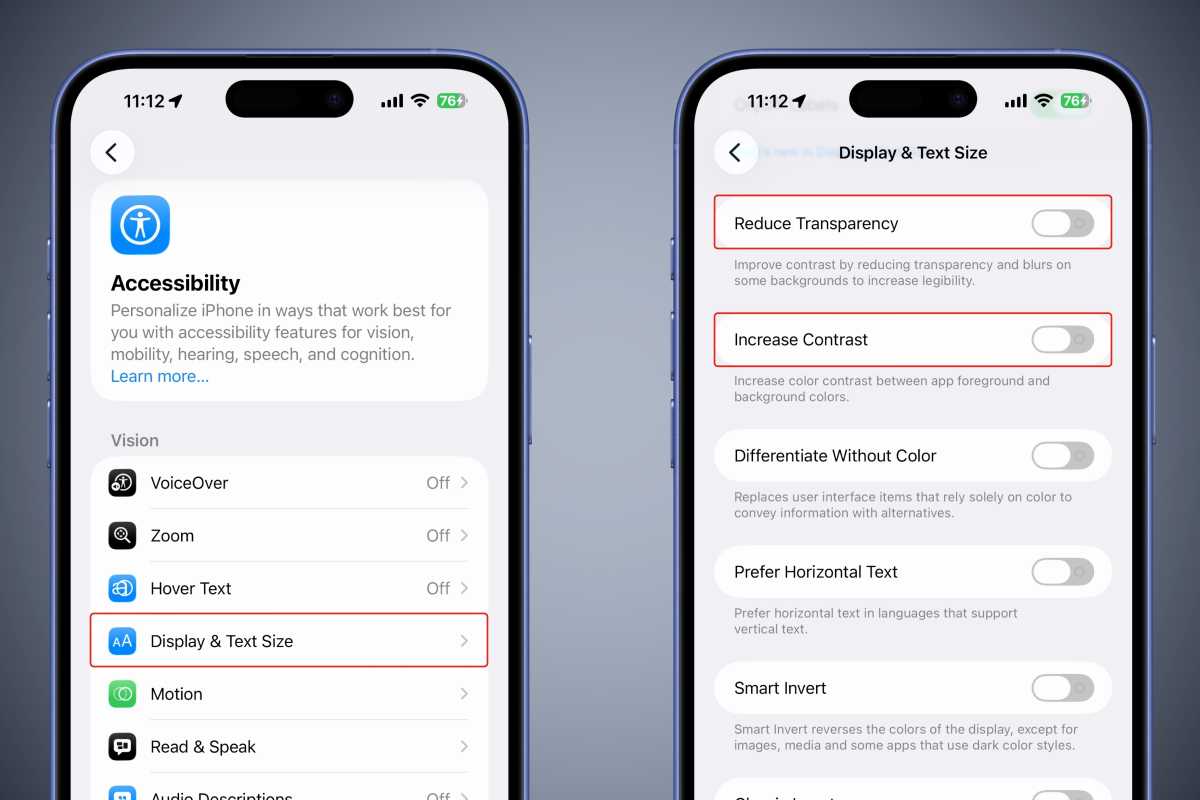
The Liquid Glass interface is here to stay. From the next version of iOS onwards, Apple will no longer accept apps that haven’t yet adapted their appearance to Liquid Glass. However, you can at least make the content stand out better against the background using two settings.
These settings can be found in Accessibility under the Display & Text Size section. The first two sliders after the text settings are called Reduce Transparency and Increase Contrast. Together, these create a clear distinction between the foreground and background, making text easier to read.
On/Off Labels
Foundry
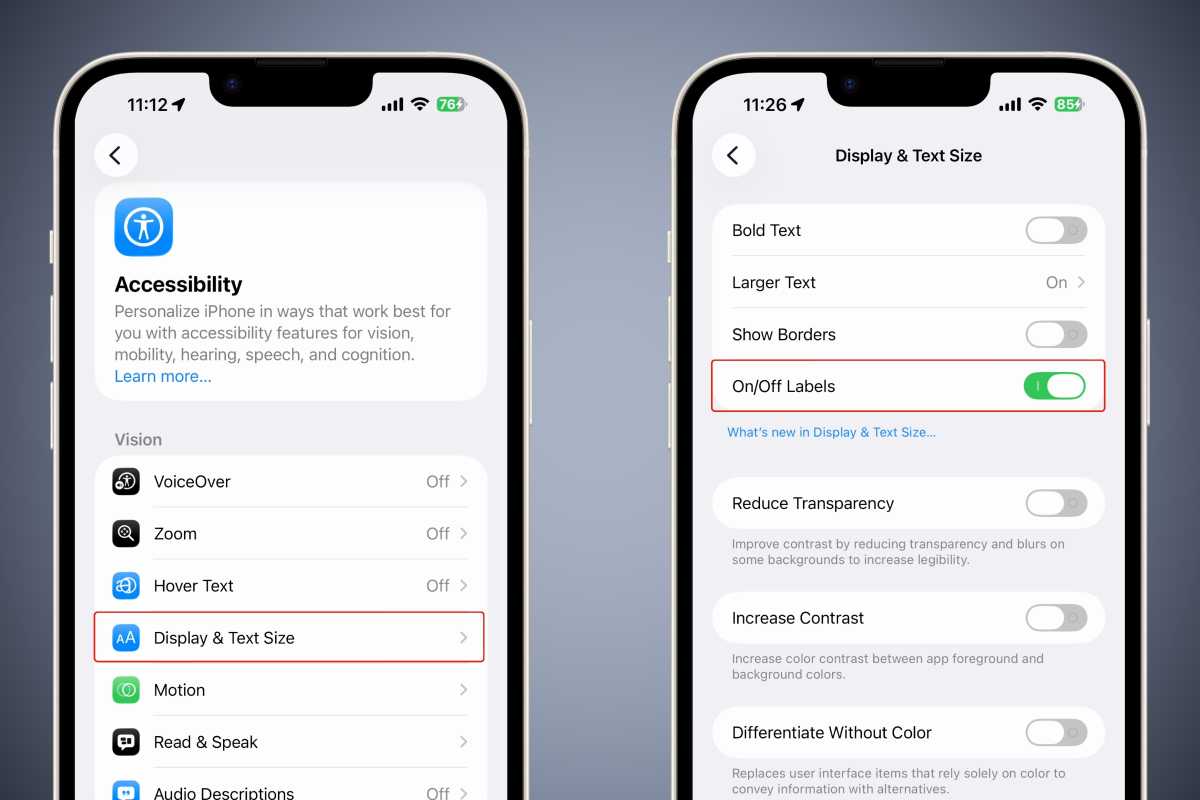
If you want to bring a bit of that retro look from previous iOS versions to your iPhone, you can also enable additional On/Off labels in the Display & Text Size section. Instead of relying solely on color cues such as grey and green, the system also provides graphical cues such as a vertical line for On and a circle for Off. These are perhaps the last traces of skeuomorphism in iOS, as the line and circle represent the 0 and 1 in binary code.
Make Siri always aware
Foundry
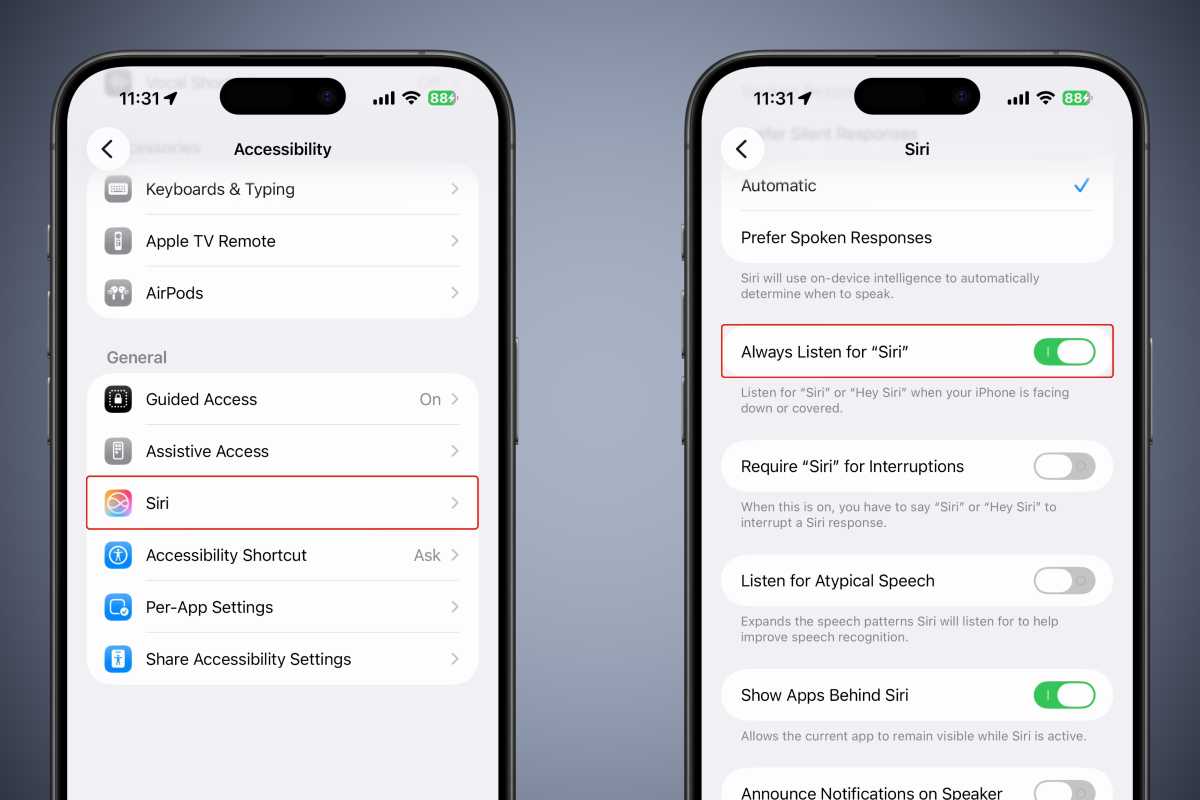
By default, Siri is disabled when the iPhone face down or when the screen is covered. You can change this behavior in Accessibility: go to the Siri section at the end of Accessibility, then turn on Always Listen for Siri. This allows you to activate the smart voice assistant regardless of the iPhone’s position.
Tap on the back
Foundry
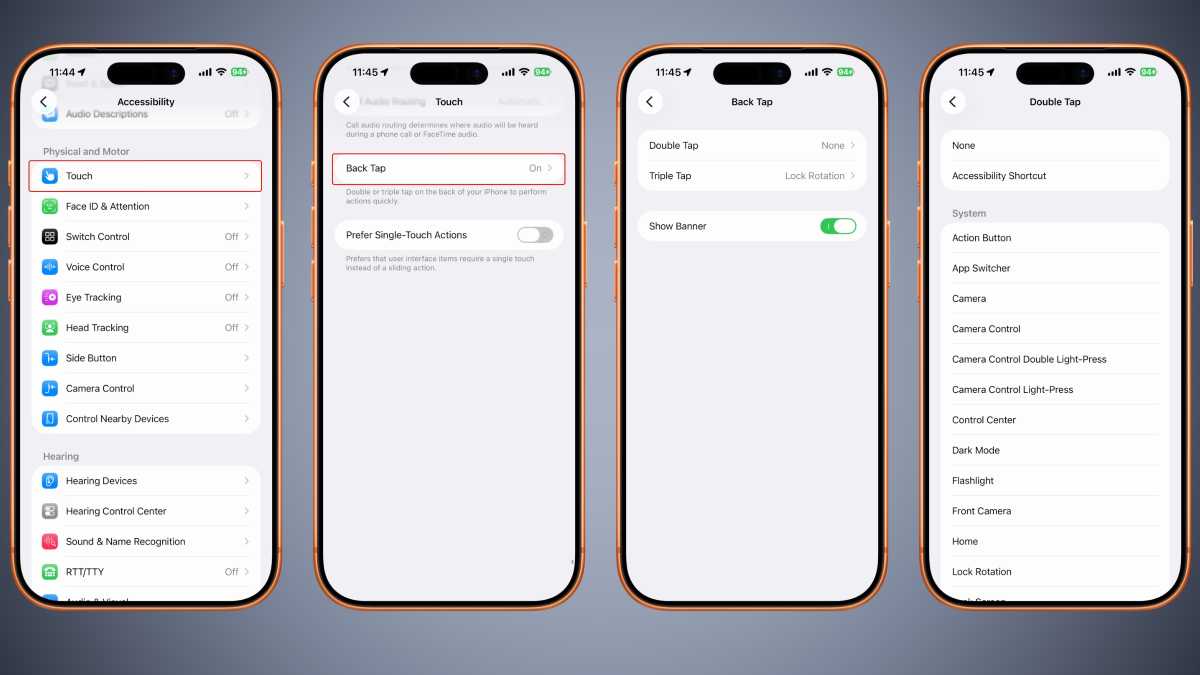
The Back Tap feature has an interesting history. The Accessibility team at Apple faced a problem with the iPhone X: The Home button disappeared entirely, and with it an intuitive and easy way to take screenshots. Pressing the Volume Up and Power buttons simultaneously requires a fair bit of guitar-playing-like skill, but the team wanted a simple yet effective alternative for people with disabilities.
This is how the double-tap gesture on the back of the iPhone came about as a replacement for the Home button. Initially, it could only be used to take screenshots, but now it offers several tasks that can be assigned to these taps.
The feature can be found in the Accessibility section, under Touch > Back Tap. You can set up a double-tap and a triple-tap. If you turn on Show Banner, a banner will appear when the iPhone senses a double or triple tap.
Background sounds
Foundry
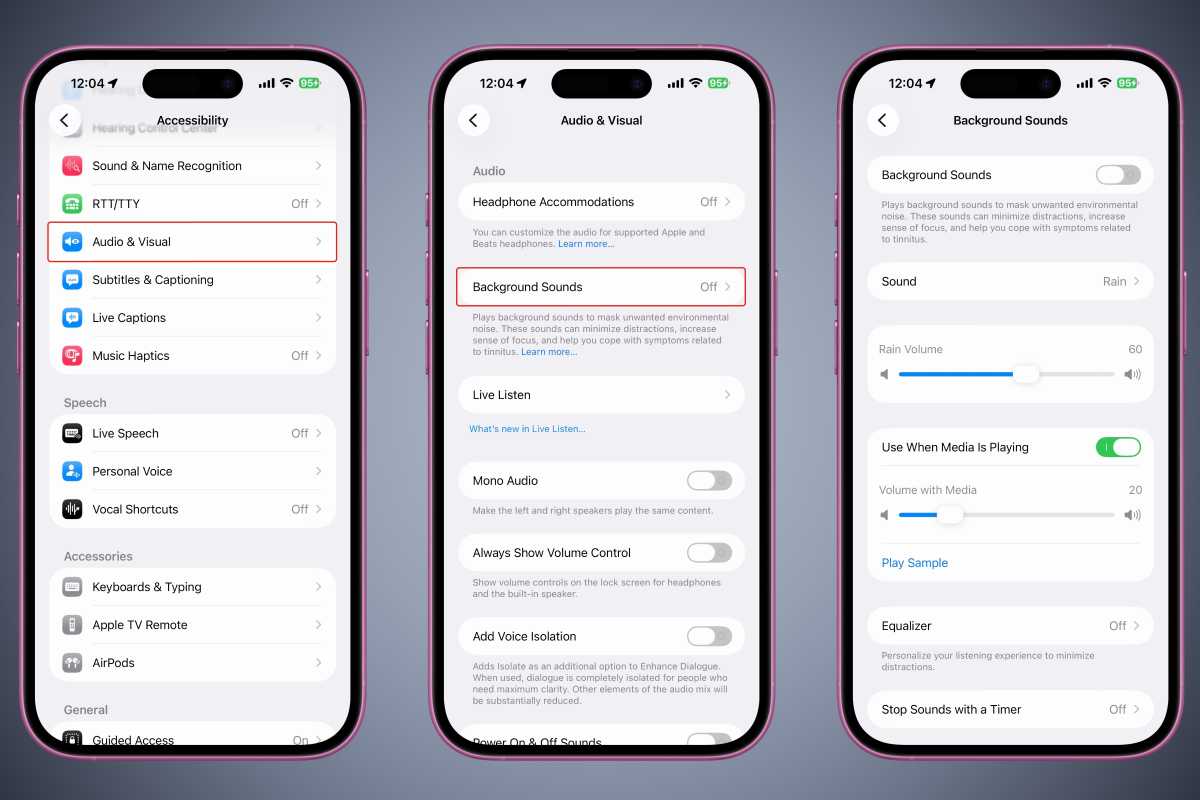
ASMR videos on YouTube attract millions of views: the simple sounds of running water, wind or a crackling fire help people to relax or even fall asleep. Your iPhone can play such sounds too (without ad breaks).
The list of all background sounds can be found in Accessibility under the Audio & Visual section. Under the Background Sound > Sound setting, you’ll find a list of several available options, including Ocean, Rain, Babble, Fire, Airplane, and three different types of white noise. The sounds work even without an internet connection, as the iPhone downloads the relevant soundtrack the first time you play it.
The Background Sound page has several different settings you’ll want to adjust, including Volume, Stop Sounds with a Timer, and more. You can use these background sounds to help you fall asleep and set them to stop at a specific time.
Reduce frame rate to 60 fps
Foundry
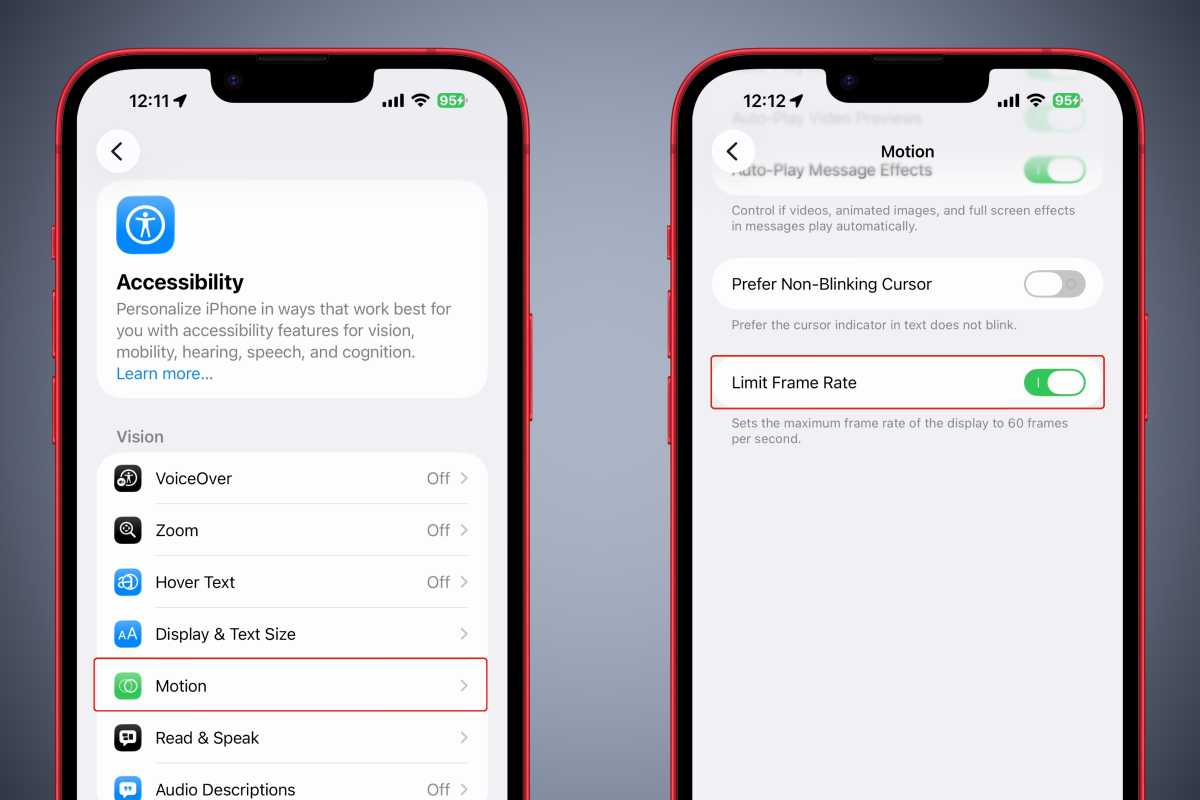
On compatible iPhones, you can reduce the refresh rate to 60 frames per second. This is particularly beneficial when using graphically intensive apps. This setting can help reduce heat build-up slightly.. The setting can be found in Accessibility under the Motion section. The setting is at the bottom, called Limit Frame Rate.
One-handed mode
Foundry
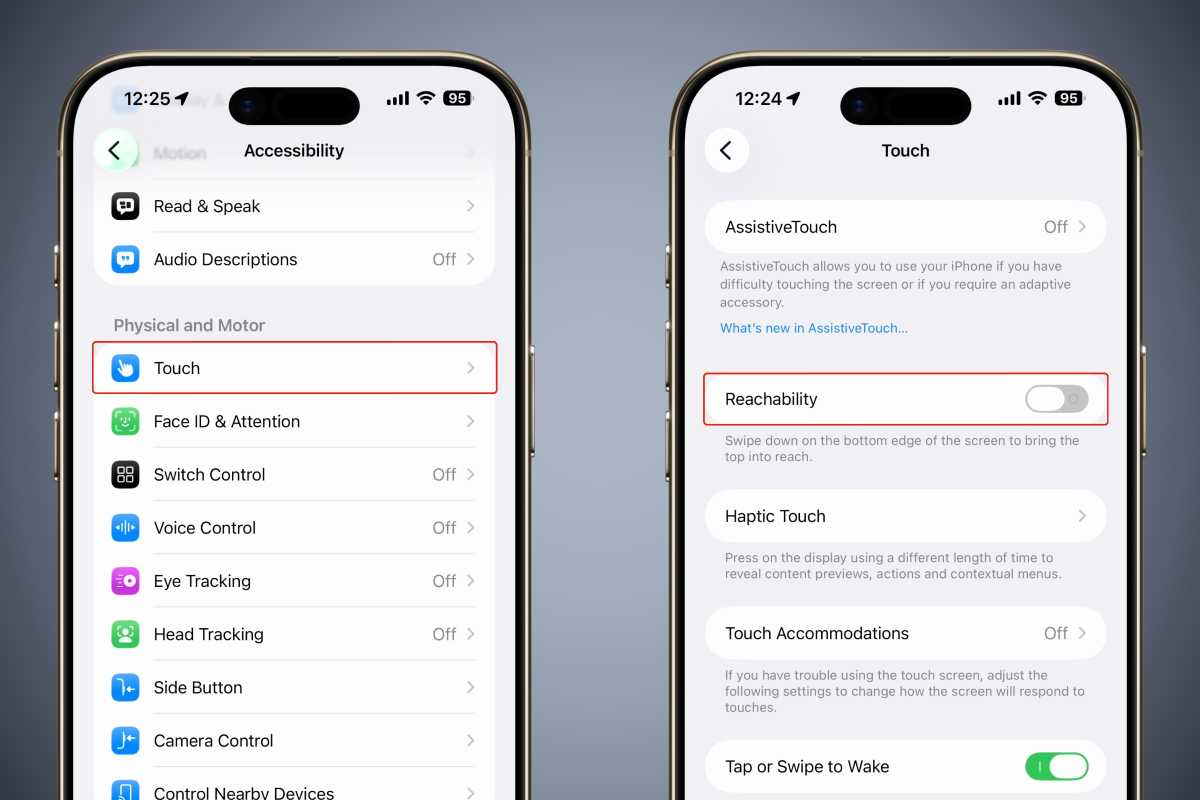
Having one-handed mode enabled is a must, especially on the larger iPhones. With a downward swipe at the bottom of the screen, all content moves down a little further. Those items become easier to reach. This setting is called Reachability, and the toggle can be found in Accessibility under Touch.
This article originally appeared on our sister publication Macwelt and was translated and localized from German.


