Summary created by Smart Answers AI
In summary:
- Macworld explores eight practical upgrades to revitalize older Apple devices without requiring annual hardware replacements, focusing on peripherals and accessories.
- Key recommendations include mechanical keyboards like the Keychron Q6 Max, ergonomic mice replacing Apple’s Magic Mouse, external monitors for better productivity, and protective iPhone cases.
- These strategic additions address Apple’s design limitations while enhancing functionality, comfort, and protection for existing Mac, iPhone, and iPad users.
We all want the latest Apple device, but it’s just not realistic to upgrade every year–or every two, three, or four years. But no matter how old your Apple device is, it can always be augmented by a high-quality peripheral that adds extra functionality or fixes a problem that Apple hasn’t addressed yet. From protective cases to a color-accurate display, there are plenty of ways you can level up your Apple setup in 2026.
We’ve rounded up a core selection of top product picks that have the potential to change your device. Upgrade your operation with any of these addons, and you’ll notice the difference right away.
iPhone: A more protective case
Let’s start with something simple: an iPhone case. Sure, Apple says its best iPhones are tougher than ever, thanks in part to their second-generation Ceramic Shield protection that wards off scratches and cracks. But in my humble opinion, that’s not enough.
Maybe it’s just me, but I’m so clumsy that I don’t trust Apple’s built-in defenses to stand up to the abuse my iPhones face at the mercy of a butterfingers like me. Instead, I clad my phone in a sturdy case to keep it safe and sound.
An iPhone case can make an older phone feel new.
Thomas Bergbold
I’m not a fan of all those angular, brutish cases that look like they stumbled out of a shoot for the next Rambo film. No, I want something that’ll keep things safe without looking obnoxious. For me, Apple’s own Silicone Case with MagSafe fits the bill. It looks sleek, supports MagSafe, and guards against slips and stumbles, too. Plus, the latest version is way less “sticky” than past editions of this case yet provides enough grip in the hand, meaning it’s easier to get out of your pocket and less likely to pick up lint.
Mac: A better mouse
Apple’s Magic Mouse is pretty iconic, and I love that its flat surface doubles up as a trackpad for macOS’s clever gestures. Yet not only is it lacking several key features found in rival mice, but its low-profile design can cause serious discomfort after an extended period of use. That’s no good for anyone who spends a decent amount of time sitting in front of their Mac.
Logitech
Instead, it’s a good idea to look for a much more comfortable mouse that still offers all the features you need. In my case, that’s been the Logitech Pro X Superlight 2. It comes with an ergonomic shape that fits neatly into my hand (and is suitable for most grip types), while it has enough customizable buttons without being overwhelming or cluttered.
But perhaps its best feature is its incredibly low weight. That lets it glide around your mouse mat with ease and minimizes the strain on your hand and wrist, enabling you to use it for hours on end. Compared to Apple’s Magic Mouse, the difference is night and day. For more suggestions, refer to our picks for the best mouse and trackpad.
Mac: A satisfying mechanical keyboard
Alongside a mouse, a keyboard is one of the most important Mac peripherals you can get if you’re interested in comfort and ergonomics. While Apple offers decent keyboards, you can do much better by looking elsewhere. In particular, a mechanical keyboard will give you a much more satisfying typing feel while bringing extra features that Apple doesn’t offer.
Picking from the enormous range of switches, layouts, keycaps, and connectivity options can be overwhelming, but thankfully, we’ve reviewed and rounded up all the best Mac keyboards money can buy to make your choice a little easier.
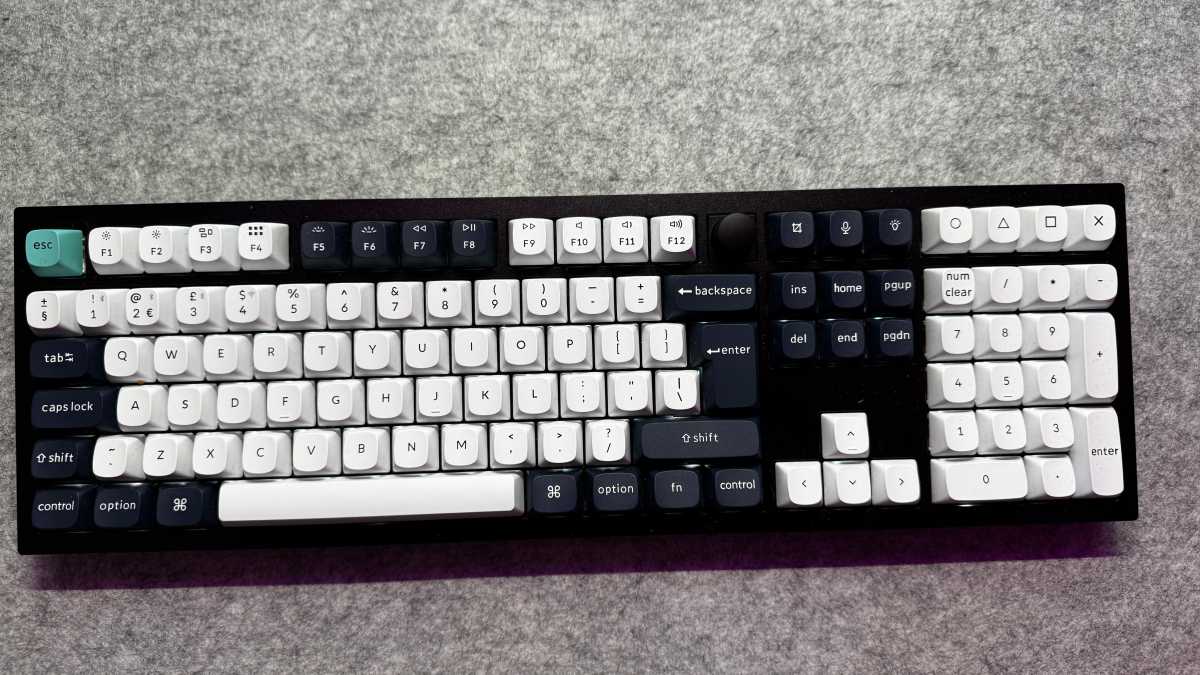
The Keychron Q6 Max
is one of the best keyboards that money can buy.
Foundry
My personal favorite is the Keychron Q6 Max, and it was our choice for the best Mac keyboard in 2025. Start using it and our reasoning is clear: every aspect is made to exacting standards and exudes quality, while it’s both quiet and comfortable in use with every key press. It doesn’t come cheap, but it’ll revolutionize your typing experience–ultimately, you’re paying for top-class excellence. If you get one, you’ll never want to go back to Apple’s Magic Keyboard again.
iPhone: Higher fidelity audio
One way that Apple’s devices have a clear advantage over their rivals is in the quality of their speakers. While most competitor devices push out weak, tinny sound, an iPhone, iPad, or Mac will blast you with high-quality audio right from the get-go. But even so, there are definitely times when a good set of speakers or headphones can take things even further.
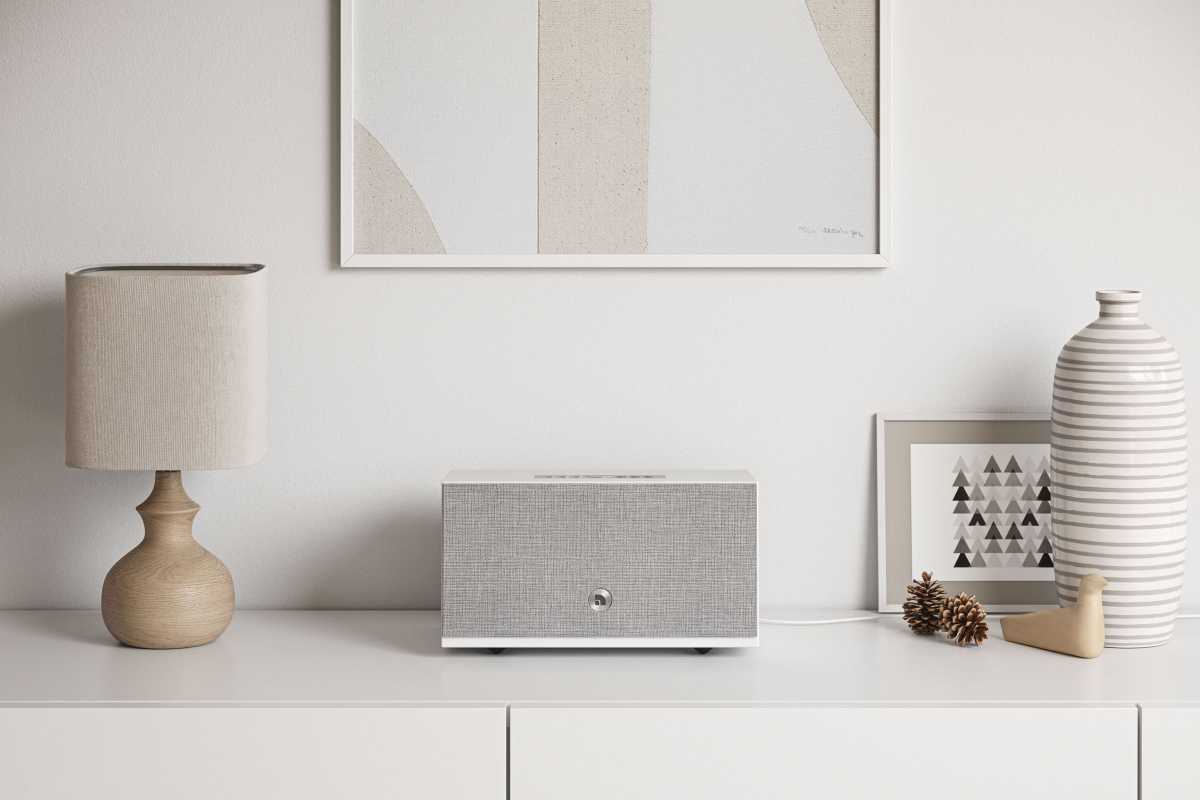
The Audio Pro C10 MK!! W is an excellent speaker for filling a room.
The Audio Pro C10 MKII W–our pick for the best speaker for sound quality that money can buy–is a great option if you want to elevate your Apple listening experience, whether you’re streaming Apple Music from your iPhone or watching the latest series on Apple TV. A set of over-ear headphones, meanwhile, can increase immersion during movies and gaming sessions by bringing you closer to the action, surrounding you with sound, and shutting out external distractions.
Right now, I’m using the Logitech Pro X 2 Lightspeed headset, which is incredibly comfortable to wear all day and produces excellent audio, whatever I’m doing. Sure, they’re not audiophile grade, but they offer a great balance of price and quality. Find something similar, and you’ll have a much better audio experience.
Mac: A comfortable desk chair
Back in the bad old days, I sat at my desk with a cheap office chair that someone had donated to me. I knew it was no good, but it’s hard to argue with free, right? Well, I wish I had, because the chair was absolutely no good for my posture.
Things completely changed when I purchased a better alternative in the form of the Secret Lab Titan Evo. This chair offers a wide range of support for your back, ensuring you sit comfortably at all times. As well as that, there are plenty of ergonomic adjustments, from the height and angle of the base to the position of the armrests.
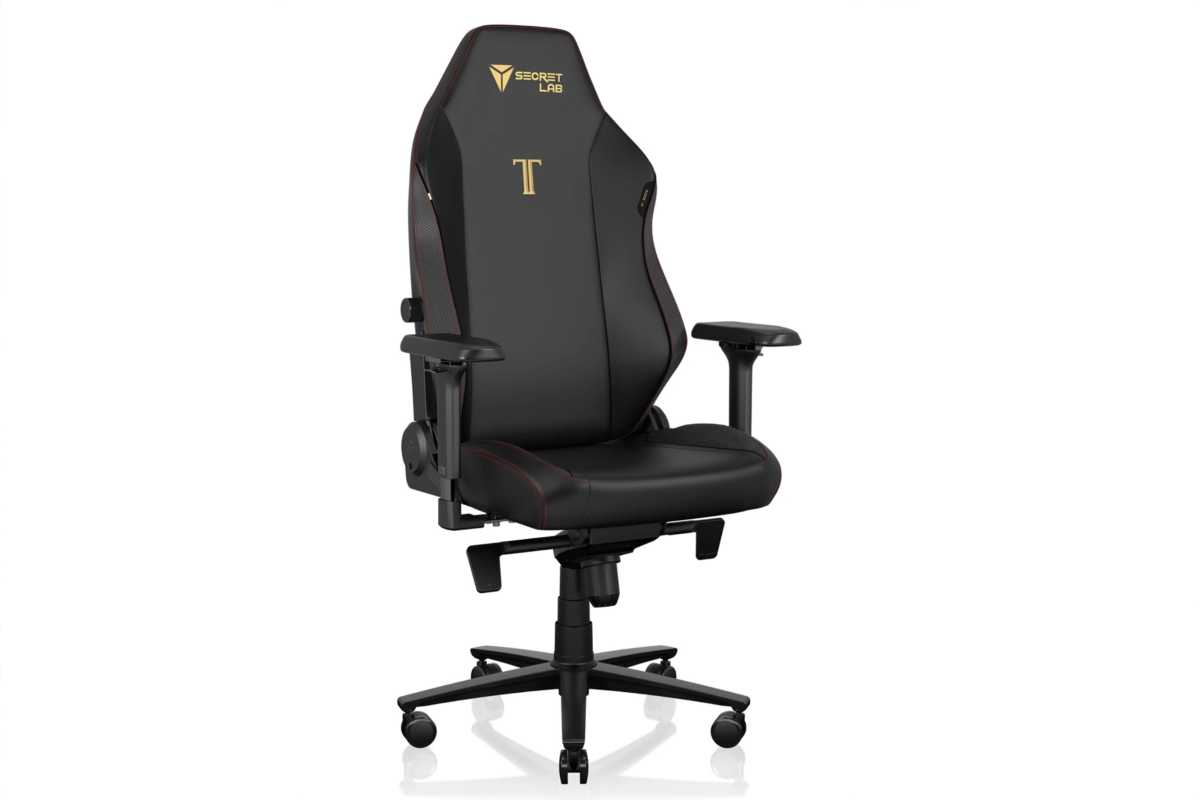
A good chair–like this Secret Lab Titan Evo–is often an overlooked investment.
Titan Lab
That’s important in allowing you to fine-tune the chair to fit your needs. Regardless of whether you get this particular chair, whichever option you choose should let you adjust its core elements to guarantee an ergonomic outcome. As with anything you spend a lot of time in–from your bed to your shoes–it makes sense to pay a little more for lasting quality. Your body will thank you later.
Mac: A spacious external display
Unless you’ve got a roomy 24-inch iMac, your Mac screen is probably a lot smaller than you’d like. MacBooks top out at 16 inches across, and while that’s fine in some cases, it can quickly make things feel awfully constrained.
In cases like that, I’d recommend getting a sizeable external display to give you more space to play with. My own pick is Dell’s S2721DGF, a 27-inch screen with a 1440p resolution. That’s generally seen as the sweet spot for size and resolution (a 32-inch display with a 4K resolution is another favorite), and its 165Hz refresh rate grants it smooth motion in games and buttery scrolling everywhere else. It won’t be perfect for everyone–photographers will want a more color-accurate display with a higher resolution, for example–but it meets my needs perfectly well.
It also solves the problem of laptop ergonomics. Back when I had that cheap desk chair, I also spent all day hunched over my MacBook, where its low-lying angle meant I had to use it with a painfully curved back. The combination was terrible for my comfort, but that was all eliminated when I combined a brand-new chair with an external monitor for my Mac.
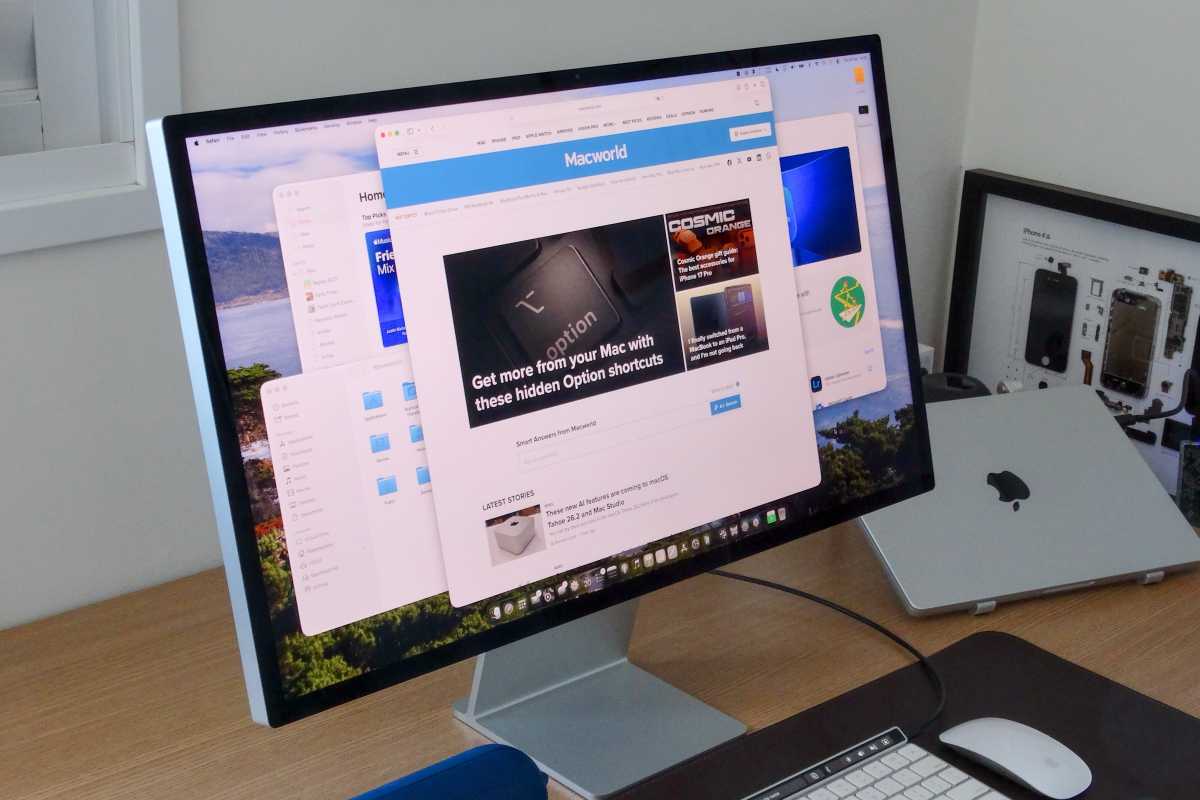
Apple’s Studio Display is a good choice, but you might be able to find comparable displays at lower prices.
Foundry
When everything is displayed through a standalone screen, not only does it greatly expand your work area, but it also allows you to put your content at a more comfortable position and adjust it to your needs. That’s a result you can’t underestimate. Check our guide to the best Mac monitors to help you find one that’s right for you.
Mac: A dedicated backup drive
We all know we should back up our Macs as often as possible, but you might feel that getting started is too much of a hassle. In reality, though, Apple makes it easy thanks to Time Machine, and all you need is an external drive to store your backups on.
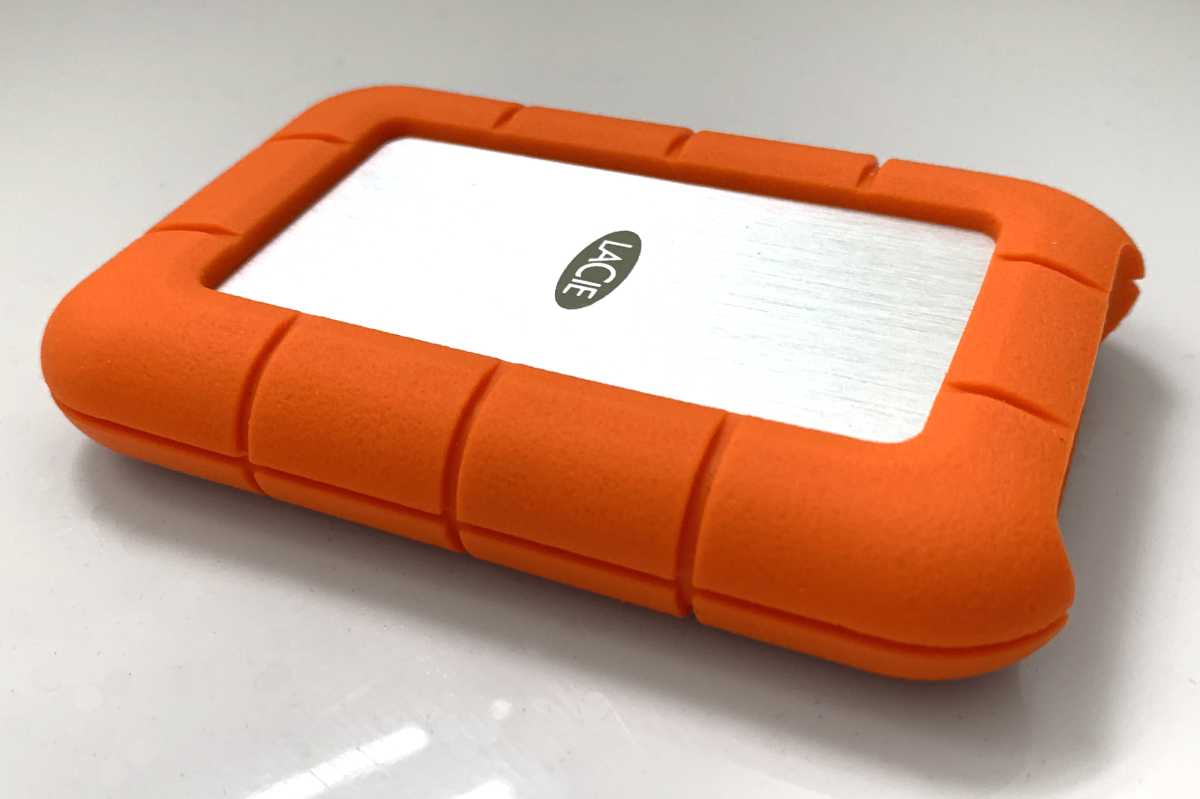
External drives come in a wide variety of capacities. An SSD is faster, but you can find hard drives at affordable prices.
Foundry / Jon Jacobi
Here, the world really is your oyster, and the drive you get depends on how much space you need and what you want to pay. Generally, you’ll want to get an SSD (solid-state drive) rather than an HDD (hard disk drive), as it’ll back up much faster, but an external HDD can offer significant savings.
Whatever you opt for, you’ll be getting peace of mind that your files are safe should the worst happen to your Mac. Combine an external drive and backup app with a cloud backup service and you’ll be well protected against disaster.
Mac: A faster USB-C dock
These days, iPhones, iPads, and Macs prioritize Thunderbolt/USB-C ports over other ports. That’s great if you’ve got lots of USB-C accessories, but not everything connects to your device this way. Worse, many Macs are seriously constrained when it comes to the number of ports available. Rather than giving up on your external devices or settling for an uncomfortably low selection of ports and slots, it’s worth considering getting a USB-C hub or Thunderbolt dock.
A USB-C hub can add a variety of extra ports to your Mac–I have the OWC USB-C Travel Dock E, for example, which has two USB-A 3.2 Gen 1 ports, one USB-C port, an HDMI slot, an SD card reader, plus a Gigabit Ethernet connector. It’s just what I need to augment my Mac.
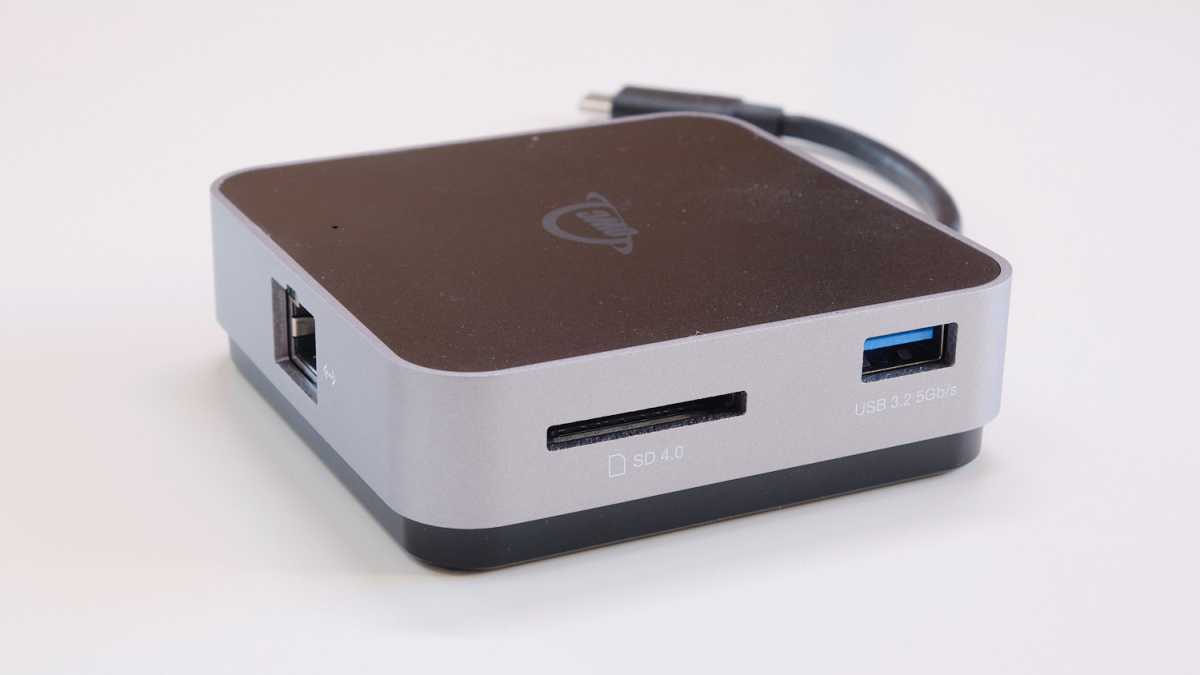
The OWC USB-C Travel Dock E is small but offers a variety of ports.
Thomas Bergbold
A Thunderbolt dock, on the other hand, is generally a lot more powerful and comes with a broader selection of ports. While a USB-C hub can be powered by your Mac, a Thunderbolt dock usually needs to be powered from a wall socket. In return, they can often handle more external displays, support higher transfer rates, and charge your Mac faster.
Many USB-C hubs work with mobile devices like the iPhone and iPad as well as the Mac, but be sure to check that both the hub and your peripherals work with your Apple kit before getting started.
Related posts:
 The Apple Watch Series 10 will have a larger screen, other ‘notable’ upgrades
 Wirelessly charge all your new Apple gear with 25% off this super-cool 3-in-1 stand
 Get ready for the Lightning-less iPhone SE 4 with low prices on Apple USB-C charging gear
 This Anker charging station will keep all of your Apple gear powered up for just $60