At a glance
Expert’s Rating
Pros
- The Surface Laptop you know
- New privacy screen is functional
- Voice focus feature is generally useful
Cons
- Unreasonably high price
- Same old, same old Construction
Our Verdict
Microsoft’s Surface Laptop 8 for Business is familiar, with a powerful Intel Core Ultra Series 300 (Panther Lake) chip inside. However, it’s extraordinarily overpriced, and the new additions don’t come close to justifying the higher price tag.
Price When Reviewed
This value will show the geolocated pricing text for product undefined
Best Pricing Today
Price When Reviewed
$3,299
Best Prices Today: Microsoft Surface Laptop 8 for Business
For the first time in decades, I wasn’t excited to review a Surface device. Now that I’m finished, I’m still not.
The Surface Laptop 8th Edition (or Surface Laptop 8) for Business has two things going for it: an upgrade to Intel’s excellent Core Ultra 300 series processors (Panther Lake) and a moderately useful privacy screen, which can dim and obfuscate the display at the touch of a button. Unfortunately, Microsoft has left the traditional Surface premium in place, a price ladder that pushes the laptop’s cost to unattractive heights.
To be fair, this is a business-class laptop. A consumer version of this Surface Laptop will follow later this year, with a Qualcomm Snapdragon X2 Elite Extreme chip inside it. Based upon my own testing of both chips, it’s probably fair to say that Intel’s Core Ultra 300 processor will outperform it by a slight amount, at least in graphics and maybe battery life.
Some Surface fans may say that Microsoft has reached the heights of the design and can go no further. Others may criticize it as stale. I fall into the latter category. I now use sticky notes attached to the underside of the Surface Laptops I review. Why? They’re all virtually indistinguishable from one another.
Mark Hachman / Foundry
Microsoft Surface Laptop 8: Configuration
Microsoft’s Surface Laptop 8 is available with display sizes of both 13.8 inches and 15 inches, formally known as the Surface Laptop for Business (8th Edition) or the Surface Laptop 8 for Business.
You can also purchase the laptop with a 13-inch display. Microsoft has never offered the Surface Laptop with such a screen size before, meaning that it is simply known as the Surface Laptop for Business, 13-inch. Buying the smaller Surface Laptop saves you several hundred dollars (prices start at $1,499.99, versus $1,949.99 for the 13.8-inch Surface Laptop) and limits your component options to just a Core Ultra 5 325 processor, up to 24GB of RAM, and up to a terabyte of SSD storage.
On paper and in the hand, the Surface Laptop 8 for Business is essentially identical to 2024’s Surface Laptop 7, which weighed 0.01 pounds less and was priced at $999 on up to $1,999.99. Sure, that was a consumer version of the Surface Laptop, using a Snapdragon X1 Elite… but the fact remains: the minimum price essentially doubled from two years ago. That’s a tough sell in any market.
At press time, the Surface Laptop 8 for Business is only available from Microsoft itself and at no other retailer. The configuration below reflects the 13.8-inch version.
- Processor: Core Ultra 5 335, Core Ultra 7 366H, Core Ultra X7 368H (368H as tested)
- Display: 13.8-inch (2304 x 1536) PixelSense Flow, 24-120Hz, Dolby Vision, anti-reflective ISO-9241 or anti-glare with integrated privacy screen (privacy screen as tested)
- Memory: 16GB/32GB/64GB LPDDR5X, 16GB as tested
- Storage: 256GB/512GB/1TB PCIe Gen 4 M.2 NVMe SSD, 512TB as tested
- Graphics: Iris Arc B390
- NPU: 50 TOPS
- Ports: 2 USB-C/Thunderbolt 4, USB-A, 3.5mm headphone hack, Surface Connect port
- Security: Windows Hello camera
- Camera: 1080p (user-facing, Windows Hello)
- Battery: Design capacity: 52.3Wh, Full capacity (as tested): 54.1Wh
- Wireless: Wi-Fi 7, Bluetooth Core 5.4
- Audio: Dual Studio Mics, Omnisonic speakers with Dolby Atmos
- Operating system: Windows 11 Pro
- Dimensions: 11.85 x 8.67 x 0.69in.
- Weight: 2.97 lb
- Colors: Platinum and Matte Black
- Prices: $1,949.99 to $3,699.99 ($3,299 as tested)
Surface Laptop 8: Something old, something new
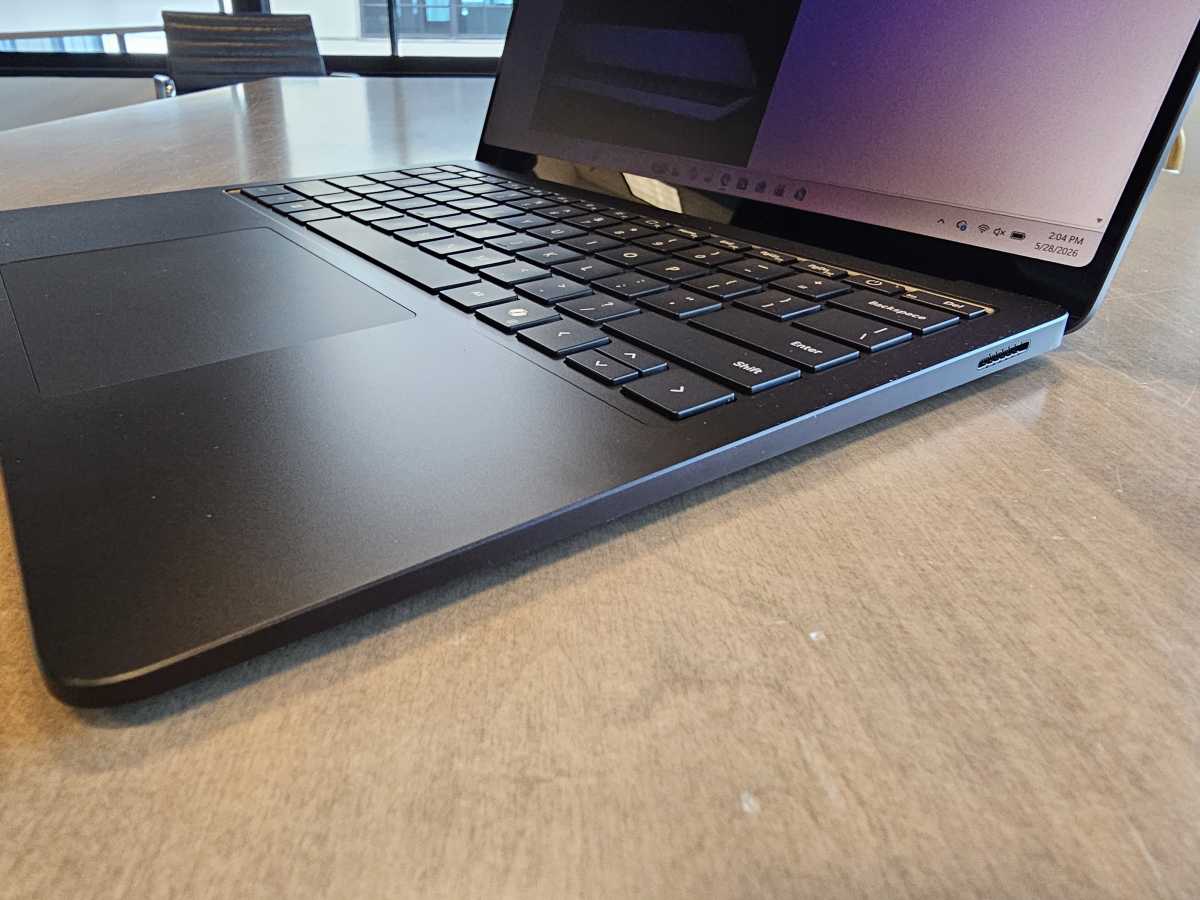
The aesthetics of the Surface Laptop haven’t changed in years. Out of the box, the Laptop fits comfortably in the hand, while the glossy aluminum chassis now boasts up to 64 percent recycled content. It does attract fingerprints, so keep a microfiber cloth around to polish them away. I don’t find 2.97 pounds to be uncomfortable, either in the hand or in my backpack, so you should have no concerns there.
A few things differentiate the Surface Laptop 8 from its predecessors. First, there’s the processor, a spec bump to the Intel Core Ultra Series 3 chip, known as Panther Lake. The available configurations include both the “base” Core Ultra 5 and 7 configurations along with the Core Ultra X7 368, which includes Intel’s powerful integrated GPU. Don’t be too excited by that, as the limited cooling within the Laptop thermally throttled the GPU considerably over prolonged periods. Second, there’s an odd omission. The Surface app, which is used to monitor the Laptop’s battery charging options and a few other tweaks. I had to download it from the Microsoft Store.
Finally, Microsoft added a “privacy screen” technology, exclusive to the 13.8-inch version.
Essentially, the Surface Laptop’s “privacy screen” technology, discussed more here, functions about the same as the the Privacy Display feature on Samsung’s new Galaxy S26 phone. It’s triggered by a brand-new key on the keyboard, mounted as the F1 key next to the Esc key on the top row. Press it and the display both darkens and configures itself to make it harder to read from the sides. (Microsoft explains how the privacy screen works, here, without explaining how it actually works.)
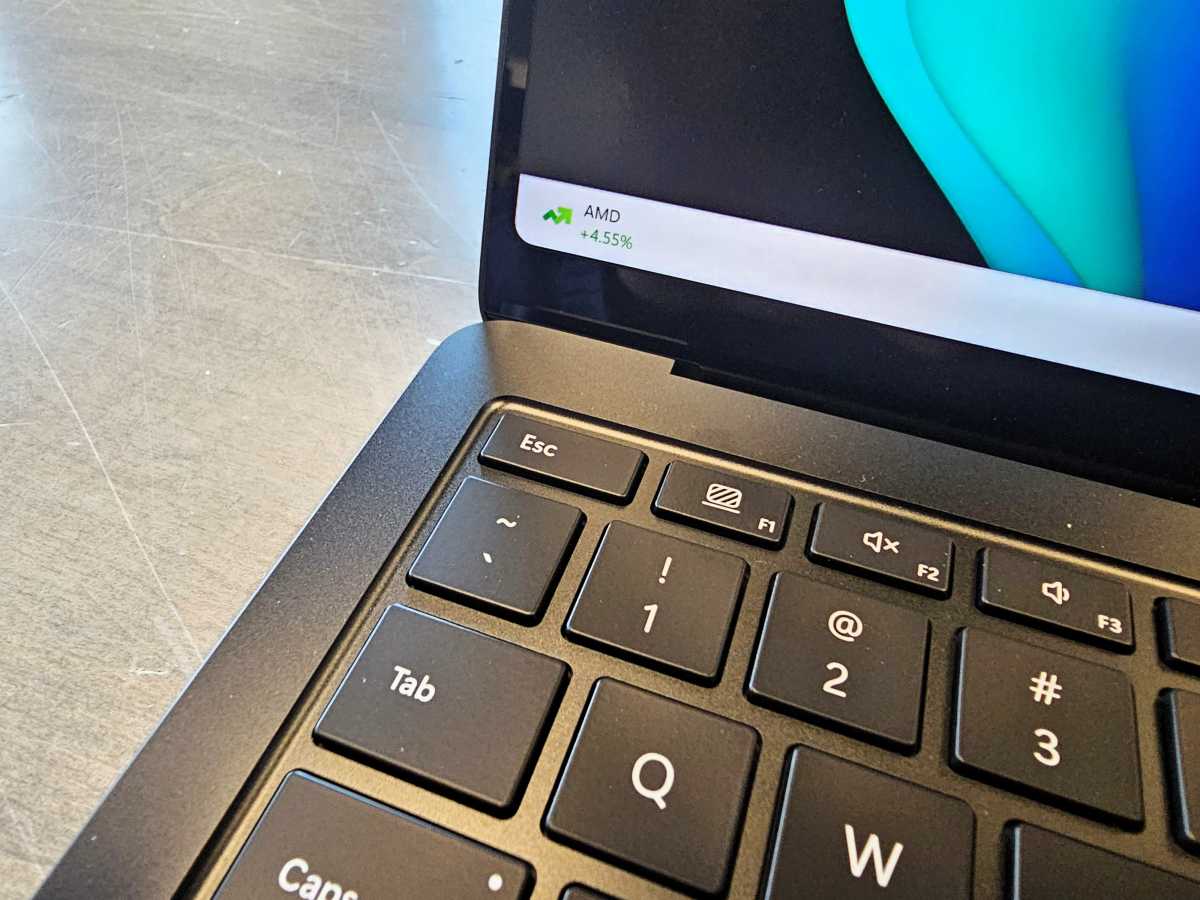
Mark Hachman / Foundry
The privacy technology uses the laptop’s ability to adjust its own display brightness both as a reaction to the user’s preferences as well as the ambient light. The dimmer the display, the harder it is for someone next to you to make out what’s on it. But a dimmer display is also harder to read, period.
In my tests, it was a mixed bag. In a dim room, from a few feet away, the display dimmed to almost opaque from about 15 degrees off the axis of the display. In a brighter room, more of the display’s content became visible. I could always make out the type of content on the screen, if I wasn’t able to read the entirety of it. Still, at least part of the screen was left relatively unobscured, unless I was seated far away.
It’s hard to characterize how effective the privacy screen is, simply because its effectiveness varied within the same set of conditions in the same room. Consider the following comparisons. In the first, the perspective changes slightly.
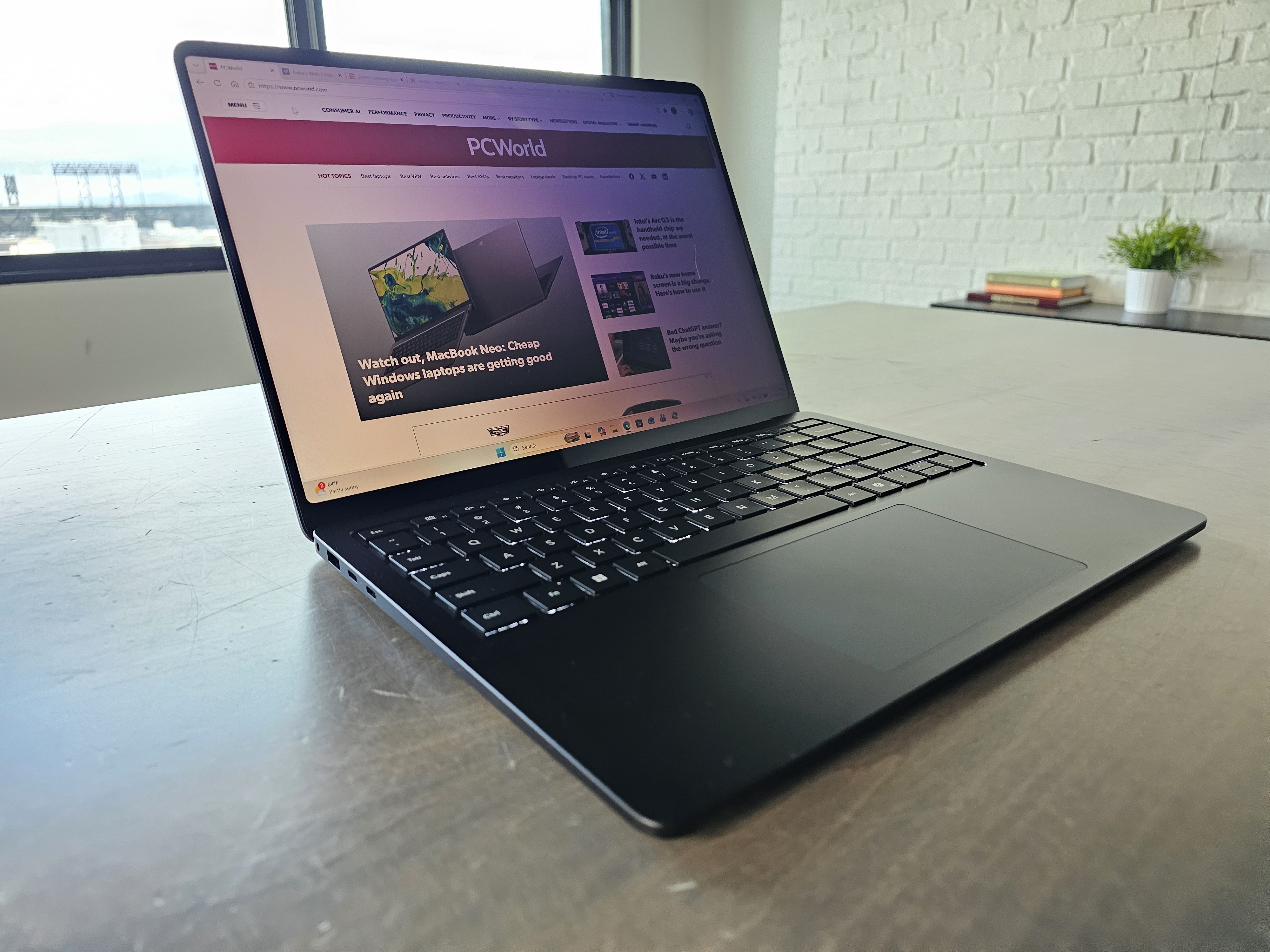
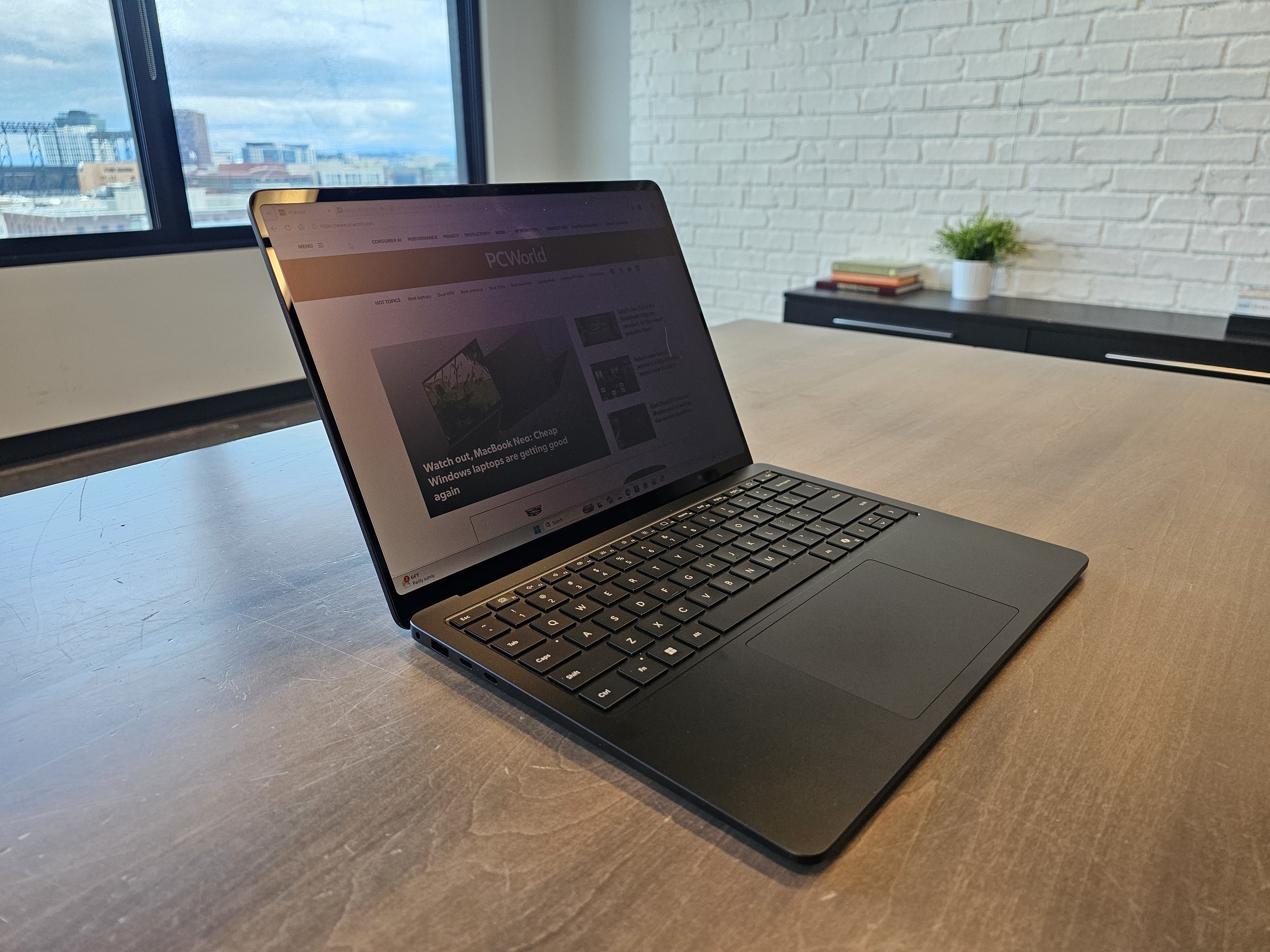
From that perspective, the privacy screen seems barely effective. For this, I tried to imagine what it would be like from the perspective of someone sitting in an aisle seat on an airplane, casually glancing toward someone working in the seat near the aisle. In this angle, I don’t really think Microsoft’s privacy shield works.
But, shot from another angle, it’s not too bad. It would have been helpful if Microsoft would have been able to tell us under what scenarios the privacy shield would be most effective. In a darkened airplane, with an overhead light on for illumination? In a fairly bright room such as this? In a dimmer room, the shield seemed more effective… but should you be forced to adjust your working conditions to compensate?
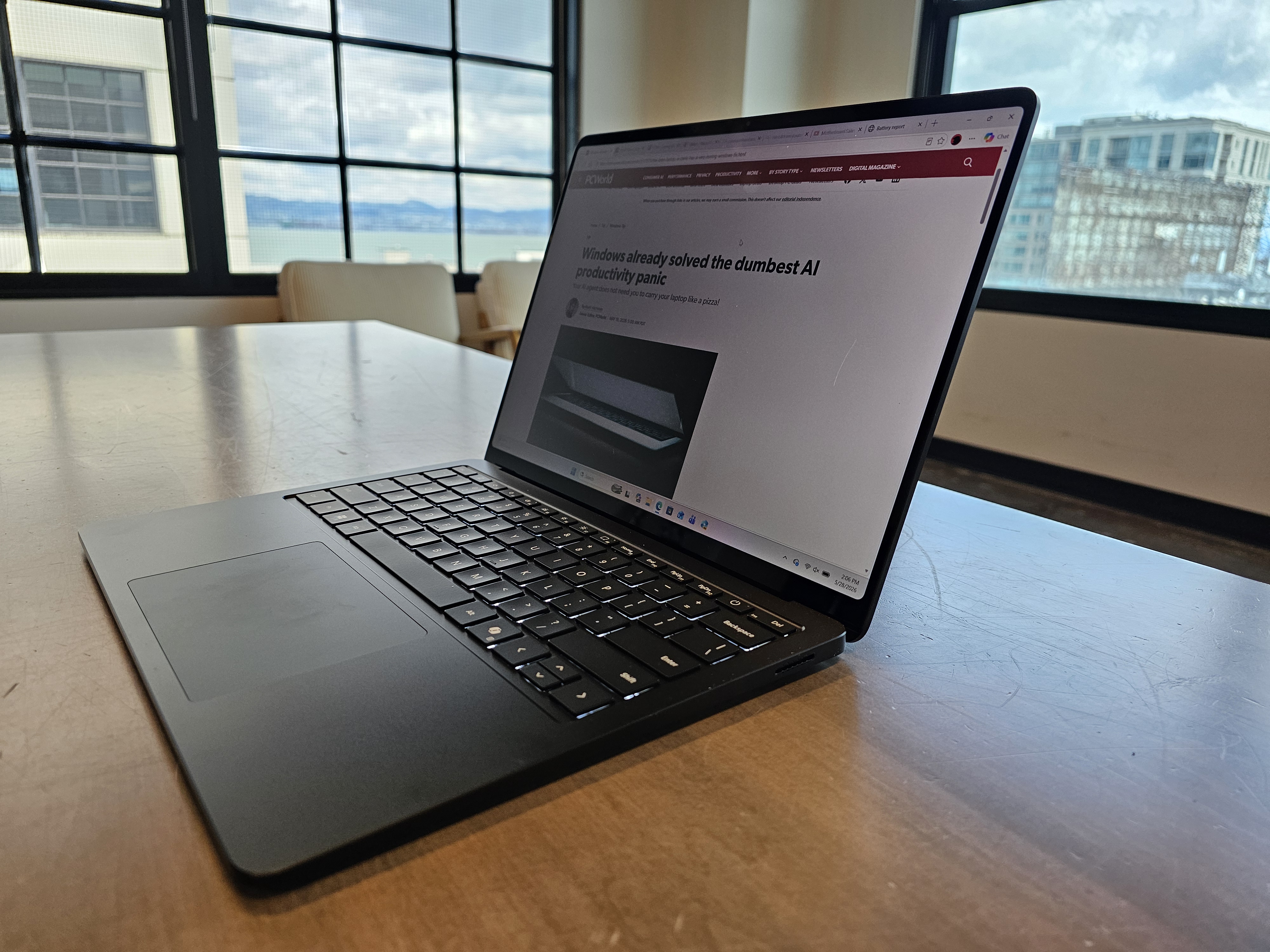
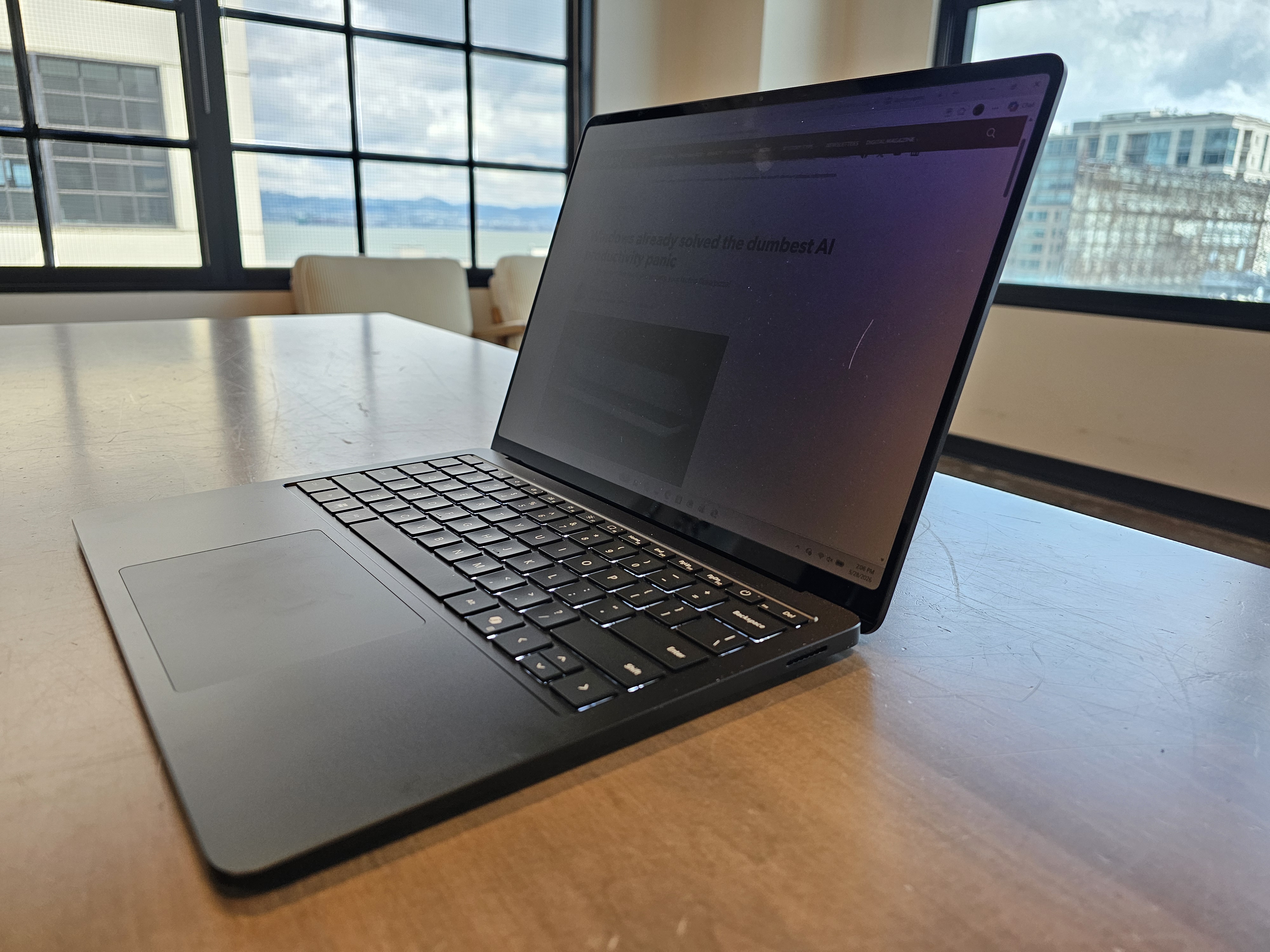
Finally, as I noted in my other article, I did notice a faint bit of speckling on the display, like a faint dusty haze inside the display glass. I suspect that’s due to the construction of the privacy glass itself; perhaps some of the pixels are offset slightly? In any event, viewed straight on, a white Web page had a slightly dusty appearance to my eyes. It’s not bothersome or even particularly distracting, but it was noticeable and detracted from the experience.
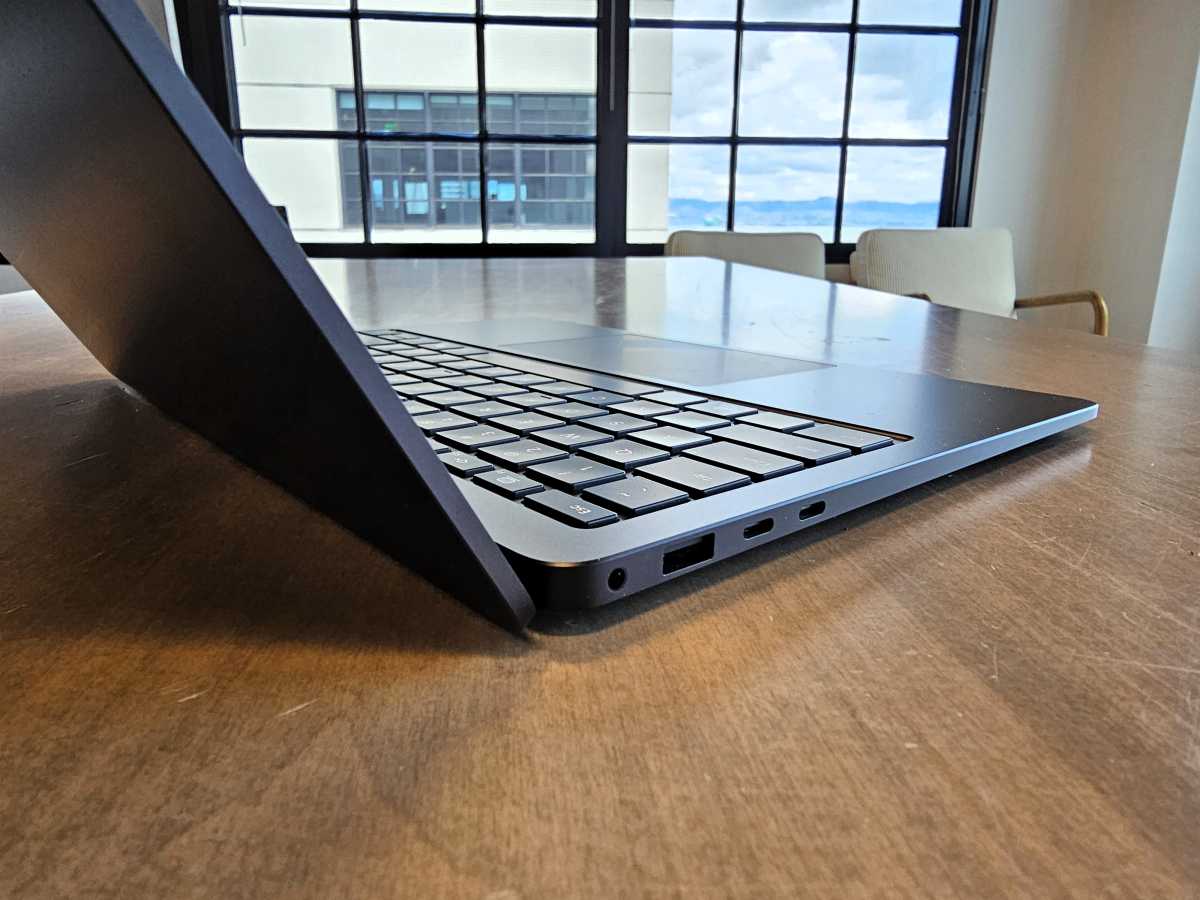
From an I/O perspective, it’s fairly straightforward: a pair of Thunderbolt 4 / USB-C ports adorn the left side, connecting to three 4K, 60Hz displays with the appropriate dock. (That means that a user who mouses with their left hand will be competing for space with the display cables.) There’s also a USB-A port and a headphone jack.
Mark Hachman / Foundry
On the right-hand side, the Surface Connect port, which vanished from the smaller Surface Laptop and new Surface Pro, still remains. This means that you can charge the device either with pretty much any off-the-shelf USB-C charger or the accompanying tiny little 60-watt Surface charger in the box.
All in all, the design of the Surface Laptop 8 for Business feels sturdy and well-constructed. It’s worth pointing out, however, that the external cooling design remains completely unchanged from prior generations, with air moving out through grillwork mounted in the hinge. Even on the laptop’s default setting (“Best Power Efficiency”), I didn’t have to do much for the fan to cycle on. Under load, however, the fan noise was unobtrusive.
Mark Hachman / Foundry
Surface Laptop 8: Display
Put simply, I don’t like it.
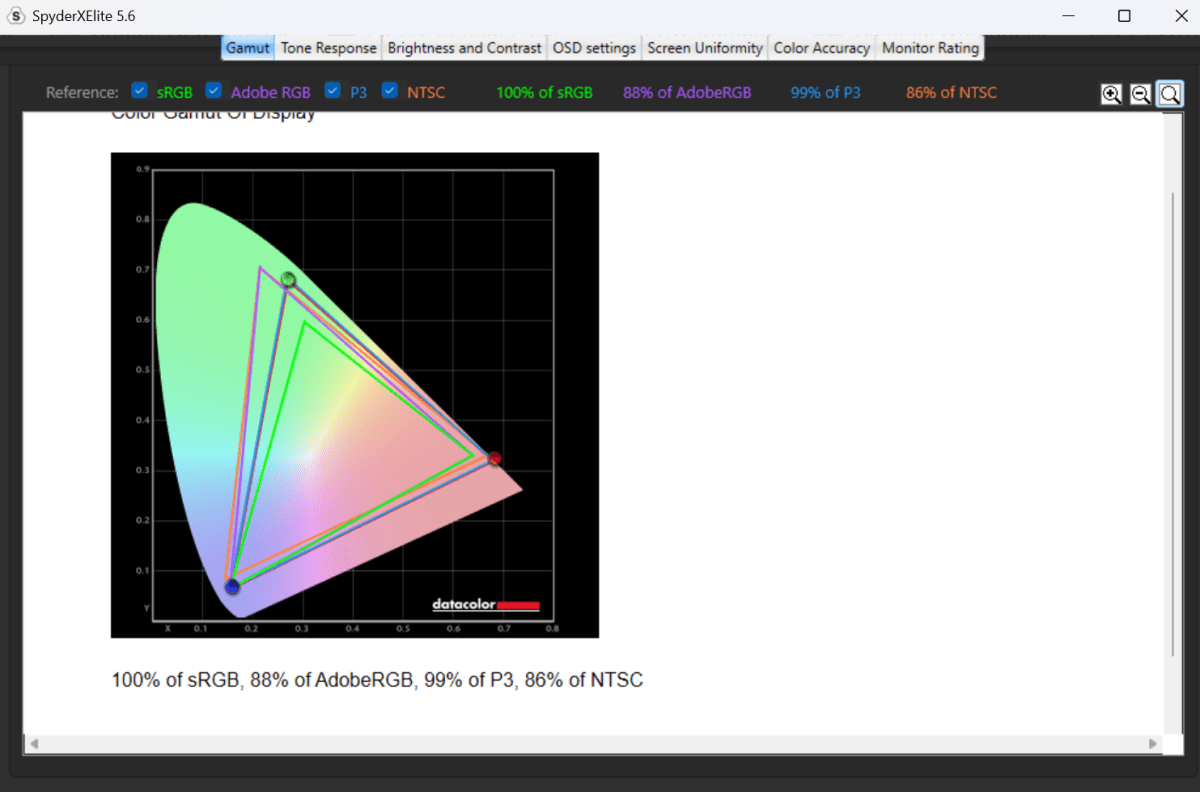
On paper, there’s nothing wrong with it. The HDR display boasts Dolby Vision IQ support with adaptive color and contrast up to 1300:1. Microsoft supplies two display modes, sRGB and Vivid. The company claims it can output up to 600 nits. I recorded 491 nits of luminance, total, though that dropped to 163 nits with the privacy shield on.
The color gamut is quite good, and remained the same with the privacy screen on and off.
Mark Hachman / Foundry
The Surface Laptop 8 does offer a touch display, but only for your finger. Pen input is not supported. The display doesn’t fully recline, anyway, which would make using a pen challenging.
What I do admire about the display is an underappreciated feature: its variable refresh rate ranges from 120Hz down to 24 Hz. That’s terrific. The 120Hz display increases the refresh rate when you’re actively using it, giving any mousing or gameplay a higher refresh rate, resulting in smoother motion. When you’re staring at a static screen (or off into space) the refresh rate drops to 24Hz, less than the traditional 60Hz. That reduces power without you really noticing, saving battery life.
Visually, however, there’s something missing. The display just looks a bit dingy, and there’s some faint speckling caused by the privacy screen that makes it appear to be a lower resolution than it actually is. I can’t really capture it with a camera. Perhaps I’ve been spoiled by the new wave of OLED displays, but for me this display falls short.
Surface Laptop 8: Audio and mics
Microsoft Surface devices were one of the first to distinguish themselves with their audio quality and nothing’s changed here. The included Omnisonic speakers are backed by Dolby Atmos and offer more volume than you’ll need to fill a quiet room. The audio did sound a bit flatter than I recall, but there’s no need for earbuds with this laptop. The audio quality sounds quite good up and down the range.
A pair of “Studio” mics boast a feature called “voice focus,” which works with certain undisclosed applications that “use certain Windows audio processing modes.” This means the algorithm will focus on your voice rather than on a background call. I used my standard tests, recording my voice using the Windows Sound Recorder app while playing background music and then white noise.
Both background noises remained somewhat audible, unlike the excellent noise filtering available on most Asus laptops. It did a much better job at filtering out the white noise, but seemed to become confused on whether to preserve or cancel out the vocalist on the music I played in the background.
Surface Laptop 8: Typing and touchpad
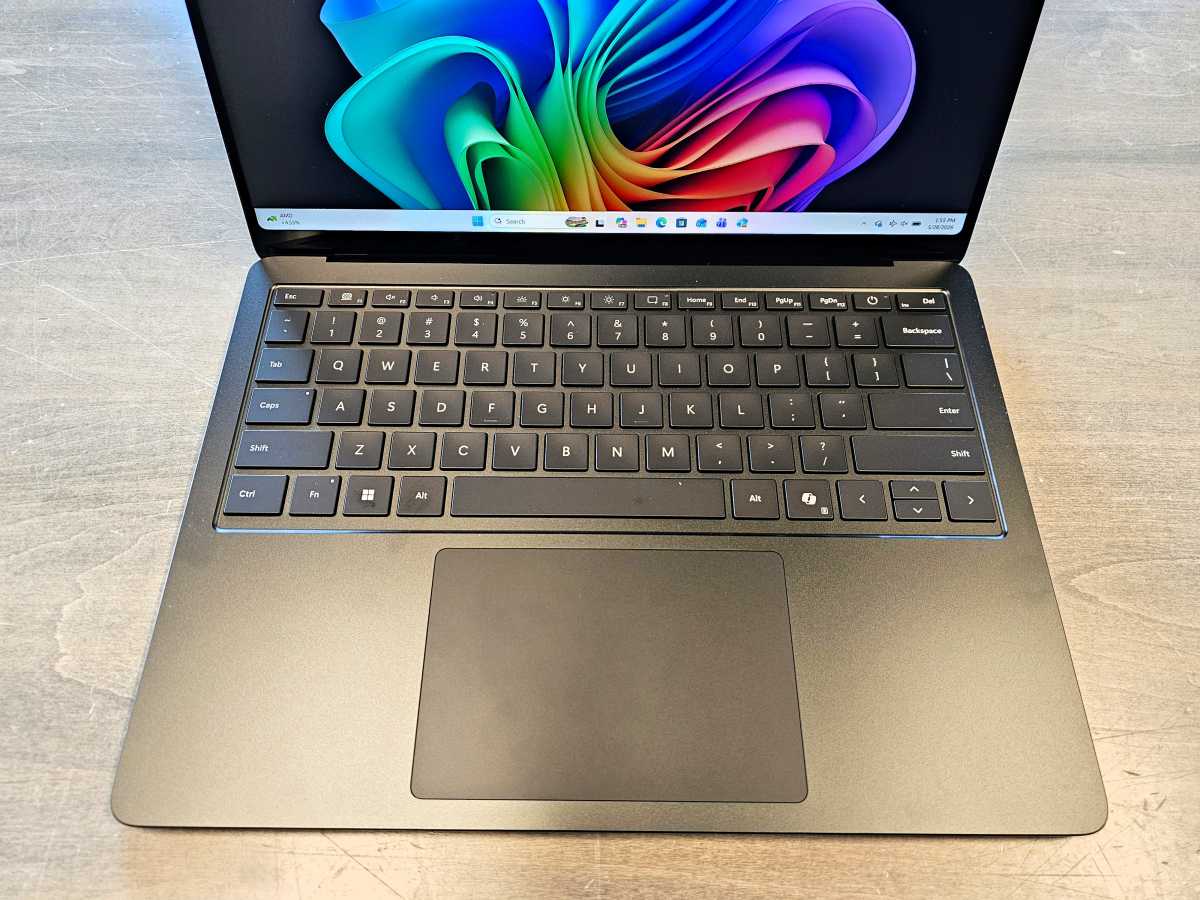
Again, the keyboard is one aspect of the Surface experience that was exemplary when it first debuted, but others have caught up to over time. Still, I have no complaints. I wouldn’t say it’s markedly better or worse than other laptop keyboards I enjoy using.
Mark Hachman / Foundry
The Surface Laptop includes the haptic touchpads which it began adding a few years back, making them clickable top to bottom. This is simply a superior choice versus the traditional touchpad, and Microsoft is also working to provide subtle haptic feedback when pushing the mouse cursor over certain screen elements, such as the “X” to close a window. It’s subtle, but a nice little detail.
The touchpad can be controlled via the Surface application, which was absent from my review unit. (It’s downloadable from the Microsoft Store.) That app allows you to select which portion of the Surface touchpad is set up for right- and left-clicking.
Surface Laptop 8: Webcam
The Surface Laptop 8 for Business includes a 1080p “Studio Camera,” which supports the Windows Studio Effects of background blur, framing, eye contact, and more. It also includes face authentication, a key portion of the Windows Hello technology. I never had a problem with Hello during the review period.

Mark Hachman / Foundry
Since this is a “business” camera, I want a webcam that makes me look at least somewhat professional in various lighting. And in the bright, LED lighting of an office, most work well.
Here, I tested the webcam both in the bright lights of our office as well as in more natural lighting inside my home.
I wasn’t particularly impressed with either, honestly. In natural lighting (the sky was overcast that day), the webcam performed fairly well, though the image was grainier than I would expect. In the office, though, the Surface Laptop 8 looked somewhat blah.

Mark Hachman / Foundry
Surface Laptop 8: Performance
For now, Intel’s Core Ultra 300 (Panther Lake)’s processor represents one of the best premium laptop processors that you can buy during 2026, though we have yet to test the recently launched AMD Ryzen AI 400 processor inside a test laptop. PCWorld has already written a number of stories testing the Intel Core Ultra 300 (Panther Lake) chips: at CES 2026, I tested Panther Lake and its Xe3 graphics core against several processors, with a followup examining Panther Lake and its effect on battery life.
Those platforms, however, tested thicker, more robust productivity laptops with superior cooling solutions like the Asus ZenBook Duo. When laptops operate under prolonged load, they can throttle or slow themselves down to prevent dangerous overheating. In the case of the Surface Laptop 8, it’s something to look out for.
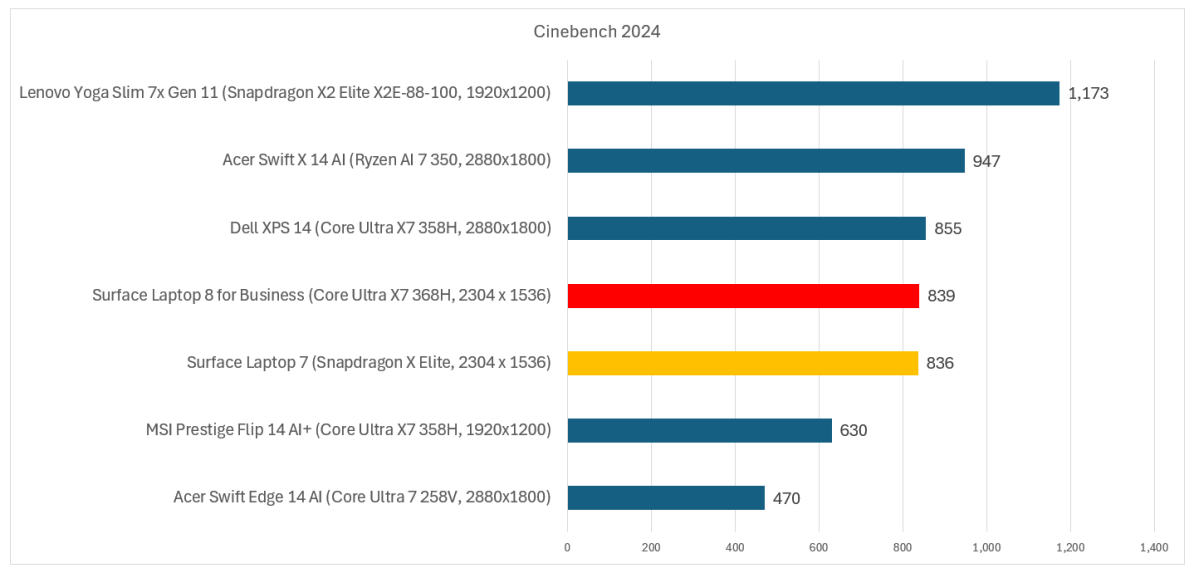
The Cinebench 2024 CPU benchmark includes a “thermal throttling” test, where the benchmark is run for a period of ten minutes, over and over. In his scenario, diminished performance is evidence of thermal throttling. You can compare a single run versus the prolonged test to see if this occurs. In this case, CPU performance fell from 773 to 689 in one comparison.
The 3DMark graphics test also allows a user to run a prolonged test — in this case, twenty benchmark loops — and it will track its performance over the course of the run. Here, the difference was profound. The benchmark scored highest in its first run, then dropped to about half the performance on subsequent runs and remained there throughout the remainder of the test.
What does this tell us? In some sense, performance numbers are deceptive. The Surface Laptop 8 works best in short bursts, at least where gaming is concerned, but it can’t handle prolonged sessions. On the other hand, the cooling seems more sufficient for CPU-intensive tasks, which can include the operating system, compressing and decompressing files, and general-purpose applications without a lot of visual elements. Note that, though we’re not testing the Laptop’s NPU capabilities, its 50 TOPS qualify it as a Copilot+ PC.
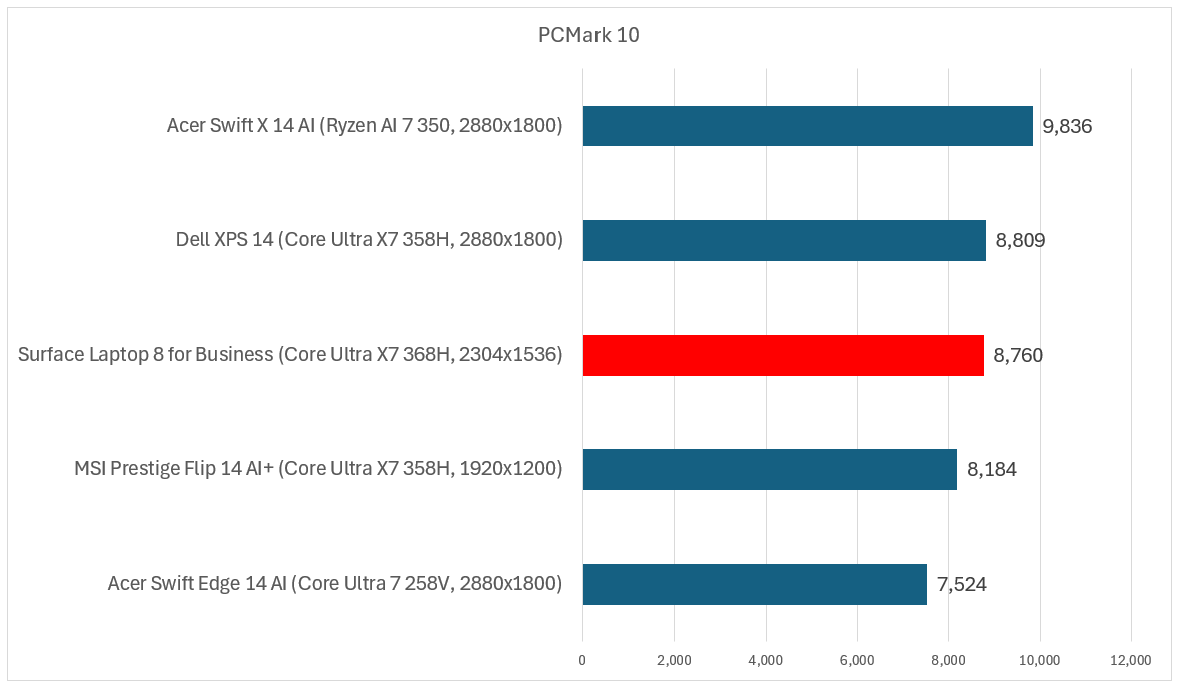
I compared the $3,299 Surface Laptop 8 with several 14-inch laptops of a recent vintage: the $1,699 Acer Swift X 14 AI and the related $1,499 Acer Swift Edge 14 AI. To that I added a pair of Panther Lake laptops, the $2,259 Dell XPS 14 and the $1,299 MSI Prestige Flip 14 AI+. Finally, I added two Snapdragon laptops, the $1,999 Surface Laptop 7 (2024) with its first-generation Snapdragon X1 Elite chip inside, and the $1,849 Lenovo Yoga Slim 7x Gen 11, which has a second-generation Snapdragon X2 Elite Extreme chip.
Mark Hachman / Foundry
The PCMark 10 test runs the gamut from video calls through Web browsing, CAD, and some light gaming, and it remains relevant due to the variety of applications that it tests. The Surface Laptop benefits a bit from its strong embedded GPU engine, though these are primarily CPU-centric tests.
For other tests that can’t be measured using PCMark, we use Cinebench 2024 instead. (Though there is a 2026 revision, we continue to use Cinebench 2024 for compatibility’s sake.) Again, Panther Lake is a powerful CPU, capable of strong performance in brief bursts.
Mark Hachman / Foundry
That prolonged Cinebench stress test, however, warns that you should expect lower CPU performance over prolonged periods.
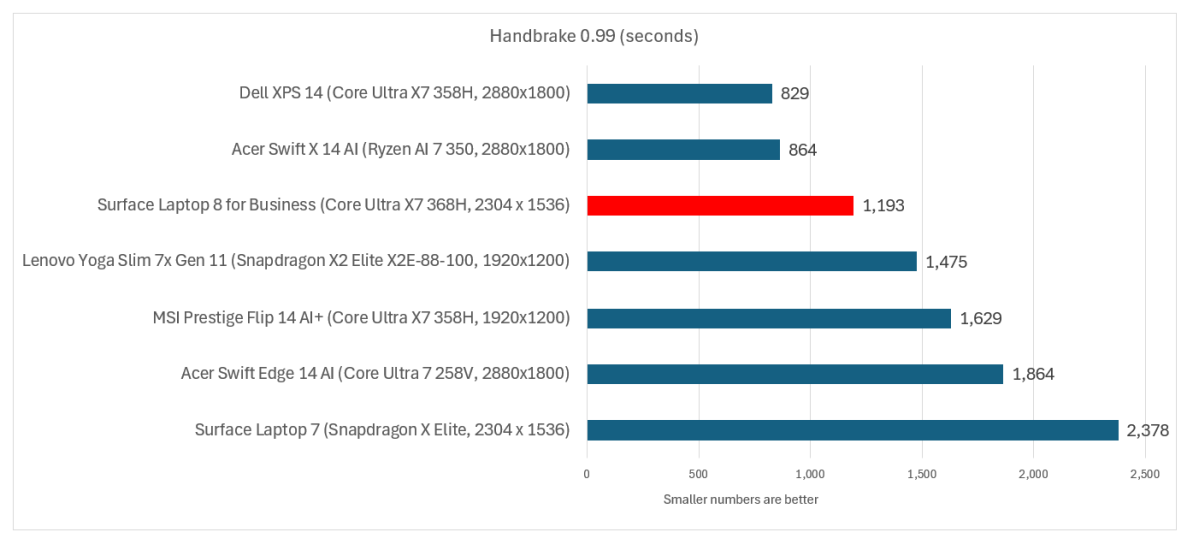
Handbrake was originally the test that we used to assess how well the laptop and its processor held up over a prolonged period of time. The app itself is useful, though somewhat archaic. It simply transcodes a video file into a format used for storing on a tablet. With the prevalence of streaming apps, that transcoding now tends to happen behind the scenes. Still, it’s an effective measure of sustained CPU performance.
Mark Hachman / Foundry
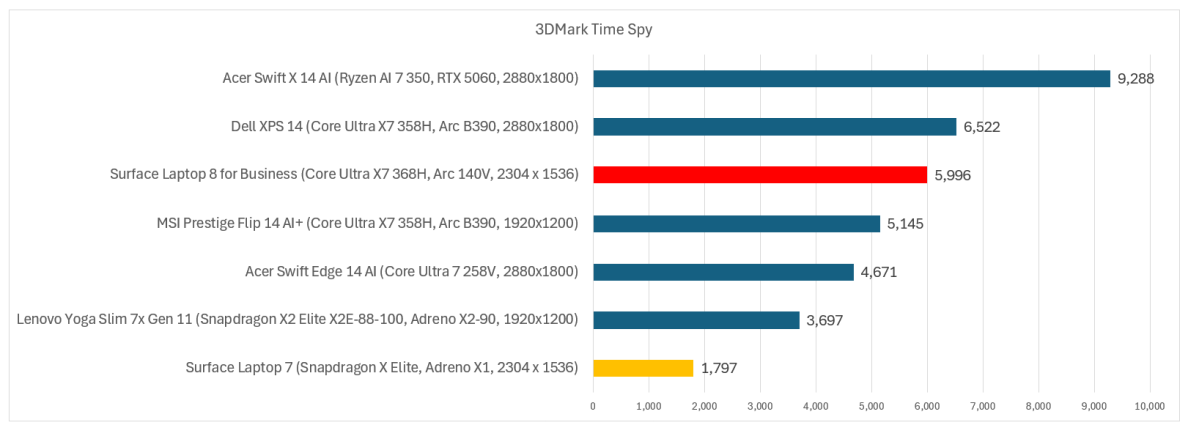
Our traditional measure of 3D performance is 3DMark’s Time Spy benchmark, which measures 3D performance in a way that simulates a 3D game. Again, I’d expect the Surface Laptop to perform quite well here and it does.
However, I noticed some excessive variation on the scores this laptop reported. From a cold start, the benchmark scores climbed to a high of 7,063. At its lowest, the score dropped to 4,601. For each run, I let the laptop cool for a standard ten minutes. With this laptop, however, the results show a distinct difference between running the benchmark at the beginning of the day versus giving it a chance to cool for ten minutes after running a series of other benchmarks. This is unusual behavior and a mark against it. I’d like to think that a quality laptop will deliver consistent performance.
Mark Hachman / Foundry
Given that the Surface Laptop 8 is a productivity machine, I didn’t test it extensively in terms of gaming. However, Intel’s XeSS upscaling and frame generation make an enormous difference.
Cyberpunk: 2077, tested at 1920×1080 Low, generated an average frame rate of 50 frames per second using just the game’s rendering engine, which is close to playable. But with the additional features turned on, frame rates jumped 133 frames per second, which is more than playable. Keep in mind that the benchmark runs for about a minute, so I’d expect frame rates to drop while playing for a sustained amount of time.
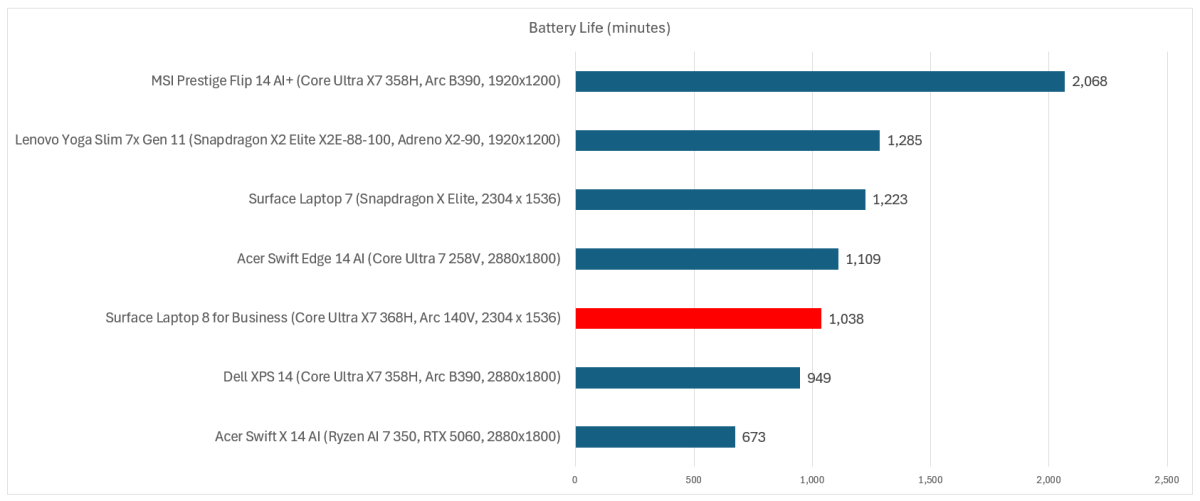
I look for exceptional performance in a productivity laptop, but battery life is equally important. Some of the early Panther Lake laptops I reviewed included massive 99Wh batteries, the maximum allowable on a U.S aircraft. To keep the weight low, Microsoft shipped the device with a 52Wh battery. That obviously had an effect on battery life, though not a dramatic one. I’m perfectly fine with shaving off a bit of weight for 17.3 hours of battery life, even if it will be a little less while doing productive work.
Mark Hachman / Foundry
Should you buy the Surface Laptop 8?
Shave $1,000 or so off of the price tag and I think that I could justify the price of the current Surface Laptop 8 for Business. As it is, this laptop is simply far too expensive to recommend, even to those on a business budget.
It’s worth noting that the laptops we’re comparing the Surface Laptop shipped recently, so they too are subject to the inflationary costs of memory and storage that are in play here. Otherwise, does the Surface Laptop offer anything compelling? Besides the privacy screen, not really. In terms of performance and battery life, I can find laptops that exceed those for much less.
In fact, this generation of Surface Laptops seems confused. Consumers would probably prefer a moderately powerful GPU for gaming, while business travelers may prefer strong CPU performance. We’ll probably see that in the upcoming Surface Laptop for consumers, likely running on a Qualcomm Snapdragon X2 Elite chip. Battery life should be roughly the same. But consider this: Dell is launching a Dell XPS 13 with a 13.4-inch OLED screen for as little as $699.
I feel like I’ve spent enough words on this laptop. It’s overpriced. Don’t buy it.


