A lot of people don’t know Windows has built-in encryption. Called BitLocker, it’s supposed to protect your files from unauthorized access when your PC is off or otherwise locked down. But not long ago, a security researcher discovered a loophole. Since then, I’ve been asked if BitLocker in Windows 10 or 11 Pro (and its Home license variant, “Device Encryption”) is still worth using.
I still say yes—because a couple of other apps can keep sensitive files safe. And, in fact, I like them best in combination with BitLocker.
How BitLocker works
When active, BitLocker encrypts your data within Windows with a set of keys. Part of them is stored within your motherboard (TPM) or CPU (fTPM). A second part is saved on your storage drive. And then a recovery key must be saved by the user to a removable disk, printout, or the cloud.
For Home license users, Device Encryption typically saves a recovery key to the cloud by default. But always double-check it’s there—you’ll regret not having it when you need it. (Please don’t ask me how I know. I’m not over the experience yet.)
When your PC is off, its Windows data is scrambled using XTS-AES 128-bit encryption. Someone won’t be able to tell what you have saved on there, whether tax documents, family photos, or anything else. It also prevents someone pulling the drive from your PC to read its contents through another computer.
It does not protect your files when you’re logged into your system. For that, you’ll need a dedicated encryption app—a.k.a., how you can sidestep the current issues with BitLocker.
For a fuller rundown of how BitLocker and Device Encryption work, check out our guide that explains how to use it.
The current problem with BitLocker
Microsoft
A couple of months ago, news broke of a major BitLocker vulnerability (“YellowKey”), where someone with physical access to a PC could bypass the encryption. The workaround gave full access to files and didn’t take much time to execute. Microsoft issued a mitigation, but not a full fix for the underlying issue.
Then another BitLocker vulnerability came to light in June, found by the same researcher who discovered YellowKey. This one also involves a physical attack that allows bypassing of the encryption.
Why I’m still using BitLocker
While these BitLocker vulnerabilities are concerning, they’re also not unexpected. No security system is foolproof, digital or physical.
On average, someone getting their hands on your PC for its data is less likely. The odds are more in favor them wanting to take and fence the machine, or stealing to wipe the drives and use computer themselves. (Obviously, this risk calculation changes for work PCs or if you deal in secrets, but we’re talking about most folks here.)
But for extra protection, you can use an additional encryption app for your sensitive or private files. It’s what I recommend even when BitLocker doesn’t look cooked, as the kids say.
The two Windows encryption apps I recommend
Using a separate encryption app doesn’t break or conflict BitLocker. Think of it like putting a locked box within a bigger locked box.
When you sign into your PC, all of your encrypted Windows data becomes accessible. But if you encrypt specific files with another program, those remain scrambled until you specifically unlock them.
Of the two free apps I recommend, one lets you create folders similar to standard ones in Windows. The other is best for creating a container to put documents in. Both are open source—a nice bonus to help vet their security strength, as anyone can see what’s in the code.
Cryptomator
PCWorld
Cryptomator is easiest for most people to use—to get started, all you must do is choose a name, location, and password for your encrypted folder. Afterward, enter your password to gain access to it as a virtual drive.
The app handles all the work for applying the encryption (AES-256), assigning a virtual drive letter, and then mounting/dismounting the folder as a virtual drive. It’s seamless and also works with cloud services like Dropbox, Google Drive, and OneDrive.
(For cloud-based services, install that app in Windows. Then create a Cryptomator folder within the app’s designated folder to secure your cloud-saved files.)
Another advantage of Cryptomator is that its folders expand to hold whatever amount and size of files you wish. You don’t have to worry about storage management outside of your physical drive’s capacity.
VeraCrypt
I like to use VeraCrypt for situations where stronger encryption is necessary. Unlike Cryptomator, VeraCrypt’s interface is more advanced, with more steps and settings during setup. For example, you’ll choose your encryption algorithm.
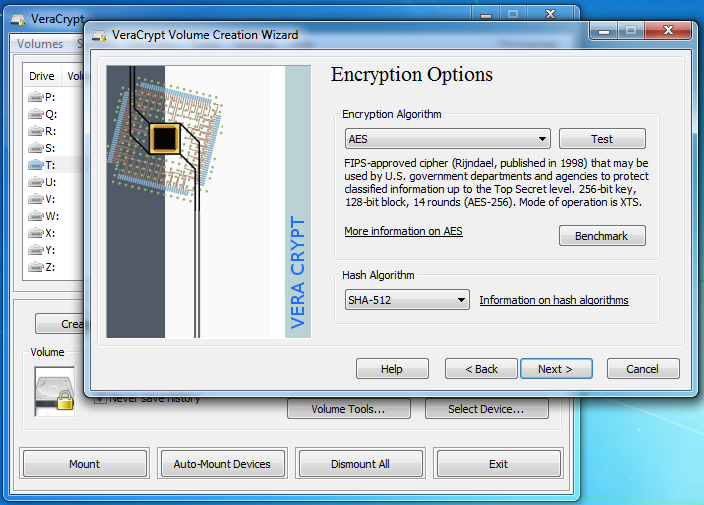
A screenshot provided by VeraCrypt’s developers. Yes, that is a Windows 7 background. No, the interface hasn’t changed since then.
VeraCrypt
You can use the app to create an encrypted container file or to encrypt a whole drive. For Windows users, I recommend leaving BitLocker to handle encrypting the whole of your PC’s internal drive. Create smaller containers as needed for high-security files. The bigger the size of your container, the longer it will take to decrypt, especially if you choose a very strong algorithm.
VeraCrypt can be used to encrypt whole drives, including portable USB thumbsticks and external drives. But you can run into issues like Windows not recognizing the drives (and asking to reformat)—which is why I advise most people to just use its container files.
Tip: To keep VeraCrypt’s presence even quieter on your PC, you can use its “portable” version. You won’t need to go through a standard Windows install. Instead, it runs just out of a folder within Windows.
The best strategy for securing your sensitive files
I usually suggest this approach:
First layer: BitLocker. It protects general files are not too personal or private. It is also a bit of defense for sensitive files that accidentally end up stored out in the open in Windows (like in temporary storage).
Second layer: Cryptomator. Put tax documents, banking statements, private photos, and other files you don’t access as often in a Cryptomator folder. Remember, you can make more than one Cryptomator folder, so you can have separate ones for different types of docs, or based on frequency of use.
Third layer: VeraCrypt. Put ultra-sensitive documents (e.g., scans of your identity paperwork) with stronger encryption in a smaller encrypted container file. You can then store a copy on a USB drive in a “go bag” or in the cloud for emergencies.
Encryption and encrypting your files may sound complicated, but it’s simple once set up. Your biggest challenge: Save your passwords and any recovery keys in a secure location. Otherwise, if you lose or forget them, you’ll be locked out. (A password manager can do all the heavy lifting for you here!)


