Odds are good that if you have a desktop computer, you spend a lot of time sitting at your desk. So, why shouldn’t your desk be as comfy and efficient as possible?
While upgrading the computer itself can often take serious dough (especially these days with the AI-driven hardware shortage), you can spend a lot less to improve your workstation in some surprising ways.
Here are my favorite ways to improve a PC workstation for under $100. Most of these cost less than that—many under $50!
A fancy desk mat
Oakywood
No matter what kind of mouse you use or what kind of desk you use it on, you need something in between to protect both of them. A $10 mouse pad can do just fine, but gamers likely want something bigger—and why stop at big when you can get something freakin’ huge? Like this 36-inch-wide Corsair desk mat that goes under your keyboard and mouse? It’s only $30. I splurged a bit on this fancy-pants mat and it’s so comfy, I don’t think I can ever go back to a normal one.
High-quality speakers
Edifier
If your workstation is isolated and you don’t need to worry about disturbing others, a decent set of high-quality speakers is a great quality-of-life upgrade. The Edifier R980T is a go-to for fantastic audio on a budget, and as of this writing it’s available for $100—smack dab within our workstation price range. Our guide to the best budget computer speakers offers plenty of other top-notch options for less, too.
A good microphone
Logitech
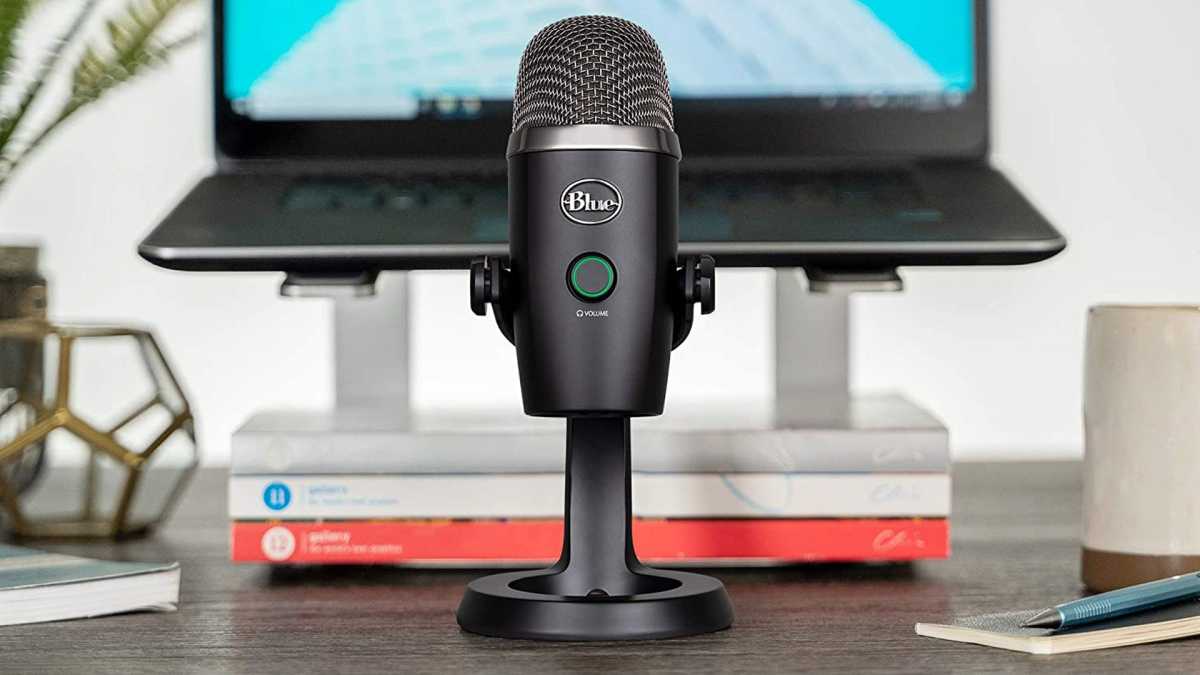
If you’re one of the many who find themselves in more video calls these days, it may be time to upgrade from your lousy laptop mic. While you can get away with a subpar webcam, a bad microphone can be a major hindrance to communication. A proper USB mic doesn’t have to be expensive, like this Blue Yeti Nano that packs the same tech that made the original Yeti the go-to mic for podcasters everywhere, except now in a smaller and cheaper package. Our picks for the best USB microphones for streaming includes several other killer options for under $100.
Headphone/game controller holder
BrainWavz
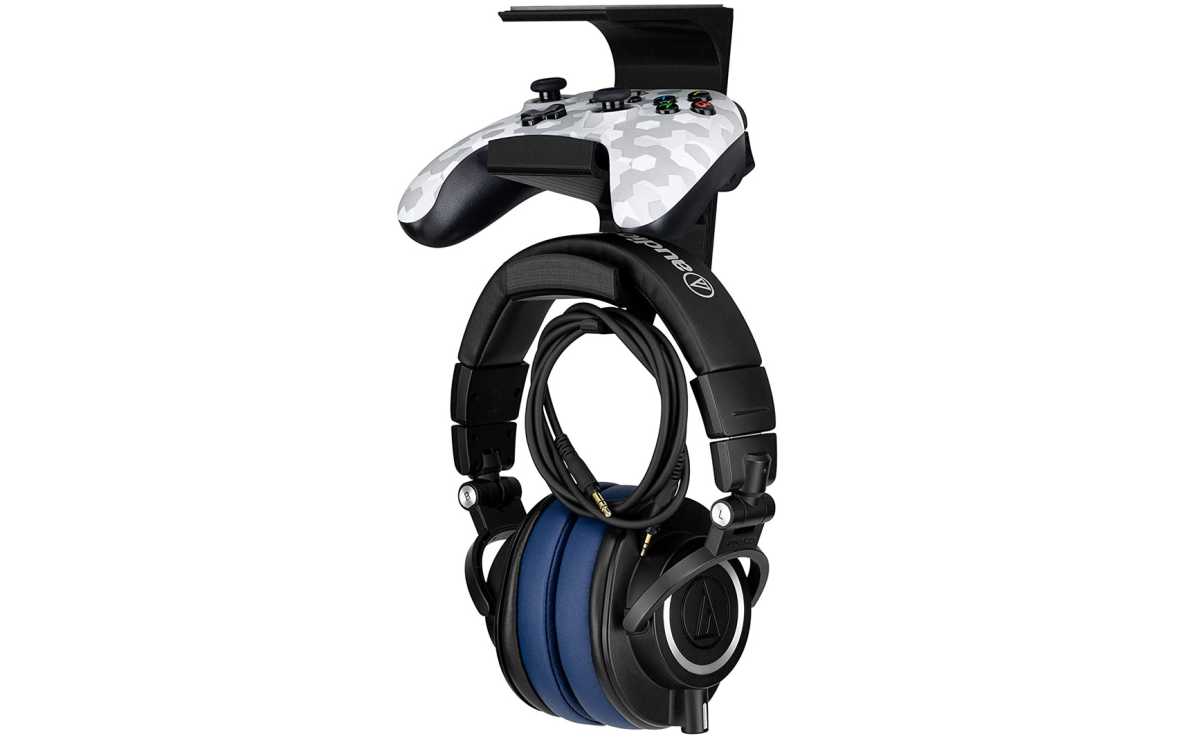
If you have a pair of bulky headphones and/or a game controller at your desk, free yourself of desk clutter. You need a handy place to put them when they’re not in use, and the answer is to stick ’em underneath or on the side, out of the way but still easily accessible. I love this one by BrainWavz that hides underneath my desk surface.
A monitor arm
HUANUO
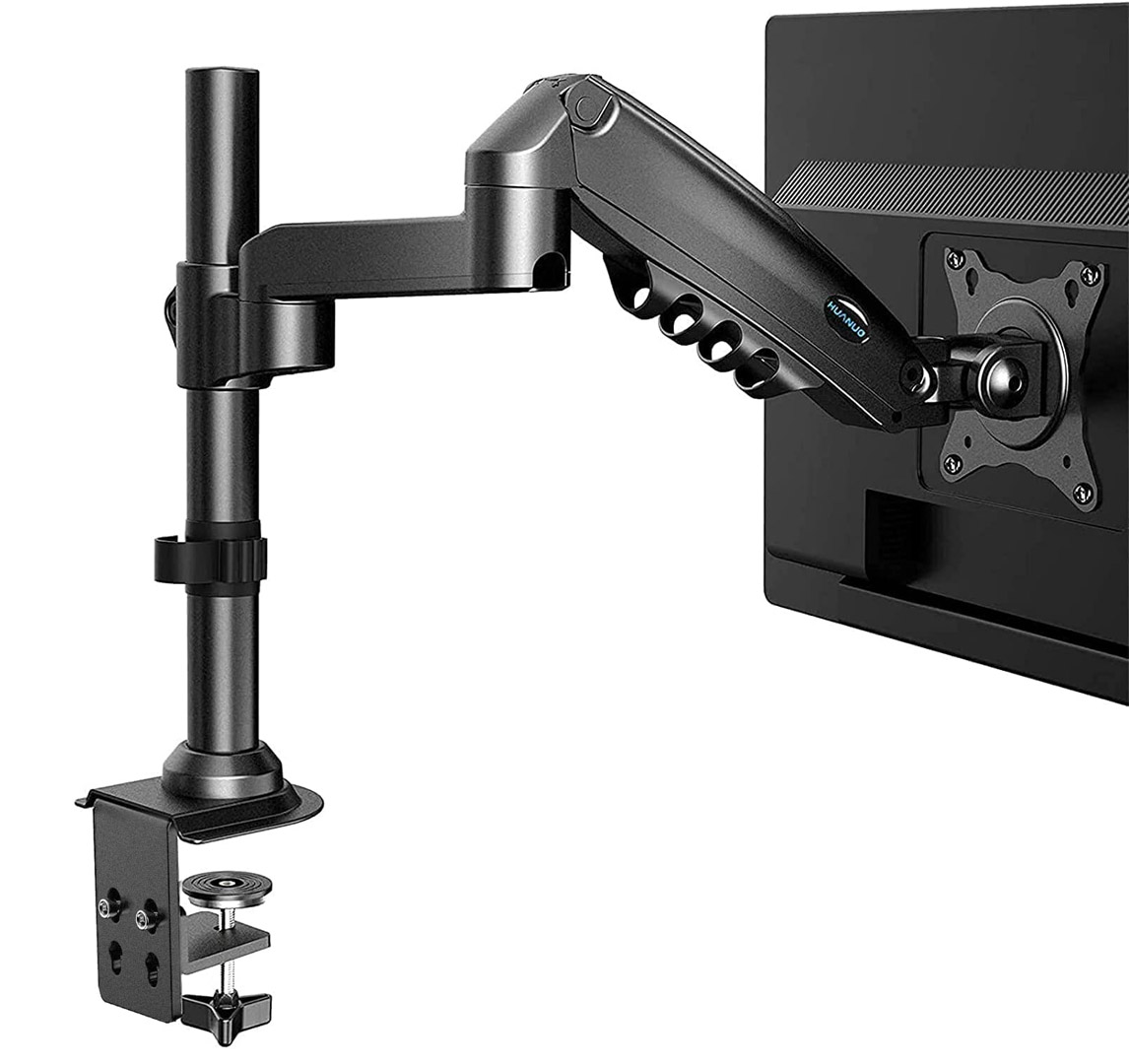
Your monitor takes up a lot of space, and so does the stand holding it up. But it doesn’t have to! Get a VESA-compatible arm, like this one by Huanuo, and clamp that sucker to the back edge of your desk. It’s especially handy if you’re using a laptop and/or a multi-monitor setup. Just make sure your monitor actually has a VESA mounting area on the back before you buy, and make sure you get enough arms for each monitor. Here are dual-monitor arm and triple-monitor arm variants.
Wireless phone charger
Iniu / Anker
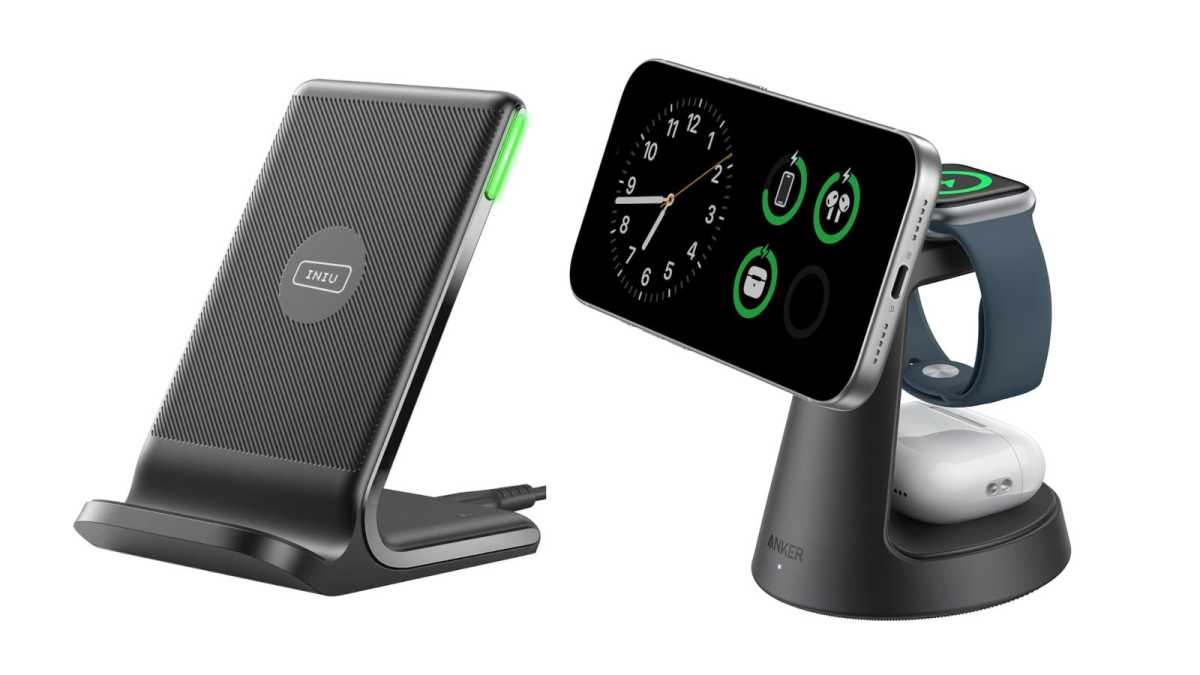
All recent iPhone models and most premium Android phones now come with Qi wireless charging. But don’t buy a wireless charger directly from your phone’s manufacturer—they’re stupidly pricey. Since Qi is an open standard, it’ll work just as well with third-party options. This budget model by Iniu is great, with 15W wireless charging and a stand form factor so you can see notifications as they come in. If you’re all-in on Apple, you might instead opt for this Anker 3-in-1 wireless charging station with spots for your iPhone, Apple Watch, and AirPods.
Multi-device charger
Anker
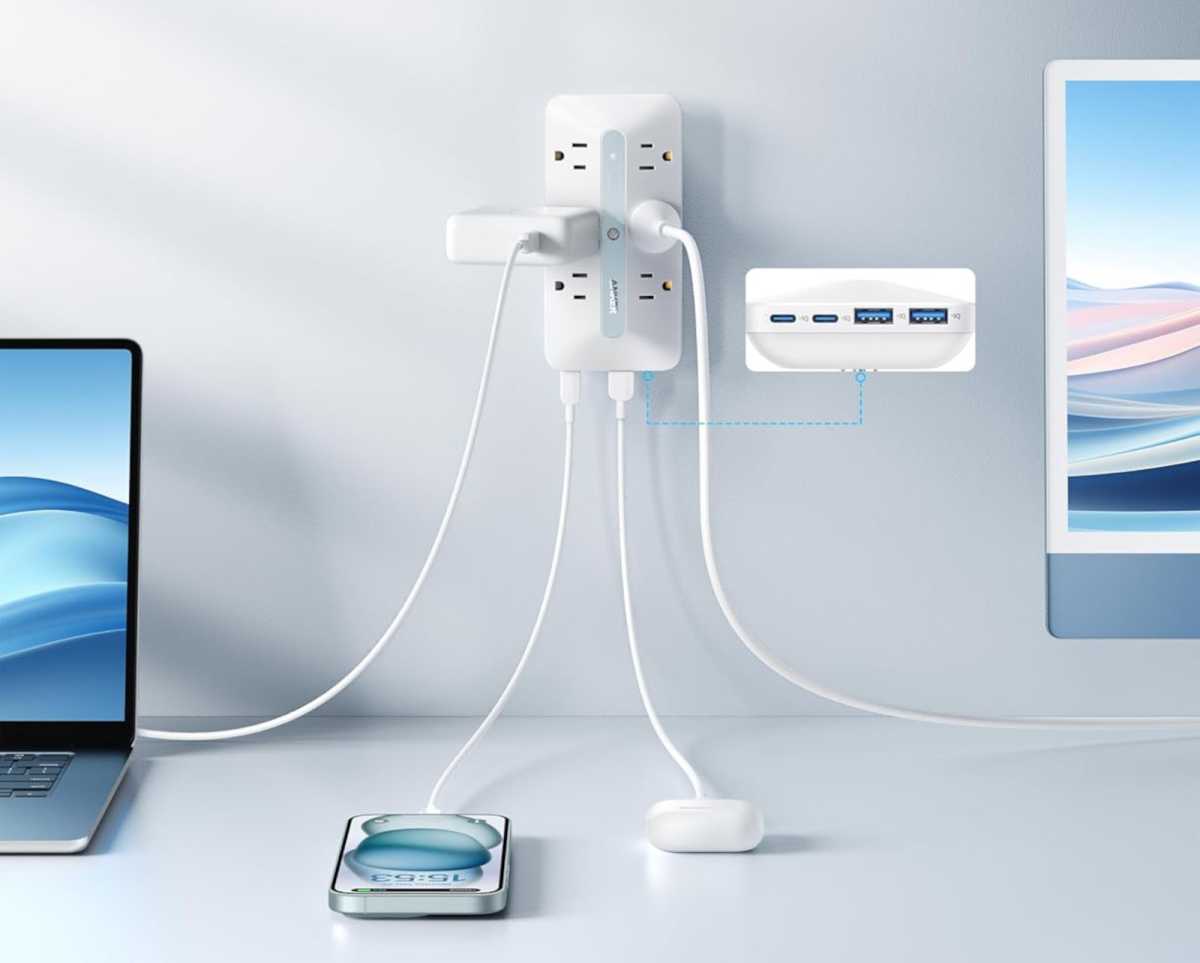
Of course, there will always be things you can’t charge wirelessly. (Or times when you need ultra-fast charging.) If you only have a single outlet plate in your workstation area, this Anker outlet extender is a game-changer. It turns any wall outlet into 6 AC outlets, 2 USB-C ports, and 2 USB-A ports. And it’s not just about the ports, but the fact that the outlets face outwards and they’re angled so your plugs don’t collide. Honestly, you can never have too many outlets, so this one’s a silent winner.
USB hub
Acer
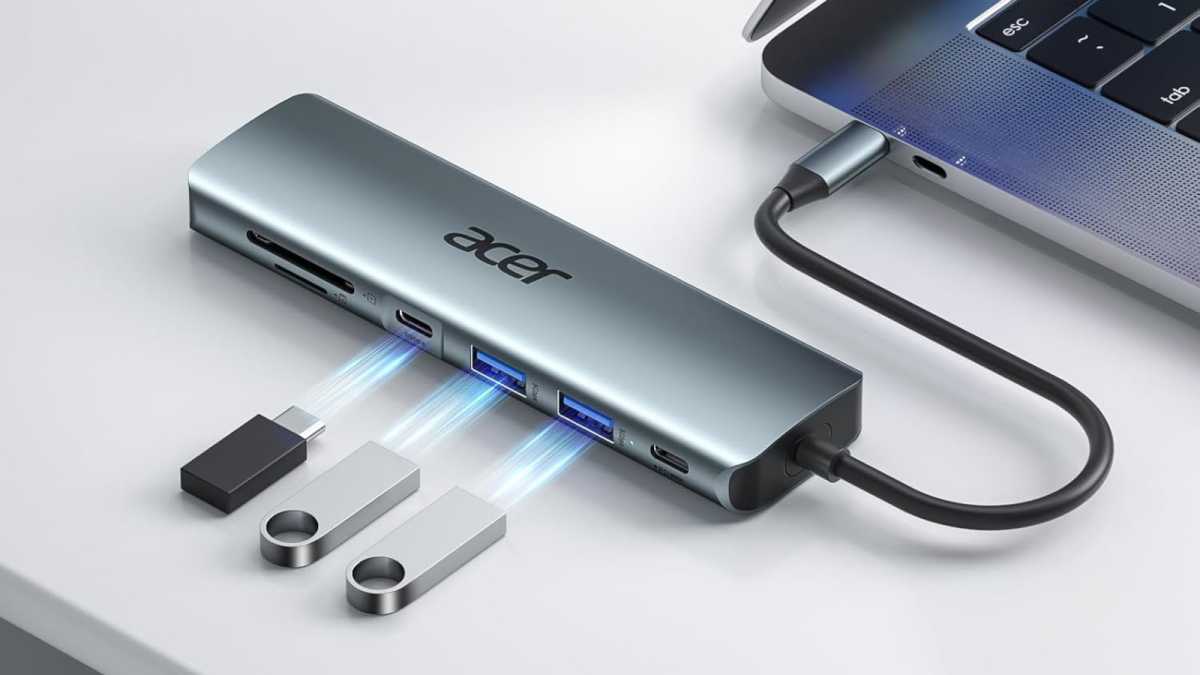
Speaking of things you can never have too much of: USB ports on your computer. Desktop users can (and should!) expand their ports via PCIe cards, but laptop users should use a USB hub. This one by Acer is hard to beat for $20, with 4K HDMI, USB-C, dual USB-A, SD/microSD card slots, and another USB-C for charging—keep your laptop juiced while this hub takes up one of its USB-C slots. Want to shop around? Our guide to the best USB-C hubs will help point you in the right direction.
Monitor lamp
Quntis
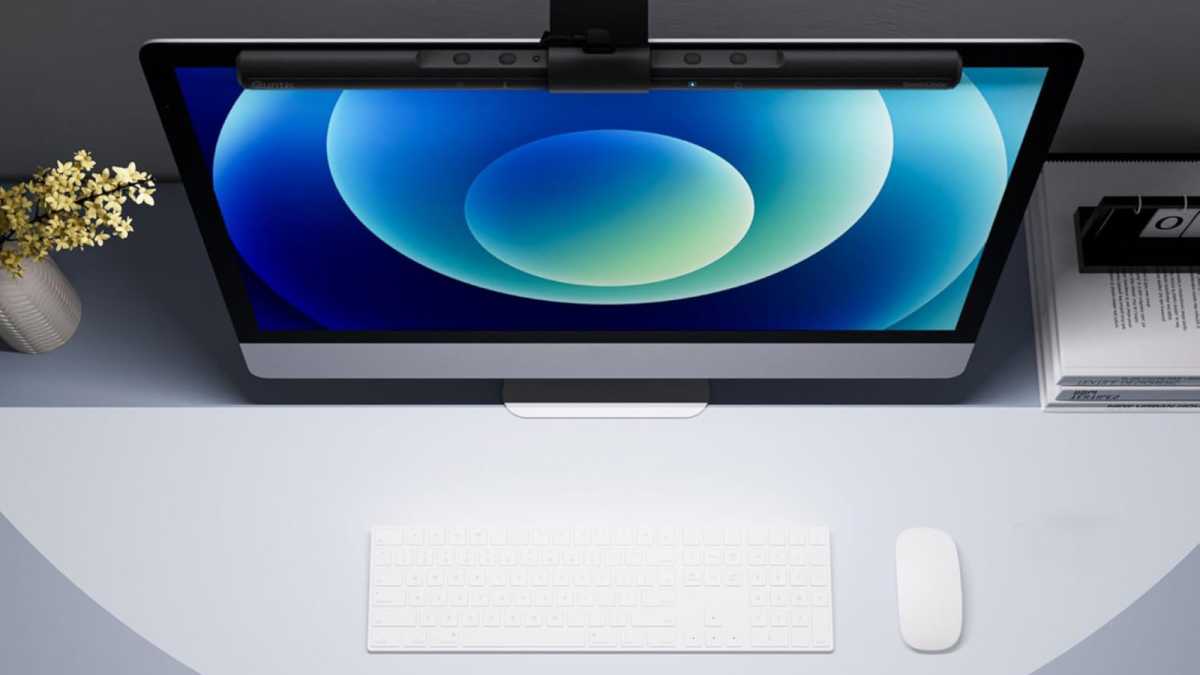
Working in a dark room may seem pleasant, but if the only light on your desk is what shines from the LEDs in your keyboard, then you’re doing your eyes a disservice. But that doesn’t mean you need to go out and buy a floor lamp or ceiling light. Check out this $33 monitor lamp (also called a monitor light bar) that mounts to the top edge of your monitor and comfortably illuminates your whole desk, without shining glare directly into your eyes or your screen.
Cable organization

Attmu/Baskiss/Ohill
Look, I don’t mean to be a snob. But all those cables spread all over your desk? They’re really untidy and you need to clean ’em up, pronto. Luckily, it’s both easy and cheap with cable guides and reusable fastener ties. And if you have a standing desk, one of my favorite upgrades is this cable management tray that’s perfect for a surge protector and all your wall-warts. Set it up right and you only need to have one power cord (and maybe an Ethernet cable) running from your desk to the wall.


