It may be a surprise to some to learn that the Windows Start menu isn’t just a static thing. In fact, you can customize it how you like. You can pin apps and folders into it, change its color, and even arrange the pinned apps into folders themselves. Here we explain how to do each of these things.
Pin your most used folders or apps
Pinning your most used apps or folders to the Start menu is a good way to make your desktop clutter free and reserve it for only the most essential files. To pin something to the Start menu, right click on it and select Pin to Start.
Dominic Bayley / Foundry
Organize your pinned apps into folders
Once you’ve pinned your apps and folders into the Start menu, you can start to organize them into folders. To do that just left click on the app or folder you want to group and drag it onto another app or folder. You can also give your folder a name.
Dominic Bayley / Foundry
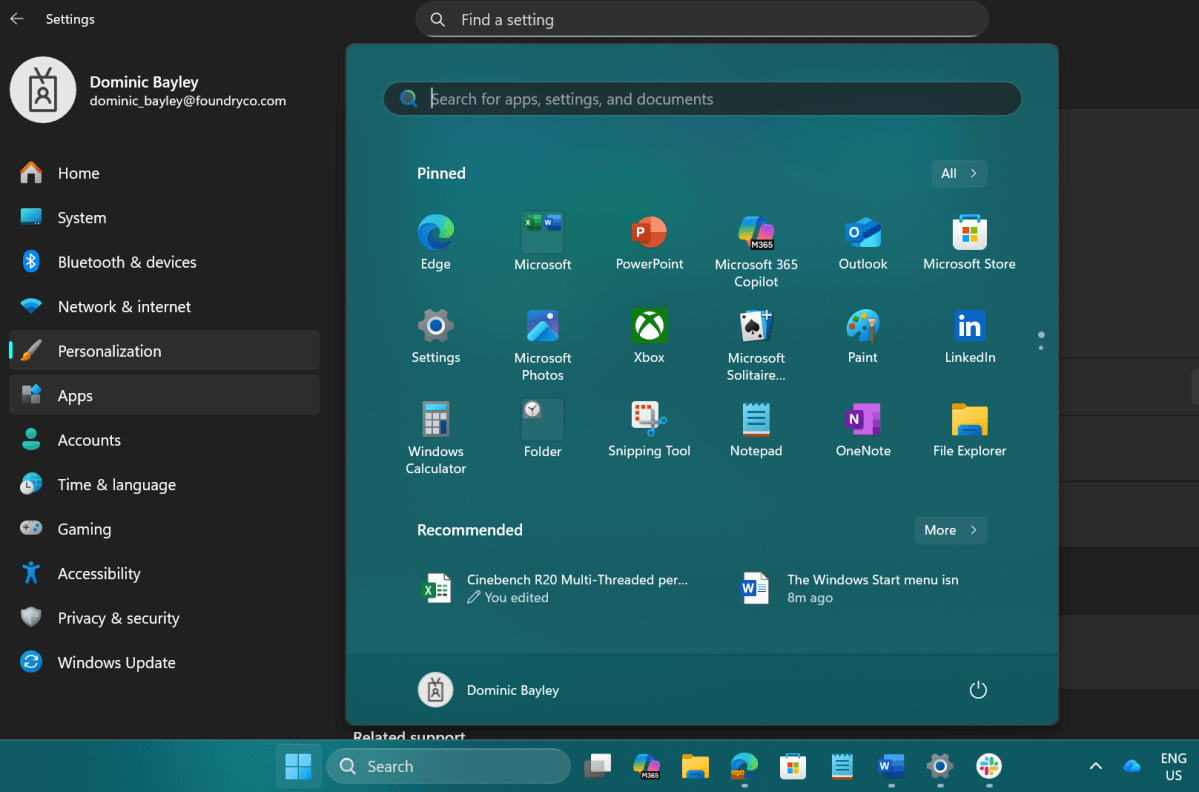
Change the Start menu (and Taskbar) color
You can change the Start menu to any custom color you want, but that will, by default, change the Taskbar to the same color. To do this, open Settings > Personalization > Colors. Select dark mode then select an accent color. Under the color palate, enable “Show Accent Color on Start and Taskbar.”
Dominic Bayley / Foundry
Hunting for even more tips? Check out our Windows 11 guide for Windows 10 refugees to go much, much deeper.
That’s a wrap for this Try This. If you want more tips and tricks, be sure to subscribe to our PCWorld Try This newsletter.


