Summary created by Smart Answers AI
In summary:
- Macworld provides comprehensive strategies for decluttering Apple devices and accessories using proven methods like the ’20/20 rule’ and ‘Marie Kondo Method’.
- Consolidating to USB-C chargers and upgrading to newer iPhones reduces cable clutter while improving functionality and battery life.
- Apple offers trade-in programs and recycling services for responsible disposal of obsolete devices. Detailed instructions are provided below.
The new year is a perfect time to clear out our spaces. Whether you’ve just got a bunch of new gear or just want a fresh start, it’s a great time to pare down your pile of once-loved tech, and clear out drawers and cupboards of cables, adapters, old iPhones and iPads, straighten out clunky power banks and chargers, and make everything neat and clean again. So follow along with our advice.
Declutter your Apple life: The basics
If you’re like us, you have a drawer filled with obsolete and vintage gear that you’re never going to use. It’s time to let it go.
Obsolete devices and their media: Old phones, tablets, and smartwatches, ancient chargers for devices you no longer own (or have any idea where they came from), MP3 players and once-cherished iPods, CD and DVD players (plus the discs and cases). You can even make some money by selling them to a third-party recycler such as Back Market.
Broken things: You haven’t fixed them yet, so you never will. Anything broken should be recycled and forgotten.
Duplicate items: Having a spare is often a good idea, but do you need that many mice or keyboards? For your main input devices, use a wireless mouse and keyboard. Keep around a wired version for an emergency spare, as rarely used Bluetooth models will never be charged up when you suddenly need them. Also, make sure the wired item doesn’t have a built-in USB-A connector when your newer Mac has USB-C/Thunderbolt. (If it does, Ugreen sells a four-pack of USB-A to USB-C adapters for under $10.)
Declutter your Apple life: Cables
There are many benefits of upgrading to a newer iPhone—superior cameras, better battery life, and access to vital security updates are major ones—but a big advantage of an iPhone 15 or later is moving away from Apple’s discontinued Lightning connector to the now ubiquitous USB-C. USB-C is the same connector used on iPads and Macs (also known as Thunderbolt) and other Apple devices, as is now mandated by the EU.
That brings you closer to ditching the whole mangle of cables from your home or office drawer. If you own an older AirPods case or Magic keyboard, you might still require a Lightning cable, but just one is all you really need. While you’re at it, you can get rid of older USB-A and MicroUSB cables as well—or rather replace any devices that rely on them.
Foundry
USB-C cables are universal, but they’re not completely interchangeable, however. Some are made for high-speed data transfers (for connecting your Mac to hard drives and monitors, for example), and others will quickly charge your devices but transfer data slowly. If you’re mostly concerned about charging, nearly every cable accumulated over the years will support 60W charging at least, so grab a handful of varying lengths and you should be fine.
Check out our list of the best USB-C and Thunderbolt cables if you want something fresh, and consider a cable that can handle multiple connectors. This Native Union Belt Cable Duo, for example, has USB-C at one end to connect to your wall or desktop charger and a double-headed USB-C & Lightning at the other, so you can use the cable for old and new devices without having to scramble around to find the one you need.
Native Union
Remember, however, that the goal is to have fewer cables, so once you’ve invested in one of the above or new USB-C cables, get rid of your old ones.
There are advantages to using dedicated video connectors such as HDMI and DisplayPort, but most modern monitors can do everything you need via a single USB-C cable. So, if you can, ditch the video cables and use a data-ready USB-C or Thunderbolt cable instead. Choose your next monitor to be one that supports USB-C. And recycle the HDMI and DisplayPort cables. If you still have VGA or DVI cables, you can junk those immediately. Only Windows users think those old-school pin connectors are something for this century.
Declutter your Apple life: Chargers
What you (and the planet) need is fewer chargers. The simplest way to achieve this is to consolidate. Buy a charger with decent power (over 65W is a good rule) and multiple ports. That way you can charge more than one device at a time using just the one charger.
A wall charger, such as the Ugreen Nexode 100W GaN USB-C Charger, pictured below, plugs directly into a power outlet and has between one and four ports. A desktop charger connects to the power socket with its own plug rather than inserting itself into the socket via prongs. You should prioritize USB-C ports, but look for one with an extra USB-A port for legacy devices. Or consider a power strip with multiple USB ports and also spare AC plug sockets.
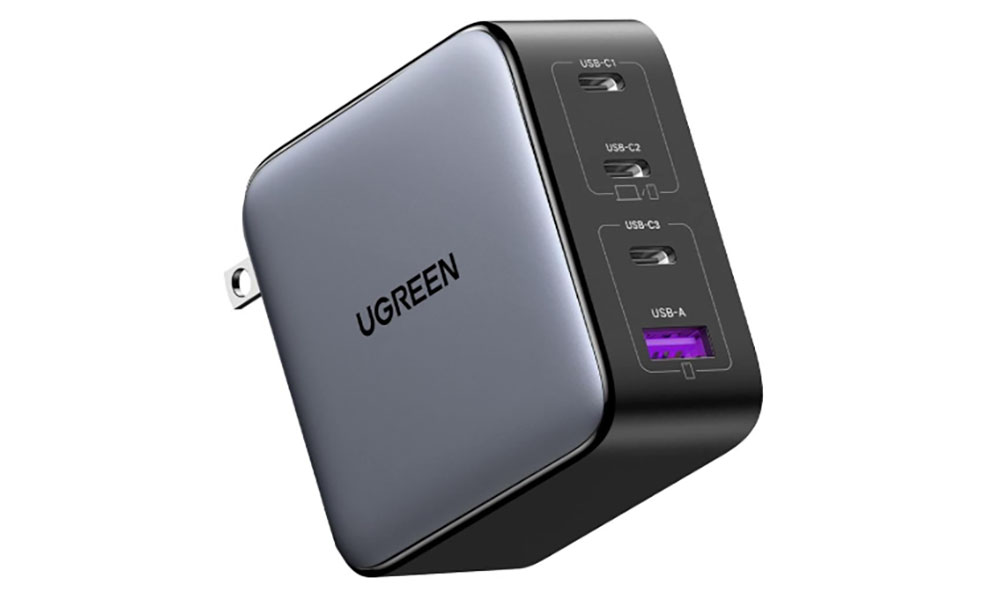
Ugreen
A multi-port wireless charger requires just a single power cable but can charge as many as three devices at the same time, including an iPhone, Apple Watch, and AirPods,, using Apple’s magnetic MagSafe technology to create a strong and exact charging position between device and charger.
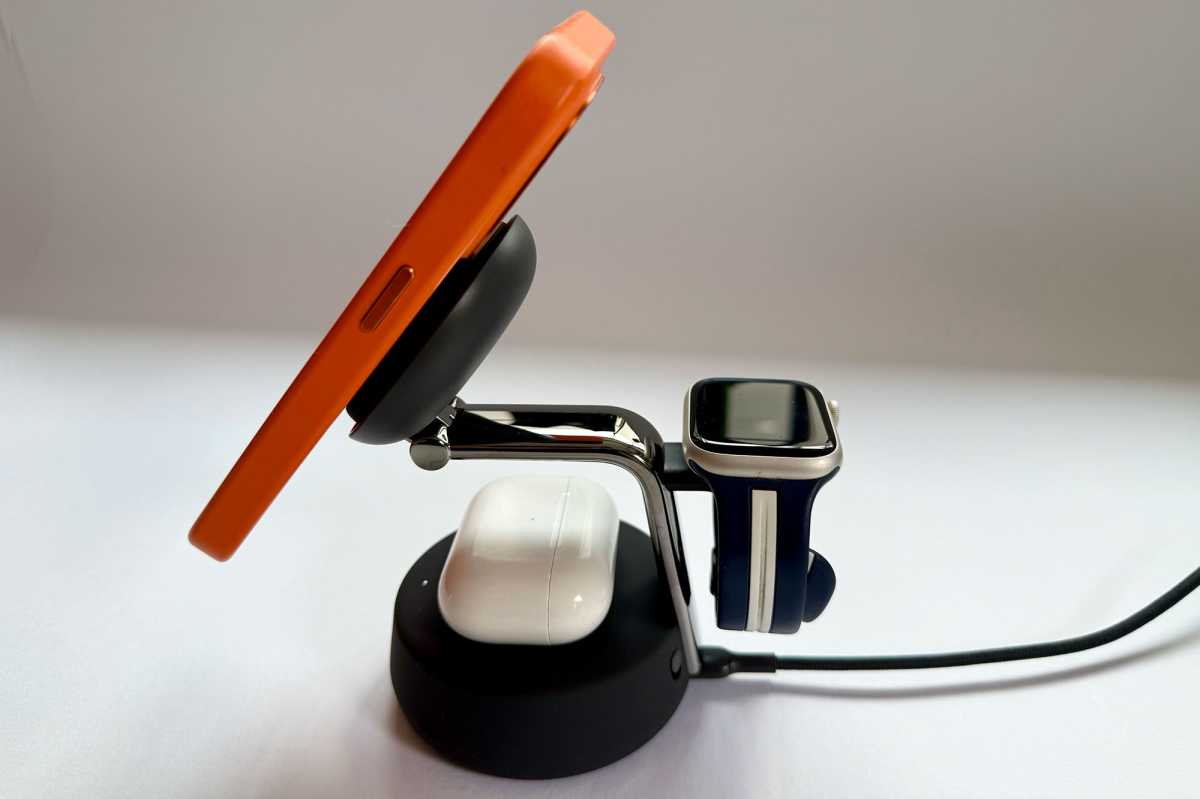
Simon Jary
We have more details on which charger is right for you in our roundups of the best iPhone charger, best USB-C charger, and best wireless charger. If you want the best charger for Apple Watch, we have that covered too.
Declutter your Apple life: Tech organizers
After you’ve distilled your wires and charges down to the stuff you need, treat yourself to a tech organizer to keep everything in its right place.
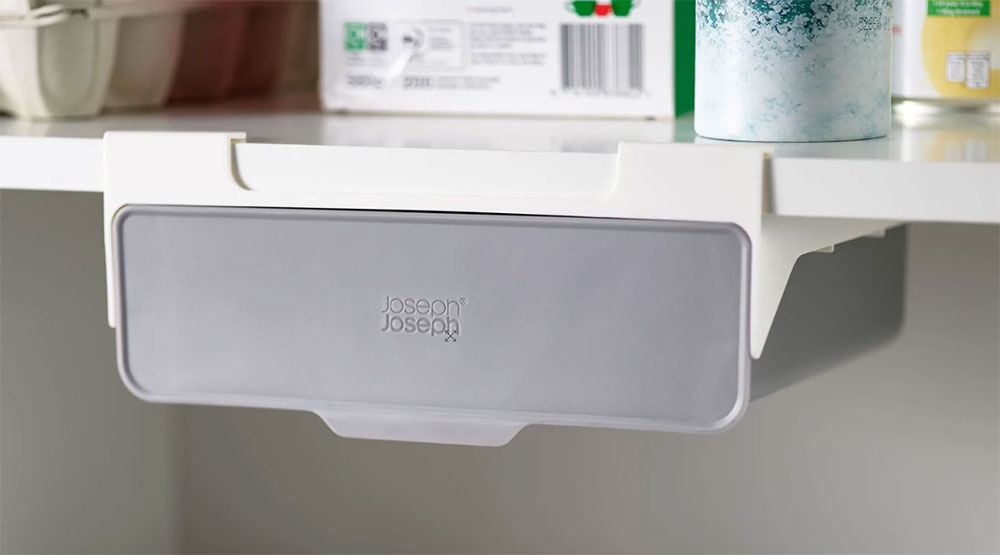
Joseph Joseph
First, think about the tech you need the most in a hurry: charging cables, power banks, and wall chargers will likely figure here. Store these everyday essentials in one handy place. Consider an under-shelf storage drawer that clips under a cupboard shelf and keeps all the ugly tech hidden but close at hand. The neatest we’ve found is from fancy kitchen accessory maker Joseph Joseph, which sells one for around $20/£20.
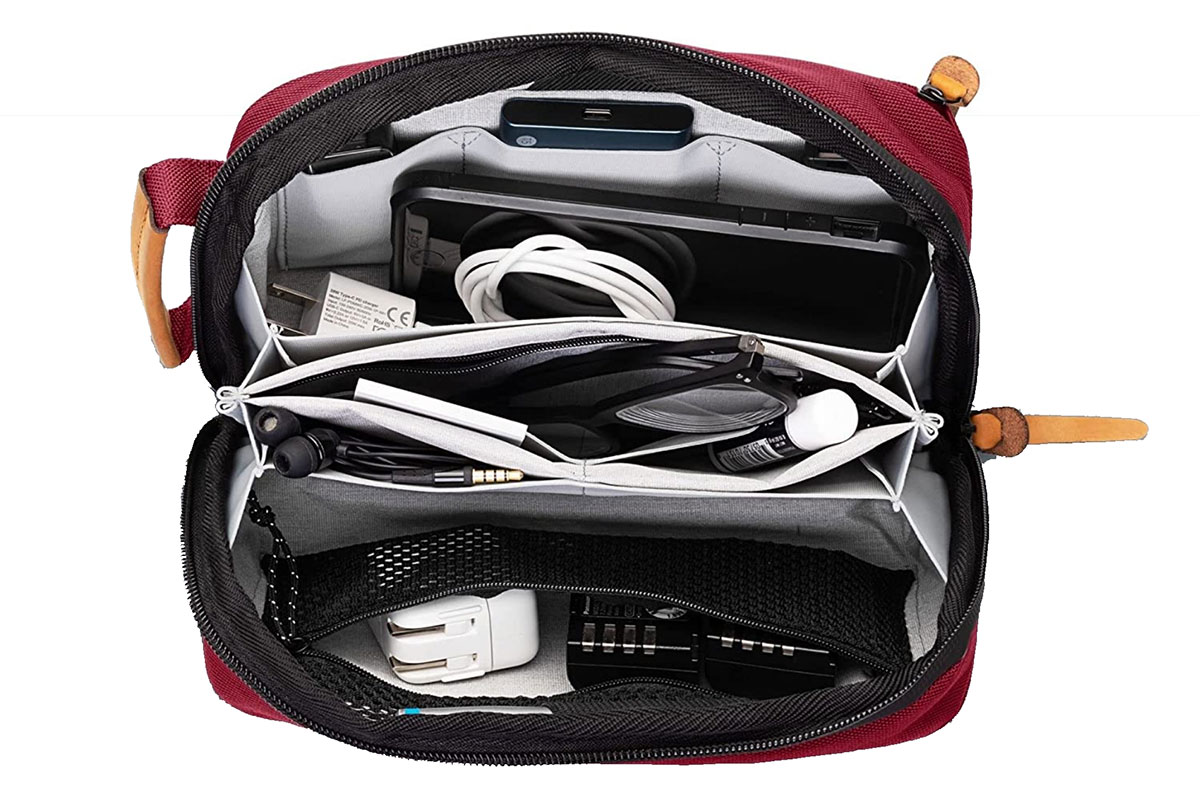
Tripped
A more portable solution is to choose from the wide range of tech organizer pouches and bags. Over on our sister site Tech Advisor, I’ve picked out the best tech organizer bags for you to choose from. Buying one or more of these will quickly organize the tech you need to keep or simply don’t have the courage to dispose of. Pictured above is the $39 Tripped Tech Traveler that can hold most of what you need to keep your tech ticking, and is available in seven colors.
A larger option is a flight case, of which there are plenty to choose from on Amazon. Pull out the foam padding, and you can store/hide a lot of tech in these. Storing the rarely used tech in a flight case is a tidy and portable way of reducing all the clutter from your home or workspace. Mine are full of packed tech organizer bags (see top) for even more clever storage.
Declutter your Apple life: iPhone upgrades
Aside from better battery life and the latest security updates, upgrading from an old iPhone adds functionality—including superior hardware functions such as much-improved cameras and MagSafe. But newer iPhones also help you in your decluttering endeavours.
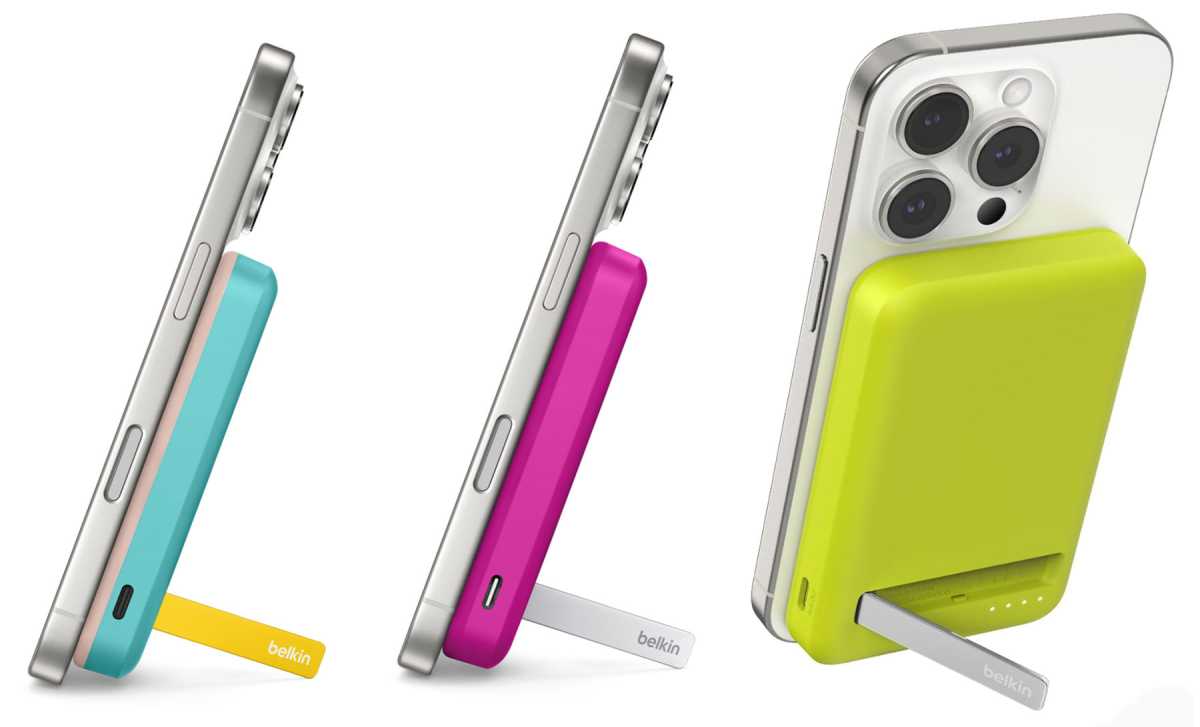
Apple has used USB-C as the charging port in all iPhones since the iPhone 15, which means you are a step closer to junking all those Lightning cables. iPhones later than version 12 can be charged wirelessly, saving on the need for charging cables. And the best magnetic power banks also keep going when cables fail you—as long as you’ve kept one charged up. The colorful Belkin BoostCharge Pro Magnetic Power Bank Qi2 is shown below.
Belkin
Declutter your Apple life: Downsize your gear
We all hold onto old devices, especially Apple ones, long past their shelf life. Maybe they’re in a drawer, a closet, or still collecting dust on a shelf, but it’s time to get rid of them.
Obsolete or broken: Dispose of responsibly according to local laws and guidance so you can avoid landfill where possible. Check out the U.S. Electronics Donation and Recycling advice and similar tech recycling advice from the U.K., but let’s face it, a lot of this stuff is going to end up in your waste bin.
Not too old and still works: As long as it’s not ancient, you should try to donate or sell it. Apple offers decent discounts on new items when you trade in an old device, as do other stores. If the device isn’t eligible for credit, Apple will recycle it—and any accessories you no longer use—securely and for free. There are retailers that specialize in second-hand tech, and you can get decent money selling your unwanted kit from the likes of Back Market, Vinted, and of course eBay. In the U.K., Music Magpie is another option.
Simon Jary
Declutter your Apple life: Software
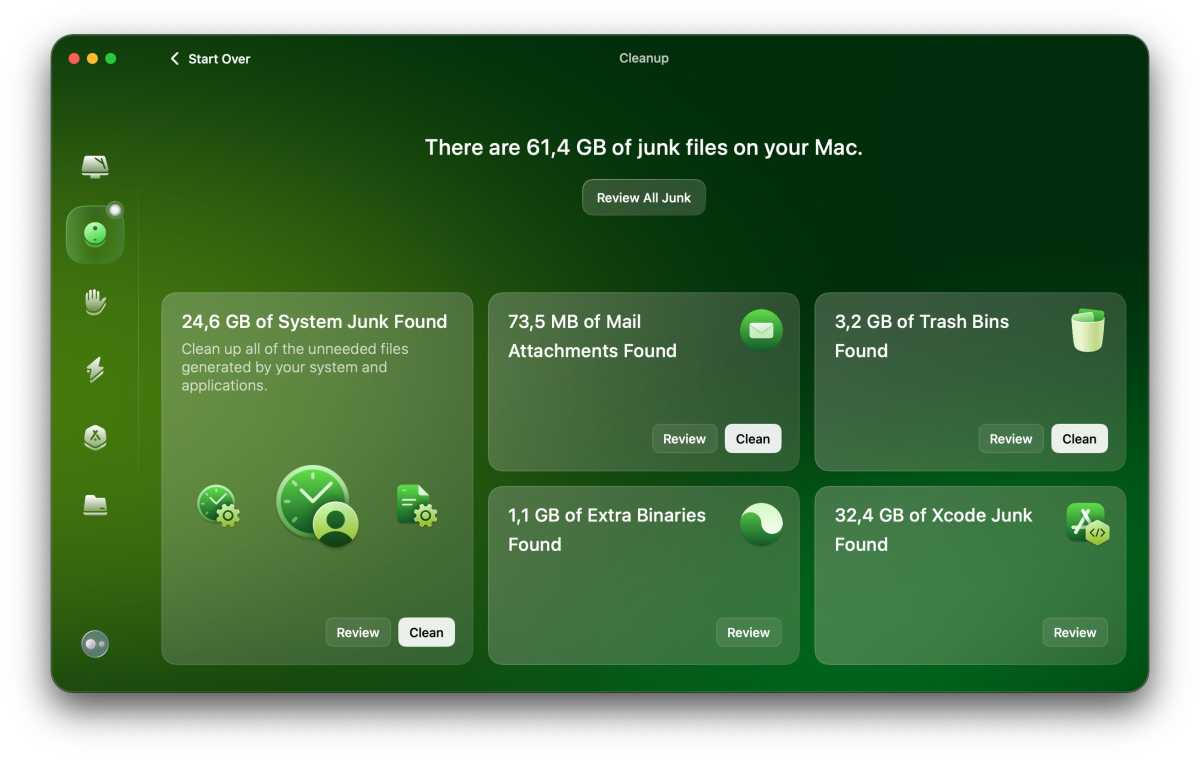
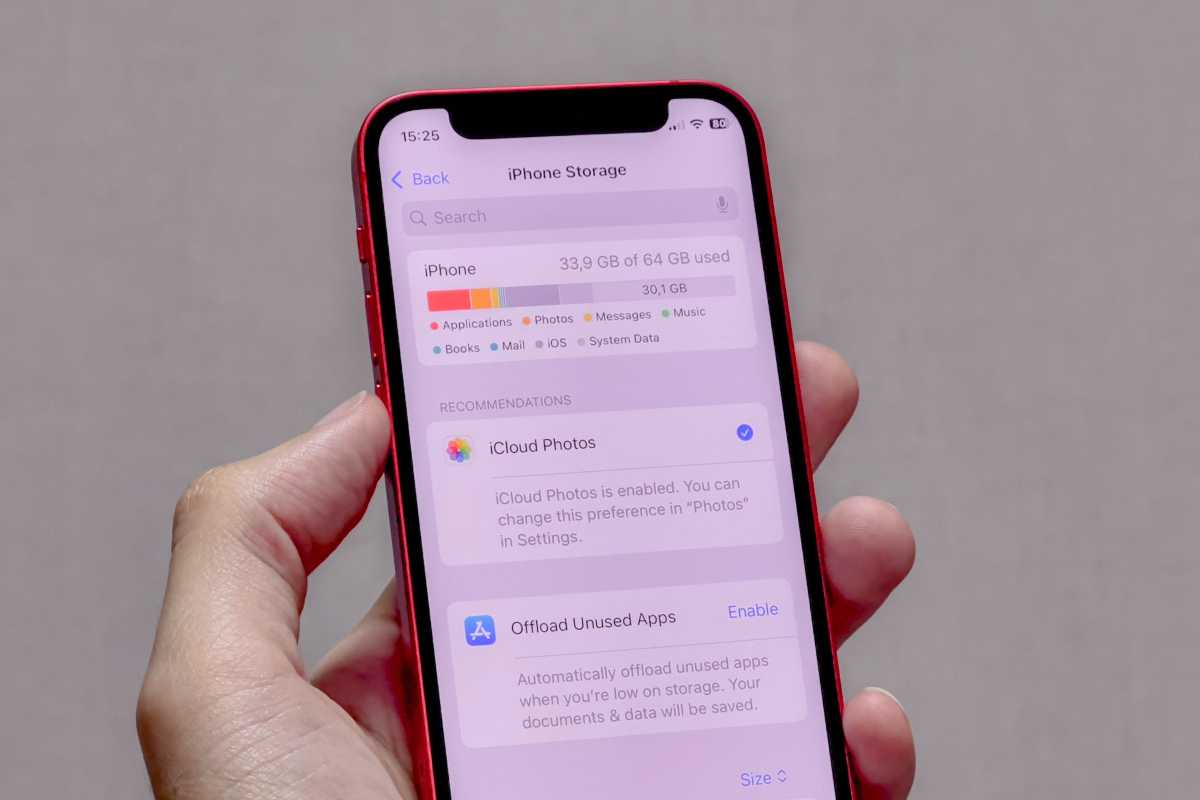
This article is about physically decluttering all the tech gear cluttering your house or office space, but there is much you can do to digitally declutter your iOS device or Mac. Check out our other articles below advising on decluttering what’s on the remaining devices.
Foundry
Best Mac Cleaner software 2026: Reclaim disk space with a Mac cleaner app
How to check a Mac’s free hard drive space
How to clear disk space on a Mac
Foundry
iPhone System Data and Other storage: What is it and how to get rid of it
Increase your iPhone storage with these tips
My 64GB iPhone was so low on space it barely worked. Here’s how I saved it
11 decluttering rules
There’s a whole industry of declutter influencers, each with their own rules and decluttering hacks. We’ve gathered the main ones here. Choose which ones make sense for your tech decluttering project.
90/90: If you haven’t used it in 90 days and won’t in the next 90, let it go. This rule doesn’t work with seasonal items, such as Christmas decorations or vacation luggage, but holds true of most of the stuff cluttering up your space.
One-in, One-out: When you buy a new gadget, get rid of a similar old item.
Don’t Tidy When Tired:. Decluttering can take a long time so set aside a decent chunk of time to get it done during the day rather than in the evening when you’re already tired.
Less Before More: Don’t buy organizers until you’ve purged significant amounts of stuff you no longer need. You can’t just organize clutter. Buying more products won’t solve the original “too-much stuff” problem.
80/20: Aim to leave 20% of your space empty so you aren’t full of stuff again as soon as you’ve done.
20/20: Can you replace this item for less than $20 and in under 20 minutes? If the answer to both is yes, you can probably discard it, as it’s a low-cost, easily replaceable “just in case” item that clutters your space and mind. Of course, as soon as you bin it, you’ll need it! But be brave.
Buy It Now: If you wouldn’t buy it now, now is the time to get rid of it.
Marie Kondo Method: Gather one thing to go through each time. Don’t tackle old phones and digital cameras at the same time as drawers full of cables. Get the cables all together and sort through these first.
Start with the Boring Stuff: Begin with things you’re not emotionally attached to, such as cables and charging plugs, rather than much-loved old phones and computers with memories attached. This helps you boost your purging confidence.
Five Box: Keep (only stuff you need), Trash, Donate, Recycle, and Relocate.
10-10-10: Declutter 10 items from 10 different areas over 10 days. For tech try these: cables, adapters, chargers, old iPhones & iPads, old Macs, old power banks (battery capacity too small but way too big in comparison to the latest models), old cases for those old phones, old power extenders, old mice & keyboards, old hard drives (they aren’t backup backups, they’re just a security risk).
Related posts:
 This $38 Baseus block will fast-charge all your Apple gear at once
 Don’t buy locked Apple hardware when shopping for used gear
 Wirelessly charge all your new Apple gear with 25% off this super-cool 3-in-1 stand
 Get ready for the Lightning-less iPhone SE 4 with low prices on Apple USB-C charging gear