Summary created by Smart Answers AI
In summary:
- Macworld demonstrates how Apple’s Xcode 26.3 integrates AI coding agents like OpenAI’s Codex and Anthropic’s Claude Agent for rapid iOS app development.
- The author successfully created a functional Flappy Bird clone in just three minutes using a simple one-line prompt to the AI assistant.
- This AI-powered development process enables users to build, debug, and potentially submit apps to the App Store without advanced coding knowledge.
Coding is one of the skills I’ve been eyeing on and off for a few years now. When Apple first launched the Swift Playgrounds app on the iPad, I instantly fell in love with the concept and enrolled in multiple online courses to learn iOS app development. While I quickly absorbed the basics of coding in Swift, mastering the skill to ship functional iPhone apps turned out to be a real challenge. That changed when Apple released its latest Xcode update.
Xcode version 26.3 introduces native support for AI coding agents, such as OpenAI’s Codex and Anthropic’s Claude Agent. While you could previously rely on AI chatbots for assistance in Xcode, the integration had been limited.
To test how powerful the new AI extension is, I decided to replicate the fan-favorite Flappy Bird game (gone too soon). To my surprise, the whole endeavor took no more than a casual, one-line prompt and three minutes of my time.
Getting started
While vibe-coding in Xcode doesn’t require any programming experience, understanding the logic behind app development helps. If you’re new to this, you could check some of the recent Xcode tutorials on YouTube or ask your favorite AI chatbot for guidance.
First, you’ll need to download Apple Xcode version 26.3 or later on your Mac. (Xcode is free but it takes up a lot of storage–over 12GB.) Once installed, go to Xcode’s Settings page, head to Intelligence, and pick between OpenAI and Anthropic in the Providers section. You’ll need to sign in with your Codex or Claude Agent account or enter the API key. It’s worth noting that AI coding agents typically require a paid subscription, but OpenAI is offering free Codex access for a limited time.
After connecting your preferred AI agent, you’ll need to visit Components in Xcode settings to download the latest iOS build simulator. Then, go to the Apple Accounts section and input your Apple login credentials. You can then exit Xcode settings and go to Devices and Simulators using the Window option in your Mac’s menu bar. Connect your iPhone to your Mac using a USB cable and approve the pairing dialog when it pops up.
On your iPhone, enable Developer Mode by going to Privacy & Security settings and visiting the relevant section towards the bottom of the list. Once done, your iPhone should appear as a paired item in the Devices and Simulators list on macOS. You can then unplug your iPhone, as the following steps work wirelessly when your iPhone and Mac are connected to the same Wi-Fi network.
Hatching Flappy Bird
At this point, we can start the actual app building process. Create a new project in Xcode, select iOS as the desired platform, and give it a suitable name. Towards the top-left corner, you’ll find a star-shaped Coding Assistant button; tap it, then select Codex or Claude Agent using the drop-down menu. A Message [selected AI agent] text box should appear in the bottom-left corner. Here’s where the magic starts.
Most of the code for my app was created by using a descriptive prompt.
Mahmoud Itani/Foundry
I casually typed “build a basic Flappy Bird game for iOS using native SwiftUI stuff” in the text box, and Codex inserted the needed code in the Xcode project within a couple of minutes. The right-sided Canvas will show you a live preview of the app you’re building as you tweak the code in real time. I set the Canvas destination as my actual iPhone (paired in the previous section), as it’s more intuitive to test an app on a physical device than a simulator. This automatically launches a new app on your iPhone called Xcode Previews, where you can interact with the app you’re developing. Well, except that the initial build failed due to an error in the AI-generated code.
Squashing bugs
I could spend a few minutes (or hours, maybe) trying to decipher the code and figure out how to fix the issue, but why would I in the brain-rot era? I simply clicked on the red error in the code and tapped Generate Fix for Issue. Xcode automatically instructed the AI agent to scan the problematic line and apply a fix. Within a few seconds, Codex figured out what was wrong and made the necessary amendments.
AI can be used to fix code issues.
Mahmoud Itani/Foundry
And thus, my dollar-store Flappy Bird game was born. Xcode Previews could finally load the app on my iPhone, and I could play it just fine. There still was a problem, however. The Xcode Previews app on iOS only works when you’re actively viewing or editing a project on macOS. It’s not a permanent way to independently launch and use an app on your iPhone.
Laying it on your iPhone
To actually install your app on iOS, you’ll need to tap the triangle-shaped Run button towards the top-left corner of the Xcode project–after selecting your iPhone as the desired destination. Give Xcode a few seconds to build and wirelessly transfer the app to your nearby iPhone. Once the app is installed, try to launch it. Oops, that will fail, too.
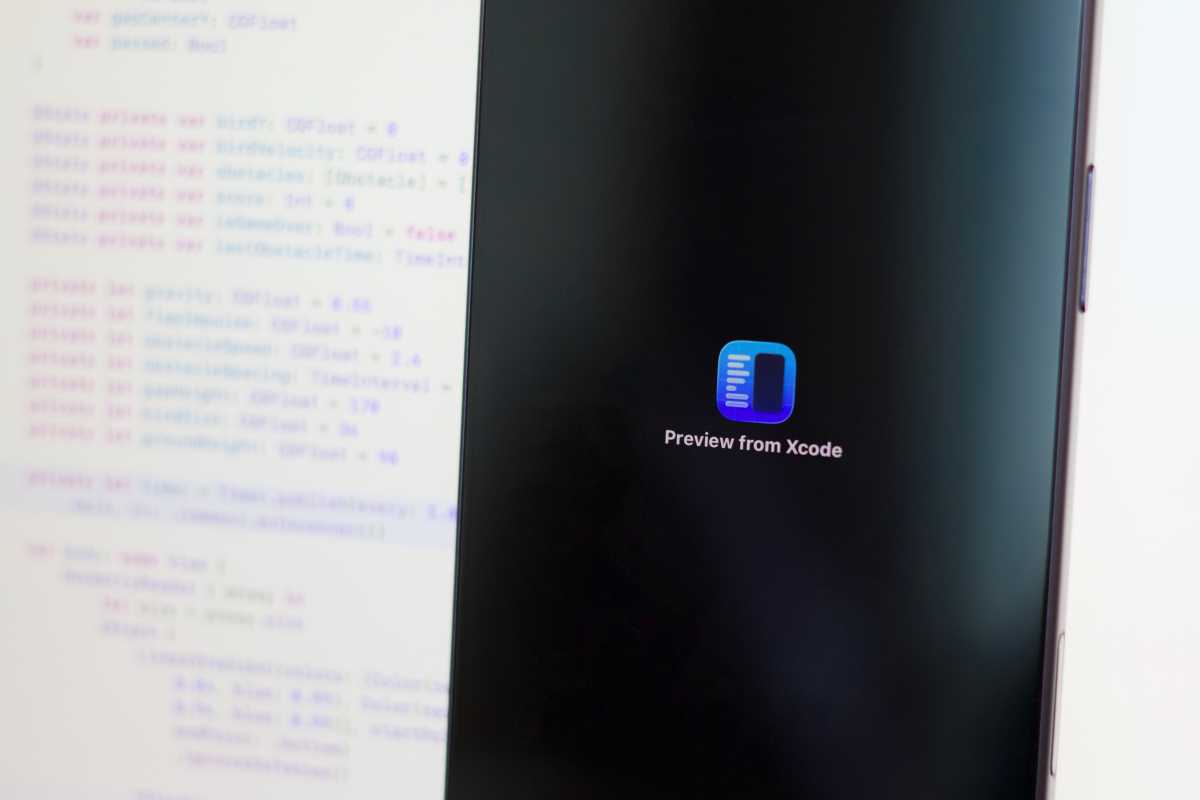
Simulators can be used to try out the app, but I decided to use my iPhone.
Mahmoud Itani/Foundry
Head to VPN & Device Management in your iPhone’s General settings, and approve the app you’ve created. You’ll then be able to open the app and use it without relying on your Mac. Notably, Apple requires you to rebuild and deploy the app once a week if you’re not paying for its Developer Program. So, for long-term free use, you’ll need to repeat some of the steps above each time it expires.
The sky’s the limit
Beyond trying the initial build of your vibe-coded app, you could easily make adjustments using the connected AI agent(s) in Xcode. Continue to insert prompts describing the desired changes, and the extension will handle the rest. You could alter the colors, shapes, fonts, and practically anything in the user interface. Similarly, you can prompt it to make adjustments to how the app functions by adding, removing, or tweaking features.
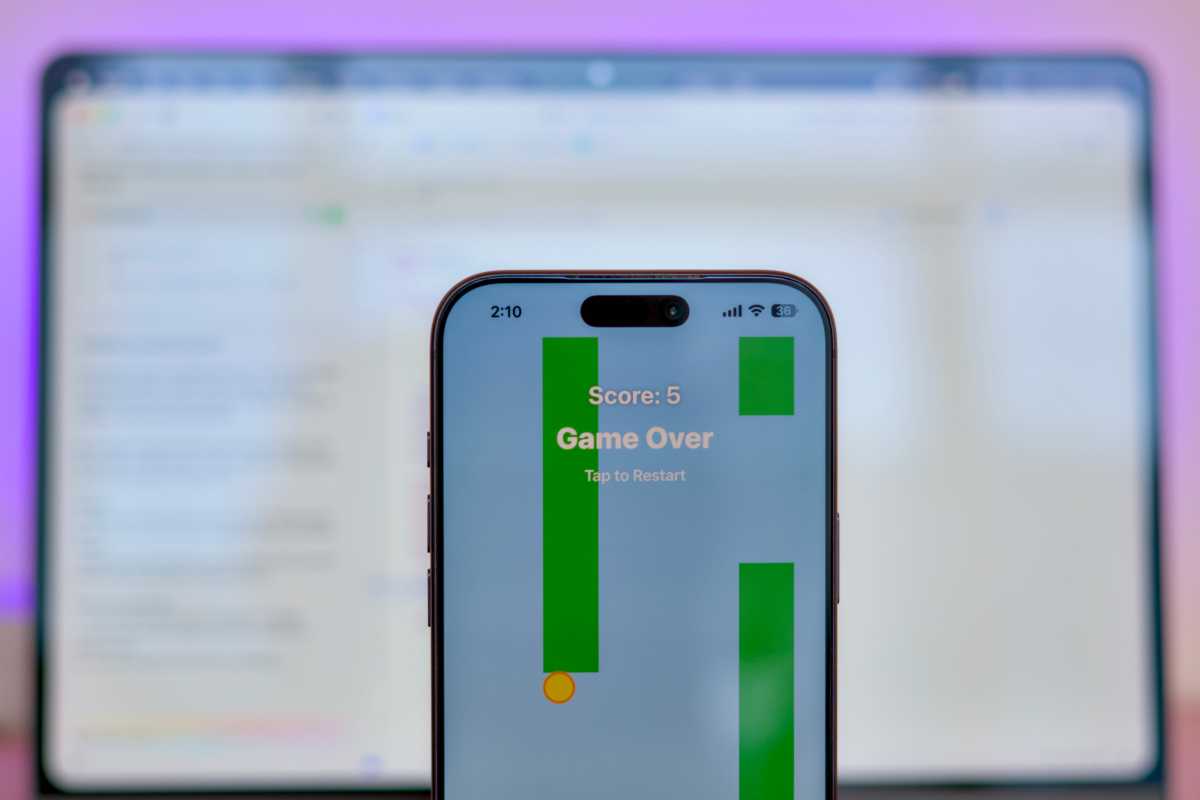
Like a phoenix rising from the ashes, Flappy Bird now lives on my iPhone.
Mahmoud Itani/Foundry
If your polished app doesn’t break Apple’s guidelines, you could even join the Developer Program and try submitting it to the App Store–all without acquiring advanced coding knowledge. Ultimately, a flight of a thousand miles begins with a single flap.


