At a glance
Pros
- Thunderbolt 5
- 19 ports
- Integrated M.2 slot for an SSD
- Dedicated function keys
- Optical audio
- KonstantCharge for undocked peripherals
Cons
- Premium price
- 180W power supply lesser than rivals
Our Verdict
For the premium price you get a lot of connectivity (19 ports!) and a tidy storage M.2 enclosure that you can upgrade as and when you wish, not when and with what Apple demands. The optical audio port, CompactFlash slot and hot keys are nice extras rarely found on docking stations.
Price When Reviewed
This value will show the geolocated pricing text for product undefined
Best Pricing Today
Price When Reviewed
$449.99
Best Prices Today: Kensington EQ Pro Thunderbolt 5 Dock for MacBook
$389.49
Kensington’s EQ Pro Thunderbolt 5 Dock for MacBook, known to its friends as the SD7100TS, is a dock stacked with 19 ports, a dedicated SSD slot for you to add extra storage, and special Mac hot keys for easy iPhone photo backup and a Focus Mode.
It even has “Designed for MacBook” on the box, but this could be because Windows hasn’t quite caught the Thunderbolt 5 wave yet.
This is a horizontal docking station with solid good looks in a gunmetal-gray with nicely rounded corners.
Dock specs
- One upstream Thunderbolt 5 port (80Gbps, 140W)
- Three downstream Thunderbolt 5 ports (80Gbps, 15W)
- One USB-C port (10Gbps, 30W)
- One USB-C port (10Gbps, 7.5W)
- Four USB-A ports (10Gbps, 4.5W)
- Ethernet (2.5Gb)
- NVMe M.2 SSD slot (up to8TB)
- UHS-II SD card reader (312MBps)
- UHS-II microSD card reader (312MBps)
- One 3.5mm combo audio In/Out jack (front)
- One 3.5mm audio In jack (back)
- One 3.5mm audio Out jack (back)
- One TOSLINK optical audio (back)
- 180W power supply
Simon Jary
Kensington has decided against including a dedicated video port such as HDMI or DisplayPort in favor of the full set of Thunderbolt 5 ports. While that might mean you have to supply your own USB-C to HDMI/DP adapter cable if your monitor doesn’t support a USB-C/Thunderbolt connection, it does offer you more flexibility in choosing what you want each port to do. If a dock has a DisplayPort or HDMI port, for instance, and you want to connect via Thunderbolt, that video port is wasted. Having the maximum three downstream Thunderbolt 5 docks gives you the freedom to decide what to use each port for.
Thunderbolt 5 (TB5) is backwards compatible with Thunderbolt 4 and 3, so even if your Mac isn’t yet built for TB5, you can rest assured that it will work with earlier Thunderbolt versions and be ready for your eventual TB5 Mac upgrade.
Thunderbolt 5 Macs get 80Gbps data-transfer rates and up to 120Gbps in Bandwidth Boost mode for top-end video demands.
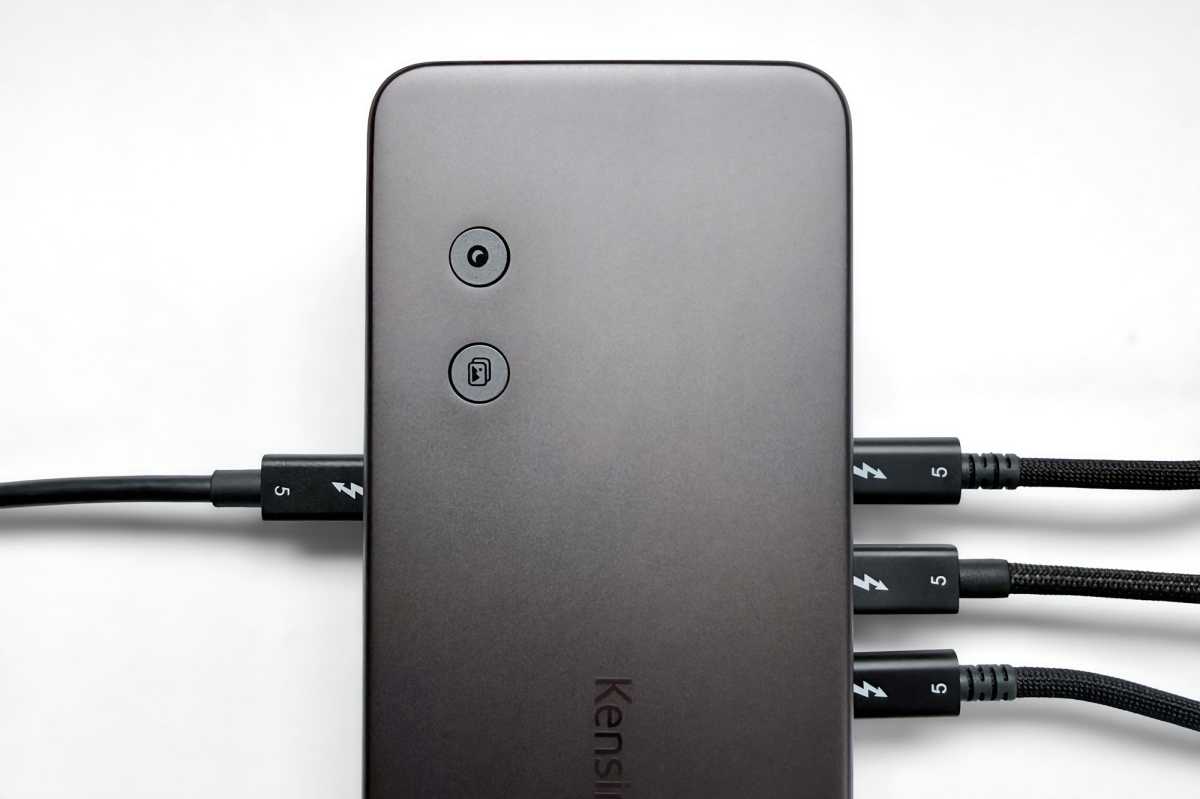
One TB5 port is “upstream”, meaning it connects to your Mac. The other three are “downstream” for connecting other devices such as monitors and storage drives.
Simon Jary
Power
One TB5 port is at the front, which might suit you but strikes me as odd and a potential cause of cable-clutter, especially as there is a 30W 10Gbps USB-C port at the front already—nicely placed for charging your iPhone or even connecting a wireless charger.
Also at the front is another 10Gbps USB-C port with a weaker 7.5W power rating. The Thunderbolt ports are rated at 15W. The four legacy USB-A ports are not up to much charging at just 4.5W.
Indeed, the EQ Pro feels a bit under-powered, with a max 180W power supply. The PD 3.1-rated upstream Thunderbolt 5 port is great, supplying up to 140W: enough to fast-charge even the top-end 16-inch MacBook Pro, and the 30W USB-C is meaty. The other ports probably have all the power your connected devices require but in comparison the CalDigit TS5 Plus has 330W for its two 36W TB5 ports and 36W USB-C, and the Sonnet Echo 13 has a 60W TB5 port.
A “KonstantCharge” feature allows devices to be charged even when the dock isn’t connected to a laptop, so you can use it like a desktop charger. In his charging tests my PCWorld colleague Mark Hachman found the 30W charging port delivered 28.6W under load, and the other USB-C port provided about 6W. The downstream Thunderbolt 5 ports delivered 13.6W of power.
On the back of the dock is a power button, which we appreciate as many docking stations don’t have them. Although modern devices have sophisticated battery safeguards and battery management, I prefer not to keep my MacBook constantly connected to a power source. Yes, I can pull the cable out but an On/Off button is cleaner and less wearing on the hardware.
The power supply is rated at 180W, so is the maximum shared power load the dock can supply. With a possible 240W of port power potential, plus the power needed by the dock and SSD slot, that 18W is not up to the full load. Other docks offer 240W (or even 300W for the CalDigit TS5 Plus), which would have made more sense than an under-powered 180W power supply. It’s likely that 180W will be enough at most times, but a 240W charger would have been a more sensible choice from Kensington.
Network speed
The dock matches similar Thunderbolt 5 docks with a faster 2.5Gbps Ethernet port. Even if your network is stuck at 1Gb Gigabit Ethernet, it’s backwards compatible so builds in more future-proofing to your setup.
Audio
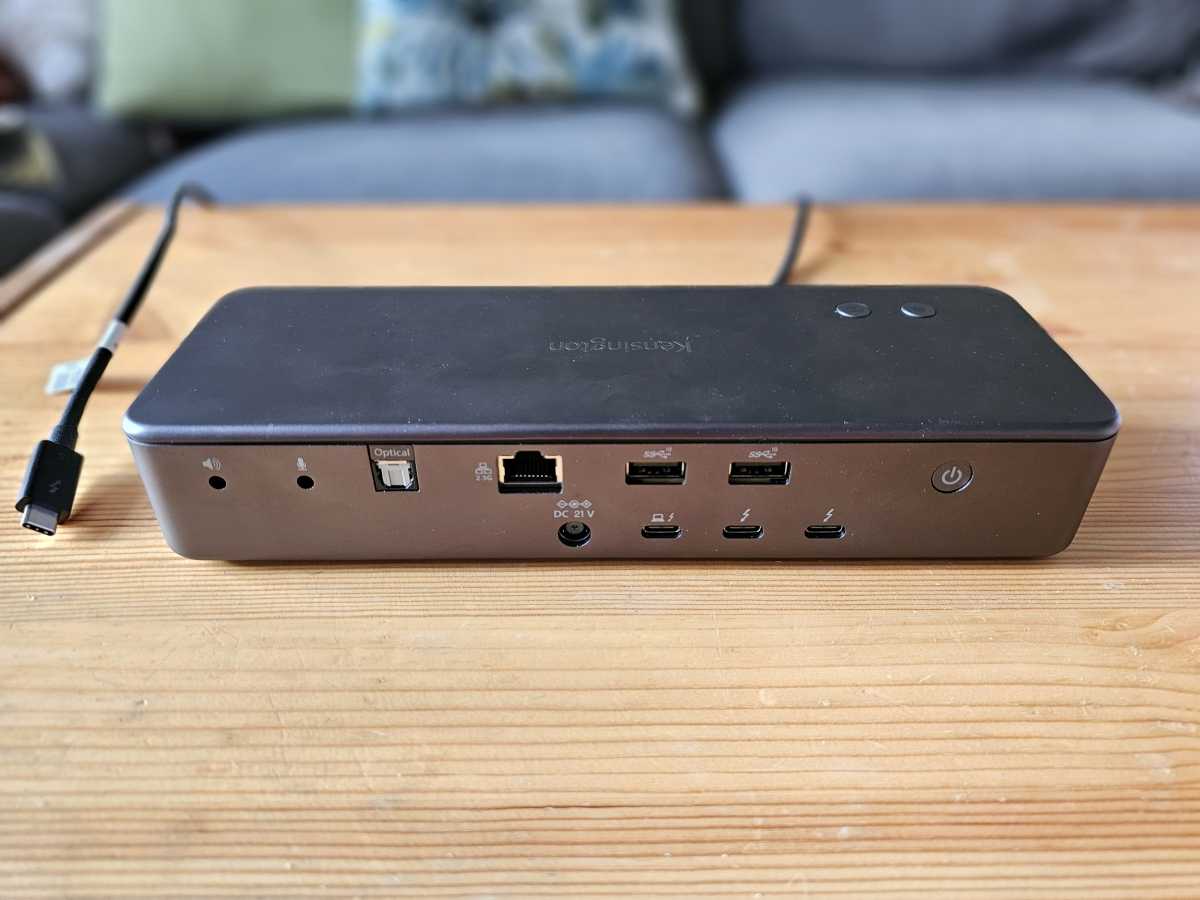
From an audio perspective, as well as a single 3.5mm combination mic/headphone jack on the front of the dock, there are separate mic, speaker, and headphone I/O ports, plus an optical connection to pass lossless audio to some high-end audio systems—a boon for those editing video or audio.

Simon Jary
Hotkeys
Another curiosity bonus feature is the set of two hotkeys on the top of the dock; pictured above. These include one for backing up your iPhone photos and videos to your Mac or SSD plus another offering a Focus Mode for Mac, including ‘Do Not Disturb’, or you can customize the buttons for other functions using the Kensington Konnect. Turning on Do Not Disturb is pretty easy anyway via Control Center in the Mac’s top menu bar, but it’s undeniably a little easier with a physical button. Play around in the software to hone these buttons to your own one-touch functionality requirements.
Portable storage
At the front are two fast UHS-II SD/MicroSD card reader slots, and as a surprise bonus even CF 4.0 (CompactFlash) card slot that will please those professional photographers who use older high-end DSLRs that require it. The EQ Pro is the only modern docking station we’ve seen with one of these.
Simon Jary
Super store
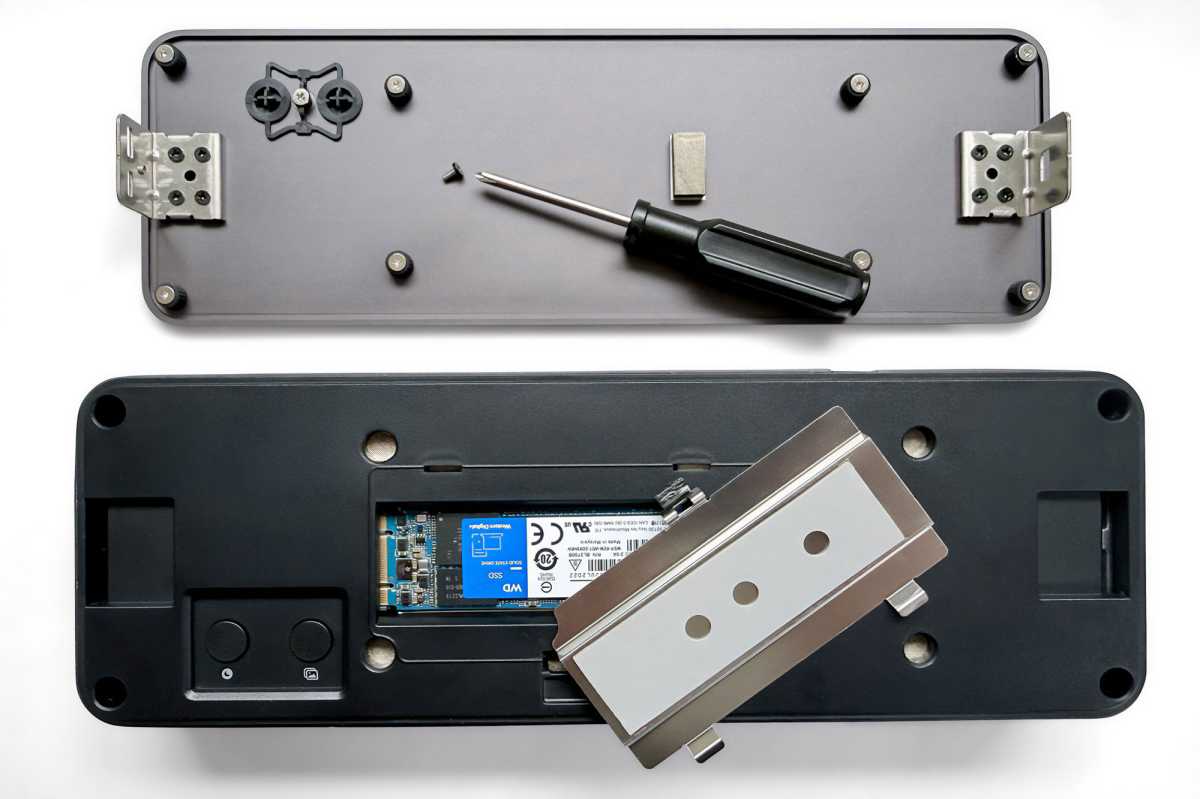
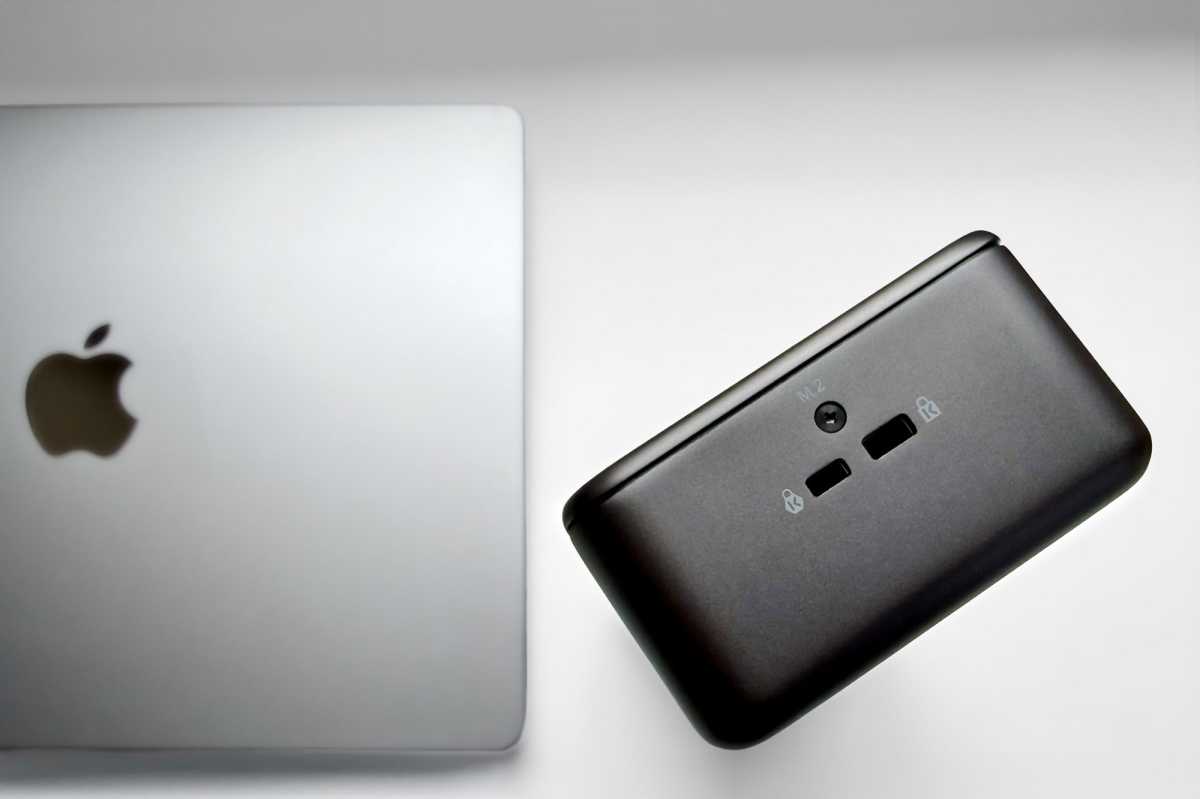
A feature that is becoming more common with docking stations is an integrated PCIe 4.0 NVMe M.2 SSD enclosure. This is usually found on the bottom of the dock, but the Kensington EQ Pro has it on the top, secured by a screw on one side of the dock itself; see our photo above. You’ll need your own tiny Phillips cross-head screwdriver as Kensington doesn’t include one in the box—other dock makers such as Ugreen and iVanky do include a screwdriver, so this will be missed as you search your office or home for one the right size.
Apple doesn’t make MacBook storage cheap—the 14-inch MacBook Pro comes with 1TB as the base level, with 2TB costing an extra $400 and 4TB a whopping $1,000! Once you’ve purchased, you can’t go back to add more.
The dock doesn’t come with an NVMe M.2 SSD, unlike the Sonnet Echo 13 Thunderbolt 5 SSD Dock that is sold as 1TB ($479), 2TB ($649) and 4TB ($999) models. Go to Amazon to find a NVMe M.2 SSD from a reliable brand, such as Samsung, WD and SanDisk. 1TB should cost around $150-200, 2TB around $350 and 4TB $600-700. Storage prices are notoriously volatile so you find them more affordable or more expensive when you’re searching for one.

Kensington
Displays: M5 Pro/Max mean more monitors
While Thunderbolt 4 docks continue to be capped at two external displays on the Mac, the latest top-end M5 Pro and M5 Max chips support up to three external displays with the Kensington EQ Pro. The M5 Max can handle four but as there aren’t enough ports to hang so many monitors off you’ll need to daisy-chain the fourth screen from the third.
Maximum resolution for a dual-monitor setup is two 6K monitors at 60Hz. A single 8K/60Hz display is possible with M5/M4 Base/Pro/Max plus Pro/Max versions of the M1/M2/M3 chipped Macs.
Simon Jary
Kensington EQ Pro performance
From a performance standpoint, Kensington’s dock was slightly slower than other Thunderbolt 5 docks tested by my colleague Mark: the Sonnet Echo 13 transferred data from our test SSD at about 436MBps, while the Plugable TBT-UDT3 was about the same. Kensington’s drive transferred data at 398MBps, or 9% slower. The EQ Pro boasts more ports, though, remember.
We copied multiple gigabytes of data from a folder on my desktop to the dock’s SSD. The dock performed normally, taking about 16 seconds. (Sonnet’s dock is the fastest here, at about 14 seconds.) While streaming, that dropped to 17.3 seconds. Obviously, that difference would enlarge the more data you transferred at a time.
Our tests found that that SSD inside Kensington’s dock performed essentially the same as the Razer Thunderbolt Dock Chroma, another Thunderbolt 5 dock with an M.2. SSD slot, when performing a folder copy: 16.8 seconds by itself, and 17.5 seconds while streaming 4K video.
Foundry / Mark Hachman
Price
The Kensington EQ Pro Thunderbolt 5 Docking Station is priced at $449.99. For a dock with this many ports this is comparable with the 15-port $399 CalDigit TS5 or 23-port iVanky FusionDock Max 2, both of which lack the SSD enclosure. The $479 Sonnet Echo 13 has the built-in SSD slot (with SSD included from $479 for 1TB) but fewer ports and the $499 Ugreen 17-in-1 Maxidok has the slot but fewer ports, so the Kensington EQ Pro measures up well when compared to docks with that feature.
To get full value from this dock you’ll want to add the SSD card, which will up the cost significantly but also massively enrich your Mac setup with a ton more upgradable storage at hand.
Should you buy the Kensington EQ Pro Thunderbolt 5 Docking Station (SD7100TS)?
$449 (plus the cost of the SSD if you want to use this dock to its full potential) is a lot of money but for the level of connectivity (19 ports!) and a tidy storage M.2 enclosure it’s more affordable than its closest rivals. The optical audio port, CompactFlash slot and hot keys are nice extras rarely found on docking stations.
Related posts:
 Kensington SD5800T Thunderbolt 4 Dock review: Premium in all ways
 EcoFlow RAPID Pro 27K Power Bank (300W) review: Fast, powerful and portable MacBook battery pack
 Kensington EQ Pro Thunderbolt 5 Docking Station review: Spec’d and priced for pros
 Wavlink Thunderbolt 5 Dock review: Affordable fast Thunderbolt plus handy power options