Imagine you just bought a brand-new monitor that prominently advertises its HDR capabilities. You hop over to YouTube and stream the first “4K HDR” video you find… but it looks washed out or barely any different from the non-HDR display you had before.
It’s a common problem. HDR is touted everywhere on monitor spec sheets, but a lot of those badges don’t really mean much when the monitor itself isn’t capable of actually showing HDR.
Real HDR needs the right hardware to deliver what the sticker on the box promises. If your monitor doesn’t have adequate brightness, it isn’t going to be able to produce those specular highlights that make HDR movies and TV shows really pop. If its contrast ratio is weak, it isn’t going to be able to deliver dark, inky blacks with real detail. If it doesn’t have enough dimming zones (or individual OLED pixel control), it’s going to struggle with halos and crushed shadows.
Yup, lots of monitors promise HDR but fail to deliver. Here’s what’s happening and how you can avoid being duped.
Real HDR vs. expectations
HDR technology is widely misunderstood, and that’s at least partially responsible for why so many “HDR” monitors disappoint. It’s often marketed as a simple way to brighten highlights, darken shadows, and make colors look extra vibrant—but that’s not really what it’s doing. It’s just one example of how gaming monitor specs can deceive you.
HDR is more about preserving a wider range of brightness and color information from the original source material. It then relies on the display to reproduce that wider range, and that’s why the display’s actual hardware and specifications are so important.
With SDR (non-HDR) content, the signal has to contain all the details for highlights, midtones, and shadows in a narrower brightness range. That’s what results in SDR content losing detail in the extremes, with ultra-bright or extra-dark areas blending together and leaving detail compressed. If you’ve ever found yourself squinting to see the characters in a dark scene, this is partly why that problem occurs.
Mattias Inghe
A good HDR monitor gives the signal enough breadth to properly display the original image without losing detail at the extremes. Dark scenes can still look dark while allowing even darker shadowy figures to move within them, and bright elements in the clouds aren’t washed out just because a silhouette is moving in the foreground.
Here’s the main takeaway: In order for HDR to be effective, the monitor needs to be capable of generating the brightness and high-contrast shadows that these HDR scenes demand.
“Fake” HDR in monitors
The Samsung Odyssey G55C is a fast and affordable gaming monitor with a 1440p IPS panel and HDR10 support. But while it might be able to technically handle an HDR signal, its hardware can’t back it up. It lacks local dimming, so blooming and halos occur. Its brightness is limited to a mere 300 nits, which just isn’t enough to meaningfully display bright highlights. Contrast is decent enough for an IPS monitor, but it can’t deliver the dark-scene details that higher-end monitors can. That’s why the best gaming monitors offer a lot more brightness than that.
Samsung/Amazon
Another example is Dell’s Alienware AW3225DM, which supports HDR and even has VESA DisplayHDR 400 certification. But many reviewers note that local dimming is poor and its 400-nit brightness is unimpressive, leaving highlights that fail to pop off the screen. And its contrast when local dimming is enabled—something you can’t turn off when it’s receiving an HDR signal—is worse than SDR mode.
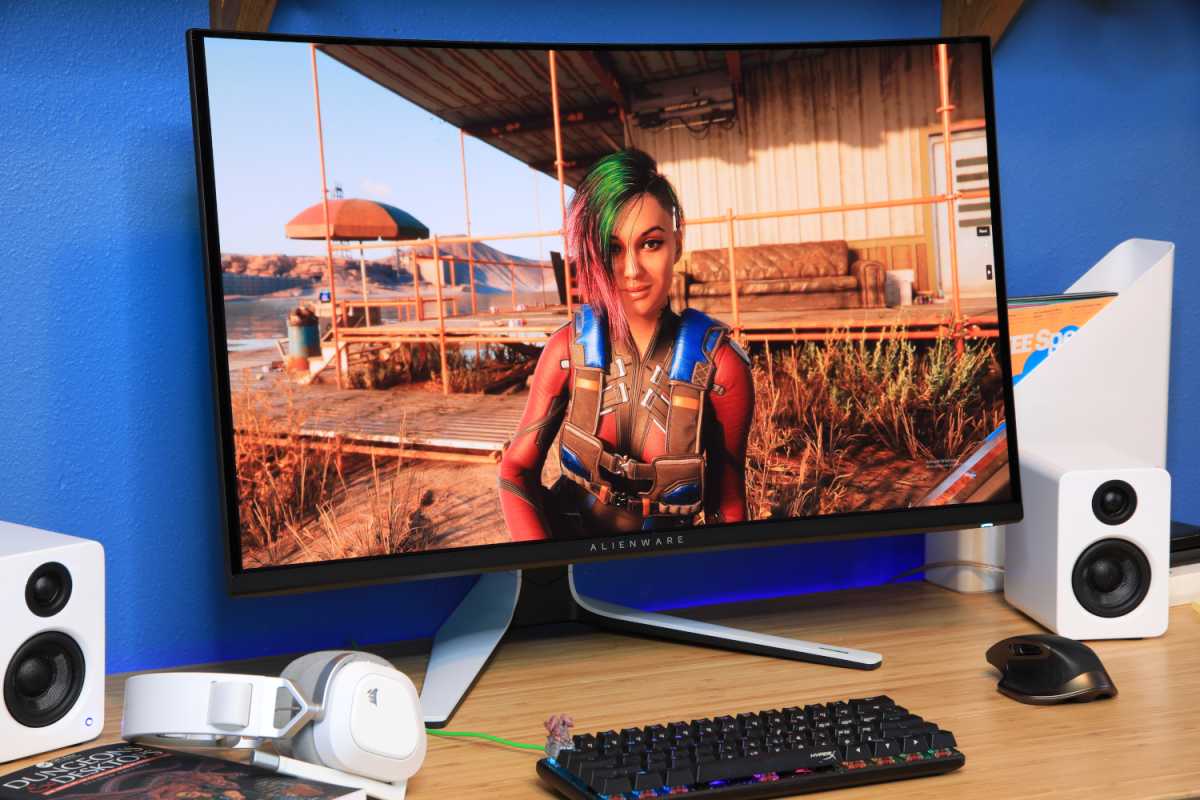
Even high-end monitors aren’t immune to this issue, with some that are lauded for their “HDR support” only delivering it conditionally or with notable caveats. For example, Dell’s Alienware AW3225QF is one of the most well-reviewed gaming monitors ever made, and its QD-OLED panel delivers fantastic colors, contrast, and brightness for OLED. Yet while on paper it can deliver 1,000 nits, it’s only VESA DisplayHDR 400 True Black certified because it can only manage 1,000 nits on smaller screen segments. With a full-screen HDR image, it can only deliver around 250 nits. That’s one reason why we dinged it a star in our review of it.
Matt Smith
I have this monitor, by the way. It’s utterly gorgeous in SDR and still great in HDR with rich colors and deep shadows. But it’s a gaming monitor first and foremost, and it’s the buttery smooth 4K frame rates, high contrast, and snappy response time that I enjoy most. For watching HDR movies, I still prefer a big, bright OLED or Mini-LED TV. (Learn more about why Mini-LED is the future, not OLED.)
What you need for true HDR
Realistically, most affordable monitors can only push 300 to 400 nits of brightness, and that just won’t suffice for anything but the most basic HDR. They may be able to accept an HDR signal, but they won’t have enough brightness headroom to make those highlights look dramatically brighter. Even a VESA DisplayHDR 400 rating should be considered basic HDR compatibility and not true HDR support.
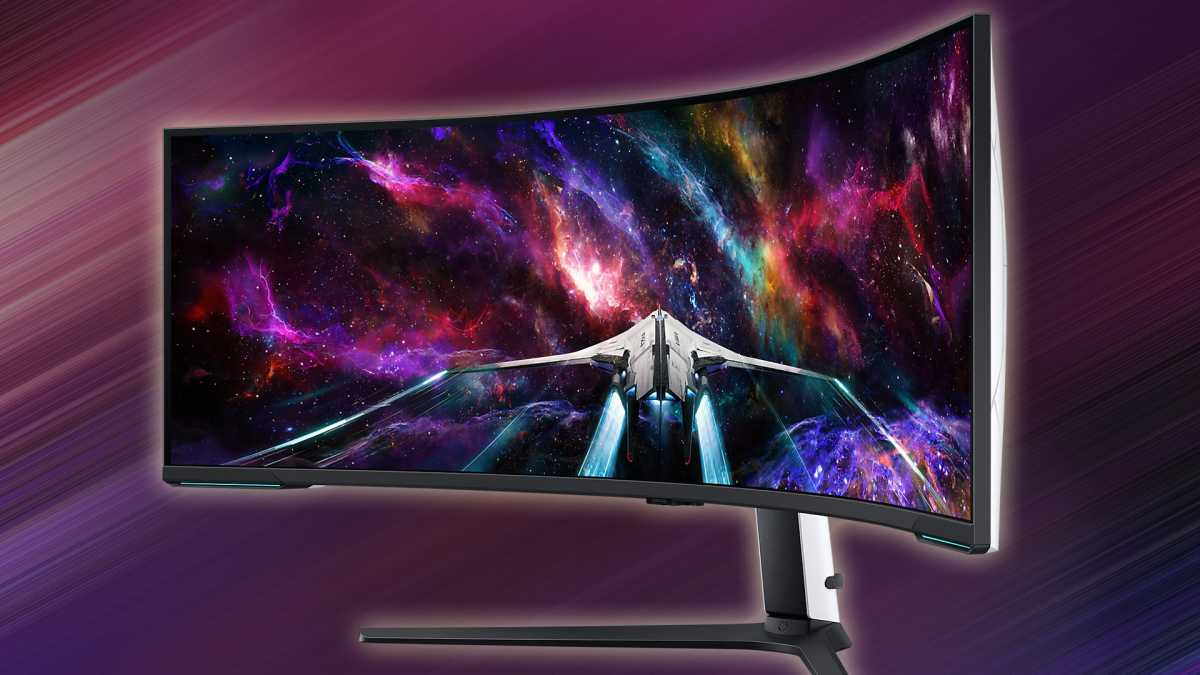
Higher brightness ratings, particularly those backed by VESA like DisplayHDR 600, are notably more impressive and are likely to deliver the kind of vibrancy you’re looking for with HDR. Above that, you have DisplayHDR 1000 which is where HDR really becomes more convincing. With 1,000 nits of brightness, you have the headroom necessary to go bright without forcing the whole image to flatten out. That’s why my colleague recommends 1,000 minimum for HDR performance.
Samsung
But brightness isn’t the full story. You also need strong contrast and precise control to handle entire scenes with both bright and dark elements, especially if they cross over one another. The per-pixel control of OLED and the many local dimming zones of Mini-LED both make a huge difference to how light and dark interact on screen, and that higher contrast really helps pull out the details needed for HDR.
And if you’re buying OLED, consider the type of OLED panel you’re getting. QD-OLED tends to offer more vibrant colors, but you can lose some of the contrast in brighter rooms. More traditional WOLED designs are often brighter and have more high-contrast shadows at the expense of more impressive color saturation.
Sometimes it’s just Windows’ fault
A major caveat to all of this HDR talk is that, even after years of work, updates, and readily available calibration tools, Windows 11 doesn’t handle HDR as well as one would hope.
First, you need to make sure HDR is enabled in your monitor settings and within Windows itself. You should also run the Windows HDR Calibration app to fine tune your settings. But even then, issues can crop up. A quick search on Reddit for your monitor’s name/model followed by “HDR settings” will likely turn up all sorts of threads and replies where new monitor owners are pulling their hair out.

Jon Martindale / Foundry
And then there’s Windows Auto HDR, a neat OS feature for gamers who want to play older games that don’t have HDR support on monitors that do have HDR support. It effectively tone maps the SDR signal to better fit an HDR display’s capabilities. It’s not as good as native HDR support, especially with games where the look was supposed to be flatter, but it’s a nice-to-have option for supported games and monitors.
Suffice it to say, your HDR experience will vary depending on your specific monitor, the hardware within it, the monitor’s settings, your Windows settings, your eyeballs, and your personal tastes.
HDR isn’t black and white. Some monitors are much better at displaying it than others, even if they all say they support HDR. Ignore the vague “HDR10” and “HDR supported” and “VESA DisplayHDR 400” terms and marketing materials. Look at the raw specifications. If HDR matters to you, make sure the monitor you’re buying really has the brightness and hardware to power it. Don’t just take a manufacturer at its word.
Further reading: The best monitors for 4K, HDR, and more


