At a glance
Expert’s Rating
Pros
- Affordable game controller
- Includes 2x joysticks, D-Pad and button controls
- Compact, lightweight design
Cons
- Weak magnetic attachment
- Small controls for big hands
- Confusing manual
Our Verdict
The weak magnetic attachment may worry some people, but the compact M4 is still a good option for occasional bouts of mobile gaming on your iPhone.
Price When Reviewed
This value will show the geolocated pricing text for product undefined
Best Pricing Today
Price When Reviewed
$49.99
Best Prices Today: Abxylute M4
$42.49
- What is Abxylute M4: A small, portable Bluetooth game controller designed for iPhones.
- Who’s it for: Casual iPhone gamers. Good for occasional use, not for serious gaming.
We like Razer’s Kishi game controllers (including the Kishi Ultra, Kishi V2 and Kishi V3), which offer models for both iPhone and iPad. However, the Kishi range is relatively expensive and aimed primarily at serious gamers who want full-size controls with the feel and precision of a traditional Xbox or PlayStation controller.
Abxylute takes a different approach with its M4 controller. It’s smaller, more affordable, and geared towards casual gamers looking for quick bursts of mobile gaming on their iPhone.
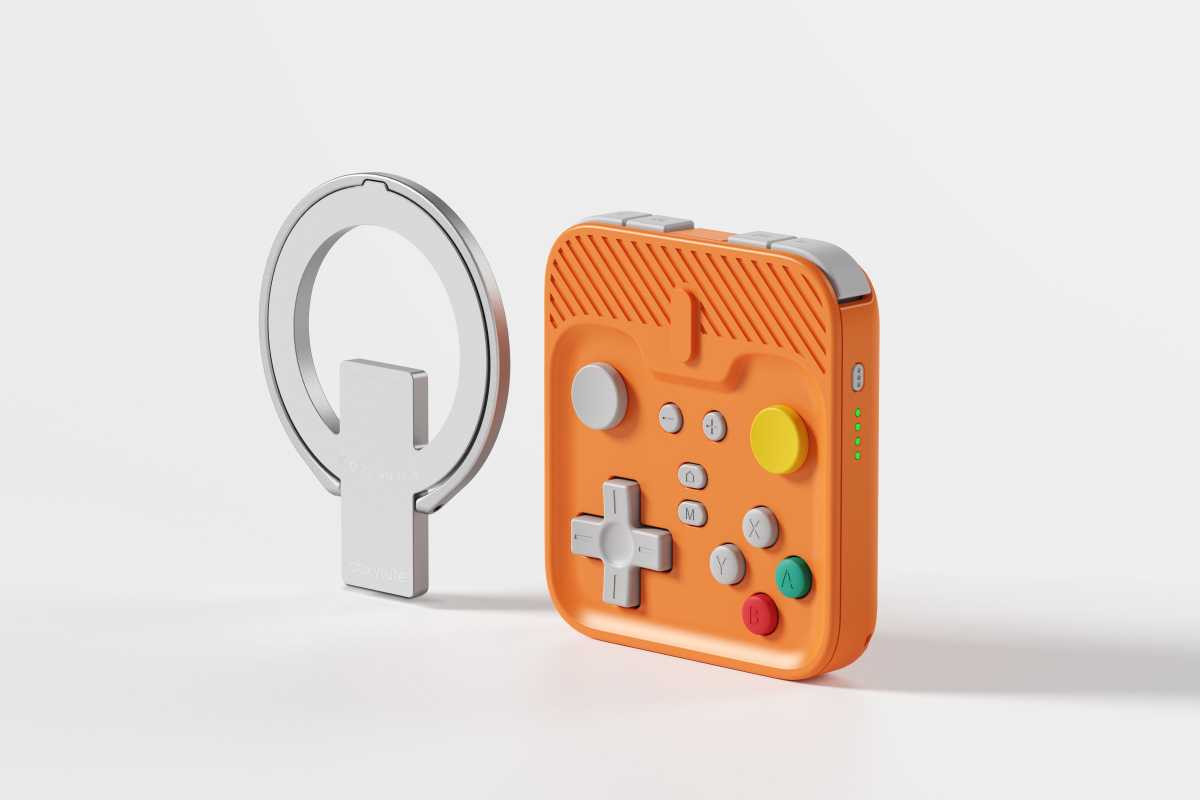
Priced at just $52/£40 and available in a variety of colours, the M4 is described as a “magnetic mobile gamepad” and features a compact, pocket-friendly design.
By comparison, the Kishi controllers are quite bulky, attaching to either side of your iPhone to effectively turn it into a mini games console. The M4, however, is a small plastic rectangle measuring just 15mm thick, 70mm wide and 75mm long, and weighing only 55g – making it easy to slip into a pocket or bag when travelling.
Despite its size, the M4 is packed with controls. It includes two shoulder buttons on each corner, dual mini joysticks, a D-pad, and a set of face buttons similar to those found on a PlayStation controller.
A USB-C port on the bottom handles charging, with the internal battery providing up to 10 hours of use on a full charge.
The compact M4 holds your iPhone in landscape position for playing action games (iPhone not included).
How to attach the M4 to a iPhone
The M4 uses Bluetooth to pair with your iPhone, but it also includes a magnetic metal ring that can attach to the MagSafe magnets on an iPhone (and also worked when attached to the MagSafe sleeve that I use with my own iPhone).
You first attach the magnetic ring to the M4 and then use the ring to attach the M4 to your iPhone, with the iPhone being held in the horizontal landscape position that is used for most action games.
The only thing to watch out for here is that the magnetic ring can’t hold the weight of the iPhone if you hold the M4 out in front of you with the iPhone screen facing down at the ground. To be fair, Abxylute does warn you about this on its website and, of course, you’re obviously not going to play any games with the iPhone held like that. But you could find that the iPhone falls off the magnetic ring if you need to quickly put the iPhone down on your desk, or drop it into a bag.
There is another option though: It’s also possible to separate the M4 and the metal ring, and use the ring as a table-top stand for your iPhone while you hold the M4 in your hands.
The magnetic ring attaches to the MagSafe magnets on an iPhone – but you still need to be careful how you hold it.
How easy is it to set up and pair?
Getting started can be a little tricky, as Abxylute’s rather jargon-heavy manual assumes that you’re already familiar with the intricacies of game controllers. I do own a PlayStation Dualshock controller, but I still prefer to use a keyboard and mouse for gaming on my Mac, so setting up the unfamiliar controls of the M4 took me a little while.
Simply pairing with the M4 via Bluetooth isn’t enough, as it provides multiple pairing modes designed for different types of gaming devices.
After figuring out that I needed PS Mode for my iPhone – which presumably means ‘PlayStation Mode’ – the M4 did show up in my iPhone’s Bluetooth Settings panel as ‘Dualshock Controller’.
However, there’s still a lot of confusing information in the manual about configuring the various buttons on the M4, which won’t be very helpful for first-time users. And, of course, you have to make sure that the mobile games you’re playing do have built-in support for game controllers.
What is it like to use for gaming?
Unfortunately, not all iOS games support controllers. My first port of call was the iOS version of Baldur’s Gate, but that simply ignored the M4 completely.
I had more luck with Diablo Immortal, which has a useful tutorial that guides you through the basics of using a controller, and I was soon slinging fireballs around the screen of my iPhone like a pro.
I did find the compact design of the M4 a little small for my manly mitts, particularly reaching up to the four shoulder buttons. It did feel more comfortable using the magnetic ring as a stand for my iPhone while I held the M4 separately in my hands, but the M4 was still better than trying to play a fast-paced game like Diablo Immortal using the iPhone’s normal touch-screen controls.
Should You Buy The Abxylute M4?
No two ways about it – the magnetic ring used to attach the M4 to your iPhone could definitely be stronger. And, if you spend a lot of time playing mobile games then it’s probably worth spending a little more to get a full-size controller like the Razer Kishi. But if you just want to zap a few bad guys while you’re sitting on a train with your iPhone then the M4 is a good alternative to using touch-screen controls, at a competitive price.
Related posts:
 Scuf Nomad review: Compact iPhone controller with customization options
 Lexar SL500 Magnetic Set review: iPhone SSD ideal for videographers
 Baseus Nomos Qi2 Magnetic Power Bank review: fastest iPhone battery charging
 ESR CryoBoost 3-in-1 Magnetic 25W Charging Station (Qi2.2) review: compact and fast