At a glance
Expert’s Rating
Pros
- Gorgeous OLED display
- Lightweight, premium design
- Excellent battery life
Cons
- AI features aren’t particularly useful
- Touchpad attracts fingerprints
Our Verdict
The Acer Googlebook 14 is a great premium laptop, but it’s not going to be everyone’s cup of tea. It’s only worth considering if you want a lightweight, high-end convertible laptop and you’re already deeply enmeshed in Google’s/Android’s ecosystem.
Price When Reviewed
This value will show the geolocated pricing text for product undefined
Best Pricing Today
Price When Reviewed
$899.99
Best Prices Today: Acer Googlebook 14
The Acer Googlebook 14 surprised me, but not in the way I expected.
If you’re wondering what a Googlebook is, the short version is that it’s (in a way) the new Chromebook. Basically, it keeps much of the familiar Chromebook experience while adding deeper Android integration and new AI features. They’ve also got Intel and Qualcomm chips inside of them.
Going into this, I had a lot of questions, specifically about the new operating system (aka Googlebook OS) and its AI features. Is the new OS going to confuse me? What happens if I accidentally set off the Magic Pointer? Will it drive me bananas?
The answer, thankfully, was no — to a surprising degree.
Acer Googlebook 14: Under the hood
- Model: Acer Googlebook 14 (GP714-91N-50A0)
- OS: Googlebook OS
- Processor: Intel Core Ultra 5 325, 8-core, up to 4.5GHz
- Graphics: Intel Graphics, 4 Xe cores, up to 2.45GHz
- NPU: Intel AI Boost, up to 47 TOPS
- Memory: 16 GB
- Storage: 512GB SSD
- Display: 14-inch 2880×1800 OLED touchscreen, 120Hz
- Ports: 2× USB-C 3.2 Gen 2, 1× USB4/Thunderbolt 4, 1× 3.5mm headphone jack
- Wireless: Wi-Fi 7, Bluetooth 6.0+
- Weight: 2.51 lbs
- Price: $899.99
Acer Googlebook: Design-wise, it’s a step-up from Chromebook Plus models
The Googlebook arrived tucked inside what looked like a jewelry box–I got premium vibes from it right away. It also came with a laptop sleeve, which I appreciated.
The design is a big part of why the price tag is higher than what you typically pay for a Chromebook Plus. (The other part is the hardware, which I’ll get to later.) You can feel the difference in the aluminum-magnesium chassis (most Chromebook Plus models are made of plastic). It feels very durable. The 360-hinge also lets you rotate the screen and use the laptop in tablet mode if that’s your thing. And, at 2.51 pounds and just 0.55 inches thick, it’s also surprisingly light and thin.
Acer Googlebook 14: The keyboard is comfortable, but the touchpad attracts fingerprints
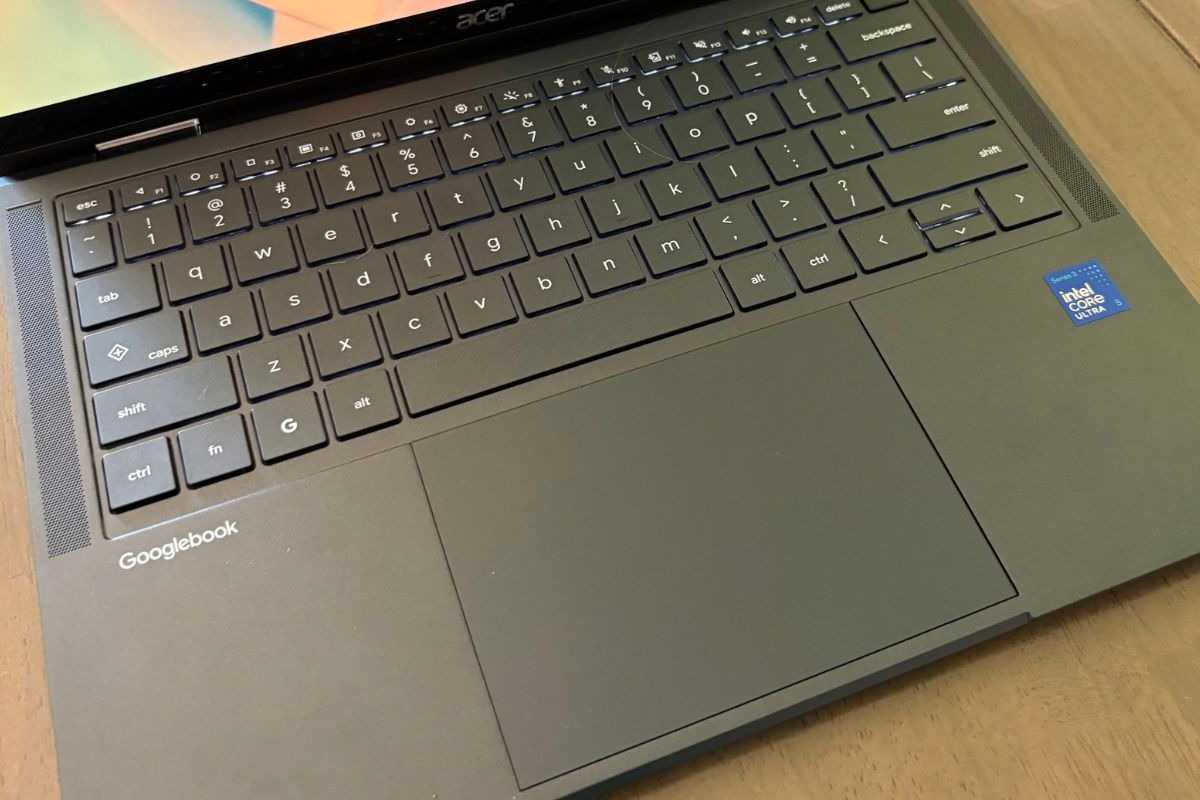
I generally prefer smaller laptops because I have smaller hands, so larger keyboards take me longer to get used to. Fortunately, I accustomed myself to this one pretty quickly since it’s still similar to the layout I use Once I adjusted, typing felt comfortable.
The keyboard also has backlighting, which is nice — and something I’d expect at this price point. The power button doubles as the fingerprint sensor for logging in.
The touchpad is centered and a good size, so I don’t have any complaints about how it feels to use. It’s also got a layer of Corning Gorilla Glass on it, so it feels smooth.
The problem is that it started collecting fingerprints almost immediately. I don’t think something like that would deter me from purchasing a laptop (any laptops, really). But if you’re someone who likes keeping your laptop looking pristine, you’ll probably notice it.
Acer Googlebook 14: The webcam was fine, with one little hiccup
I used the 5MP webcam during a brief call and thought the video quality was perfectly fine. I didn’t look totally washed out, which is always a win as far as I’m concerned.
The call itself did drop me twice, although I was quickly reconnected both times. I don’t know if it was an issue with Microsoft Teams or the Googlebook itself, so I’m hesitant to blame the laptop for it. It didn’t feel great, though.
Acer Googlebook 14: The Glowbar is cute
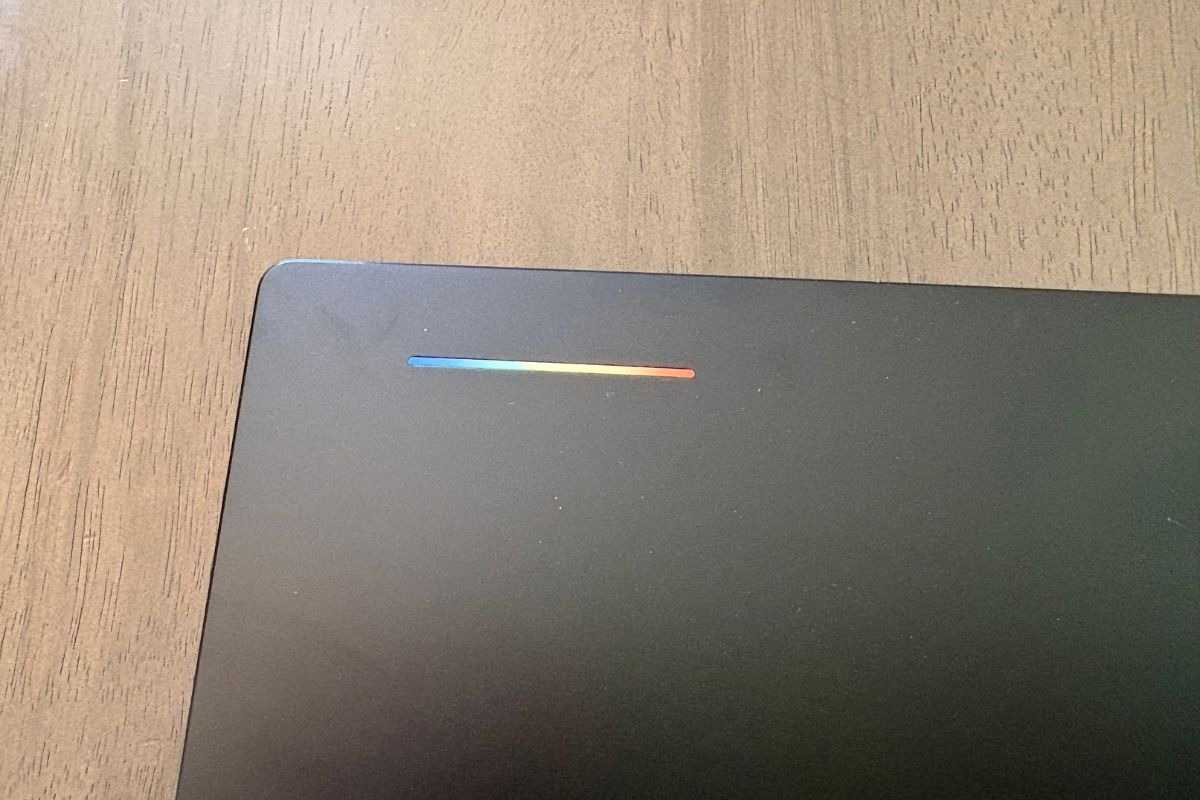
There’s a little Glowbar on the lid, and I think it’s a cute feature.
Is it necessary? No.
But it’s unobtrusive, and it actually has a useful purpose: it tells you how much battery you have left, as well as the charging status. That’s handy when you only have a second to glance at the top of the laptop and want to know if you’re going to need to charge it soon.
It’s one of those little additions I wouldn’t necessarily ask for, but don’t mind having. I like that it’s small and subtle.
Acer Googlebook 14: This is a phone-first laptop
Acer sent me a Google Pixel 10 Pro XL to use with the Googlebook. I’m an iPhone user, though, so jumping to an Android phone felt a bit like landing on another planet.
But this is where it got interesting for me. I could see why someone who already uses an Android phone would find this convenient. The Googlebook is designed to make your phone feel like an extension of it. The Continue On feature, for example, lets you continue whatever it is you’re doing on your phone on the Googlebook. I played around with it a little bit, but I’m not totally sold on the idea of connecting my phone to my laptop. I’d actually prefer to keep them separate–I don’t want all of my information in one place. But the deep Android integration is a clear selling point for Googlebooks.
Acer Googlebook 14: The interface feels surprisingly familiar
I expected the Googlebook to feel more different from a Chromebook, especially when navigating around the operating system.
It really doesn’t!
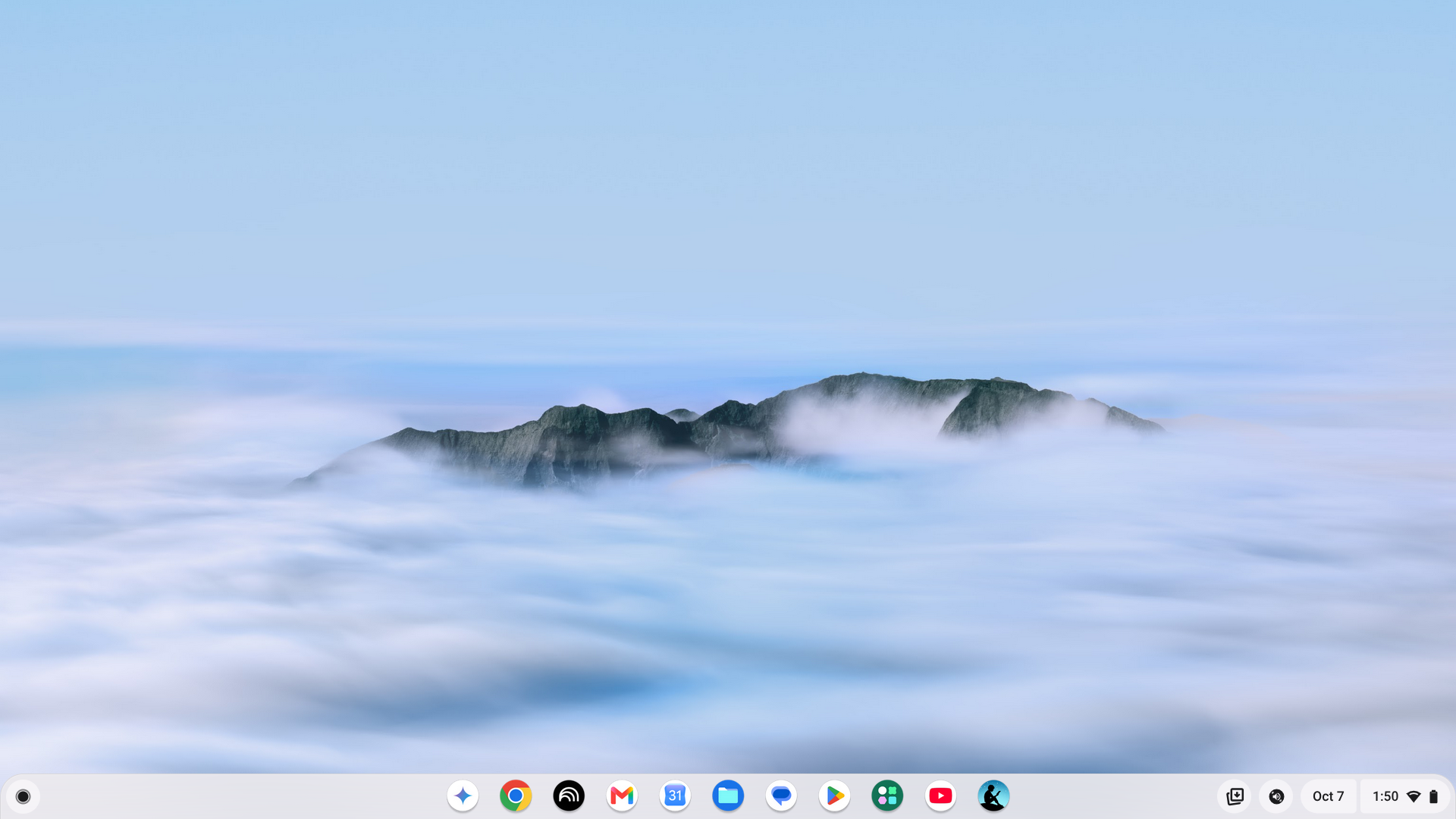
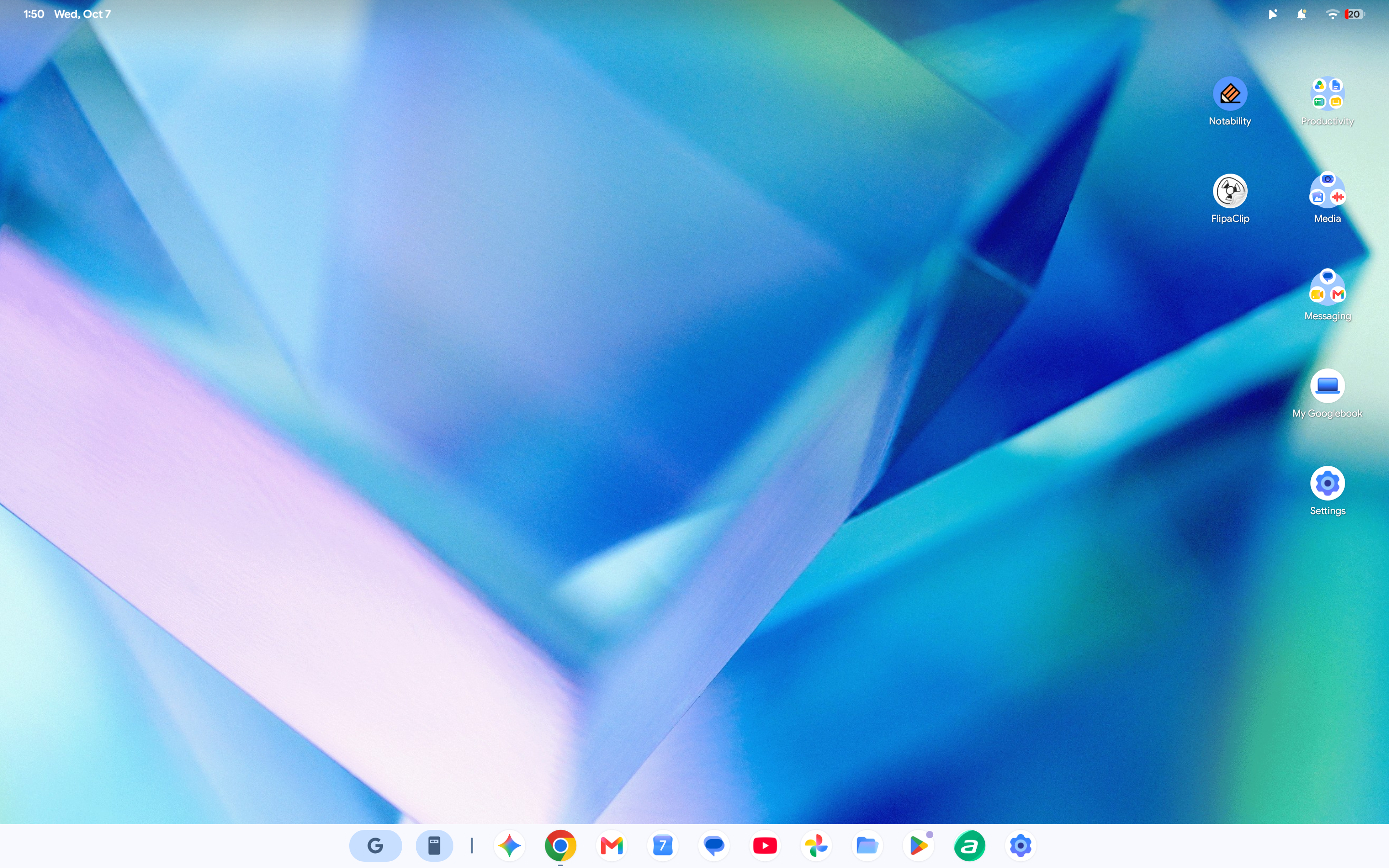
The biggest difference is what happens beyond the desktop. There is much more Android integration this time around.
Still, I didn’t find myself fighting with the interface or wondering where everything had gone.
Acer Googlebook 14: I kept forgetting about the Magic Pointer
The Magic Pointer is one of those features that I kept forgetting existed, despite being one of the darlings of the Googlebook’s marketing when it was first announced.
That’s partly because you’ve got to wiggle the cursor in order to activate it, and that’s not something I naturally do when I’m using a laptop. If I’m wiggling the cursor around, it’s usually due to a moment of frustration. That said, you’ve got to really wiggle the cursor with intention in order to summon the Magic Pointer. It’s not easily triggered… but that might actually be a good thing.
Because I kept forgetting about it, the Magic Pointer wasn’t nearly as intrusive as I expected it to be.
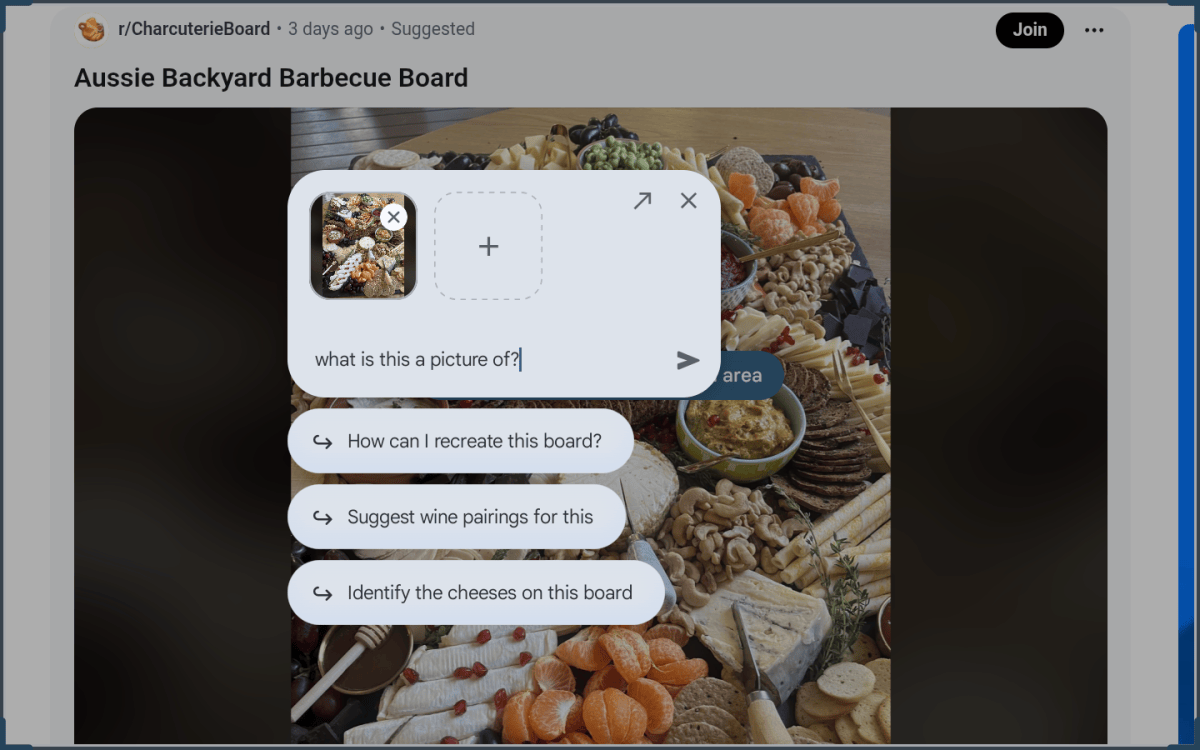
I tried it out on a picture of a cool charcuterie board I saw on Reddit. The Magic Pointer came up with a couple of questions I could ask Gemini, including what kind of wine would pair well with it and how to recreate the board. When I asked to recreate it, Gemini popped up in the corner with a shopping list of ingredients and assembly steps.
It worked.
But I just don’t know if it’s something I’d actually use (or remember to use).
My instinct is to look up the ingredients and figure out assembly myself. And honestly, it’s probably easier for me to do that than to remember to wiggle the cursor first.
That’s the thing I noticed about the Googlebook’s AI features. They’re there. They work. They’re not particularly annoying. I just don’t always think to use them.
Acer Googlebook 14: As a laptop, it works really well
If you completely shelf the AI stuff/Android phone integration for a moment, the Googlebook is just a nice laptop. That’s a big compliment.
The particular Acer model I tested has an Intel Core Ultra 5 325 processor, 16GB of RAM and a 512GB SSD, and that combination felt more than capable of handling my usual workload.
I had no problems throwing my usual workload at it: scrolling through Reddit, chatting with coworkers on Slack, writing articles in Google Docs, and generally bouncing between the things I normally do throughout the day.
I didn’t notice any slowdowns.
The web-based benchmarks I ran on the Googlebook backed up my experience:
- Basemark Web 3.0: 1,670
- Motion Mark: 4670.12 (@ 60 fps)
- WebXPRT 5: 95
Let’s take a closer look at Basement 3.0, which measures browser performance–now let’s compare the Googlebook’s score (1,670) with the Acer Chromebook Plus 516’s score (901). The Acer Googlebook 14 was 85 percent faster than the Chromebook Plus model. As far as browser performance goes, the Googlebook has a meaningful advantage here.
That comparison isn’t entirely apples-to-apples, though. Here’s why.
The Chromebook Plus 516 has the Core i3-1315U, which is a respectable budget CPU (2 performance cores, 4 efficiency cores). That said, the Googlebook’s Core Ultra 5 325 is much newer, with 4 performance cores and 4 efficiency cores, and is paired with 16GB of RAM rather than 8GB. No wonder it blew the Chromebook Plus out of the water!
In terms of hardware, the Acer Googlebook 14 is actually pretty close to the Dell XPS 14. They’ve both got an Intel Core Ultra 5 325 (“Panther Lake”) processor, 16GB of RAM, and 512GB of SSD storage. But the Googlebook has a much nicer display, and it’s also lighter and more versatile due to the 360-degree hinge. The Dell is considerably more expensive, too, at $1,409.99 (as tested). We didn’t run those web-based tests on the XPS 14, so I can’t make a direct performance comparison.
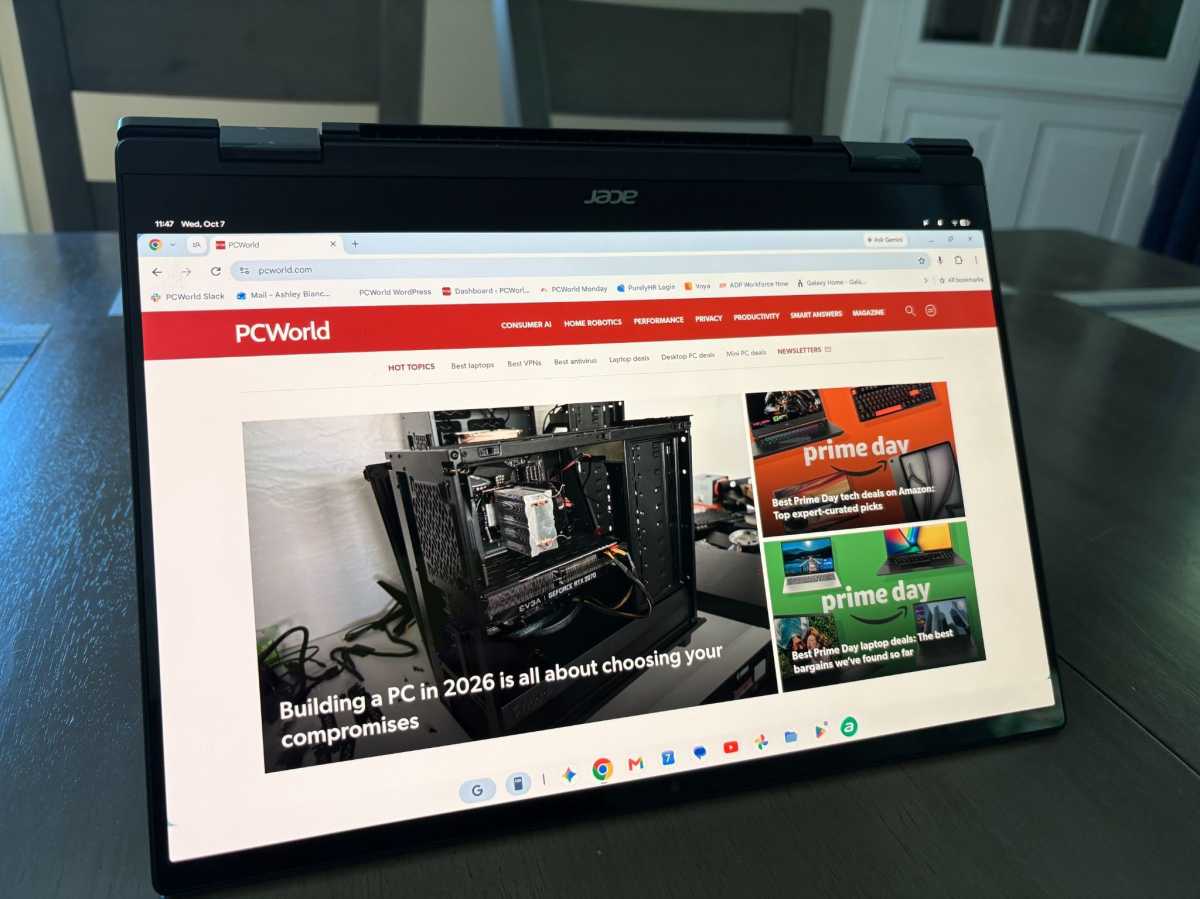
The biggest hardware advantage, though, is the display. The Googlebook has a 14-inch OLED touchscreen, and it’s absolutely gorgeous.
It has a 2880×1800 resolution, a 120Hz refresh rate, and 100 percent DCI-P3 coverage. It gets up to 500 nits, too, so it’s both sharp and bright.
I ended up putting it through one of my favorite unofficial laptop display tests: A Björk concert.
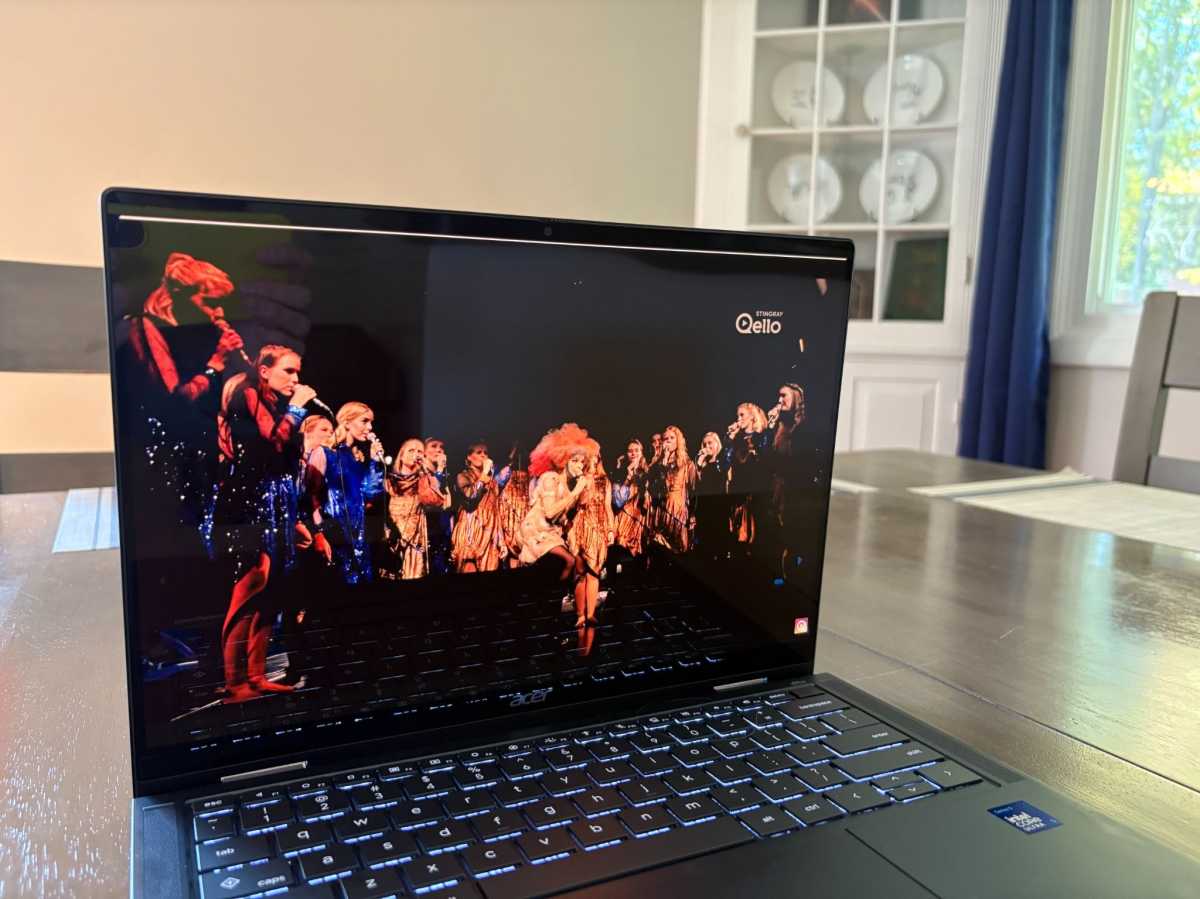
I watched Biophilia Live on this Googlebook, and it looked great. This is actually the second laptop I’ve tested where I’ve watched a Björk concert, which has become a pretty useful way for me to judge how colorful and sharp a display looks. Her concerts are full of incredibly colorful costumes and visuals, so a good screen has plenty to work with here.
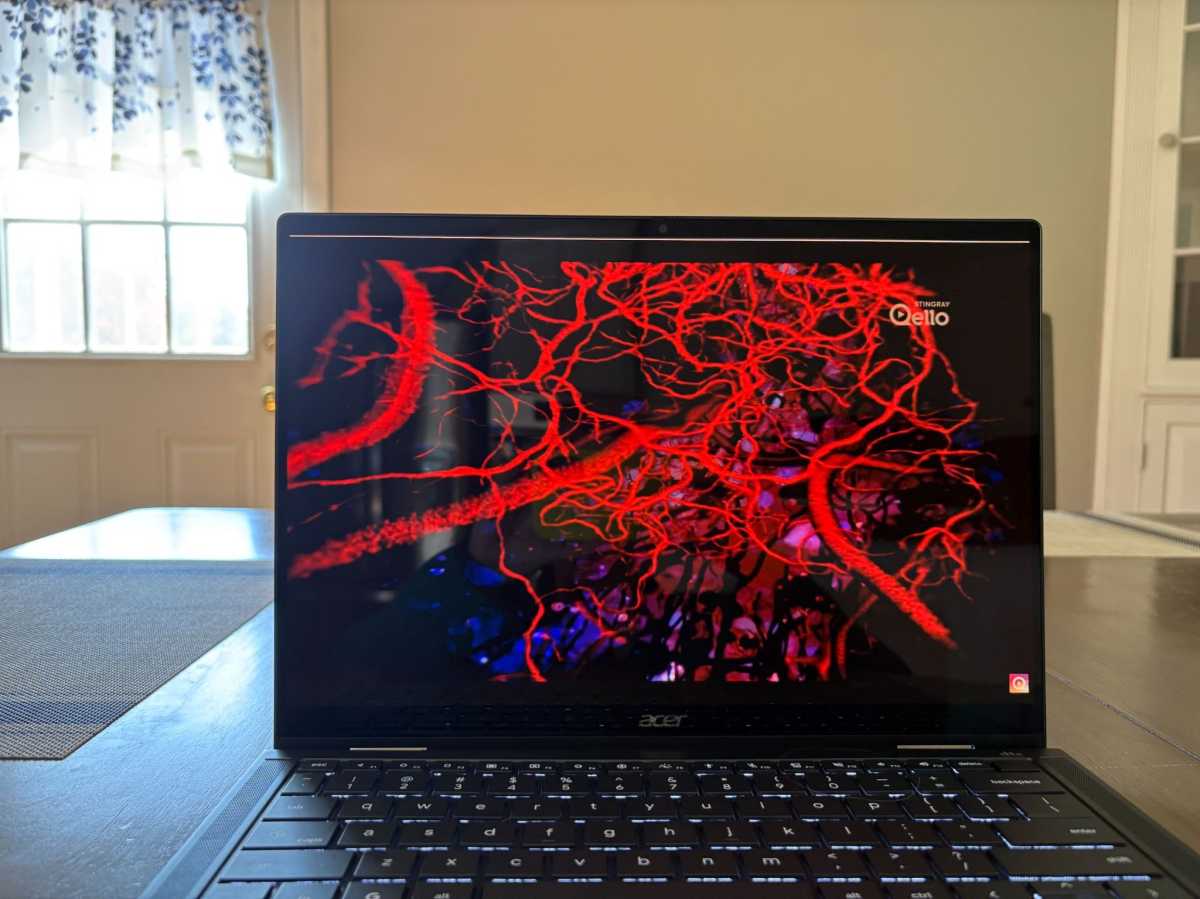
My husband and I also watched a few episodes of Star Wars: Clone Wars, and the Googlebook handled those well, too. I never found myself wishing the display were brighter or more colorful.
Acer Googlebook 14: Battery life is a nice surprise
Battery life was another strong point for the Googlebook 14. In my everyday use, I got around 14 hours on a single charge.
That was enough to get through a full workday and then some (without having to watch the battery percentage bar like a hawk). That’s an awesome result for a laptop with an especially bright OLED display.
I should note that it wasn’t a controlled battery test. Instead, I used the laptop unplugged until it ran out of juice and then calculated the time by using the data from the Battery Usage section in the Settings menu.
So, should you buy the Acer Googlebook 14?
I don’t think the answer is so simple here.
It depends.
The Acer Googlebook 14 costs $899.99 at the time of this writing. It’s pricier than a Chromebook Plus laptop, but you’re getting hardware that’s much closer to what I’d expect from a Windows laptop (like the Dell XPS 14). It’s not a powerhouse, but as a daily driver, it definitely delivers.
If you’re looking for a cheap Chromebook, this isn’t the laptop for you. But I don’t think that’s really who’s being targeted here.
A Googlebook makes sense if you want a premium, lightweight convertible laptop and you’re already well-acquainted with Google’s ecosystem. Doubly so if you’ve got an Android phone, as they’re deeply intertwined with one another.
Google made such a big deal about AI, but the most surprising thing was how… normal using a Googlebook feels. It wasn’t anywhere near as AI-forward as I thought it would be.


