At a glance
Expert’s Rating
Pros
- Instant KVM switching
- 2x 4K/60Hz display support
- EDID emulation
Cons
- Takes up two MacBook ports
- Weak USB device charging
Our Verdict
If you have a shared setup of one MacBook and one desktop Windows PC or a desktop Mac mini or Studio, the KVM functionality of the iDock M10 comes into its own when those two computers are sharing the same dual displays and input devices at different times.
Price When Reviewed
This value will show the geolocated pricing text for product undefined
Best Pricing Today
Price When Reviewed
$289.99
Best Prices Today: AV Access iDock M10 KVM Switch Docking Station for MacBook
$289.99
A KVM docking station enables you to instantly share a single set of peripherals—the KVM stands for Keyboard, Video (monitors) and Mouse—between two computers. While most docks allow you to connect different computers, a KVM dock makes it easier with a special “Switch”—a button that you push to instantly take control from the other computer. The KVM Switch virtually disconnects the first computer and connects the second without you having to unplug any cables.
For dual-computer setups, this can save on desk space and hardware costs, as well as potentially increasing productivity through time savings. The dock is connected to both of your computers using dedicated video and USB cables.
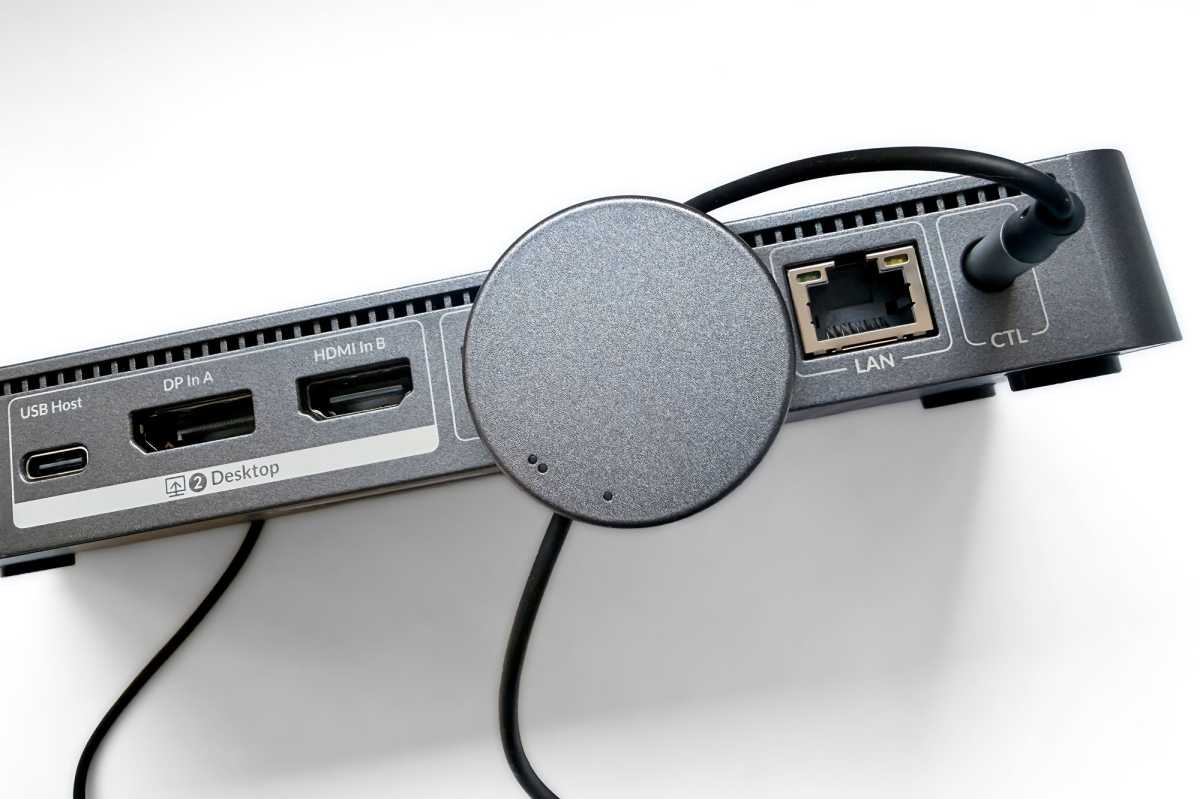
The iDock M10 from AV Access is a Mac-dedicated KVM dock that you can connect to a MacBook and a desktop computer, including a Windows PC. It comes with a KVM Wired Remote Controller, which is the button you press to toggle between computers.
The AV Access iDock M10 is best for users sharing dual monitors, keyboard and mouse between a MacBook and a desktop PC or Mac. Setup requires two MacBook Thunderbolt ports and dedicated connections to both computers. Major limitations include weak device charging, limited port flexibility, no support for two laptops, and no workaround for base M1/M2 single-display restrictions.
Simon Jary
Specs and features
- Two upstream USB-C ports (10Gbps, 100W)
- Two USB-A ports (10Gbps)
- Two USB-A ports (5Gbps)
- One USB-C port (10Gbps, 7.5W)
- Two HDMI ports
- One DisplayPort (upstream to PC)
- One HDMI port (upstream to PC)
- Ethernet (1Gb)
- UHS-I SD card reader (104MBps)
- 3.5mm combo In/Out audio jack (front)
- 3.5mm KVM Switch jack (back)
- 120W power supply
Simon Jary
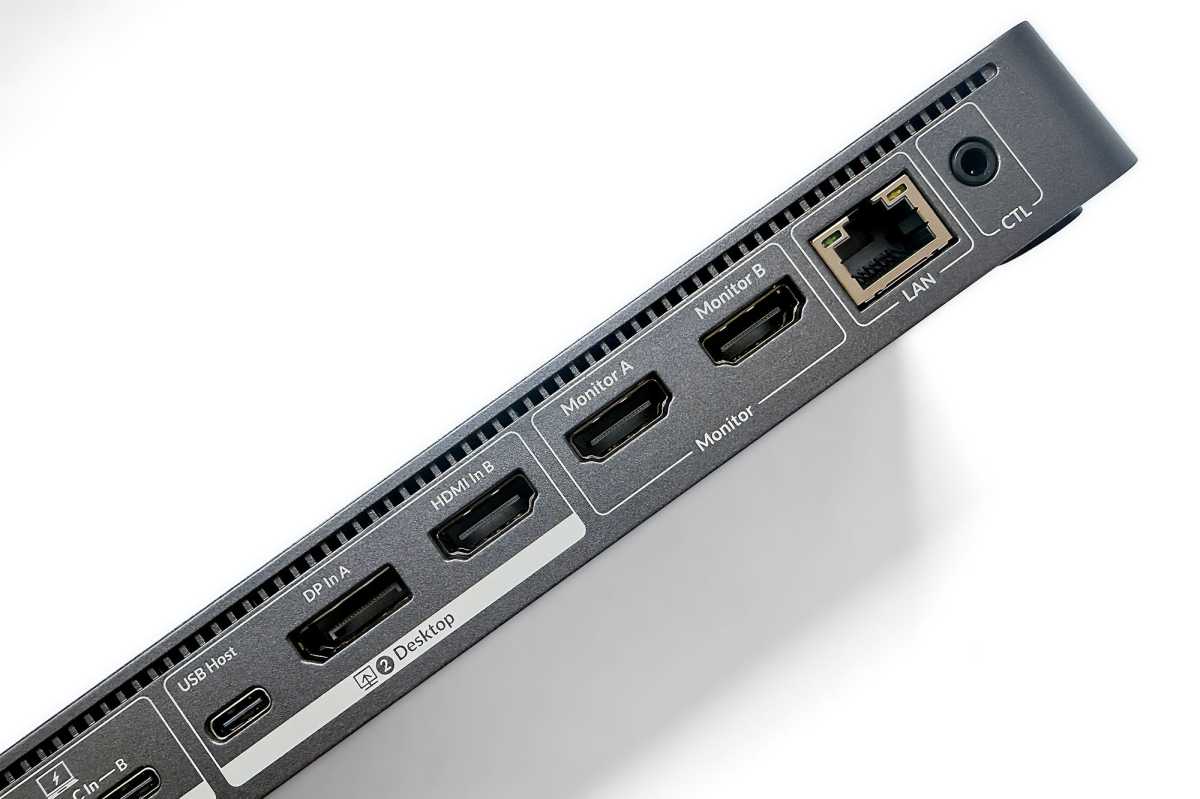
The dock comes with two HDMI ports to connect to dual 4K displays at 60Hz. Remember that base M1/M2 Macs and the MacBook Neo are limited to just one external display, and the M10 is not a DisplayLink dock that can resolve that limitation. Any M1/M2 Pro/Max or later MacBook is fine, supporting two displays.
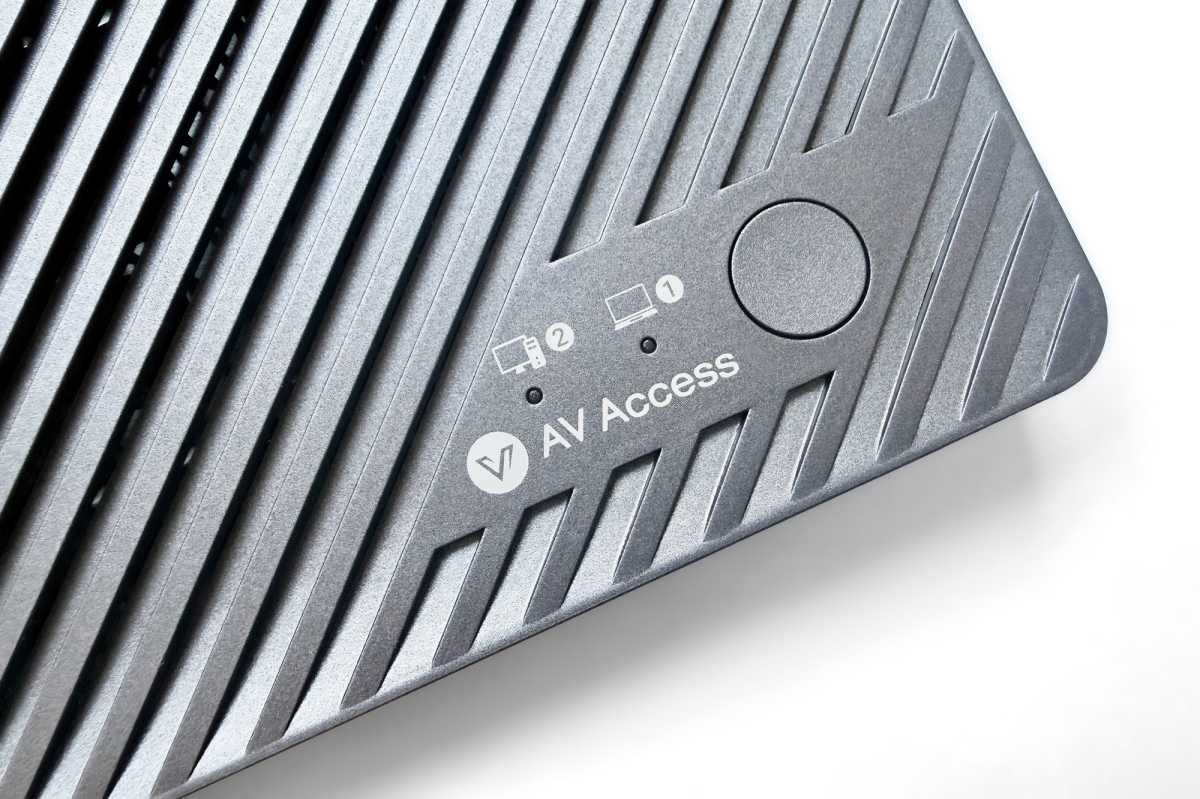
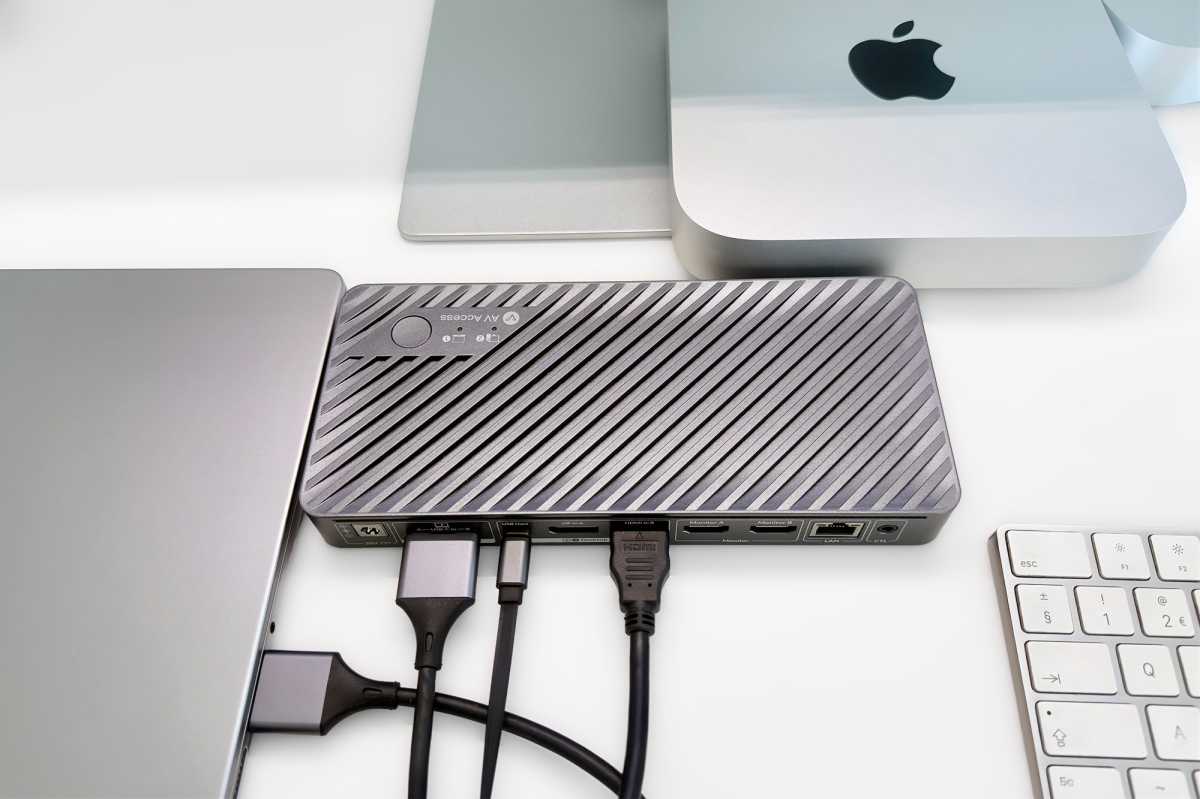
Two monitors are supported on base M3 MacBooks, although the laptop’s lid must remain closed. Handily, there’s a wake-up button the top of the iDock, shown below, that means you don’t have to open the M3’s lid every time you want to start using it; the Wired Remote Controller will also wake it. Next to the top button are indicator lights showing which of the computers is currently in use.
Simon Jary
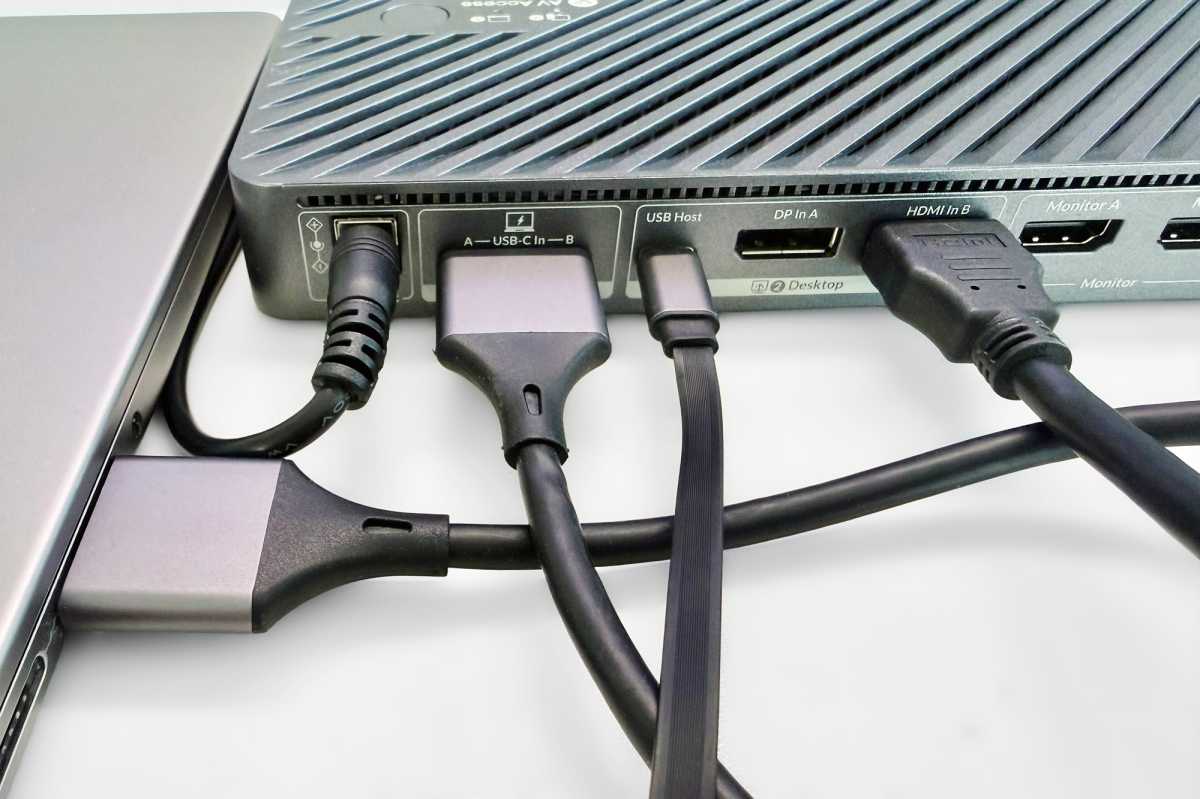
While switching between computers is super easy with a KVM, the iDock M10 demands it connects to your MacBook using two of the laptop’s Thunderbolt ports, which means you then really need the other ports offered by the docking station.
The iDock M10 features 15 ports but four of them are used as upstream connections to the two computers. Two USB-C ports connect to the MacBook (a special dual-USB-C cable is included) while the desktop PC connects via one USB-C port and either a DisplayPort or HDMI port. As Macs don’t come with a DisplayPort, that means you’ll use one Thunderbolt port and the HDMI port of the Mac to connect to the KVM dock.
Simon Jary
The upstream USB-C connections can passthrough up to 100W of power to the connected MacBook. The one spare USB-C port can output at 7.5W, which will charge an iPhone or iPad but slowly. None of the other USB ports can supply more than a trickle of charging power to devices, however—enough to power a mouse or keyboard. That means any connected storage device may need its own power supply.
The remaining dock ports include four USB-A ports and one USB-C port, as well as an SD card reader slot, Gigabit Ethernet port and a headphone jack. Most modern docks now include at least 2.5Gb Ethernet but 1GbE is still the norm and will work with faster networks, although pegged back to its maximum speed.
The data-only USB-C port is rated at a speedy 10Gbps, but four USB-A ports is overkill these days where USB-C now rules the roost. The USB-A ports are fine for the keyboard and mouse, but most of us are used to wireless input devices these days. With the AV Access iDock M10 you will undoubtedly save time switching between computers in this specific wired setup compared to pairing wireless input devices but is it worth losing a second Thunderbolt port for?
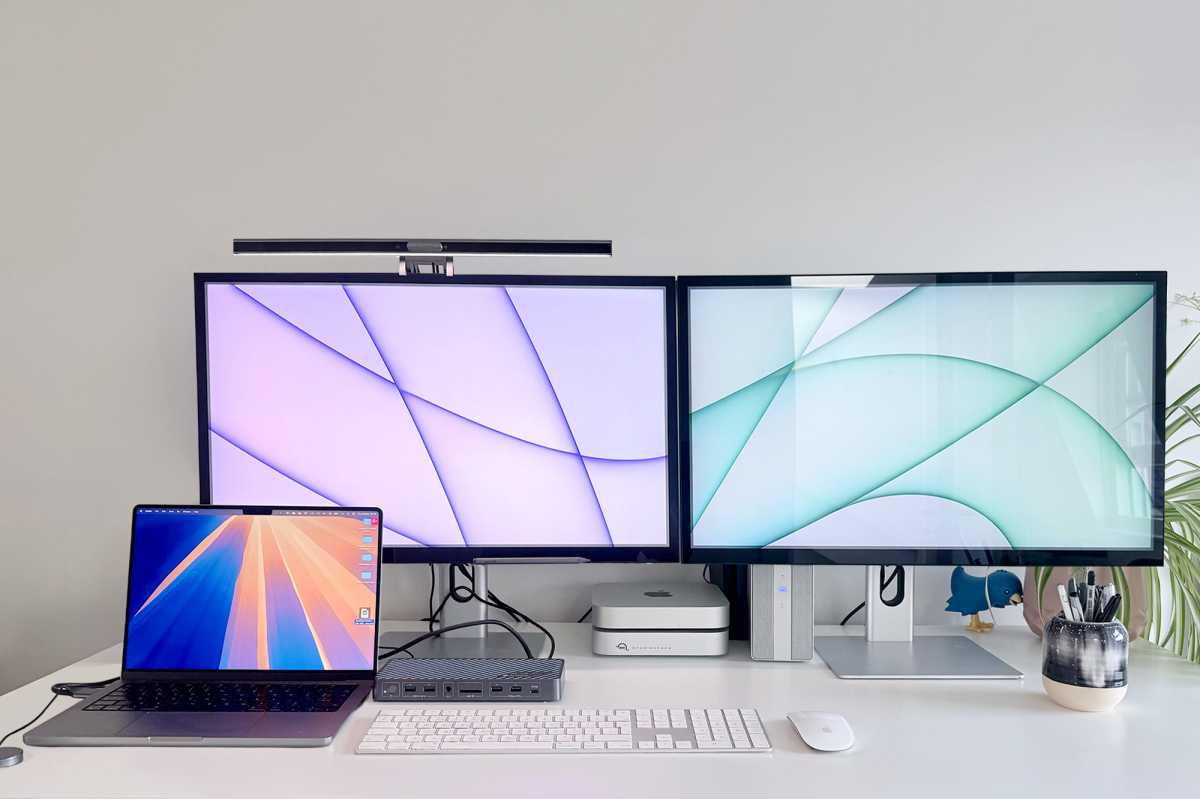
With any dock, monitors should work seamlessly with most docks connecting to different computers, so the KVM part is mostly to enable near-instant sharing of wired keyboard and mouse between the MacBook and desktop.
That’s one of the limitations of a KVM dock—it uses up a lot of the computers’ ports, and the ports on the dock just aren’t as versatile as the ports on most modern docks.
Simon Jary
Who is the iDock M10 actually for?
The point of a KVM dock is to share peripherals between two different computers at the simple push of a button.
The iDock M10 is built for a MacBook and a Windows PC setup, but with some self-supplied cables you could share between a MacBook and a Mac mini or Mac Studio. You can’t share between two laptops.
The MacBook will be connected via the Dual-USB-C–to–Dual-USB-C Cable that is provided in the box. For the Mac mini, you will need to provide your own USB-C–to–USB-C cable plus USB-C–to–DisplayPort cable to connect to the docking station. For the Mac Studio, you will need to use the supplied USB-C–to–USB-A cable plus your own USB-C–to– DisplayPort cable to connect to the docking station.
No software driver is required for the KVM Switch to operate.
Simon Jary
How does a KVM dock remember the screen setup for each computer?
EDID emulation tricks the video source (the laptop or desktop) into thinking a specific, compatible display is permanently connected.
It stores the display’s identification data—such as resolution, arrangement and refresh rate—even if the actual monitor is switched to the other device. Using EDID the iDock remembers the disconnected computer’s video settings when using the other. This keeps each computer’s video settings as desired despite swapping between them, and also prevents any screen flickering and resolution reset delays caused by the disconnecting and reconnecting.
Simon Jary
Price
The AV Access iDock M10 is priced at $289.99 / €323.99. It is also available at Amazon and Amazon UK.
That’s at the high end of the pricing charts for a USB-C docking station—especially one with so few extra ports—but you are paying for the special KVM Switch functionality and its ability to increase productivity in a specific MacBook plus PC/Mac shared setup.
Should you buy the AV Access iDock M10?
This dock is not aimed at most Mac users. If you need a standalone dock for one computer or don’t mind flipping between keyboard and mouse when you have two computers, there are more compelling solutions, which you’ll find in our roundup of the best Mac docking stations.
However, if you have a shared setup of one MacBook and one desktop Windows PC or a desktop Mac (mini or Studio), the KVM functionality of the iDock M10 comes into its own when those two computers are sharing the same dual displays and input devices at different times.


