Summary created by Smart Answers AI
In summary:
- Macworld reveals 12 hidden iMessage features that transform basic texting into personalized, interactive communication experiences for iPhone users.
- Key capabilities include message scheduling up to 14 days ahead, instant translation across 12 languages, customizable chat backgrounds, and sending heartbeat messages through Digital Touch.
- These underutilized features enable users to automate actions with Shortcuts, play turn-based games, add visual effects, and send handwritten notes for enhanced digital conversations.
For many iPhone users, iMessage is the definitive communication app, an intuitive instant-messaging platform for texting and sharing media with friends and family. And it keeps getting better and better.
Over the years, Apple has steadily expanded the service with support for new attachment types and add-ons, including dedicated mini apps. Yet many users stick to iMessage for basic texting, unaware of how much more it can do. If you’re looking to take your conversations to the next level, it’s worth familiarizing yourself with these hidden iMessage features.
If you’re an iPhone user who mainly relies on iMessage for basic texting, this guide will help you discover features that go far beyond simple messages. If you want to save time, stay organised, or improve how you communicate, you’ll learn practical tools like scheduling, transcripts, and automations. If you’re curious about hidden or lesser-known iMessage features, you’ll uncover capabilities you may not have realised existed. And if you’re looking to make your chats more personal, expressive, or interactive, you’ll find plenty of ways to customise and enhance your conversations.
What you’ll learn from this guide
- How to schedule iMessages in advance so you never forget important texts
- How to save time on voice notes with playback speed controls and transcripts
- How to use Check In for safety, sharing your location and arrival status
- How to translate messages automatically in multilingual conversations
- How to automate actions and replies using the Shortcuts app
- Plus a range of customisation and fun features (effects, backgrounds, games, handwritten notes)
Scheduling
This tip is useful if you forget birthdays or send late-night texts.
iMessage lets you schedule messages up to 14 days in advance, making it easier to avoid unnecessary late-night texts or to ensure you don’t forget to reach out on an important special occasion.
Hit the plus button, select Send Later, pick a date and time, and type your message. Once scheduled, iMessage will store the text in Apple’s servers and deliver it on the chosen day—even if your iPhone isn’t connected to Wi-Fi or 5G.
Mahmoud Itani / Foundry
Checking In
Here’s a tip for staying safe when travelling alone.
If you’re heading home at night or taking a route through a sketchy area, it might be wise to use the built-in Check In app in iMessage to grant a trusted contact access to your location. With your permission, it will show them exactly which road you’ve taken and when to expect you to arrive at the chosen destination. It’s one of the lesser-known iMessage perks that can make you feel safer.
Voice memo speed
This is helpful when friends send long voice notes.
You’re probably aware of the Audio app in iMessage, which lets you instantly record and send voice memos to express yourself. Sending voice memos can be fun and convenient. Receiving them, not so much.
If you tend to receive long audio messages from your friends, and would like to save a little time while listening to them, tap and hold the play button to reveal 1.25x, 1.5x, and 2x playback speeds. Alternatively, you can hit the small arrow under the audio message to read an auto-generated transcript of detected speech.
Mahmoud Itani / Foundry
Translations
To understand messages instantly and reply naturally use Translate.
With remote work culture making it practical for digital nomads to work from the country of their choice, making foreign friends has become more common. iMessage accommodates multilingual conversations through its translation feature. Simply tap and hold a foreign text and tap Translate.
If the entire chat is in a foreign language, you could alternatively tap on the recipient’s profile photo to view their contact card and enable the Automatically Translate toggle, then select a language from the 12 options. This will effortlessly translate the entire chat to your native language.
Message effects
You can make important messages stand out and convey tone clearly with this tip.
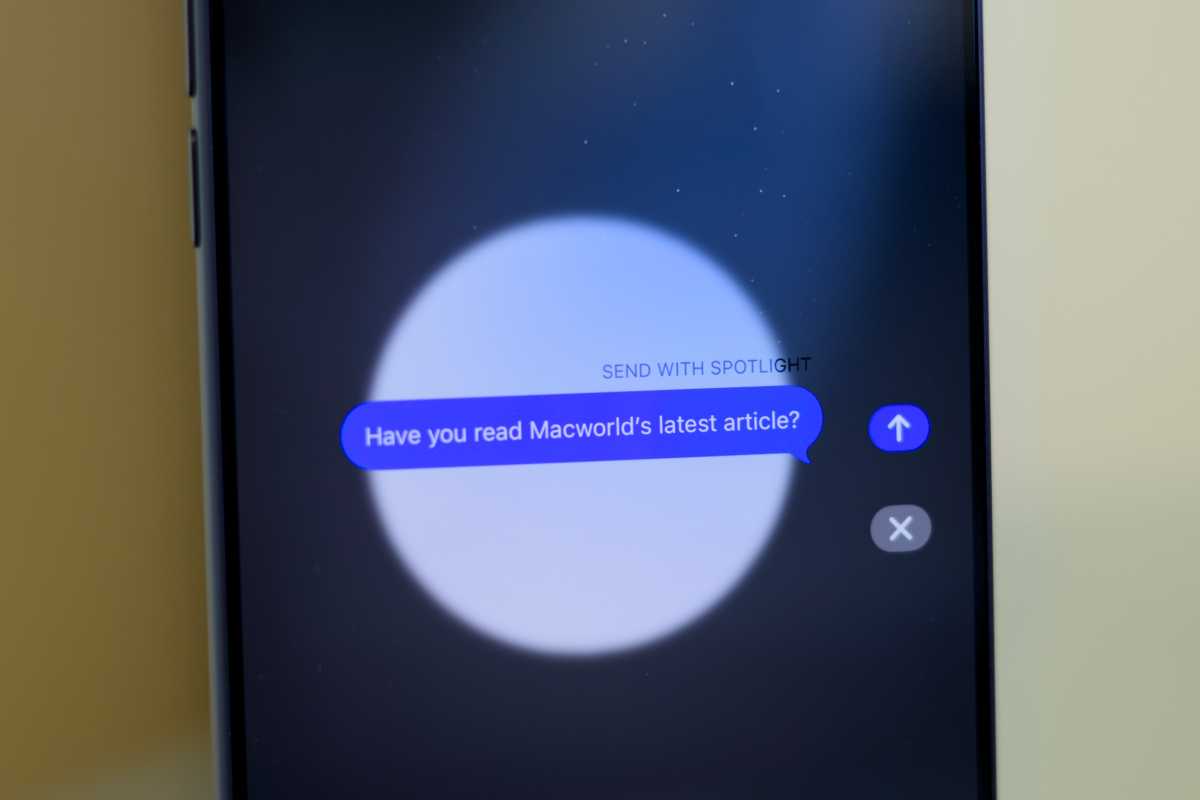
iMessage supports bubble and screen effects, which animate texts you send on the recipient’s end. To mark a spoiler, for example, you could use the invisible ink effect, which conceals text and media. Likewise, you could release some balloons or confetti in the chat by picking the relevant effect when congratulating someone.
All you have to do is tap and hold the send button and choose one of the listed effects.
Mahmoud Itani / Foundry
Text Formatting
Format text to emphasise key words or points.
For something a bit more subtle, you could opt for text formatting. Select the desired word(s) in the iMessage text box, and tap on Text Effects. This will reveal formatting options, such as bold and italics, along with less dramatic animations that don’t take over the entire screen.
Automations
Let your iPhone trigger helpful actions for you automatically.
iMessage caters to power users through native integrations with the Apple Shortcuts app. You can program the system to run tasks automatically whenever a chosen contact texts you or you receive a specific keyword.
To get started, head to the Automation tab in the Shortcuts app, create a new automation, and pick Message. Pick a sender and/or a keyword to trigger the automation, and go for the Run Immediately option to avoid having to confirm manually each time. You can then proceed to the next screen to choose the tasks iOS should perform whenever the automation is initiated.
Conversely, you can create a reminder in the Reminders app and set it to alert you about a certain matter whenever you text a person of your choosing. Simply enable the When Messaging toggle in a reminder’s settings and pick a contact.
Handwritten notes
Make messages feel more personal and thoughtful.
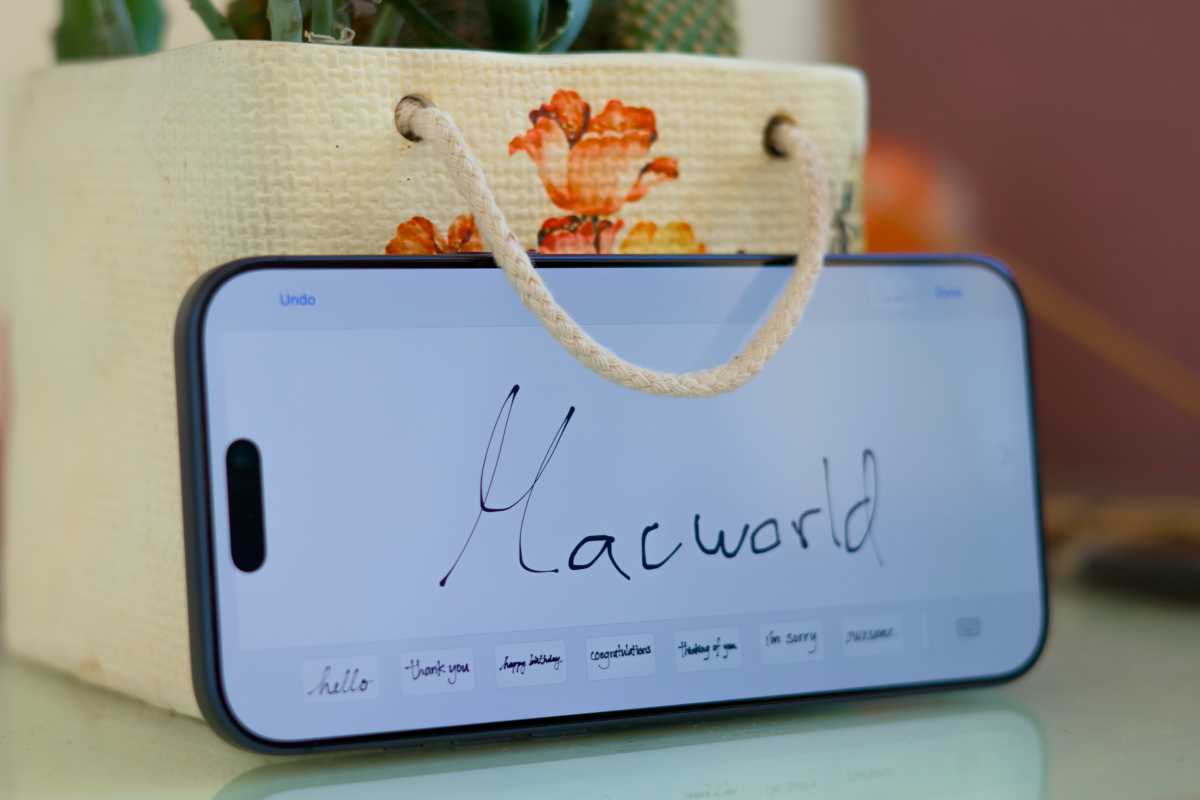
There’s arguably no text more personal than a handwritten one, and iMessage happens to support that. Open any of your iMessage chats and rotate your iPhone sideways. The default iOS keyboard will then reveal a concealed scribble button (the cursive loop at the bottom-right) exclusive to the landscape orientation. Write a note, or doodle a picture, and then hit send.
Mahmoud Itani / Foundry
Social heartbeat
Demonstrate your emotions.
If you’re looking to send an even more intimate message, you could share your actual heartbeat with an iMessage contact. Tap on the plus (+) button in a chat to reveal the list of installed iMessage apps and choose Digital Touch. Tap and hold with two fingers on the black canvas and release when you’re ready to send.
With your permission, the feature will read and imitate your recent heart rate records and display an accurate animation on the recipient’s end. It’ll even vibrate accordingly if they’re wearing an Apple Watch. If you don’t use an Apple Watch or a compatible accessory that adds heart rate data to the Health app, you could still send a generic heartbeat animation using the same command.
Multiplayer games
Turn a passive chat into a shared activity.
The Messages app’s usefulness extends beyond traditional texting. If you and a friend are bored, you could search the App Store for iMessage games and download a few that catch your eye. Once installed, you can launch the game using the plus button in an iMessage chat to initiate a round.
Typically, iMessage games are turn-based, so you can make a move, send the session to the other party, and wait for them to reciprocate. It’s a fun, simple way to spend time with someone while apart.
Conversation backgrounds
Mahmoud Itani / Foundry
Make chats easier to recognise at a glance.
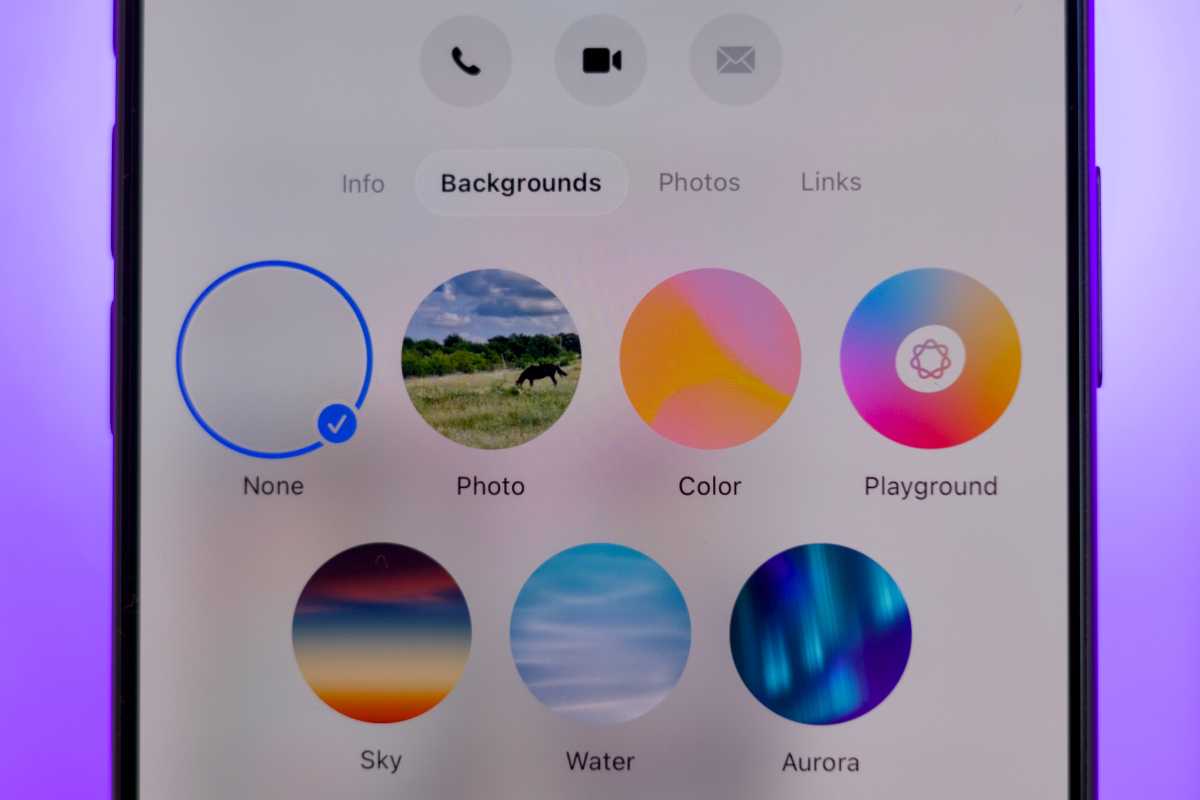
iMessage has become increasingly customisable, with chat backgrounds one of the most recent additions. To set this up, tap the contact card in the desired chat (the recipient or group name at the top of the screen) then select the Backgrounds tab. This will let you pick a photo, color mix, default pattern, or AI-generated illustration.
It’s worth noting that chat backgrounds appear on both ends of the conversation, so your friend will see what you pick and vice versa.
Name and photo sharing
Make conversations feel more personal and trustworthy.
Messaging platforms such as WhatsApp and Telegram have long supported profile photos and display names. This helps people identify you, especially when you contact them for the first time. iMessage recently adopted a similar functionality that updates your contact card on their devices.
On the Messages app’s main screen, tap the Edit button in the top-left corner, then hit Set Up Name & Photo. You can then proceed to pick an avatar, poster, first name, and surname, along with adjusting the privacy settings of this feature. It’s an underused way to make your chat more “you” on your friends’ iPhones.
So much for the positives. But if you’re having problems, you may next wish to read How to fix iMessage.


