Searching via AI doesn’t just hurt content creators–it also mashes up what you’re looking for in a tasteless glob of names and numbers. If you’re searching for recommendations, start with a search engine that improves the experience. No, not Google. Microsoft Bing.
Many people say they hate using AI, but traffic to tech publishers has plunged as search engines have begun injecting AI as their first point of contact for a search. Many use ChatGPT or Claude to research questions, and those search engines tout themselves as a more efficient use of your time.
Wrong. It only looks faster–until it sends you chasing bad information.
You’re wasting your time using AI search and scrolling past an AI summary of other people’s reviews and opinions. Google plops an “AI Mode” block at the top of their recommendations for “best laptops” or “best hybrid cars.” Instead, Microsoft Bing does a better job providing links to actual sources. If you absolutely despise Bing for some reason, however, there’s a way to “fix” Google, too.
Why you shouldn’t use AI search
You already know that AI has real costs in terms of water and electricity, and that it can make mistakes. (Practically every AI lists that fact as a disclaimer.) AI search engines also hide their sources, with small icons pointing back to the original source, which may or may not be the justification for the information. But it’s not just wrong; AI search can be misleading, too. AI touts itself as a much more efficient use of your time. But if it leaves you chasing incorrect information, is it?
Consider the following screenshot, pulled from ChatGPT. For one thing, you’ll never find a new or used SUV selling for just $225, as ChatGPT claims. But even worse is the sourcing. KBB.com doesn’t list a single “best overall” SUV. It names six, broken down into categories like “best two-row SUV” and “best subcompact SUV.” These inaccuracies are misleading and, quite frankly, a waste of your time.
I don’t use AI recommendations for another reason, that reason being they lack a point of view. For example, Google recommends the Lenovo Yoga 7i 2-in-1 as the best Windows laptop based on its “fast, vibrant OLED screen.” But there’s no clickable link to find out more, and there’s no indication why an OLED screen is desirable. There aren’t any pros and cons, either. Our pick for the best overall laptop is the Lenovo Yoga 9i 2-in-1, but both our list of recommendations and our review explain what the best features are, why they’re the best features, and the justification we made for selecting those picks. AI just doesn’t do that.
Each time you search for a recommendation on Google, it drops an AI Mode recommendation right at the top of the screen. It’s worse on mobile, where an Android phone shows you that AI Mode recommendation across the entirety of the first screen you see. The implication is that Google’s Gemini AI has everything you need, and there’s no reason to go further.
Mark Hachman / Foundry
Bing is surprisingly human-friendly
I have a love-hate relationship with Microsoft’s Bing search engine. It consistently has a harder time finding older stories I’ve written, or ones from PCWorld. But it does one thing well, at least on the multiple browsers I tried. It gets you to human-authored content straight away.
Bing treats categories of products differently, in my experience. (This might be due to an algorithmic change I can’t detect.) I didn’t use any ad blockers or other browser extensions in my testing.
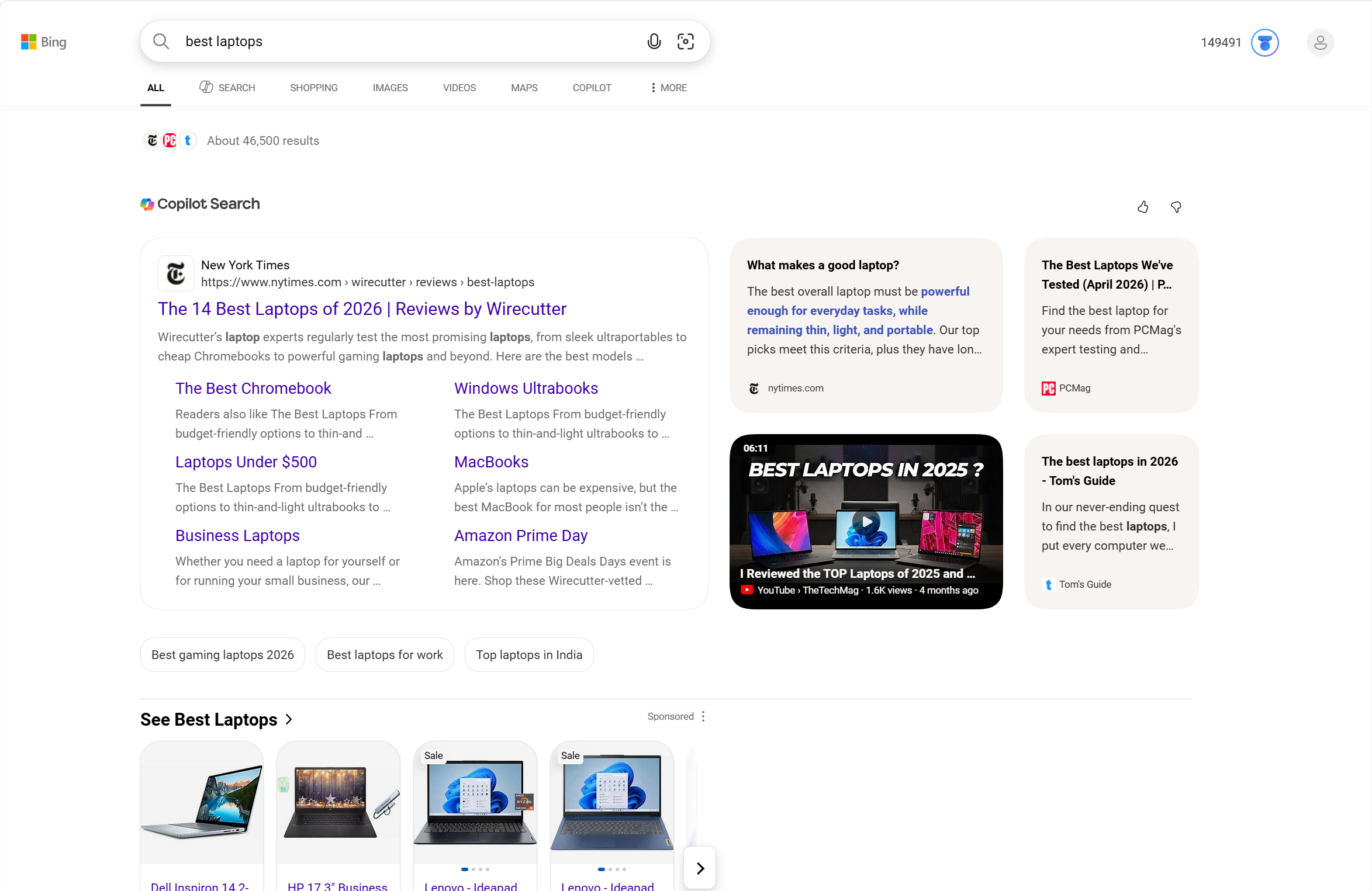
With a search for “best laptops,” it originally put a row of laptops at the top of the screen, with a focus on shopping, then changed it on a second look to the view below.
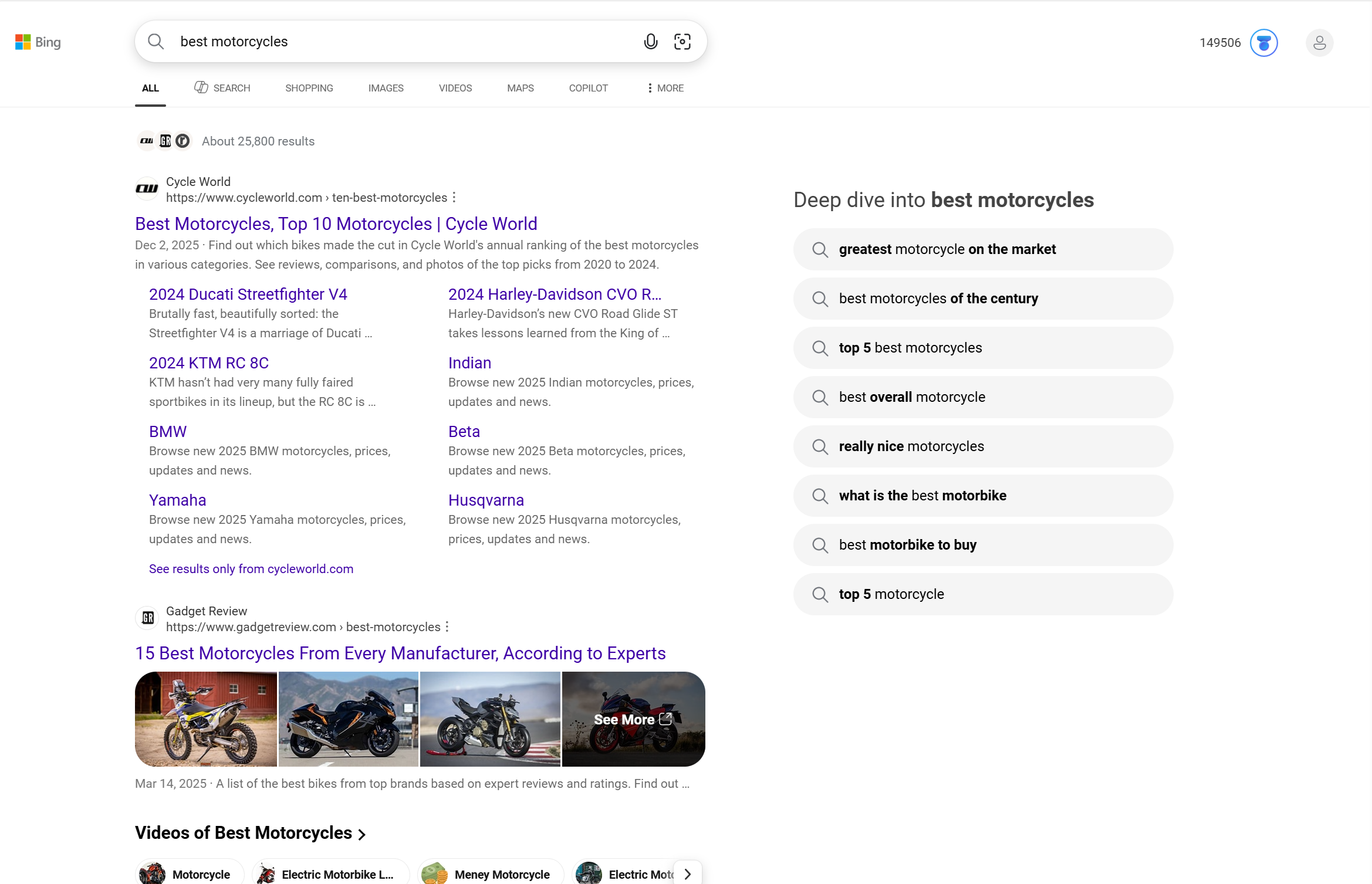
For “best motorcycles,” it put a roundup of the best motorcycles via Cycle World right at the top of the page, with a number of human-created videos below.
What’s interesting is that Microsoft Copilot isn’t thrust in your face. The default search category is “all,” mixing shopping, videos, and other categories together. On the page, “Copilot Search” is essentially a button, opening up a search for (in this case) “Best laptops” in a separate tab. In my book, that’s a great compromise. Human creators first and an AI summary for those who want more. This held true across multiple accounts I tested.
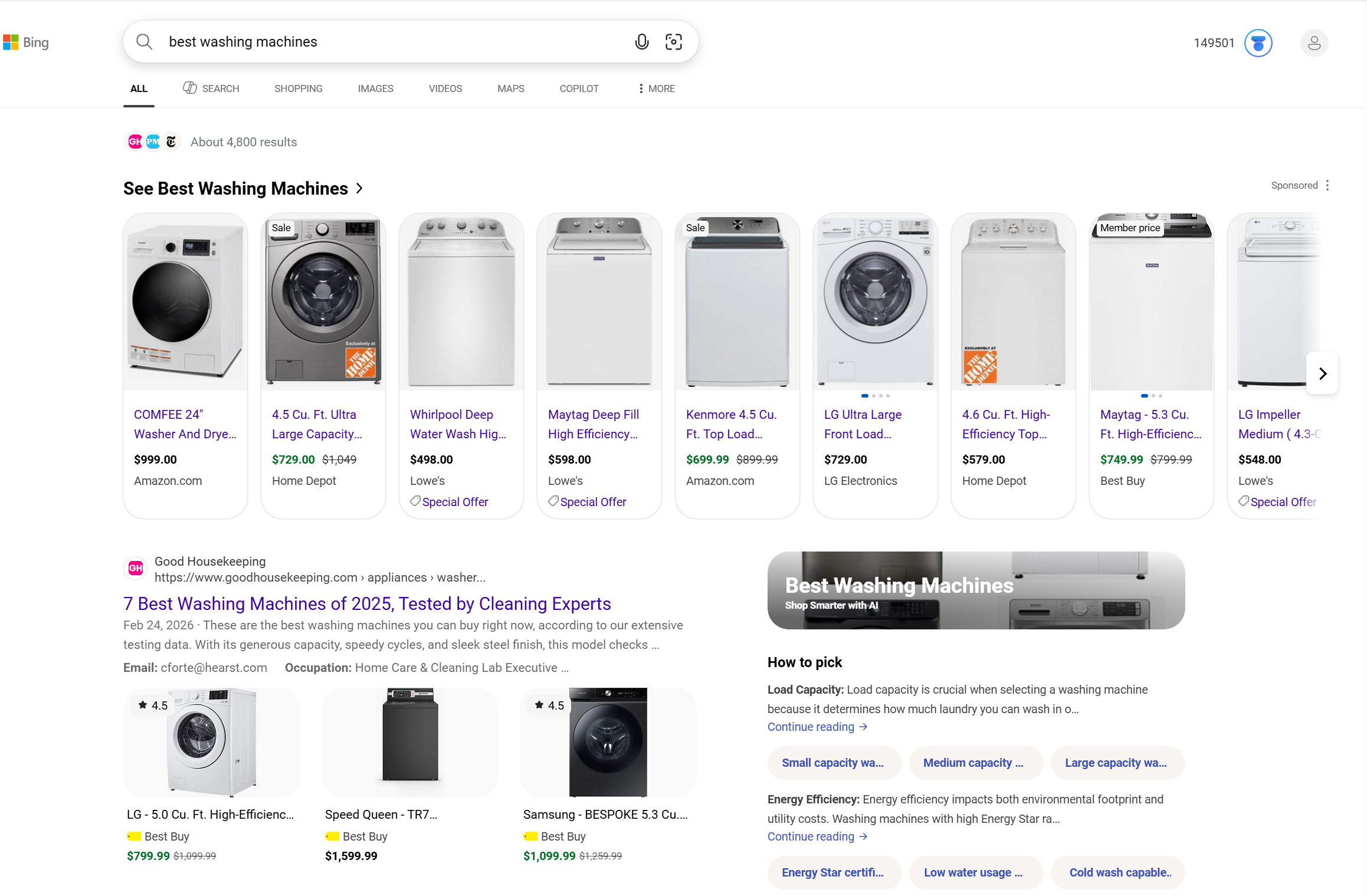
Even niche search engines like DuckDuckGo and Yandex still generate AI answers as part of a normal search. Bing used to do the same. Note that in some cases AI is used to further explain or narrow down a concept like in the “best washing machines” example. To me, it all feels much more natural.
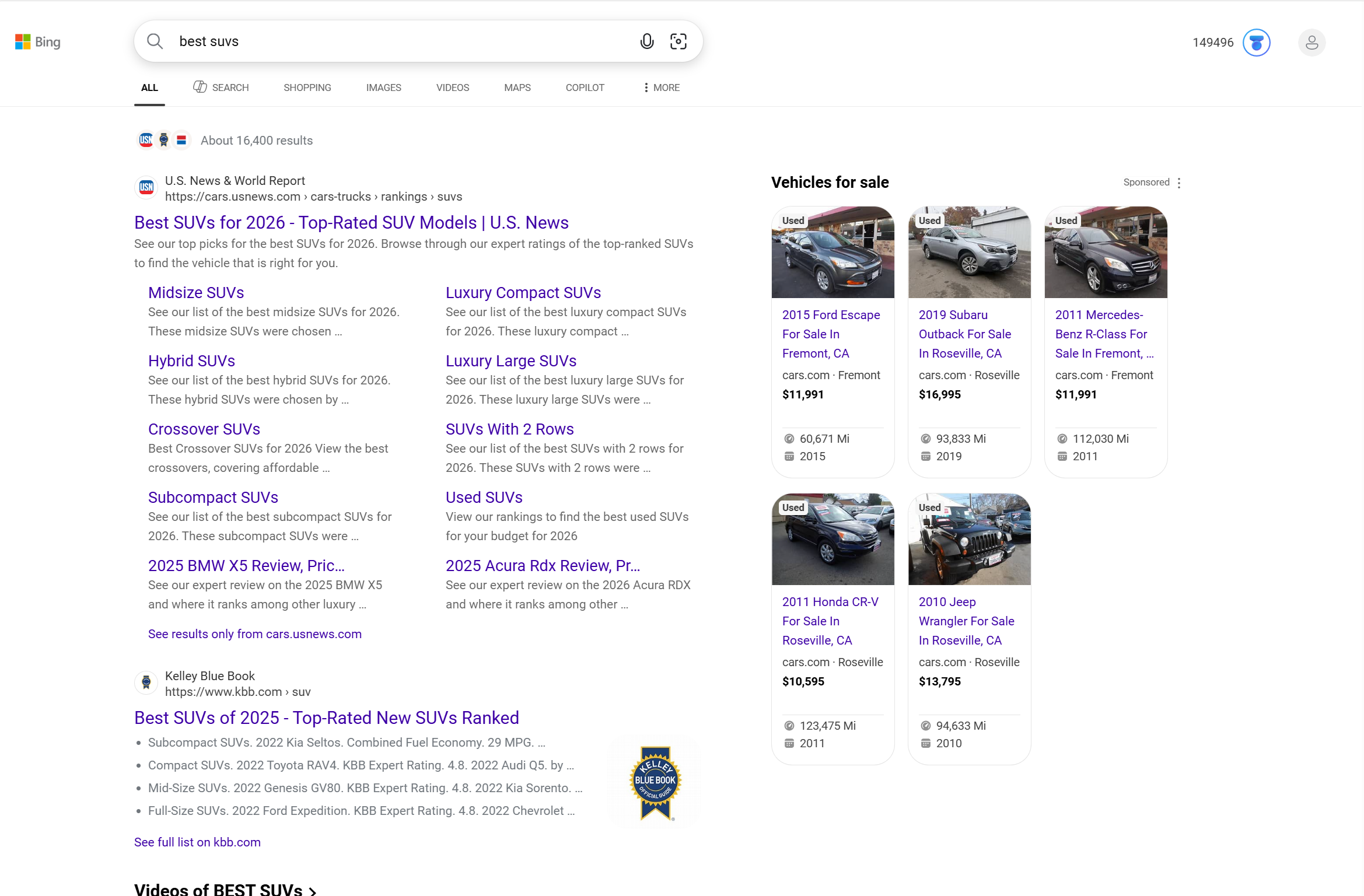
Yes, there’s an old joke: But that means using Bing! Get over it. Bing still isn’t my favorite search engine, and Copilot grew like weeds within Windows before Microsoft agreed to pare it back. Still, if you feel strongly that AI use should be minimized, switching to Bing might be a first step.
Can Google be fixed? Sort of
By default, if you’re signed into Google, especially in Chrome, performing a search will usually enable AI mode. There are some potential fixes to remove AI searches from Google, none of which are quite what I’m looking for.
- 1.) Search with “-ai” (no quotes at the end of your query). This sometimes tells Google not to use AI mode or place its results high in the feed.
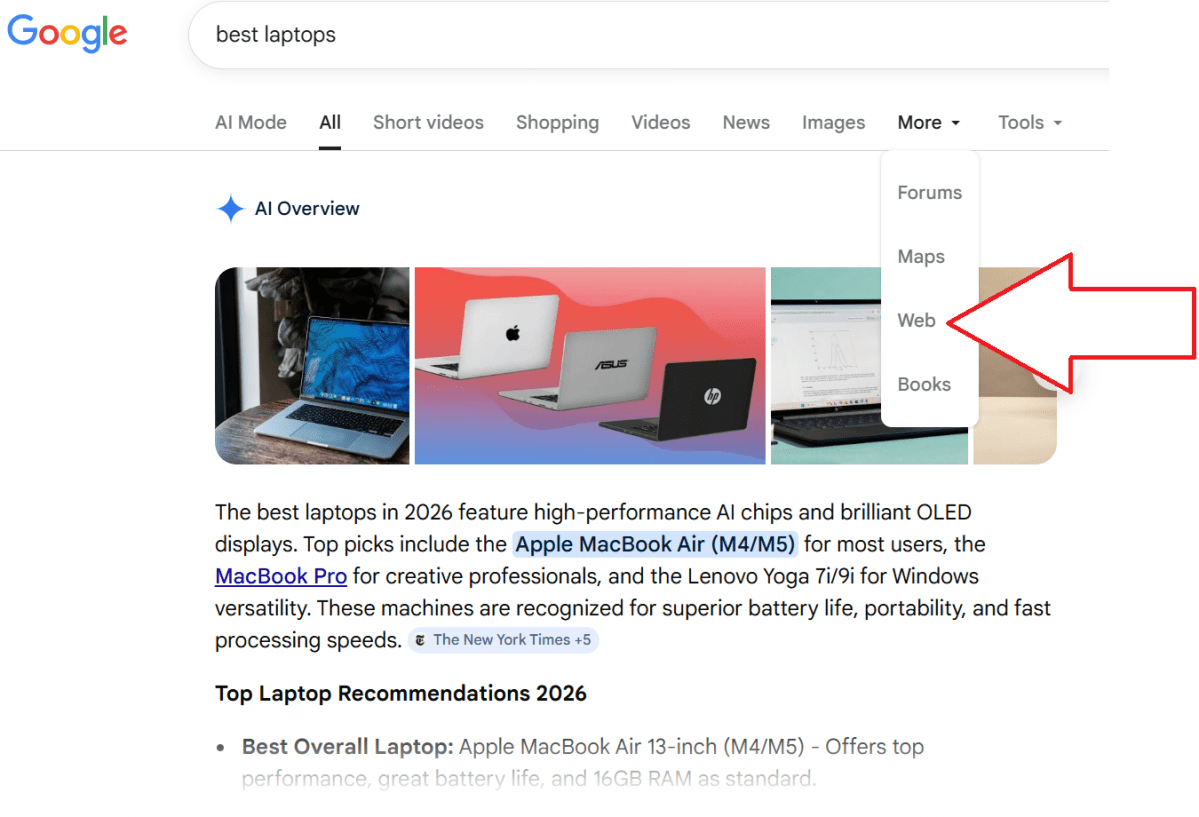
- 2.) Search with “udm=14” in the search field after your query. Google’s default category setting is “all,” and adding that string migrates the search to the “Web” category, where AI results are excluded. You can also add “&udm=14” in the URL, but that’s a bit more complicated.
- 3.) Navigate to the “Web” category yourself. Remember how Google used to search the web? Now the option is completely buried.
Mark Hachman / Foundry
- 4.) Certain extensions (such as Bye Bye Google AI, authored independently by Avram Piltch, a tech journalist currently working for The Register) will hide the AI overviews, sponsored links, or more. In the case of BBGA, however, the AI results are still created and consuming resources. They’re just hidden via CSS.
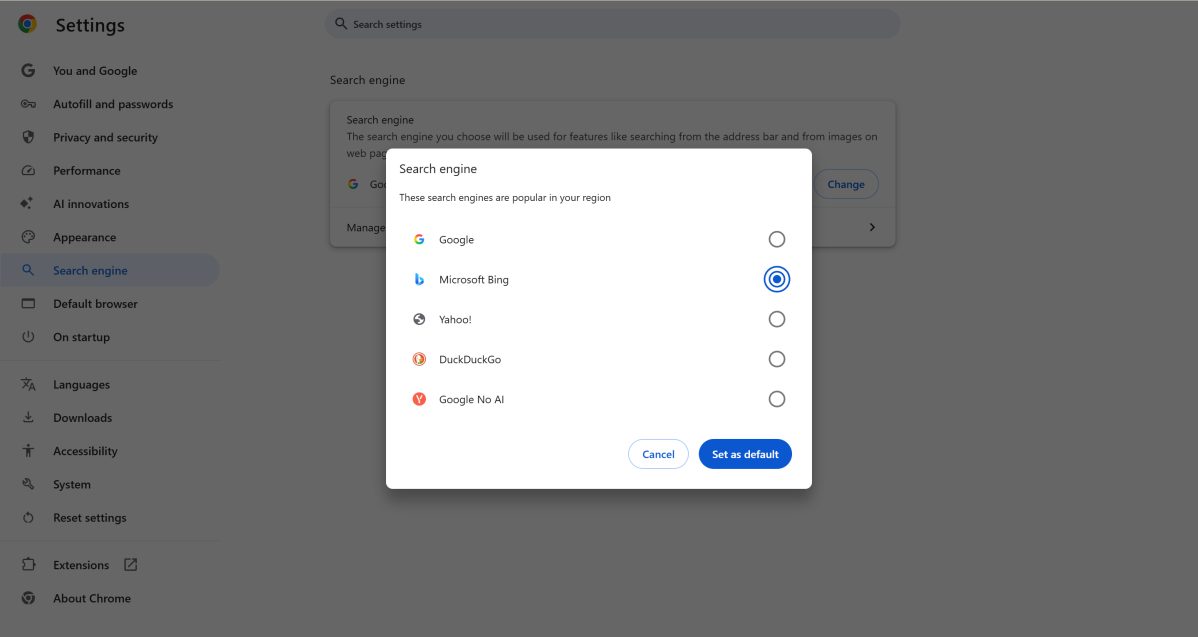
Changing your search engine within Chrome is relatively simple. You’ll need to go to the Settings menu, then navigate to the Search Engine tab on the left-hand nav bar. From there, simply select “Bing” as your primary search engine.
The only trouble with any of these options is that, well, things change. Google could lighten up on the AI or Microsoft Bing could become more heavy-handed once again. If you want search results shaped by people instead of AI summaries, Bing is the better choice… for now.


