Anyone who wants or needs a new desktop computer has long had a choice to make: Buy a ready-built computer or build one yourself from individual components.
The choice isn’t always that simple, and there are several factors that can make either option appealing. The price of a pre-built computer always includes, in one way or another, the cost of assembling it. If you build it yourself, you can spend all your money on getting the best possible components and pay for the assembly with your own time and by taking on the risk yourself.
But building your own computer also offers incredible freedom and a sense of pride in what you can achieve yourself. It’s something that’s difficult to quantify in terms of money, but for many people, that’s the biggest draw.
What does it mean to build a computer yourself?
If you’ve never attempted to build a computer before, it can feel like a big and daunting task. But just like putting together an Ikea kitchen, it’s something the vast majority of people can manage if they just take the time and do their research. And unlike a kitchen, you don’t need to worry about any potential water leaks — at least, not unless you decide to build a system with water cooling!
Building a computer basically involves three separate tasks: planning and buying components; fitting the components into the case; and configuring the BIOS, installing the operating system, and testing that everything works as it should.
The first is the most complex, as there are so many components to choose from. Fortunately, you don’t need to learn and keep track of everything yourself, as there are plenty of websites with computer-building tools that help you put together components that are compatible with one another.
Assembling the components isn’t actually that complicated, but you should definitely read a guide or two and watch a few YouTube videos that walk you through the whole process step by step. With video guides, for example, you can see how cable routing works in practice and pick up lots of little tips that make the build easier and safer.
The same goes for learning about the BIOS and how to install Windows — familiarize yourself with these process before you begin.
Advantages of building your own PC
- Total flexibility – you choose all the components.
- It can be very satisfying to use a computer you’ve built yourself.
- It’s usually cheaper.
- Plenty of scope for upgrading later.
Disadvantages of building your own computer
- Choosing components is complicated and can take a lot of time.
- You take the risk that something might go wrong during the build.
Advantages of buying a ready-built computer
- You get a ready-built computer without any risk or effort.
- You can find computers on sale, which can lower the overall price.
Disadvantages of a pre-built computer
- It’s unlikely you’ll find a computer with exactly the combination of components you’d prefer.
- Many pre-built computers have an older processor, slightly slower memory, or some other compromise.
What should I do if something goes wrong or breaks?
It’s a good idea to order components so that they all arrive at the same time and you can assemble the computer within the standard return window. If any component were to malfunction, you could easily return and replace it without the hassle of making a warranty complaint.
Should any component break later on, you can either contact the manufacturer or the seller for recourse under the product’s warranty.
Still, it is, of course, your own responsibility to assemble the computer safely. This means, among other things, that you must avoid discharging static electricity, but also ensure that components are fitted correctly. Some graphics cards are so heavy that they may need to be braced to avoid damaging the PCI Express slot, so read and follow all instructions carefully, both for the components and the case you have chosen.
Computer builders
A middle ground between buying a ready-built computer in a shop and building one yourself is to have a PC custom built by a vendor. For instance, boutique PC vendors such as iBuypower and Cyberpower will build a PC to your specification, taking care of the assembly and testing. But you’ll need to buy all the components from them, which of course doesn’t always give you the best price or choice.
How to find your way through the component jungle
If you enjoy getting deep into the details, you can, of course, take it upon yourself to keep track of all the components and ensure that the ones you choose are compatible with one another. However, most people choose to use a computer-building tool. The site PC Part Picker is the best known of these.
With these tools, you can, for example, start with a specific case, a specific motherboard, or a specific graphics card. Once you have selected a component, the lists of other components are filtered to show only those that are compatible with your first choice, and the process continues in this way. If you try to select something that is not compatible with one of the other components you have chosen, you will receive a warning.
Compatibility has two aspects: technical and physical. The technical aspect concerns, for example, whether a memory module fits a particular motherboard, or whether that motherboard supports a particular processor.
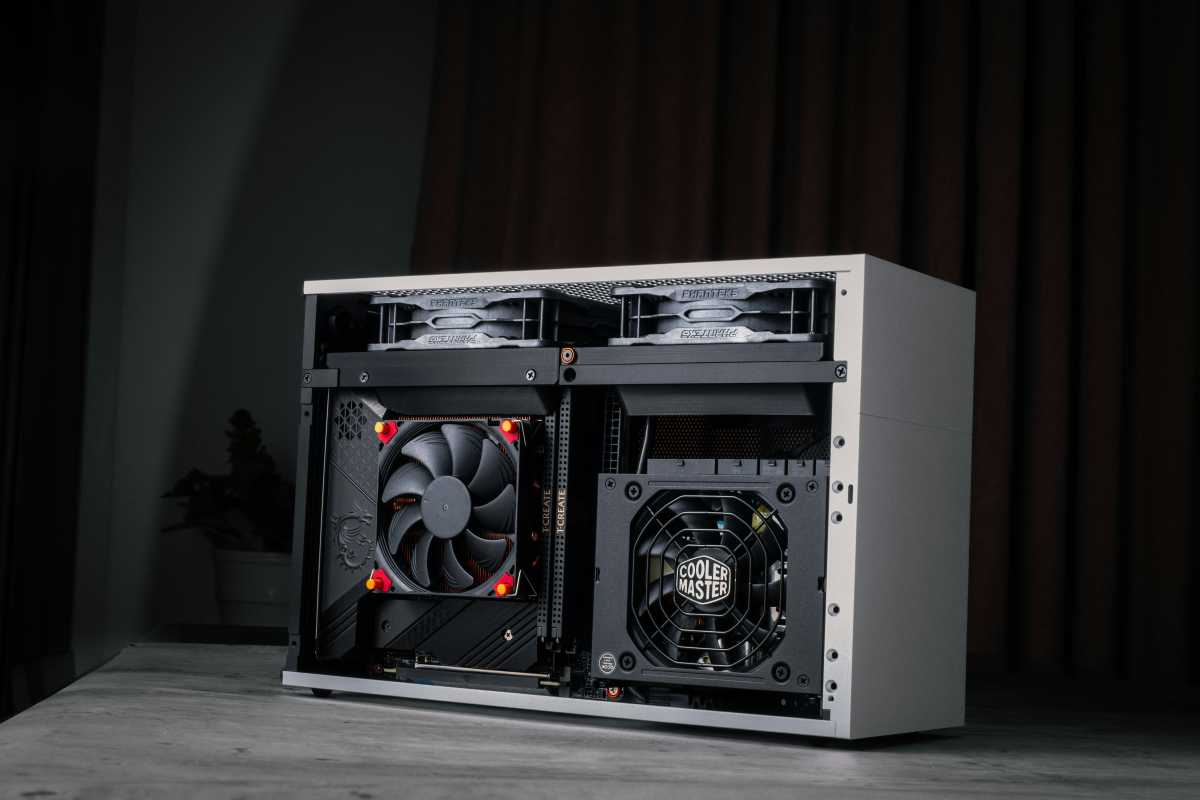
In terms of size, it is simply a question of whether the components will fit inside the chosen chassis alongside the other selected components. Does the processor cooler protrude high enough above the memory modules to avoid interference when you choose high-performance memory with large built-in coolers? Will the long graphics card fit into the space inside the chassis?
With a generously sized chassis and an ATX or E-ATX motherboard, you can usually fit almost anything in, but it’s still worth double-checking. And if you want to build a more compact computer in a small chassis with a Mini-ITX motherboard, the dimensions suddenly become very important.
Which components are most important, and where can I cut corners?
This depends on what you’ll be using the computer for, how you view future expansion options, and your sense of aesthetics.
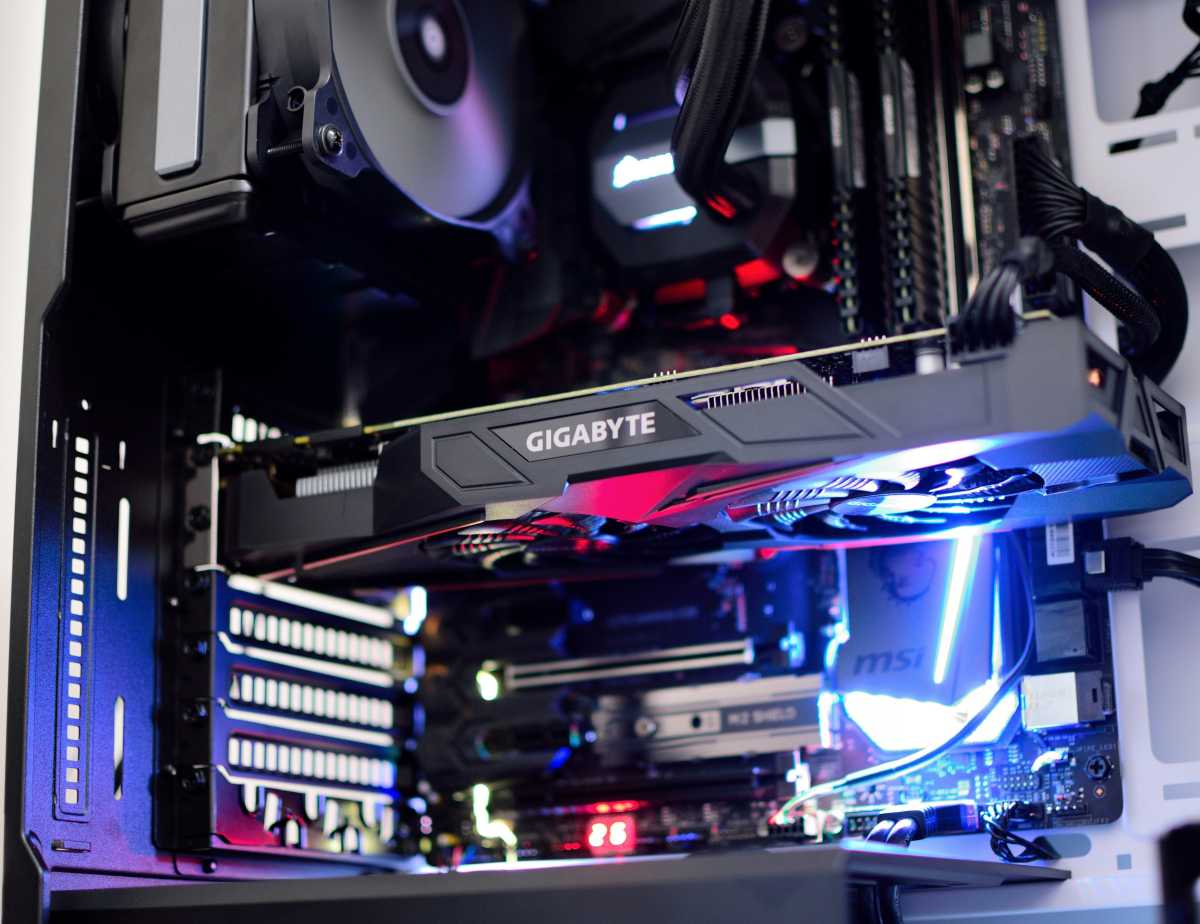
Graphics card
If you’re looking to play high-end games with high graphics settings, the graphics card is undoubtedly the most important component, and you can cut corners on almost everything else to make room in your budget for it. If you can afford it, you’ll benefit greatly from choosing an AMD processor with so-called 3D V-Cache (indicated by ‘x3D’ at the end of the model name), such as the previous-generation Ryzen 5 7500X3D. The expanded cache means that gaming performance is less dependent on the speed of the main memory, so you can cut back there — something that can save you a fair bit of money given today’s memory prices.
For anyone interested in running local AI, the graphics card is also important, but in this case it is primarily the amount of graphics memory that matters. And for AI, you can easily combine two cheaper graphics cards instead of one more expensive one, which isn’t possible for gaming.
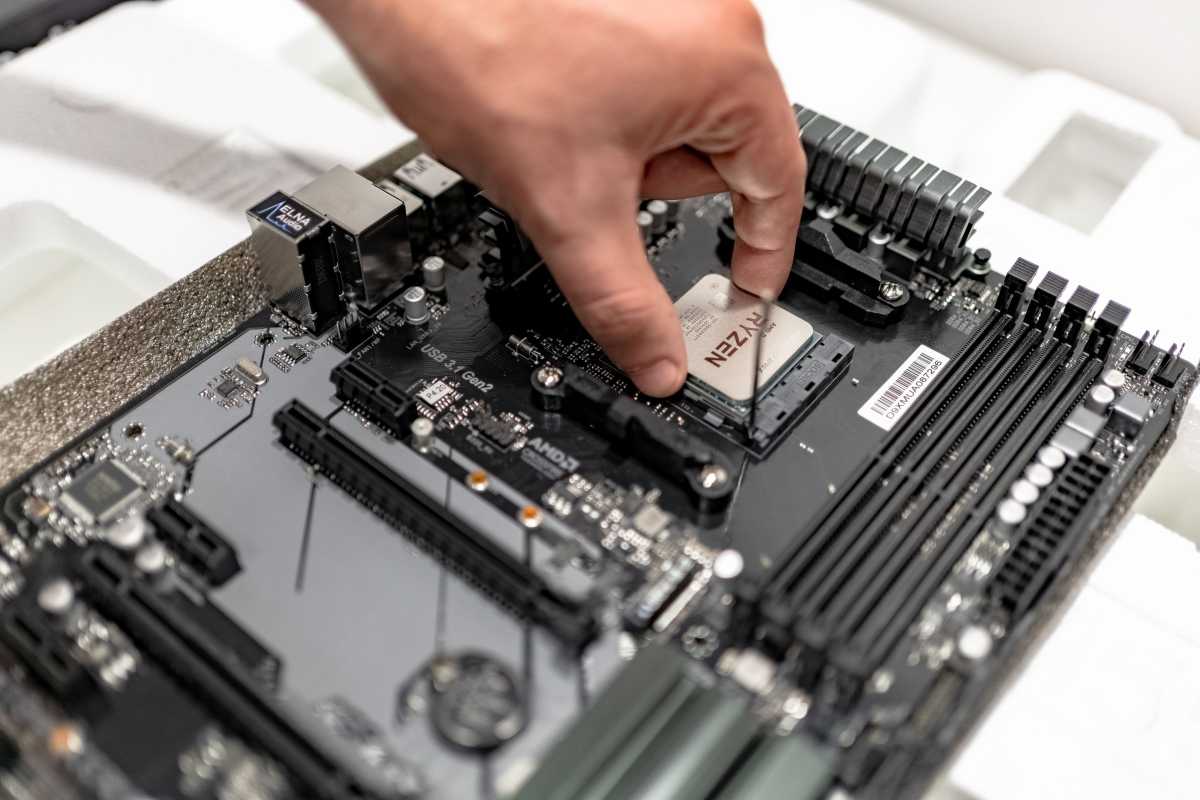
Processor
For everyone else, the processor and graphics card are roughly equally important. My suggestion is that you choose one of the latest models, as they tend to be more efficient, feature the latest technologies, and will be fully supported by Windows for longer.
Something to consider is whether you want to buy a processor and graphics card at roughly the same level, or opt for a slightly more powerful one and a slightly simpler one, with the aim of upgrading the latter at a later date. By opting for a cheaper graphics card, you can get a new, more powerful one in a couple of years’ time, while still benefiting from the slightly better processor you chose from the start.
Memory and storage
Most people won’t notice any practical difference between a blazing-fast SSD with PCIe 5.0 and a cheaper one with PCIe 4.0. When it comes to storage, a reliable manufacturer and a model that has received good reviews are more important than maximum speed, and you can save a fair bit by skipping the cutting-edge technology.
When it comes to memory, capacity is the most important factor. Really fast memory is only important for a few specific use cases and is never worth it for the average user. If you’re using Windows, 16GB is the minimum you’ll need.
Given today’s prices, it’s understandable if you want to save as much as possible on memory. Unless you know you’ll be running a great many programs simultaneously, or individual memory-intensive programs such as virtualized operating systems or Adobe Photoshop, 16GB should be enough. As long as your motherboard has four memory slots, you can always buy more later.
Other components
The case is something many people choose to skimp on, but this often means the computer looks less stylish and, perhaps more importantly, is more fiddly to build. Furthermore, it may have poorer airflow and, consequently, poorer heat dissipation, resulting in higher temperatures and lower performance. I would therefore recommend that you at least look at review ratings and choose a chassis that suits your needs, even if it costs a bit more.
Another important component is the power supply unit; here, you need to ensure that its capacity is high enough for the components you’ve chosen, as well as any future upgrades you think you might need. Efficiency and noise levels are other factors worth bearing in mind.
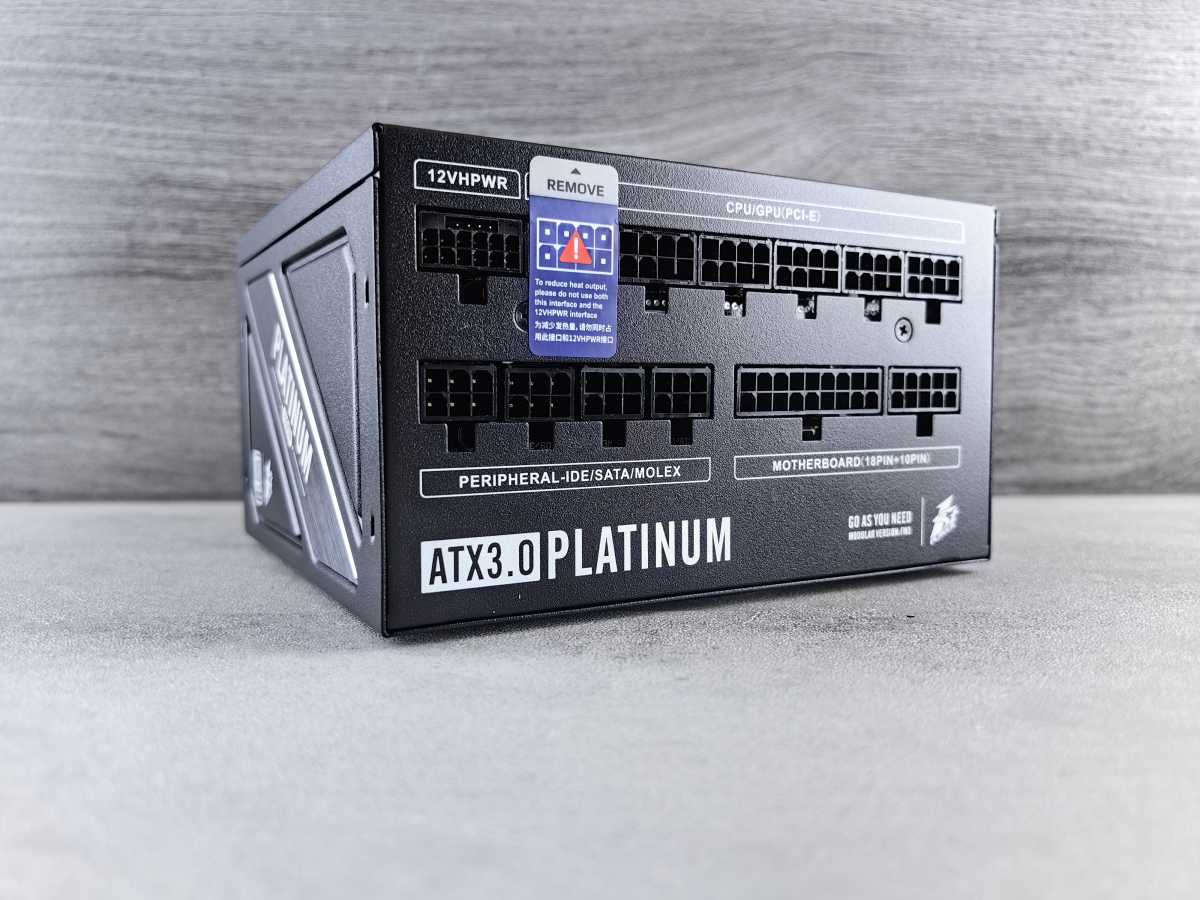
For other components, you can often get by with cheaper models, but I recommend sticking to trusted brands and reading reviews. For example, there are some really good, inexpensive CPU coolers, but also a few real duds.
These recommendations obviously apply even if you choose to buy a pre-built computer — don’t just focus on the processor, graphics card, and memory; check the case, power supply, and other components as well. What initially seems like a bargain can soon turn into an expensive lesson if you have to upgrade several components.
Don’t forget future expandability
When comparing a pre-built computer — whether it’s a traditional tower model with standard components, a mini-PC or something more exotic — with one you build yourself, you shouldn’t overlook the possibilities for expanding and upgrading the computer in the future. If you build it yourself, for example, you can choose two larger memory modules instead of four smaller ones. It’ll be more expensive now, but you can buy more later.
In most pre-built systems, all the memory slots are filled, unless you buy a very small amount of memory. A mini-PC rarely has more than two slots, and many have soldered-on memory that can neither be expanded nor replaced with larger modules.
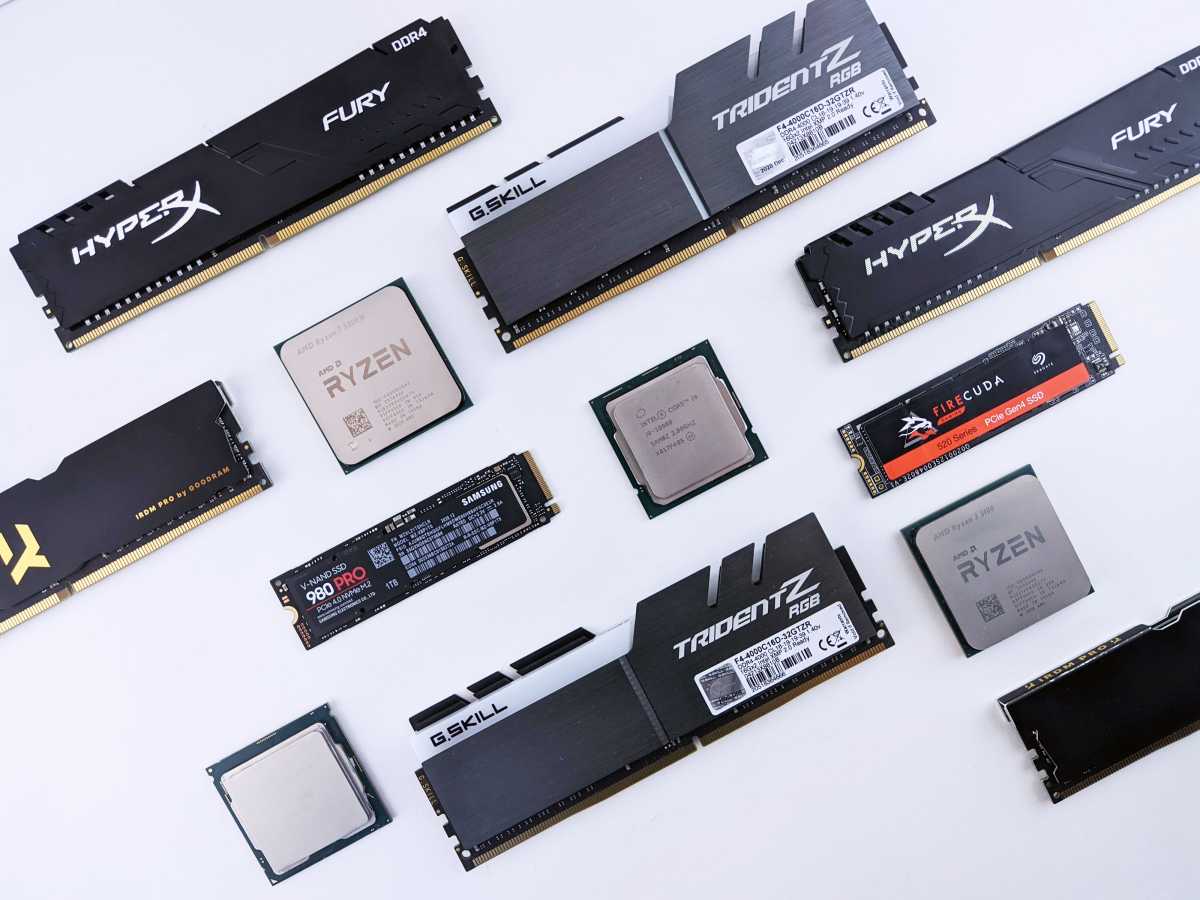
Storage can almost always be replaced, but in tower models and home-built machines there are usually empty M.2 slots that you can fill without having to replace the existing storage.
With a traditional tower computer, there may be spare PCI Express slots that you can use for additional storage, new network cards or other components you may later realise you need. This applies whether you buy a ready-built system or build it yourself, but the number of slots available varies greatly from one motherboard to another.
Ten years ago, it was common to have several spare slots, but nowadays many manufacturers choose to focus on more M.2 slots for SSDs, and sometimes there’s only one extra slot apart from the one intended for the graphics card. Or not even that.
Compare the total cost
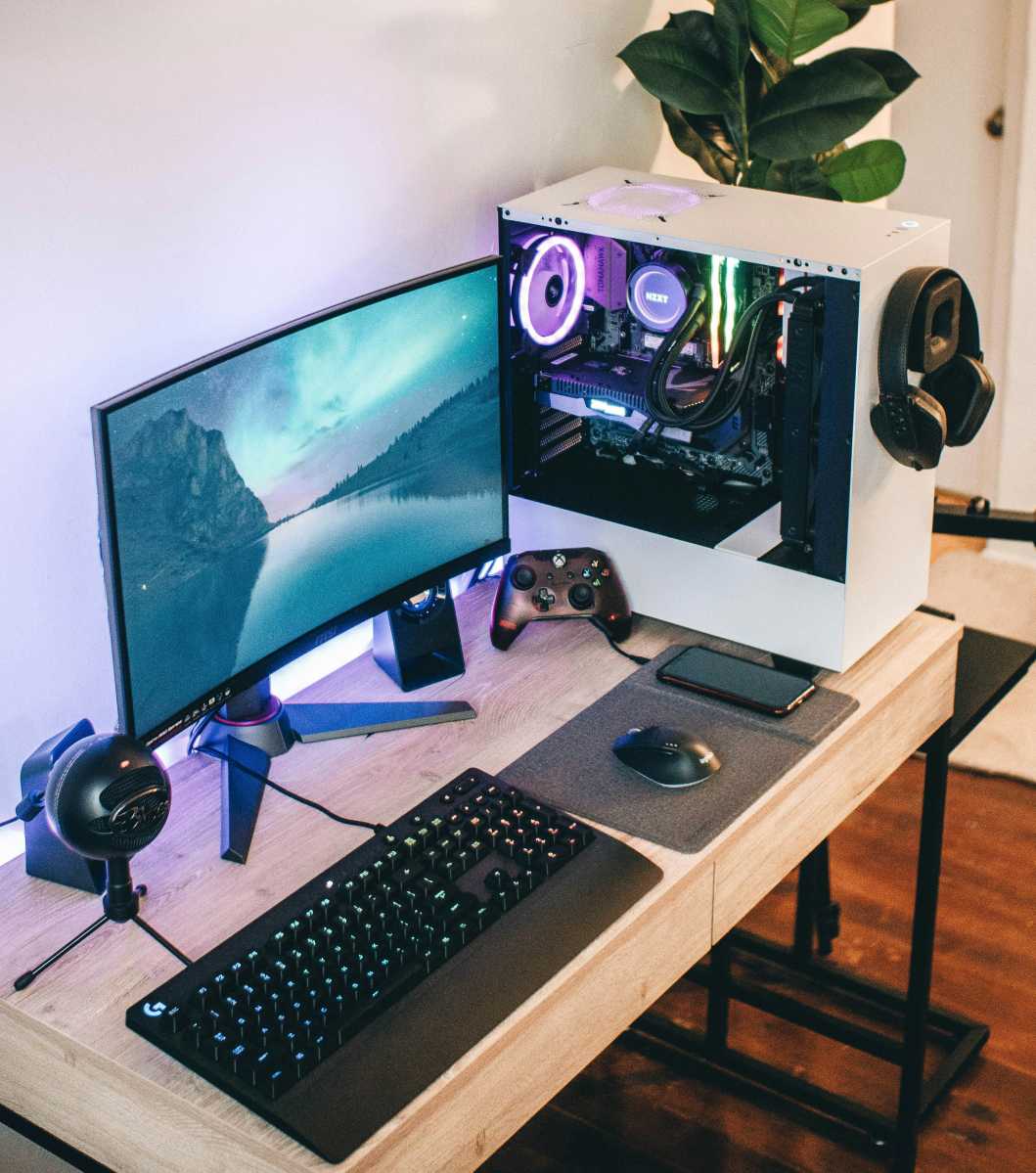
If you’re mainly looking to get as much computer as possible for your money, I suggest you look at both pre-built computers and the various components you’ve selected. Don’t forget to add a Windows licence if you need one, and any peripherals such as a monitor, mouse, and keyboard.
Then compare the total price. Only then can you decide whether the lower cost, the better components or the greater upgrade potential are worth the effort.


