Once you have restored your iPhone using Recovery mode your iPhone will be running the newest full version of iOS (i.e. not a beta). You will then be able to restore your iPhone settings and apps from an iCloud backup from before the time the troubles started, or before the time you installed the beta.
Note that if you are turning to this option because you have been unable to erase an iPhone using the Erase all content and settings option in Settings > General on an iPhone check that your iPhone is connected to a WiFi network before giving up on that method.
You will need to be connected to a network, either Wi-Fi or via a Sim.
How to put your iPhone into Recovery mode
You will need the Finder on the Mac or iTunes on a PC to enter Recovery mode.
Follow these steps to put your iPhone into recovery mode:
- Plug your iPhone into your computer using a cable that supports data.
- Open the Finder (if you are on a PC it’s iTunes you need).
- Locate the iPhone in the column on the left-hand side of the Finder or in iTunes and click on it.
- You may see a message that indicates you need to download an update to access the iPhone. Sometimes the said software is unavailable from the software update server, so don’t worry about this. But if you can, install the update.
- Shut down your iPhone by pressing volume up, volume down, and then press and hold the side button. Unlike a usual restart keep pressing and holding the side button while the phone shuts down and starts up again—this means you must keep holding the side button even when it gives you the option to turn the phone off and even when the Apple logo appears. Wait till the Recovery Mode screen is in place before releasing the side button. The image of a Mac and a connector on your iPhone that indicates it is in recovery mode.
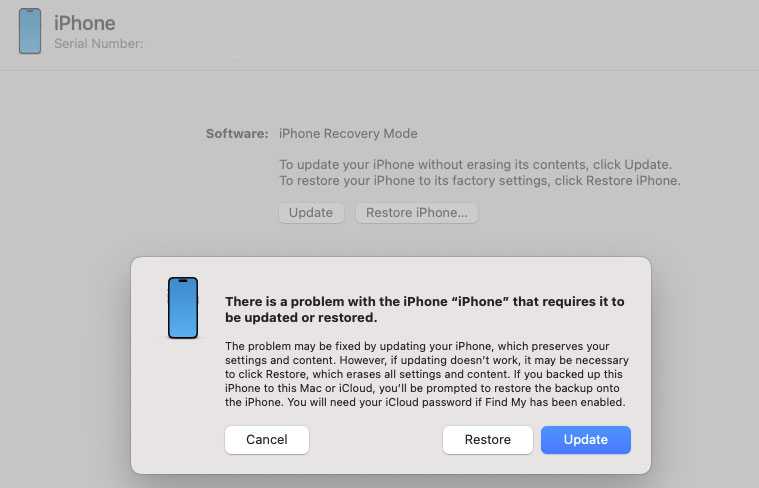
- On your Mac you should now see a message indicating that there is a problem with the iPhone that requires it to be updated or restored. You need to click on Restore.
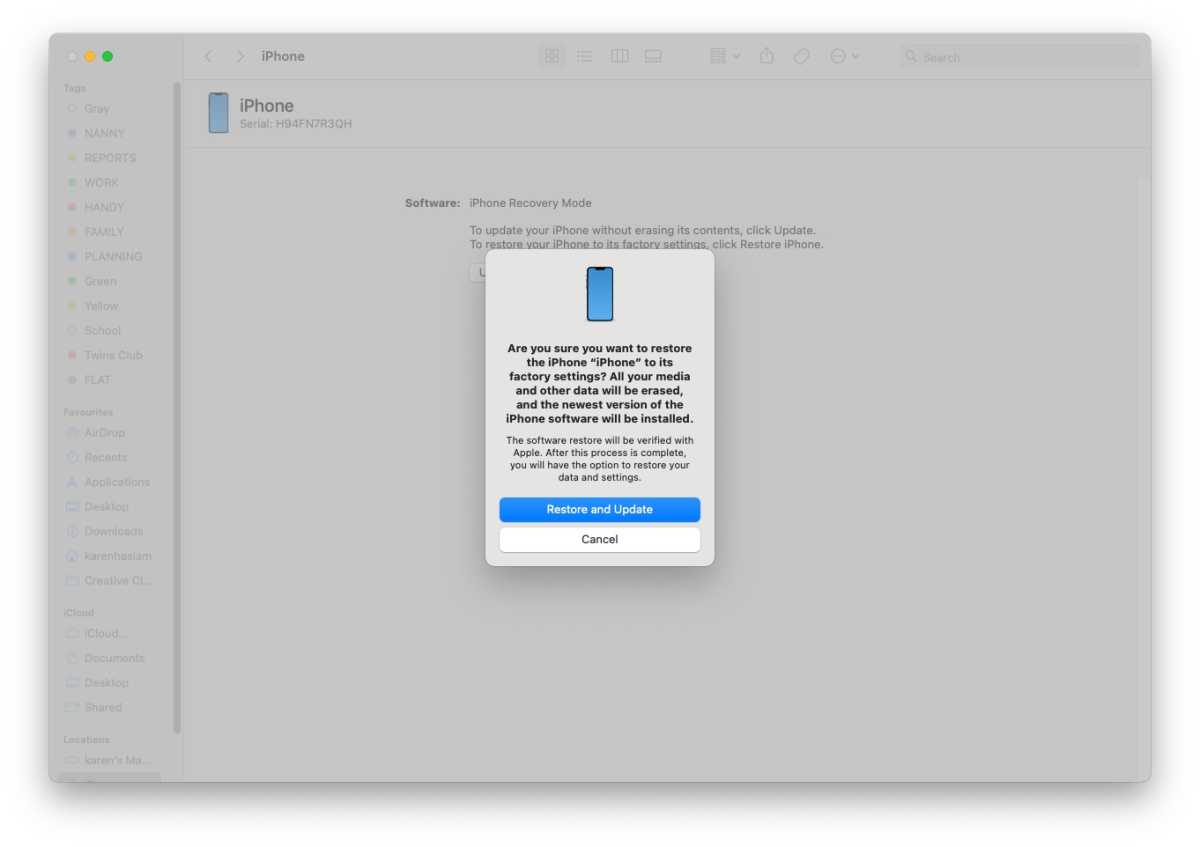
- You will see a warning: “Are you sure you want to restore the iPhone…” Click on Restore and Update.
- Click Agree on the next screen that details the license agreement.
- Just note that there’s only about 15 minutes before your iPhone will exit recovery mode, at which point you will have to enter recovery mode again.
- Your iPhone should restart with the Welcome screen if this process has worked.
- Now you can either set up your iPhone as new, or restore it from an iCloud backup from before you started to experience problems.
Simon Jary
Simon Jary
Simon Jary
Foundry
Another option is DFU mode, which is more drastic and used for tinkering with firmware and the like.


