Formatting an SD card on a Mac can feel like permanent data loss—but in many cases, your files are still recoverable. Whether you accidentally formatted the card during a camera setup, encountered a file system error that forced a format, or simply erased the card to reuse it, understanding your recovery options is critical.
This 2026 guide draws on EaseUS’s years of hands-on Mac SD card recovery experience and testing across all modern macOS versions.
Method 1. Recover data from a formatted SD card on a Mac with software
- Best for: Most users, highest recovery success rate
- Difficulty: Easy
- Success rate: High when data is not overwritten
Specialized data recovery tools are the gold standard for recovering data from formatted SD cards on Mac. EaseUS Data Recovery Wizard for Mac can help you find lost data from the SD cards with a single click.
It can bypass the missing file system index and scan the card sector by sector to identify and rebuild lost files, such as photos, videos, and documents. Unlike macOS built-in tools, it specializes in external storage such as SD cards and supports all common formats, including ExFAT, FAT32, the default for SD cards used with cameras and mobile devices.
Open the EaseUS Data Recovery Wizard. Select “SD Card” and click “Search for lost data” after selecting the original location of your lost data.
EaseUS
Step 2. Choose scanned files
After the scan, click “Type” and expand the folder you want. Click on the file type you lost.
EaseUS
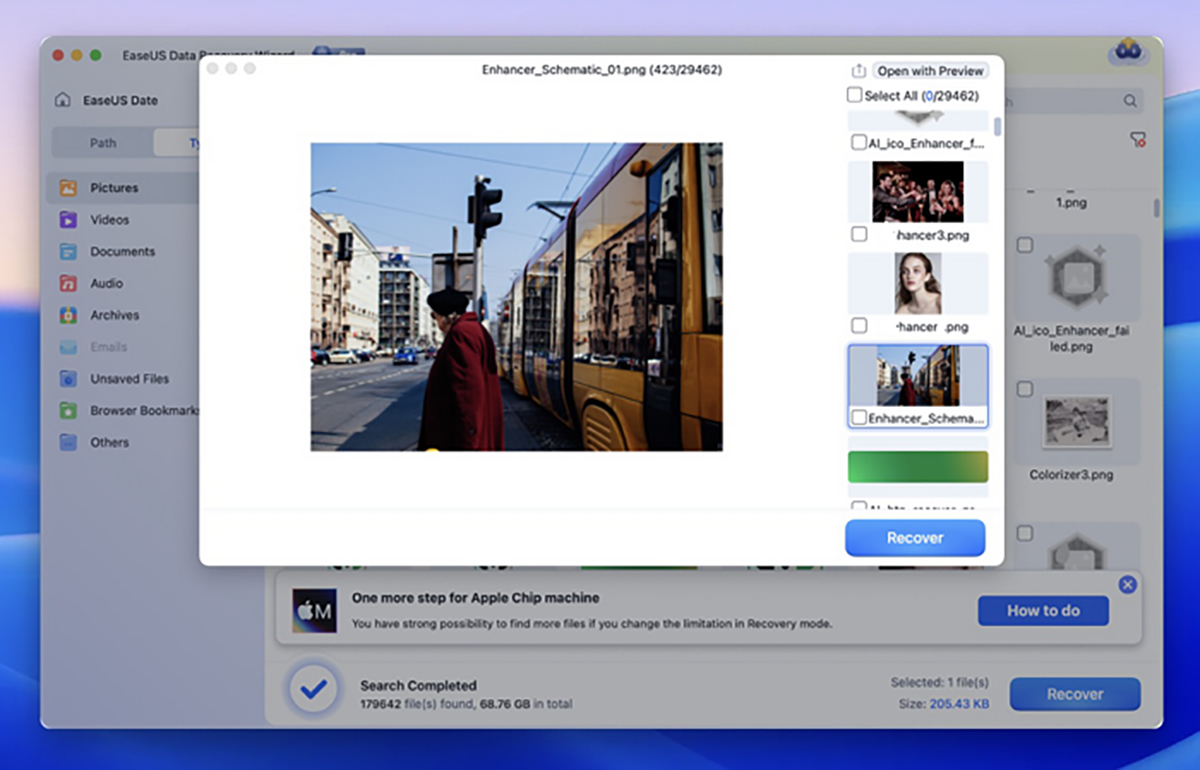
Step 3. Preview and recover data from a formatted SD card
Double-click to preview your lost data, select the appropriate version, and click “Recover” to save it to a different secure location on your Mac.
EaseUS
Method 2. Restore from a Backup (Time Machine / Cloud)
- Best for: Users with active backups
- Difficulty: Very easy (built-in Mac tools)
- Success rate: High if the backup is complete and up-to-date
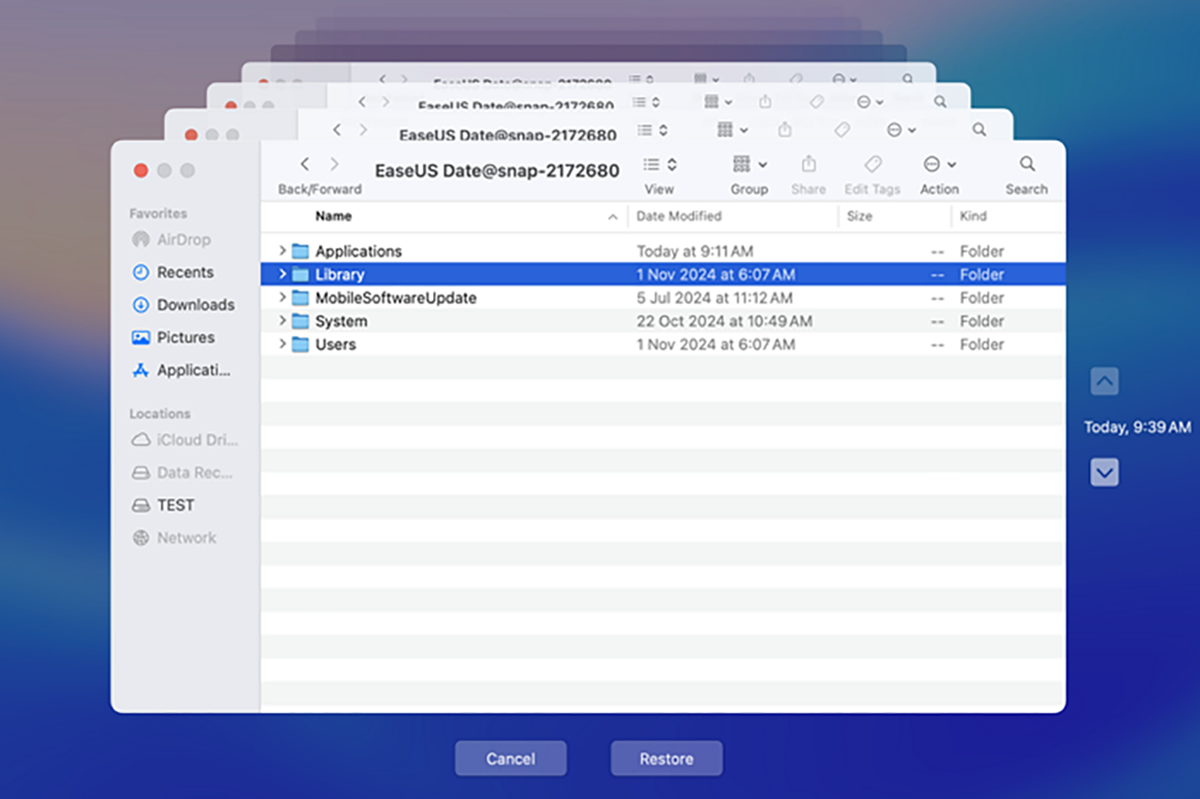
Time Machine is Mac’s built-in backup tool that automatically saves copies of files from connected drives, including SD cards, if you enabled backups for them. To restore data from Time Machine on Mac:
Step 1. Connect your Time Machine backup drive to your Mac.
Step 2. Open the folder where your SD card files were stored.
Step 3. Launch Time Machine from the menu bar by clicking the clock icon or via Spotlight.
Step 4. Use the timeline on the right side of the screen to navigate to a backup date prior to when you formatted the SD card.
Step 5. Select the files or entire folder you want to restore, then click “Restore.” The files will be saved back to their original location.
EaseUS
Finder on Mac has a built-in search feature that lets you find files in any folder on your Mac. It is helpful when you want to retrieve vanishing desktop files or show hidden files on a Mac.
Step 1. Open the Finder and click the Search icon in the upper right corner.
Step 2. Enter the name of the file. The finder will begin searching automatically.
Step 3. If you do not know the name of the missing Excel file, you can instruct Finder to display all Excel files stored on your Mac by typing “.xls” or “.”xlsx” and picking the Microsoft Excel Workbook under Kinds.
Method 3. Use macOS Terminal
- Best for: Advanced users with technical experience
- Difficulty: High
- Success rate: Low–moderate
Mac’s Terminal includes tools like diskutil and dd that can attempt basic recovery, but they are not designed for formatted SD cards and have critical drawbacks.
Unlike professional software, they offer no file preview, no selective recovery, and a high risk of overwriting data if you enter commands incorrectly.
Step 1. Open Terminal (Applications > Utilities > Terminal).
Step 2. Type diskutil list to identify your SD card (look for its size, e.g., “64GB”) and note its identifier (e.g., /dev/disk2).
Step 3. Use diskutil repairDisk /dev/disk2 to repair minor file system errors (this may restore visibility to some files).
For raw recovery, use tools like PhotoRec (open-source, run via Terminal) to scan the card.
Why can formatted SD card data still be recovered
Many Mac users assume formatting erases all data instantly, but that’s not how modern storage works. When you format an SD card on your Mac, the system performs a “quick format” by default, which is designed for speed rather than secure erasure.
Instead, it only removes the file system index. Think of this as tearing out the table of contents from a book – the pages are still there, but you can’t find them without the index. However, it leaves the underlying data fully intact until new files are written over the old sectors.
This is why recovery remains possible. First, you stopped using the SD card immediately after formatting. Every time you take a photo, save a file, or even transfer data to the card, you risk overwriting existing data. Second, no new files were written to the card post-format.
Even a small new file can overwrite critical sectors of a large video or RAW photo. Third, the format was a “quick format” rather than a secure erase. macOS offers a “secure format” option in Disk Utility that overwrites data multiple times, making recovery nearly impossible, but most users perform quick formats by accident.
Recover data from a formatted SD card FAQs
Can I recover files after formatting an SD card on a Mac for free?
Yes, but with limitations. Free tools like PhotoRec can recover small amounts of data, but they lack a graphical interface and preview features. Some paid tools like EaseUS offer 2GB of free recovery, which is enough for photos and small documents.
How long does SD card recovery take?
Quick scan: 2–5 minutes (scans only file tables; not useful for formatted cards).
Deep scan: 30 minutes to 4 hours (depends on card size – 128GB cards take 1–2 hours, 256GB+ take longer).
Recovery time: 10-30 minutes (depends on number and size of files).
Is formatted SD card recovery safe?
Yes, if you use read-only recovery tools and avoid writing new data to the card. Professional software only reads the card’s sectors; it never modifies or deletes data. The only risk comes from user error.
Final Thoughts
Recovering data from a formatted SD card on a Mac is not only possible. It’s often successful if handled correctly. The key takeaways are simple: stop using the card immediately, prioritize professional recovery software for the highest success rate, and always back up your data to avoid future loss.


