Summary created by Smart Answers AI
In summary:
- Macworld reports that iOS 27 introduces a powerful Siri AI capable of automatically generating and sending iMessage replies, requiring an iPhone 15 Pro or newer to run.
- Using Apple Shortcuts, users can create voice-triggered automations that let Siri respond to specific contacts, pull real-time web information, and understand personal context across messaging apps.
- The feature offers genuine convenience, though Macworld warns users to monitor automated replies carefully to avoid sending unconfirmed or impersonal messages.
iOS 27 finally delivers Siri AI—a highly capable chatbot with access to world knowledge, personal data, and live web results. Its system-level agentic privileges, paired with its smarts, turn it into an unrivaled tool that can understand and interact with on-screen content across iPhone apps. This helps you execute complex everyday tasks by using just your voice.
Messaging is one of the most common smartphone use cases, and it can feel tiresome at times. Our iPhones buzz whenever we receive a text, which can include long rants, random 2 AM questions, super important updates, and more. To make my life a tad easier, I leveraged the overhauled chatbot’s power and used Shortcuts to make it respond to certain iMessages.
Siri AI has entered the chat.
Getting started
To replicate the experiences I’m breaking down below, you’ll need an iPhone 15 Pro or a newer model running iOS 27 (currently in beta) with Siri AI enabled. The first, more practical method works on demand inside chats you’re viewing in real time. The automatic mode, on the other hand, can run in the background and autonomously respond to assigned contacts whenever they text you.
While the latter mode can be fun to play around with, I advise you not to keep it enabled at all times. As artificial intelligence and its generated slop take over social media and other digital spaces, maintaining the humanness of online interactions has become more challenging than ever. You probably wouldn’t want a robot to reply to you when texting your friends, and neither would most people.
Manual mode
Manually having Siri AI reply to specific conversations doesn’t require any setup beyond enabling the chatbot itself. The feature works across first- and third-party messaging apps, allowing you to generate contextual replies in any text box.
For example, a friend asked me for Apple Arcade game recommendations, but I haven’t been playing any lately. I clarified that, then proceeded to ask Siri to answer his question. The AI assistant automatically scoured the web and composed a message highlighting some of the popular titles. It even allows you to view its source(s) to ensure its credibility before hitting send. Through this basic, intuitive integration, I was able to help a friend out without leaving the chat.
Foundry
Siri AI’s usefulness in chats can go even further. I sent a paragraph copied from an article highlighting an iCloud+ price hike in several countries. My friend inquired about the new pricing, so I asked Siri to answer his question. The chatbot took into account that my friend is based in Türkiye (visible in the chat through the Find My tile), and listed the pricing for this particular country. It understood—without my explicit instruction—that this is the particular information my friend is likely interested in and searched the web for results accordingly.
This deep understanding of the context and contacts’ available data, alongside its ability to browse the web, transforms Siri AI into a genuinely helpful assistant when conversing with others. In the past, such workflows would require jumping between multiple apps and manually hunting for results. That’s no longer necessary.
Foundry
I now often find myself hitting the keyboard’s Write with Siri button (the successor to Writing Tools)—not because I need assistance with typing, but because it can provide the needed information from indexed on-device content and the web. I tend to extract the generated details and reword my responses afterwards to maintain my texting tone and style.

Foundry
Auto answers
If a contact regularly spams you on iMessage while you’re busy tending to other life matters, Siri AI can fully take over the chat and respond on your behalf. Launch the built-in Apple Shortcuts app, which now supports generating shortcuts using natural language. Create a new shortcut by inserting this prompt: “When [contact name] texts me, analyze their message, generate a suitable reply, and send it to them automatically.” This will create an automation that fetches the contents of incoming texts, privately feeds it to Apple’s cloud-based AI models to come up with an appropriate response, and finally relays it to the selected recipient.
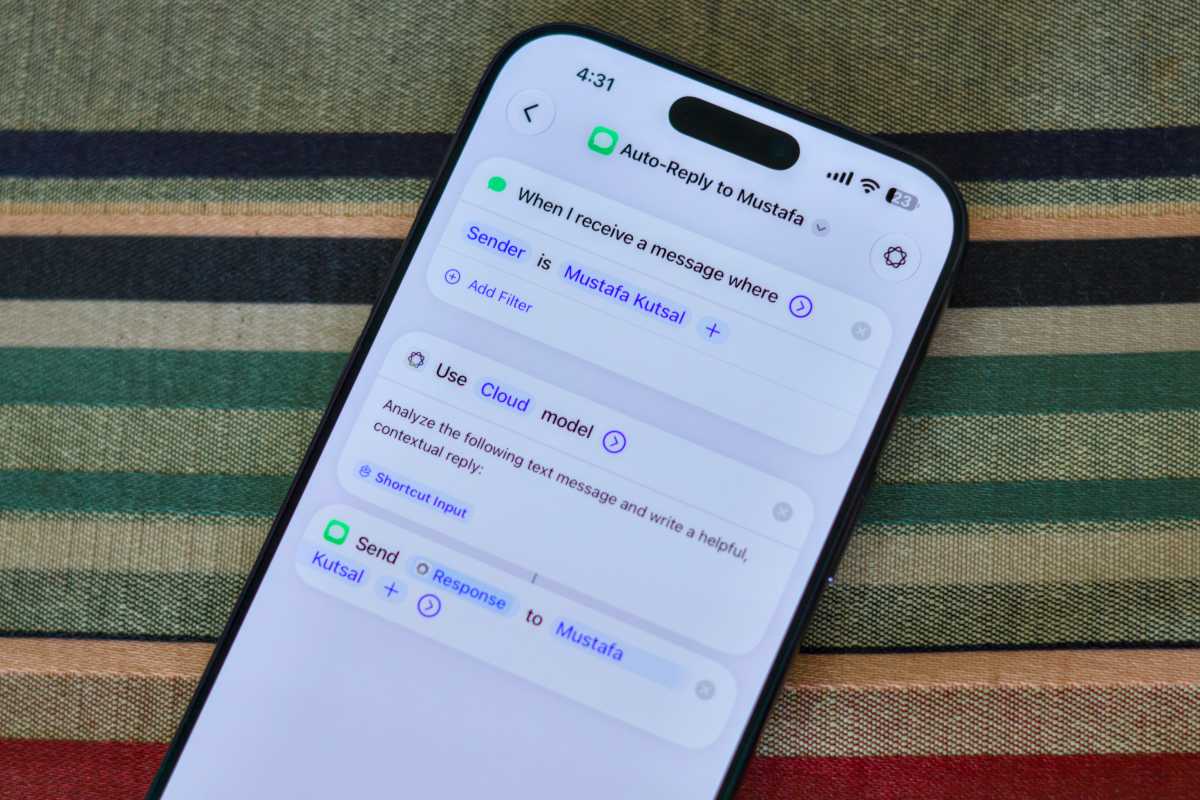
Foundry
Unlike the manual mode, the Shortcuts automation works best in iMessage and may not be supported in most third-party instant-messaging apps. Whenever the automation runs, you’ll receive a notification alerting you about the automated reply, which, by default, you can’t review in advance. So, unless you actively visit and read the developing conversation, Siri could be sending the contact all sorts of nonsense AI hallucinations. Worry not, however; the automation, unlike the manual mode, bases its replies on world knowledge and public information. While stress-testing it, I was unable to force Siri AI to leak my sensitive details by having someone ask me personal questions.
The practical path
I had a lot of fun watching Siri AI automatically come up with all sorts of wacky replies and send them to one of my close friends—but once my tests concluded, I deleted the automation altogether. It’s certainly a cool way to demonstrate how far the virtual assistant has come and how iOS now caters to power users by supporting advanced automations and tools. You wouldn’t, however, want the AI chatbot to continuously send your contacts texts without confirmation.
Conversely, manually having Siri AI assist with responding when receiving particular questions has become an indispensable part of my workflow. It selectively uses AI to fetch the needed information—without turning the conversation into a monotonous wall of text full of em dashes. It also works in texting apps beyond Apple Messages, making it the more practical method. Once iOS 27 rolls out to the public, I see this integration revolutionizing how people text by sparing them from time-consuming tasks, like browsing the web and digging through local files to find answers.
Siri AI did not contribute to this story.


