At a glance
Expert’s Rating
Pros
- 26 top-end ports, including four Thunderbolt 5
- Supports four displays without daisy-chaining
- 10Gb Ethernet
- Active cooling
Cons
- Premium price
- Takes two Mac ports for maximum advantage
- Fan may produce noise in exacting studio environments
Our Verdict
If 16 USB ports is a lot more than you think you need, the Ultra may be overkill, and at that premium price it will certainly make you double-count how many ports and high-resolution displays you really need. For Mac pros working at the highest level, the iVanky FusionDock is going to be the go-to docking station.
Price When Reviewed
This value will show the geolocated pricing text for product undefined
Best Pricing Today
Price When Reviewed
$649.99
Best Prices Today: iVanky FusionDock Ultra
$649.99

$749.99
Who is iVanky FusionDock Ultra for: This dock is best for high-end Mac professionals who need maximum connectivity – especially those running multiple high-resolution displays, fast storage, and 10Gb networking all at once. It’s not for typical users or even most power users, as the sheer number of ports, need for two Thunderbolt connections, and high price make it overkill unless you truly need that level of performance.
In 2025 when iVanky launched its 23-port iVanky FusionDock Max 2 it threw down the gauntlet for the title of “Ultimate Mac Dock” to defending champion, the iconic 20-port CalDigit TS5 Plus.
The TS5 Plus was (just) victorious on the absolute top-end—the TS5 Plus has 10GbE networking compared to the Max 2’s 2.5GbE and all its USB ports are 10Gbps. Only the FusionDock Max 2 could offer three native displays, without requiring extra software, and while the TS5 Plus has plenty of USB ports, the iVanky Max 2 offered a super abundance.
iVanky has now returned with the FusionDock Ultra, which hosts 26 ports including 10GbE and 12 USB ports rated at 10Gbps in addition to the two upstream and four downstream 80Gbps Thunderbolt 5 ports. It can handle up to four 6K displays at 60Hz, and dual 8K/60Hz displays.
CalDigit really has a fight on its hands.
We’ll compare the two later in greater detail further down but first let’s look at everything the FusionDock Ultra offers to the Mac professional who demands the most and the best.

Simon Jary
First, it must be noted how well iVanky packages its new top-end docking station. It looks great in its box before you even get your hands on it.
How is the FusionDock Ultra different from other docks?
The advantage this dock has over other Thunderbolt 5 docks is its dual Thunderbolt 5 chips, making it effectively two docks in one case—in essence, it’s two independent dock printed circuit board assemblies (PCBA) integrated together.
The original FusionDock Max 1 has two Thunderbolt 4 chips, and the Max 2 combines a Thunderbolt 5 controller with an additional DP-Alt chip.
These dual-chip docks can natively deliver up to four external displays—a feat that usually takes a docking station that requires third-party DisplayLink compression software to be installed on the Mac.
The release of MacBooks with M5 Pro and M5 Max chips has changed the playing field. These top-end Macs are no longer limited to two external monitors over a single Thunderbolt cable, with the M5 Pro supporting up to three and the M5 Max up to four.
This means that a dock such as CalDigit’s TS5 can run four displays when connected to one of those MacBooks. However, the fourth display must be daisy-chained off the third as the dock has only three downstream Thunderbolt 5 ports. The Ultra is free from this daisy-chaining requirement.
Simon Jary
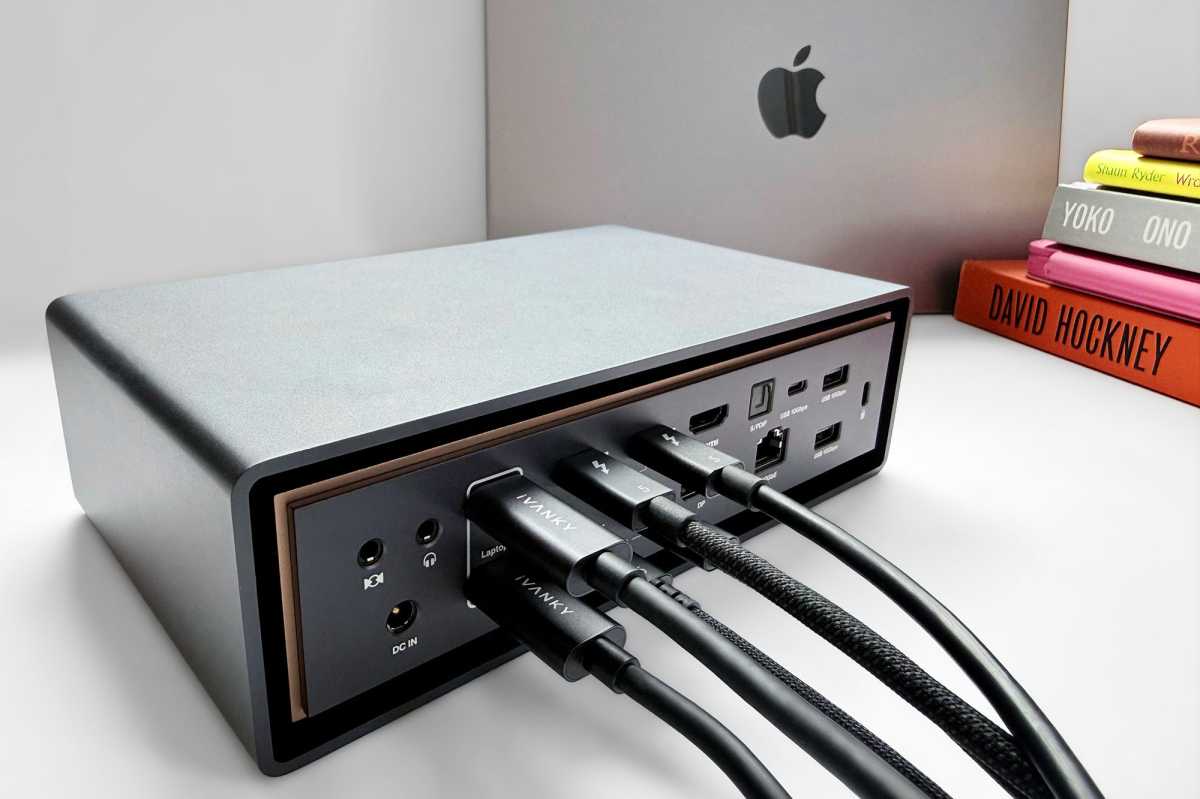
The iVanky Ultra has four downstream Thunderbolt 5 ports, plus dedicated DisplayPort and HDMI ports, so can handle all four displays without needing to link the last to one of the other monitors.
Using two upstream Thunderbolt connections also provides significantly more bandwidth, avoiding the bottlenecks that often occur with single-port docks.
The downside is that you must use two of your Mac’s Thunderbolt ports to use the FusionDock Ultra. If only one cable is connected, some ports on the dock will not function.
Simon Jary
What ports and features do you actually get?
We thought the mighty CalDigit TS5 Plus was remarkable packing 20 ports, including ten USB, then the FusionDock Max 2 fitted 23 ports into a similarly sized case. Now we’ve got a crazy 26 ports to play with.
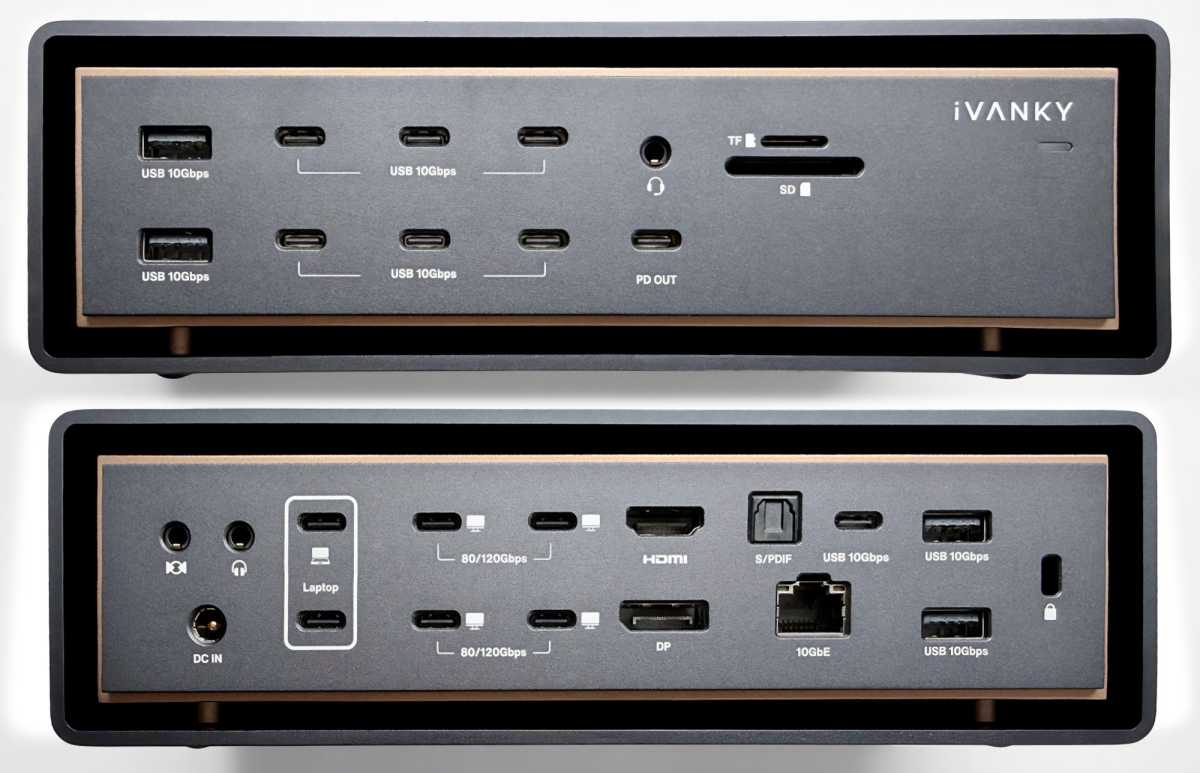
As there are so many ports, iVanky has clearly labelled all of them.
- Two upstream Thunderbolt 5 ports (80Gbps, 140W)
- Four downstream Thunderbolt 5 ports (80Gbps, 15W)
- One USB-C port (10Gbps, 45W)
- Seven USB-C ports (10Gbps, 7.5W)
- Four USB-A ports (10Gbps)
- One DisplayPort (2.1)
- One HDMI (2.0)
- Ethernet (10Gb)
- UHS-II SD card reader (312MBps)
- UHS-II microSD card reader (312MBps)
- One 3.5mm combo audio In/Out jack (front)
- One 3.5mm Audio Out audio jack (back)
- One 3.5mm Audio In audio jack (back)
- One optical audio (back)
- 240W power supply
Most Thunderbolt docks have one upstream Thunderbolt port to connect to the computer and up to three downstream ports to attach monitors, storage drives and other high-bandwidth devices.
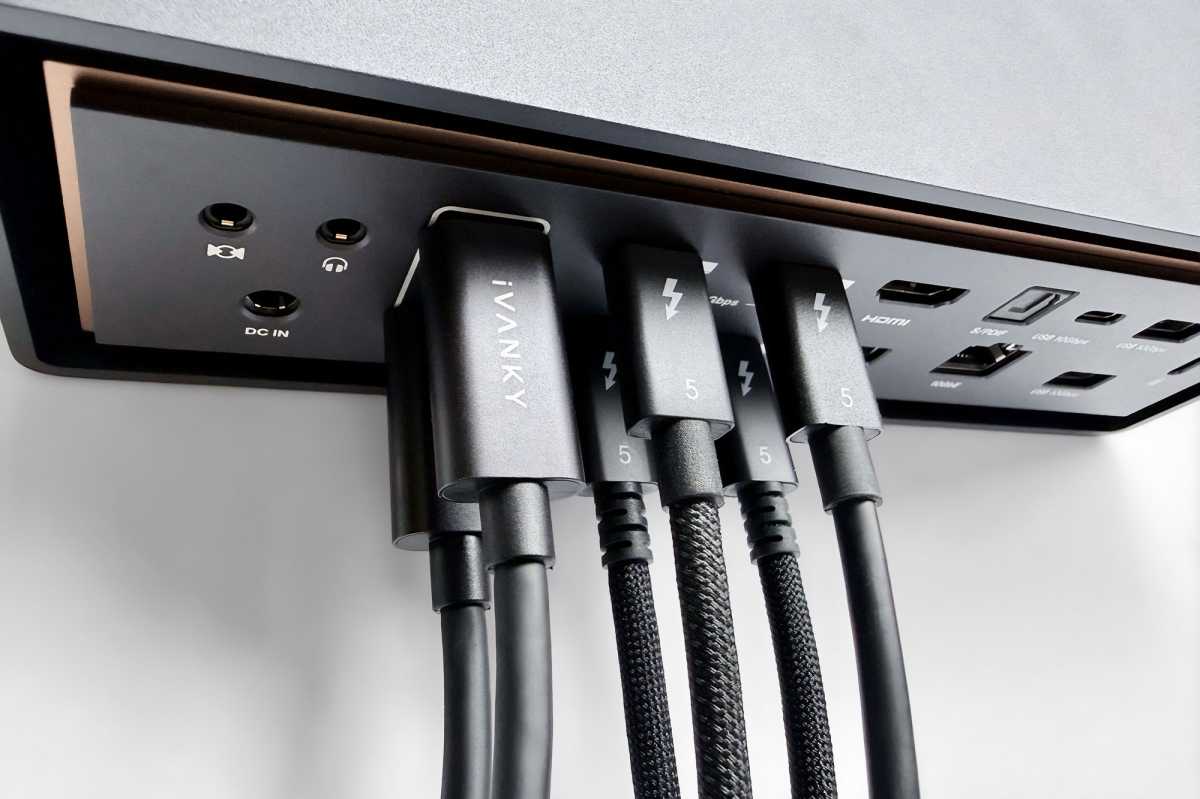
With its dual-chip architecture, the FusionDock Ultra sports six Thunderbolt 5 ports: two upstream and four downstream.
Simon Jary
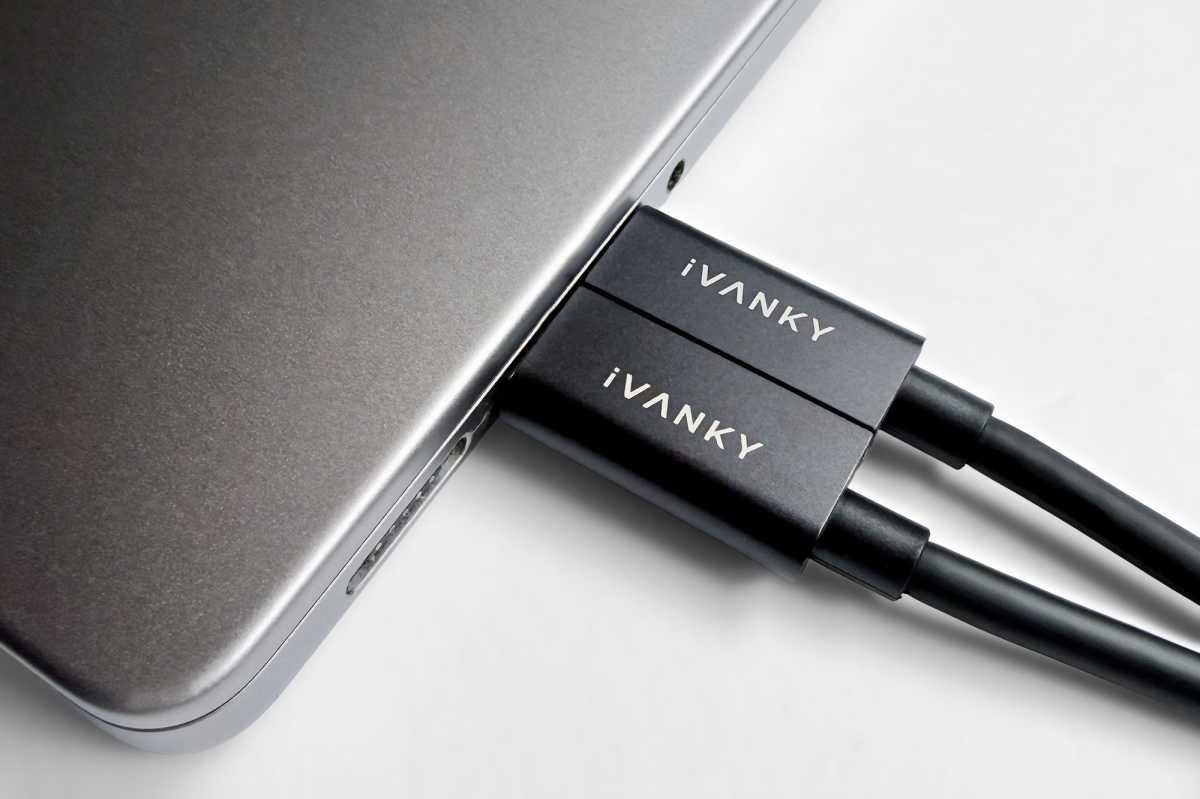
The two upstream connect to the Mac with the included dual-cable connectors. When connected to a MacBook (pictured above), the two connectors magnetically fit together in the correct position to neatly attach to the laptop’s side-by-side Thunderbolt ports. At the dock end the connectors are placed on top of each other in the dedicated upstream ports. The FusionDock Ultra also ships with a spare downstream Thunderbolt 5 cable.
iVanky
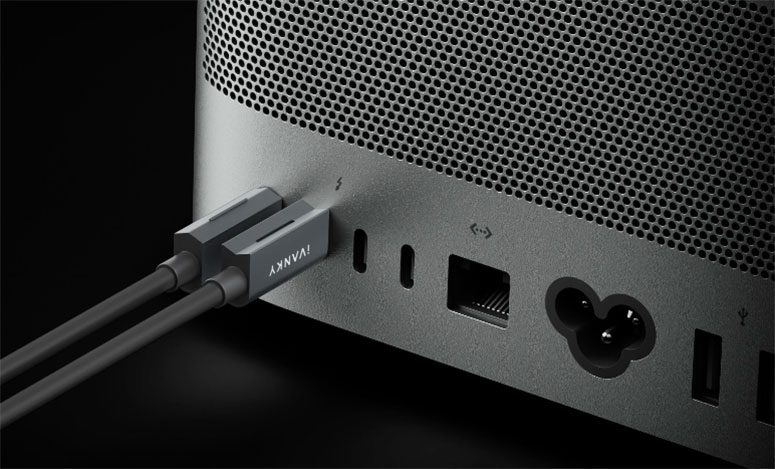
If you are using the dock with a desktop Mac such as a Mac mini or Mac Studio, the upstream cables can be separated to fit that computer’s port layout but you must still connect the dock to two Thunderbolt ports.
The dock will work best with Macs that host Thunderbolt 5, with its 80Gbps data-transfer bandwidth that doubles that of 40Gbps Thunderbolt 4. With a feature called Bandwidth Boost, a Thunderbolt port can switch to a unidirectional 120Gbps for the most demanding video needs.
If you need to connect high performance SSDs or RAID devices Thunderbolt 5 rewards you with a PCIe performance that is doubled (from Thunderbolt 4) to 64Gbps PCIe 4.0, and the dock supports (theoretical) transfer speeds up to 6,200MBps.
The upstream PD 3.1 TB5 ports can supply up to 140W to the connected MacBook, which is powerful enough to fast-charge the top-end 16-inch model. Each of the downstream TB5 ports can deliver 15W.
On the TS5 Plus CalDigit sacrificed the possibility for a third downstream Thunderbolt port for a top-end DisplayPort 2.1 video connection. iVanky’s FusionDock gives four downstream Thunderbolt 5 plus a DisplayPort 2.1 and HDMI 2.0 port. Native Thunderbolt and DisplayPort output supports up to 4K at 240Hz, which is not possible via an HDMI port.
Not including the backwards-compatible Thunderbolt ports, the FusionDock Ultra carries a mind-boggling 12 plainer USB ports: all at 10Gbps. The Max 2 also has 12 USB but three at 5Gbps and another three at the weedy USB 2.0 speed of 480Mbps. Seven of these are USB-C (remember that that the three downstream Thunderbolt can also operate as Type C if you desire) and four are old-school USB-A. The Max 2 had those numbers the other way around, with seven USB-A, which is surely more legacy ports than anyone with a top-end system should need. Top marks to iVanky for shifting to more USB-C than USB-A.
Four USB-A should be plenty for older flash drives and memory sticks, and even a wired keyboard and mouse for people who shun wireless input—maybe for those concerned about the potential instability of Bluetooth signal interference.
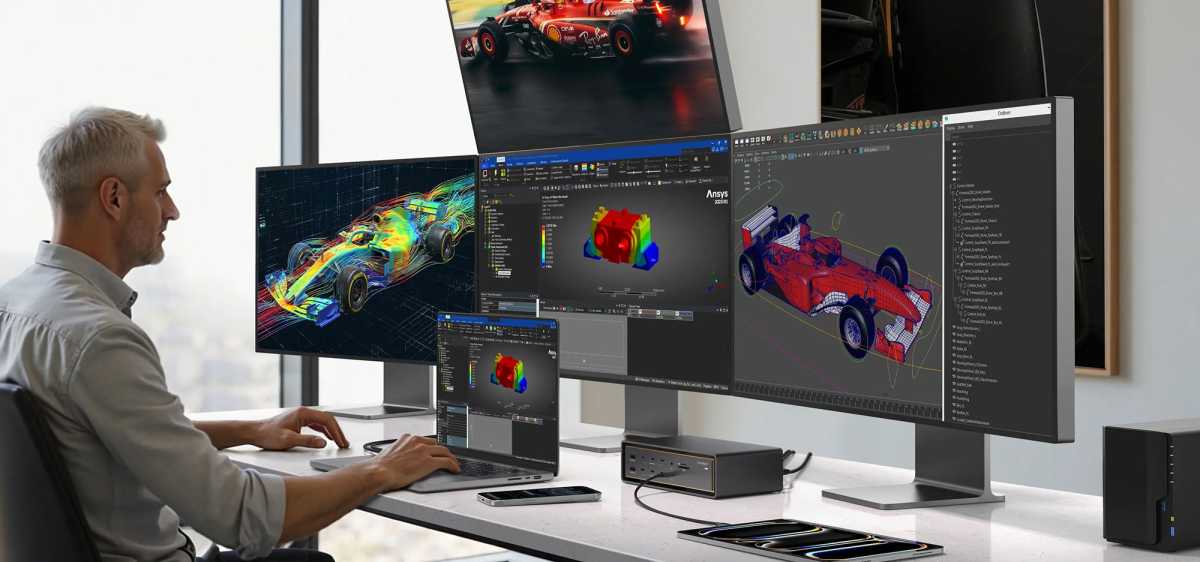
iVanky
How many displays can it really support (and on which Macs)?
A key purpose of a docking station is to connect multiple external displays without using up all the MacBook’s own ports. The dual-chip FusionDock Ultra is the leader of the pack when it comes to natively supporting up to four displays, although the recent M5 Pro/Max advances in Apple’s processor design have blunted that advantage a little.
To achieve native four-display support you need to use those two upstream ports. You can’t use the plain USB-C ports for connecting to external displays; for that purpose, you need to use the DisplayPort and/or HDMI ports or the Thunderbolt.
Docks used to be limited by the macOS’s lack of support for something called Multi Stream Transport (MST), which limited Macs from being able to connect more than two external displays over a single cable. That’s one reason why Mac docks could be used for two monitors max.
The iVanky FusionDock Max 2 got round this with its own dual-chip/two-upstream cable connection, and the Ultra follows suit.
However, as mentioned earlier, Apple has revealed that its latest MacBooks with M5 Pro can now support three displays over one cable (it must be Thunderbolt 5), and with M5 Max up to four.
The iVanky dock still offers up to four displays for users of M1//M2/M3/M4 Max-chip Mac, but if you have an M5 Max Mac you can now connect up to four displays from other Thunderbolt 5 docks, such as the CalDigit TS5, although the fourth will have to be daisy-chained from the third monitor due to lack of ports on the dock.
The FusionDocks have no such problems with their four Thunderbolt ports and other dedicated video ports: it’s the only Thunderbolt port that natively supports four displays without any daisy-chaining required.
Simon Jary
Quad display: Native vs DisplayLink
If you don’t mind installing third-party compression software such as DisplayLink there are docks—such as the Plugable TBT-UDT3—that support up to five displays via a single connection. The catch is that DisplayLink may introduce noticeable latency in some situations or on certain monitors, so high-end studios and professionals will always prefer a native solution.
Native (without help from third-party software) video provides smoother, full-resolution lag-free video with higher refresh rates (4K at 240Hz), which makes it ideal for video editing and gaming. DisplayLink’s max is 60Hz—fine for most of us but nowhere near enough for video pros and gamers. Natively, the Mac’s GPU can be utilized for processing, so reducing CPU system resource load usage.
Third-party DisplayLink in a dedicated dock or adapter sends compressed video data over USB connection, and bypasses Apple’s native display output limitations, so allowing you to connect multiple external displays to Mac models that officially support only one or two (for example, the base single-display M1 and M2 models, as well as the new MacBook Neo).
DisplayLink also suffers from restrictions to DRM (Digital Rights Management) protected content as used by streamers such as Netflix and Apple TV.
The Ultra’s dual Thunderbolt 5 connections to the Mac mean no extra software is required for the purest multi-display support.
iVanky
Monitor matrix
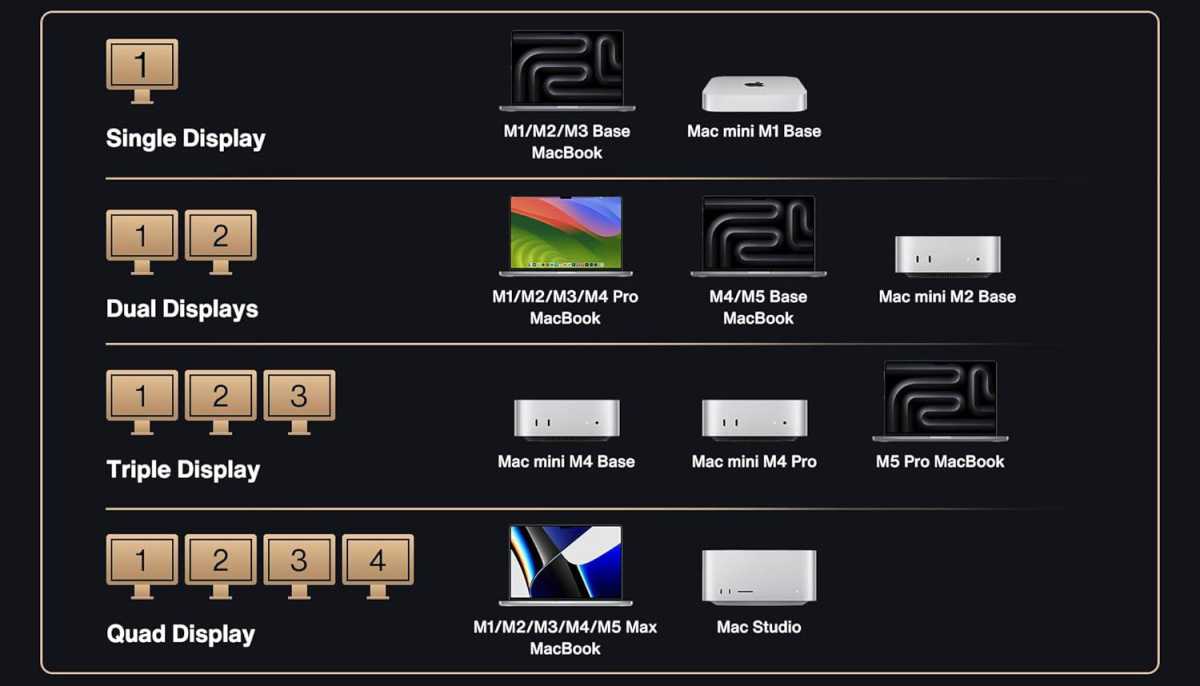
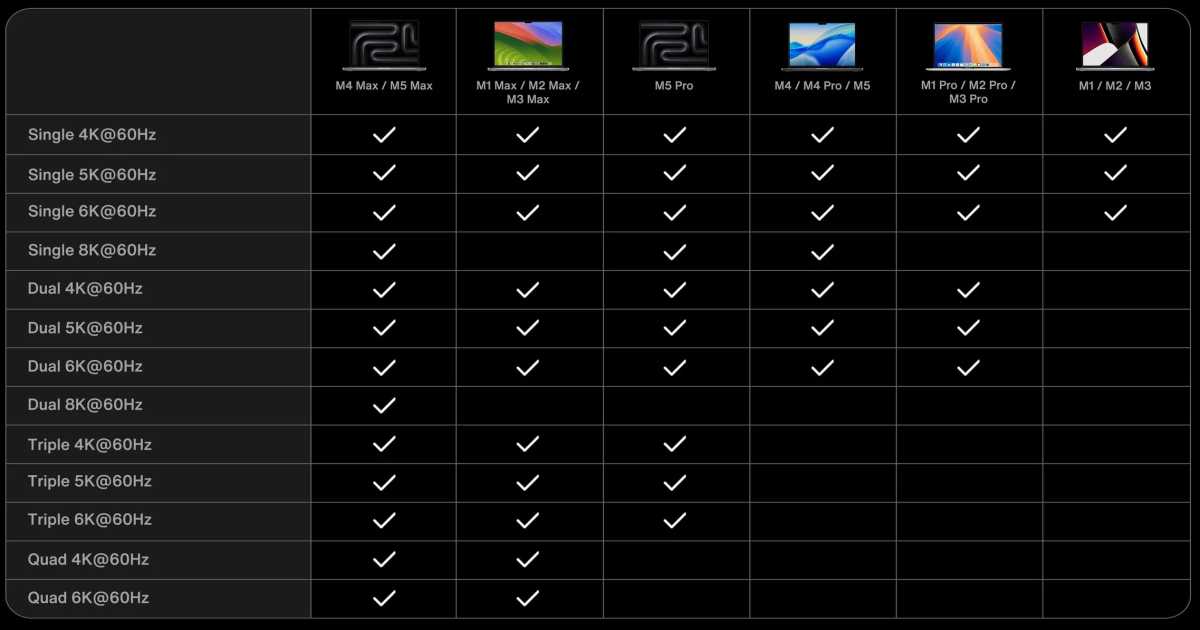
Unfortunately, even this dock can’t override the built-in display limits of your Mac. The maximum number of external displays is still determined by your Mac’s processor and Apple’s own display engine limits. To check your Mac’s display potential, see Apple’s “How many displays can be connected to MacBook Pro”.
For three displays, you’ll need a Mac with at least an M5 Pro or a Max M-series processor: so M1/M2/M3/M4 Max. Even M4 Pro Macs are limited to dual 4K/60Hz support (see MST explanation above).
The three displays can be 3x 6K/60Hz. If your Mac boasts a Max M-series processor, you can connect four 6K displays at 60Hz.
For dual 8K/60Hz displays an M4 Max or M5 Max chip is required. A single 8K screen is possible even on a plain M4 or M5 chip, or an M4 Pro.
iVanky
To show the display possibilities it’s easiest to check out this grid of possibilities for each type of Mac.
Power station
Thunderbolt 5 has higher power delivery (PD) than Thunderbolt 4: to the connected laptop at least 140W with support for up to 240W; up from TB4’s minimum 100W and max 140W.
The FusionDock Ultra can power a connected laptop at up to 140W, enough to fast-charge a top-end 16-inch MacBook Pro.
The 45W USB-C port at the front of the dock (up from the Max 2’s 30W) is handy if you want to fast-charge your iPhone or iPad. The TS5 Plus has a 35W front port, and the Sonnet Echo 13 has one of its TB5 ports with a 60W rating. 30W should be enough for those devices, and 45W is enough to (slowly) recharge another MacBook if you want to.
The external power supply can deliver a maximum of 240W, which is the same as the FusionDock Max 2 but noticeably lower than the 330W of the CalDigit TS5 Plus that gives that rival dock enough to cope with a full power demand, so the wattage going into the laptop needs never fluctuate to accommodate other hungry devices.
If you were to use all the FusionDock’s ports at full power, it would require 297.5W so you may hit the dock’s power adapter limit. The dock’s active-cooling fans will also use up some of that 240 of power.
While it’s unlikely all the ports would be in use at one time anyway, it’s certainly one aspect where the TS5 beats the FusionDock Ultra.
Unlike the Max 2 the Ultra has no power button at the front. I’m a fan of a power button on a dock as it makes it easier to turn off power to the connected laptop if you want to better preserve its battery life, but the Ultra is in good company with the CalDigit docks in not having one.
Key limitations
- Requires two Mac ports
- Expensive vs rivals
- Fan noise potential
- Power supply lower than TS5 Plus

Simon Jary
Network speeds
Pro studios (and an increasing number of offices) are turning to networks much faster than the long-traditional Gigabit Ethernet (1GbE), with 2.5GbE, 5GbE or even 10GbE speeds.
Recent pro docks include a 2.5 gigabit Ethernet (2.5GbE) port as standard, including the FusionDock Max 2’s LAN port. The FusionDock Ultra—like the CalDigit TS5 Plus—goes right to the top with 10GbE, which will appeal to those with networks at that speed or planning a future upgrade. It’s a great future-proof solution and is backwards compatible with slower networks.
Storage
Some recent Thunderbolt docking stations—such as the Sonnet Echo 13—include built-in SSD storage so that the dock itself operates like a speedy external disk drive.
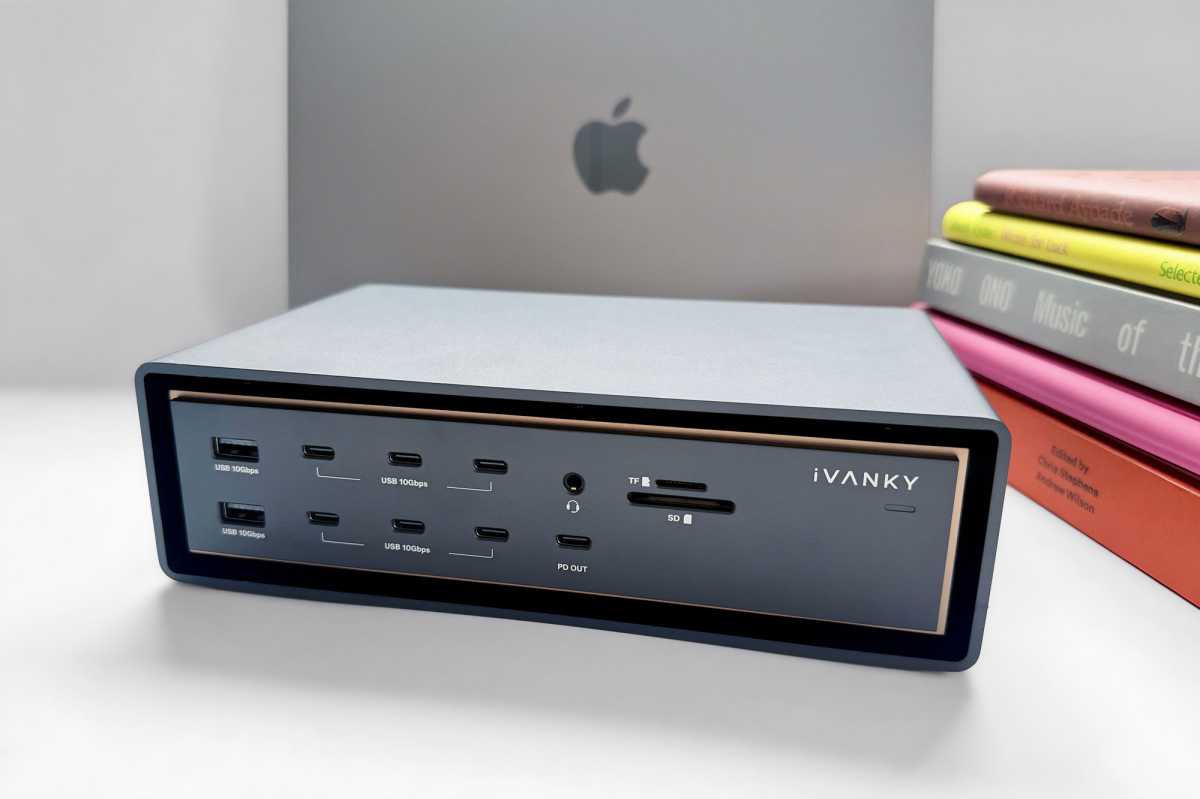
Neither the FusionDock Ultra nor the TS5 have this feature but both offer fast 312MBps UHS-II SD and microSD card readers at the front for you to slip in and out your own portable and inexpensive storage cards. That’s faster than the 250MBps SDXC card slot built into Apple’s current MacBook Pro.
Simon Jary
Design
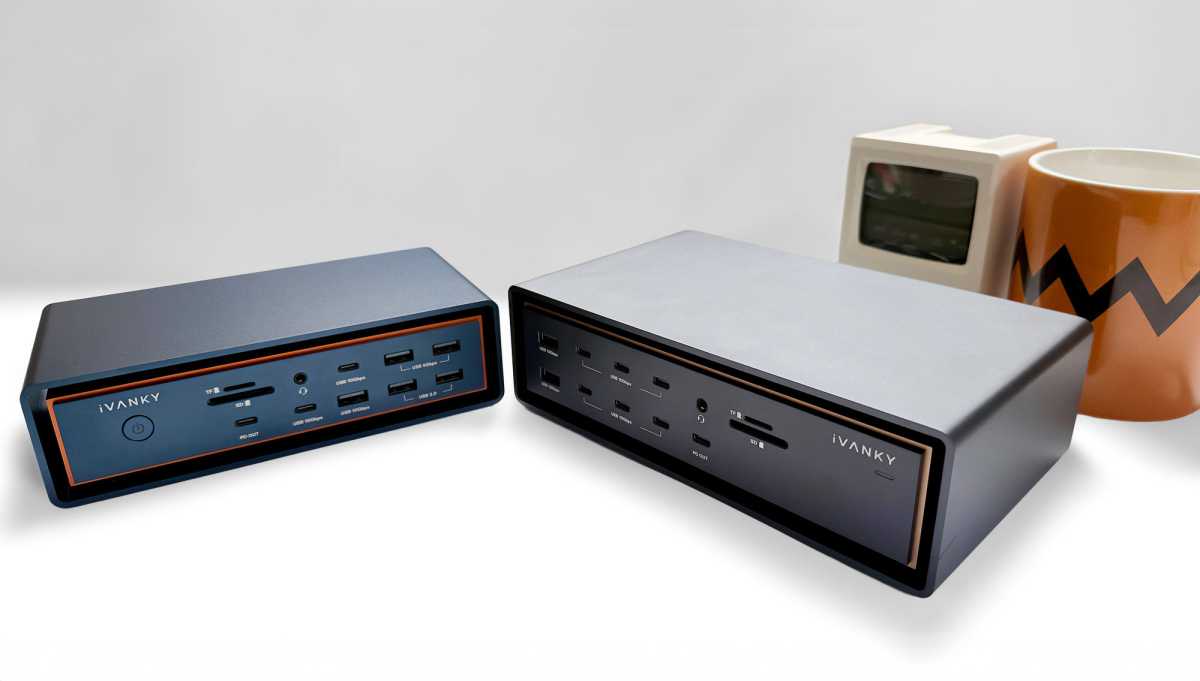
While the CalDigit docks are cased in the iconic vertical or horizontal aluminum shell, the iVanky docks take a horizontal-only approach but also in a fine-looking dark design that has a clever floating aluminum chassis with built-in twin fans for active thermal management engineered to dissipate heat.
The gold-trimmed copper-alloy midframe is therefore cooler. The surface temperature of the Ultra remains relatively low, typically around 40–45°C during normal use, thanks to the suspended-chassis airflow and cooling fan that creates extra thermal headroom and should ensure fewer drops and throttling, even under extreme demand.
The integrated rubber feet lift the dock from the desk further allowing for air to flow under it.

Simon Jary
CalDigit’s docks don’t include fans as some can add noise, which is not ideal in music or video studio environments where pro users need absolute silence. iVanky claims that its fans stay quiet during lighter tasks and only ramp up under pressure. With so many ports, it’s quite possible that the fans will be required if a lot of them are in use at the same time.
The Ultra is a little larger than the Max 2 but otherwise quite similar in design. It measures 8.3 inches (210mm) long, 4.9 inches (125mm) wide, and 2.4 inches (60mm) deep. It weighs in at 3.6lbs (1.65kg).
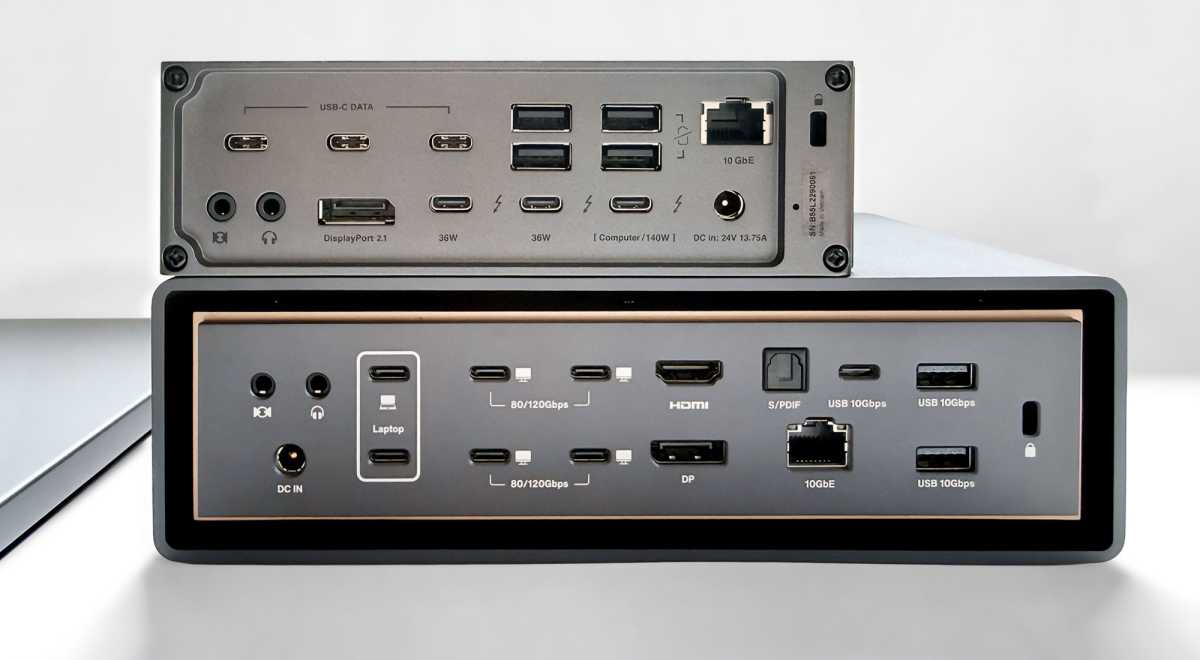
The ports are well placed. The upstream Thunderbolt 5 ports that connect to your laptop are labelled at the back, avoiding probable cable mess from the front. The two card readers and nine USB ports including the 45W USB-C for charging other devices, as well as the Audio In/Out jack are also front facing.
At the back is everything else: separate 3.5mm audio In and out ports and the optical audio port; the four downstream Thunderbolt 5 ports; DisplayPort; HDMI; one 10Gbps USB-C and two USB-A; plus Ethernet.
Simon Jary
Price
Top-of-the-range Thunderbolt 5 docking stations come at a premium price point but you do get a lot for your money with the iVanky FusionDock Ultra.
It is priced at $749.99 in the U.S. – either direct or from Amazon, £749.99 in the U.K, and €749,99 in the E.U. However, at the time of the launch iVanjy was offering a 13% discount down to $649.99, £649.99 and €649,99.
The CalDigit TS5 Plus costs $499 so is significantly cheaper but lacks the dual-chip architecture that allows for the abundance of ports—not to dismiss the TS5 Plus’s 20 ports.
iVanky’s other Thunderbolt 5 dock, the FusionDock Max 2, costs $449. It has similar display powers but fewer ports and a different chip architecture.
The $479 Sonnet Echo 13 that includes an integrated 1TB SSD is cheaper, as is the OWC Thunderbolt 5 Dock ($329) and best value of all the $299 Plugable TBT-UDT3 Dock and Wavlink Thunderbolt 5 Dock. Either may make more sense if you don’t need the native super display support or so many USB ports. Take a look at all the best Thunderbolt 5 docks in our roundup that also includes Thunderbolt 4 hubs and docks.
If multiple monitors are the big draw, then also consider DisplayLink docks that can support up to five but require third-party compression software that the top-end professionals may avoid in case any latency is involved but is fine for most users.
The FusionDock Ultra includes the 1.2m dual Thunderbolt 5 cable and the same-length individual TB5 cable.
Simon Jary
iVanky vs CalDigit: Battle of the super-pro docks
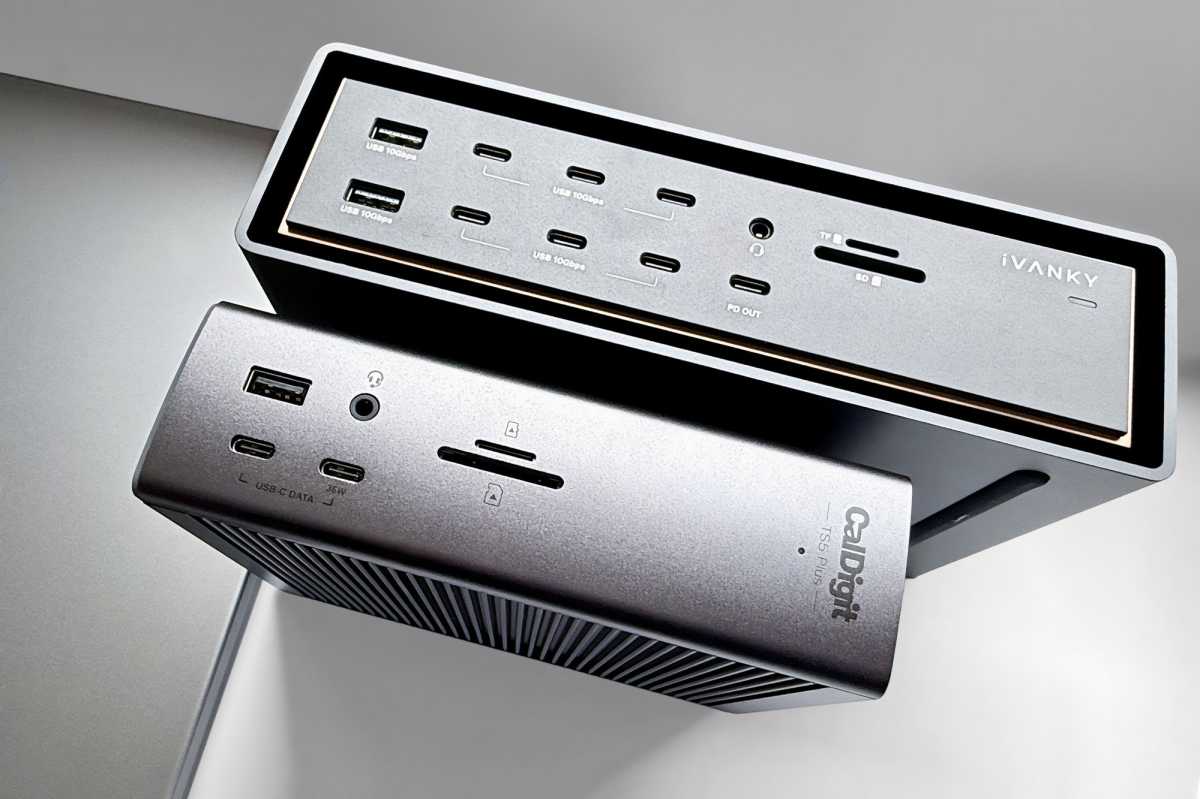
The closest rival to the Ultra is the CalDigit TS5 Plus, which is a significantly cheaper ($499) than the FusionDock Ultra ($649). Read our full CalDigit TS5 Plus review. We also include the FusionDock Max 2 ($449) and CalDigit TS5 ($399).
Supported displays
- FusionDock Ultra: Up to 4
- FusionDock Max 2: Up to 4
- TS5 Plus: Up to 4 (requires daisy chaining)
- TS5: Up to 4 (requires daisy chaining)
Number of ports:
- FusionDock Ultra: 26
- FusionDock Max 2: 23
- TS5 Plus: 20
- TS5: 15
Thunderbolt port power:
- FusionDock Ultra: 15W
- FusionDock Max 2: 15W
- TS5 Plus: 36W
- TS5: 15W
Front USB-C port power:
- FusionDock Ultra: 45W
- FusionDock Max 2: 30W
- TS5 Plus: 35W
- TS5: 20W
Total power:
- FusionDock: 240W
- FusionDock Max 2: 240W
- TS5 Plus: 330W
- TS5: 240W
Ethernet speed:
- FusionDock Ultra: 10Gb
- FusionDock Max 2: 2.5Gb
- TS5 Plus: 10Gb
- TS5: 2.5Gb
Simon Jary
Where the TS5 Plus beat the FusionDock Max 2 at the absolute top-end in some cases, the FusionDock Ultra at least matches it everywhere except for its maximum power supply (240W vs 330W).
If you need the most displays at the highest refresh rates the FusionDock Ultra is an easy winner with its native support for four (for any Max-chip Mac) and enough ports to connect from the dock. The TS5 Plus does natively support four when matched with the very top-end M5 Max Mac but requires the fourth display to be daisy-chained off the third. The Ultra can connect each of its four displays on the dock itself.
The compromise is that you must use two of the Mac’s own three Thunderbolt ports to connect to the Ultra (as was also the case with the Max 2, and indeed the Max 1), which somewhat defeats the elegance of having a single cable connected to your Mac to connect all your devices but it’s necessary for those four connected native displays.
Should you buy the iVanky FusionDock Ultra?
With an unmatched number of top-end ports and dual-chip architecture, the iVanky FusionDock Ultra is a very serious contender to take the ultimate Mac dock crown.
If 16 USB ports is a lot more than you think you need, the Ultra may be overkill, and at that premium price it will certainly make you double-count how many ports and high-resolution displays you really need.
For Mac professionals working at the highest level, the iVanky FusionDock is going to be the go-to docking station.
Related posts:
 iVanky FusionDock Max 2 review: 23-port, 3x display pro warship of a Thunderbolt 5 dock
 OWC Envoy Ultra review: Super-fast Thunderbolt 5 storage for your new M4 Pro/Max Mac
 Plugable Thunderbolt 4 dock (TBT4-UDZ) review: a bit off the pace
Wavlink Thunderbolt 5 Dock review: Affordable fast Thunderbolt plus handy power options
Plugable Thunderbolt 4 dock (TBT4-UDZ) review: a bit off the pace
Wavlink Thunderbolt 5 Dock review: Affordable fast Thunderbolt plus handy power options