At a glance
Expert’s Rating
Pros
- Supports up to four external displays at 4K 60Hz
- Up to two displays at 6K 60Hz
- 16 ports, inc. three 40Gbps Thunderbolt 4
- 3x DisplayPort video ports
- 2x HDMI video ports
- 2.5Gb Ethernet
- Speedy SD card readers
- 96W laptop charging
Our Verdict
Bristling with dedicated video ports, the Kensington SD5900T is our new number-one choice for high-bandwidth DisplayLink docking station. MacBook Neo owners needn’t bother with spending the extra on a Thunderbolt dock, but for everyone else looking to add more external displays than Apple’s limited Macs allow the SD5900T is a fine flexible choice.
Price When Reviewed
This value will show the geolocated pricing text for product undefined
Best Pricing Today
Price When Reviewed
$299.99
Best Prices Today: Kensington SD5900T EQ Thunderbolt 4 Quad 4K Dock with DisplayLink
$260.99

$260.99

$299.99

$300.99

$391.24
Best for: People hitting Apple’s display limits.
Not for: Users who don’t need more than 1–2 monitors.
Key limitations: DisplayLink downsides (HDCP/streaming issues, 60Hz cap); Weak 149W power supply.
When it comes to connecting multiple displays it’s important to check out your Mac’s processor. The base/Pro/Max type of Apple M-series chip isn’t just about raw processing power—it also decides the limit of how many monitors you can attach.
And that limit for the MacBook Neo or older base M1 and M2 Macs is just one.
Since Apple ditched Intel chips for its own Silicon M-series processors users have frequently stumbled across this frustrating limitation—but fear not as there is a way past Apple’s screen limit.
The M-series chips are either base (M1, M2, M3, etc) or more advanced (M1 Pro, M2 Pro, M4 Max etc). All the chips have a maximum number of external displays that they support, but the non-Pro/Max chips are the weakest. The MacBook Neo doesn’t even have an M-series processor, working off a less powerful A18 chip (the same used in some iPhones).
- Base M1 and M2: one external monitor
- Neo: one external monitor
- Base M3: two external monitors when MacBook’s lid is closed
- Base M4, Base M5, M4 Pro, M4 Max chip: two external monitors
- M5 Pro: three external monitors (via Thunderbolt 5, otherwise two)
- M5 Max: four external monitors (via Thunderbolt 5, otherwise two)
Thankfully, there’s a workaround for all the above Macs, involving some free software and a supporting hub or dock, that means any Mac can support at least three displays—even the Neo.
The most popular free software that solves the Apple chip limitation is DisplayLink. Installation is simple—there’s some initial fiddling around in System Settings—but after that you can connect up to five external displays depending on the prowess of the hub or dock.
We’ve gone into more detail about how to connect multiple monitors to M1/M2/Neo Macs in our dedicated how to and list of the best DisplayLink docks.
Most DisplayLink docks use USB-C to connect to the Mac, which is not a problem for the MacBook Neo that has USB-C itself but is a lower data bandwidth for the other Thunderbolt Macs. Typical USB-C DisplayLink docks have a data-transfer rate of 10Gbps (gigabytes per second), while Thunderbolt 4 is rated at 40Gbps and Thunderbolt 5 at 80Gbps.
10Gbps might be all you need from a dock but if you are connected to external storage drives, for instance, then Thunderbolt speeds become more important.
Right now, there’s no 80Gbps Thunderbolt 5 DisplayLink dock on the market but there are some 40Gbps Thunderbolt 4 DisplayLink docks.
We’ve tested the best Thunderbolt DisplayLink docks, and rate both the Satechi Thunderbolt 4 Docking Station with DisplayLink and Plugable Thunderbolt 4 Docking Station (TBT-6950PD). These docks are almost identical and differentiated only by the Plugable dock having a cable 8 inches (200mm) longer than the Satechi!
Both feature one upstream Thunderbolt 4 port and three downstream, plus two HDMI 2.0 video ports, two 10Gbps USB-A, Gigabit Ethernet, SD card reader, 3.5mm audio jack and a 180W power supply. They support up to four external extended displays at 4K/60Hz: two via Thunderbolt 4 and two via HDMI as long as the DisplayLink software has been installed.
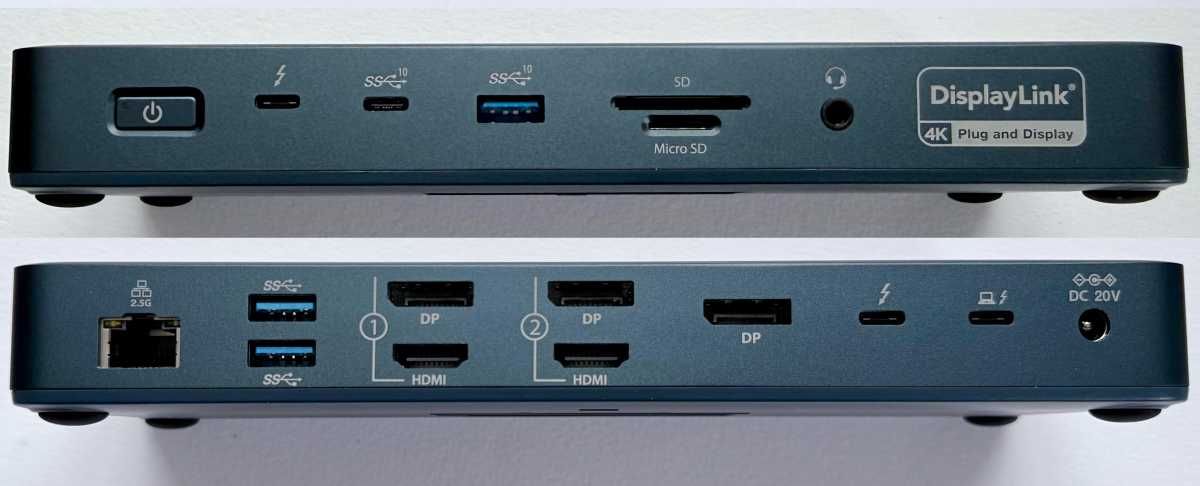
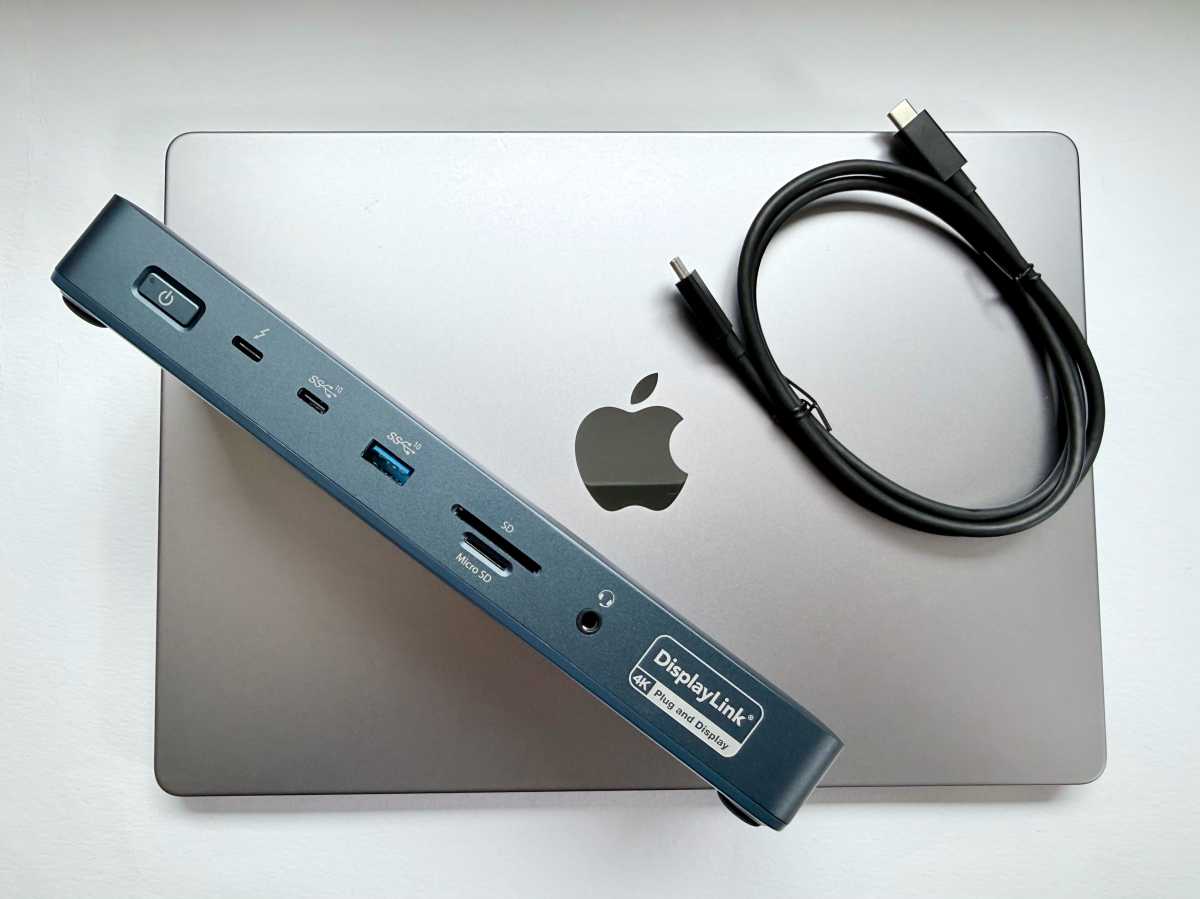
Kensington’s SD5900T EQ Dock also uses Thunderbolt 4 and DisplayLink to support up to four external displays, but it features a different set of ports to achieve this—offering more dedicated video ports for your monitor connection of choice.
Simon Jary
Specs
- One upstream Thunderbolt 4 port (40Gbps, 96W)
- Two downstream Thunderbolt 4 ports (40Gbps, 15W)
- Two HDMI ports
- Three DisplayPort
- One USB-C port (10Gbps, 4.5W) on front
- One USB-A port (10Gbps, 4.5W) on front
- Two USB-A ports (5Gbps, 4.5W) on rear
- 2.5Gb Ethernet
- SD Card reader (UHS-II, 312MBps)
- MicroSD Card reader (UHS-II, 312MBps)
- 3.5mm audio jack on front
- 149W power supply
The SD5900T’s 16 ports outgun the Satechi and Plugable Thunderbolt 4 DisplayLink docks, which both host just 11.
Simon Jary
Display configurations: How many displays can you run with this dock?
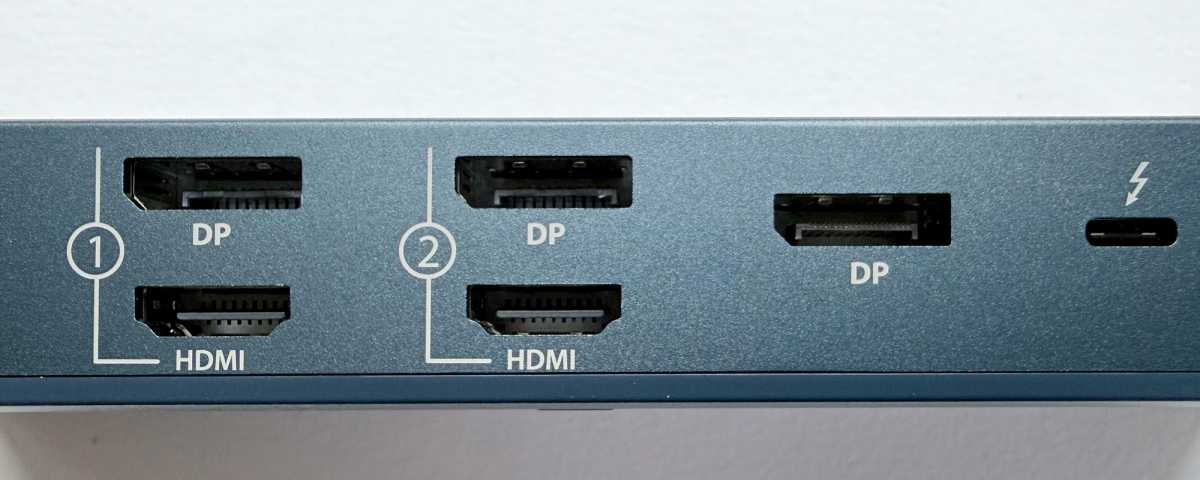
While it sacrifices one of the Thunderbolt ports for an extra DisplayPort, there are two more DisplayPorts (DP) as well as two HDMI—that’s more choice of dedicated video ports, with one of the TB4 ports also available for a display connection.
You get to choose between DP and HDMI in each of the two video port banks and then get to use either the third DP and/or one of the front/rear downstream TB4 ports.
How many external displays you can connect depends, as ever, on your Mac’s processor.
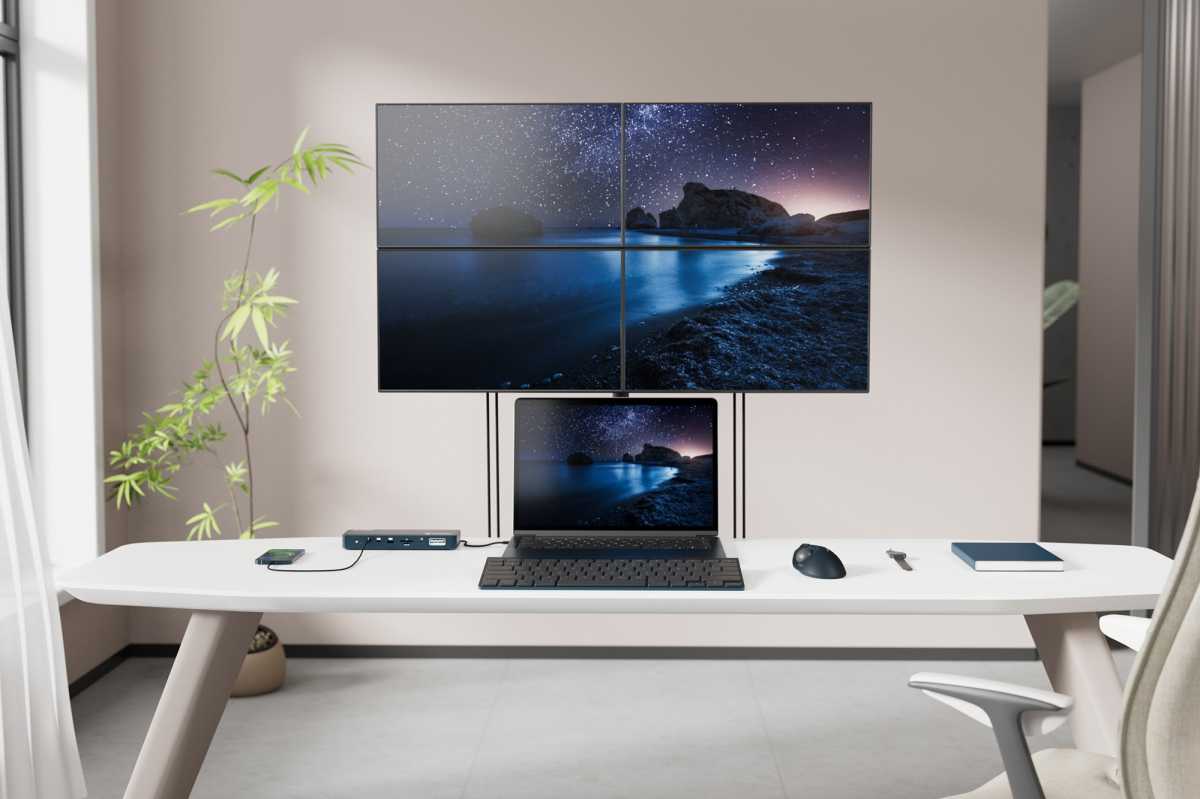
With this DisplayPort dock, the MacBook Neo and Macs with the base M1/M2/M3/M4/M5 chips can support three displays: two 4K/60Hz via the DP/HDMI ports and a third up to 6K/60Hz via either the third DP or TB4.
Kensington
Macs with a Pro or Max M-series chip get the option of a fourth display, with two 4K/60Hz via DP/HDMI plus up to two 6K/60Hz using the other ports. You can also connect four displays to Macs with the base M3 chipset, but you must keep the laptop lid closed for this to work.
The extra external displays allowed with the M5 Pro and M5 Max are for Thunderbolt 5 only, so not supported by this dock (or any DisplayLink dock at the time of writing).
The Satechi and Plugable DisplayLink TB4 docks feature fewer dedicated video ports so must choose between TB4 and HDMI ports. That third TB4 port offers the user more flexibility but Kensington rightly knows a DisplayLink dock purchaser is principally using the dock for its multiple display functionality rather than as a standard docking station.
Simon Jary
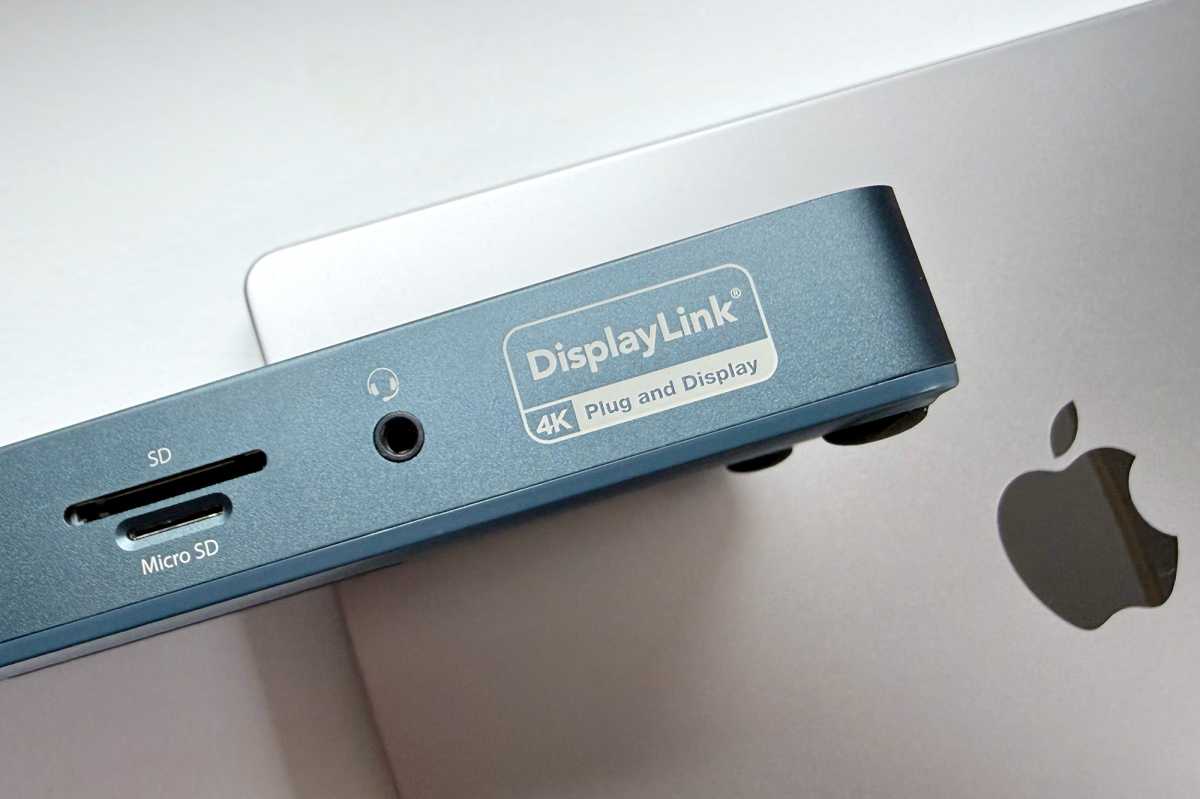
DisplayLink required: What do you need to install, and what are the downsides?
The point of a DisplayLink dock is, of course, the benefits bestowed by that free software download and reasonably easy install.
Where a base M1/M2 Mac or MacBook Neo can natively handle only one monitor, DisplayLink lets them connect to up to three, and Pro/Max-chipped Macs up to four.
DisplayLink is a simple install with the only fiddly bit when you have to grant “Screen Recording” rights to it via Systems Settings–it sounds scary but don’t worry as it doesn’t actually record anything. Instead, it just allows the DisplayLink Manager app to capture pixels and send them to the dock.
There are some potential negatives to having DisplayLink installed on your Mac:
- Unless you disconnect the DisplayLink-enabled screens or unhook the dock, you can’t watch some protected content in Netflix, AppleTV, Amazon Prime, Disney+ or YouTube TV and other streaming applications due to those platforms using High-bandwidth Digital Content Protection (HDCP), which is Intel-developed digital copy protection.
- DisplayLink’s maximum screen refresh rate is 60Hz, which is fine for most users but can introduce noticeable lag with rapidly changing content, which is not ideal for video editing or gaming.
If you are using your multiple screens for general productivity work, then you’ll likely never bump into these DisplayLink downsides.
Simon Jary
USB extras: What ports do you actually get (and what’s missing)?
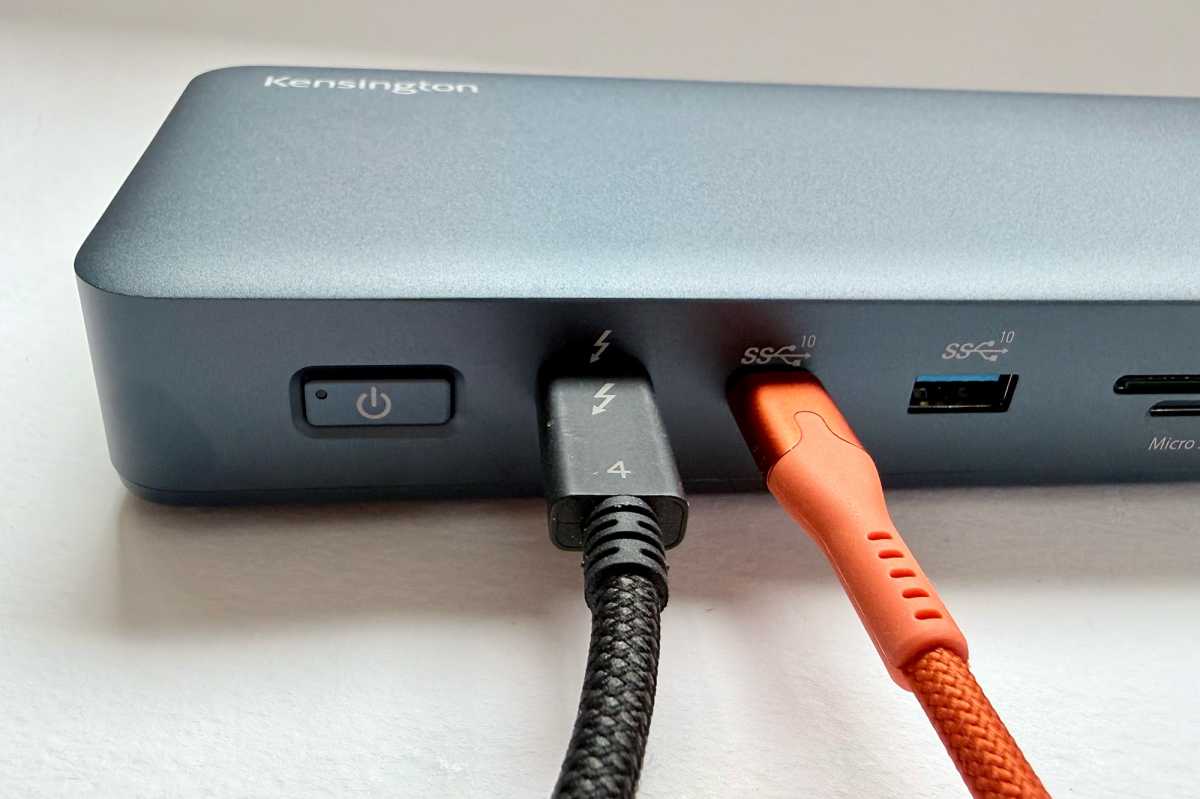
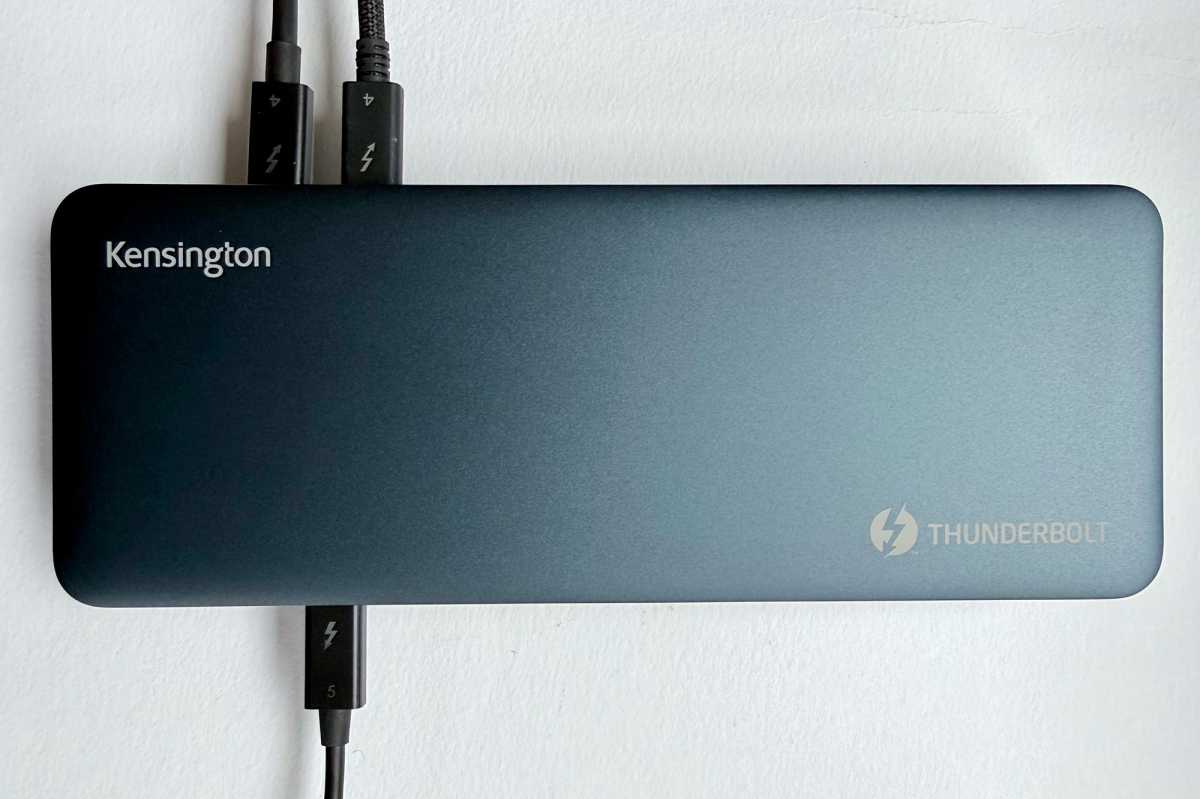
The SD5900T hosts three type-C ports: two downstream Thunderbolt 4 and one 10Gbps USB-C. That’s the same number as found on the Plugable and Satechi TB4 DisplayLink docks, although those docks feature three downstream TB4 ports instead. TB4 is better than USB-C but it’s likely you’ll use it for video anyway so unless you are using it to just move from one display to two on base M1/M2 Macs it doesn’t really make a difference.
Simon Jary
Power
The upstream TB4 port can passthrough up to 96W of power to the connected MacBook, which should be enough to keep any of Apple’s laptop going even under a heavy workload.
Each of the two downstream TB4 ports can output 15W of power, but the other USB ports are puny at 4.5W. It would have been great if the front-mounted USB-C port could output even 20W of power to allow for iPhone fast-charging but you should look to other USB-C or wireless chargers for this rather than hook your phone up to the dock for charging.
Check our recommendations for the best iPhone USB-C chargers and best wireless iPhone chargers for superior power options.
The lack of USB output power is in some ways fortunate as the SD5900T’s power supply is rated at just 149W, which is the lowest we’ve seen of self-powered docking stations. Most docks offer at least 180W, but as the ports offer little in the way of charging it’s again less of a worry.
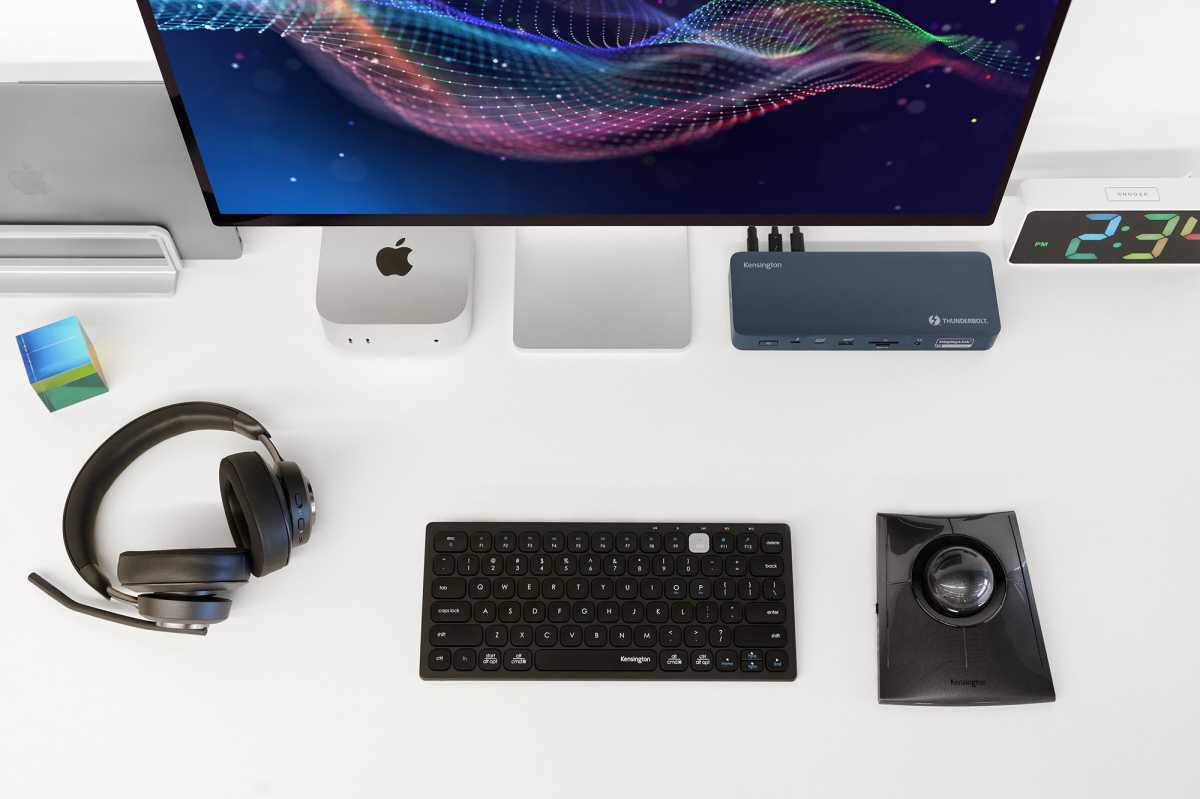
Kensington’s KonstantCharge technology enables devices connected to the dock to charge even when your MacBook is undocked.
Kensington
Storage options
The dock has both SD and MicroSD card readers at its front for easy-access portable storage cards. With MacBook internal storage being less than generous unless you fork out a lot of money at the point of purchase, this is an affordable storage solution with 512GB cards starting from around $100 on Amazon.
Kensington has added these card readers at the top-end in terms of speed, rated at UHS-II’s 312MBps in comparison to Apple’s 250MBps SDXC card reader on the MacBook Pro. The Satechi and Plugable TB4 DisplayLink docks feature just the one SD card reader, but also at 312MBps.
Simon Jary
Network
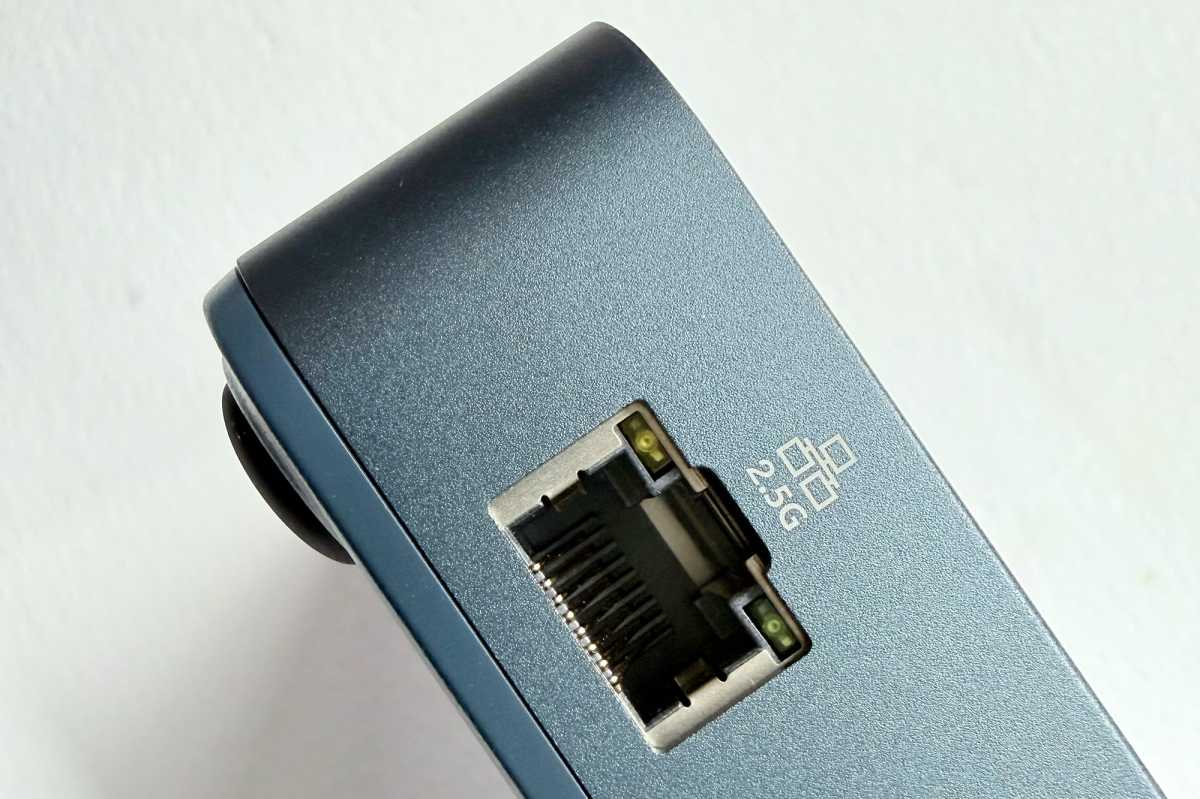
Another area where the Kensington SD5900T beats the Satechi and Plugable DisplayLink docks is its inclusion of faster 2.5Gb Ethernet compared to 1Gb Ethernet. Again, most users won’t benefit as the standard office network remains Gigabit Ethernet but having the backwards-compatible 2.5GbE is useful if you do run a fast wired network or you want to future-proof yourself for if/when you do.
Price
The Kensington SD5900T is priced at $299.99 / £269.99, which is the same as the Satechi and Plugable TB4 DisplayLink docks mentioned in comparison above.
Unless you’re a base M1/M2 Mac user looking to add just two external displays, Kensington’s greater choice of video ports is the better solution at the same price. And the SD5900T includes superior Ethernet and two card readers if these are important factors to you.
There are several versions of the Kensington SD5900T, and these seem to be differentiated only by color. We tested the Midnight Blue SD5900T but the Black SD5910T is exactly the same except for the more standard dock color. E.U. and U.K. customers should look for the SD5920T model, which sadly is in black only.
You’ll find more of our recommendations for the best DisplayLink docks and non-DisplayLink best Thunderbolt docks if you want to dig deeper for other solutions.
Simon Jary
Should you buy the Kensington SD5900T?
Bristling with dedicated video ports, the Kensington SD5900T is our new number-one choice for high-bandwidth DisplayLink docking station. M5 Pro/Max users can probably look to a standard Thunderbolt 5 dock and MacBook Neo owners needn’t bother with spending the extra on a Thunderbolt dock, but for everyone else looking to add more external displays than Apple’s limited Macs allow the SD5900T is a fine flexible choice.


