Summary created by Smart Answers AI
In summary:
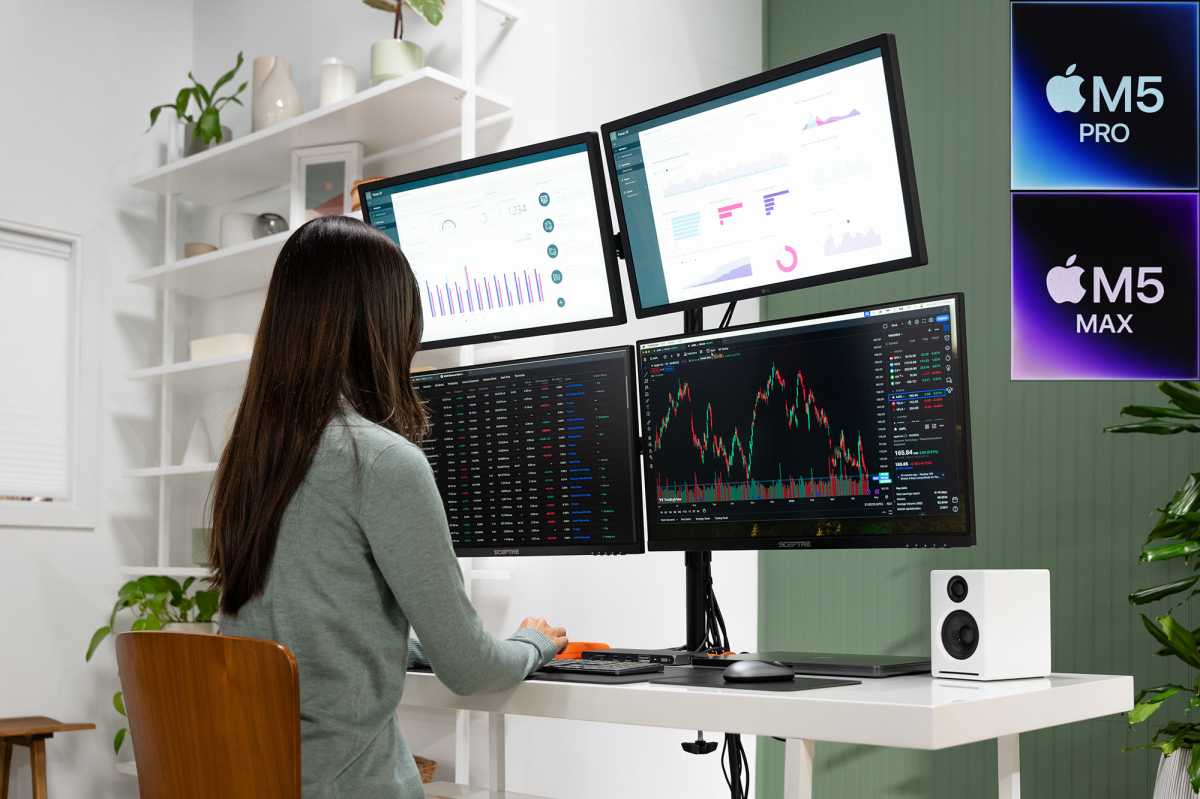
- Macworld reports that Apple’s new M5 Pro and M5 Max MacBooks can support three and four external displays respectively through a single Thunderbolt 5 connection.
- This represents a significant upgrade from previous M4 Pro/Max chips that supported only two external displays, addressing long-standing limitations compared to Windows machines.
- The enhanced multi-display capability benefits developers and creatives by reducing cable clutter and enabling larger multi-screen workspaces through compatible Thunderbolt 5 docks.
Apple still doesn’t support Multi-Stream Transport (MST) on macOS, but with the new M5 Pro and M5 Max chips, that limitation matters far less. For the first time, high-end MacBooks can drive three or even four external displays from a single Thunderbolt connection, up from a long-standing limit of two, bringing them closer to the multi-monitor setups long associated with Windows machines.
This matters most for power users who rely on multiple screens, such as developers and creatives, especially those using Thunderbolt docks to simplify their desk setups. In practice, it means fewer cables, less reliance on DisplayLink and other workarounds, and the ability to run larger multi-screen workspaces from a single connection.
This article explains what’s changed, how these new display capabilities work in practice, and what it means for anyone using, or considering, a Thunderbolt dock or multi-screen setup with a Mac.
How many displays are supported over one cable
- M5 Pro: Drives three displays over one Thunderbolt cable
- M5 Max: Drives four displays over one Thunderbolt cable
- M4 Pro and M4 Max and earlier: Drive up to two external displays over a single Thunderbolt port
- M1 and M2 chips and A18 Pro: Just one display supported
What you need
- Thunderbolt 5 dock
- Available ports
- Three to four monitors (fourth will require daisy-chaining)
Macs with an M5 Pro now support up to three external displays, and M5 Max Macs can run four displays over a single Thunderbolt cable. The previous-generation M4 Pro and M4 Max (and earlier chips) supported only up to two external displays over a single Thunderbolt port. (The plain M1 and M2 chips, plus the MacBook Neo’s A18 Pro, can handle just one unless you add DisplayLink software.)
This advance in Apple’s new MacBooks also means that certified Thunderbolt 5 Mac docking stations that were previously advertised as supporting just two external displays should now be able to support that same number of monitors as the M5 Pro (three) and M5 Max (four) allow via their single cable connection to the MacBook.
Simon Jary
Docking station display support
Thunderbolt 5 docks are where these new display capabilities become most useful. Most now support up to three external displays when paired with an M5 Pro MacBook, while some can handle four with the M5 Max by daisy-chaining an additional monitor. Exactly what you can run, however, still depends on the dock’s available ports and whether your monitors support features like USB-C daisy-chaining.
CalDigit has confirmed that its popular TS5 and TS5 Plus docks, as well as the Element 5 Hub, now support up to three displays on M5 Pro MacBooks, and up to four displays on M5 Max. As the docks don’t feature enough ports for the fourth display, the extra monitor for the M5 Max would have to be daisy-chained from one of the others. The monitors involved would need to support USB-C daisy-chaining (like the new Studio Display).
On the TS5 Plus, you can add one monitor to the DisplayPort and then two monitors to the downstream Thunderbolt 5 ports. With the M5 Max, you would need to daisy-chain a fourth monitor to one of the ones connected to a Thunderbolt port—or you can daisy-chain multiple monitors via one port on the TS5 Plus.
On the CalDigit TS5 and Element 5 Hub, you would connect three monitors to the Thunderbolt ports, and then daisy-chain the fourth for the M5 Max. Again, you could daisy-chain multiple monitors via one Thunderbolt port.
CalDigit
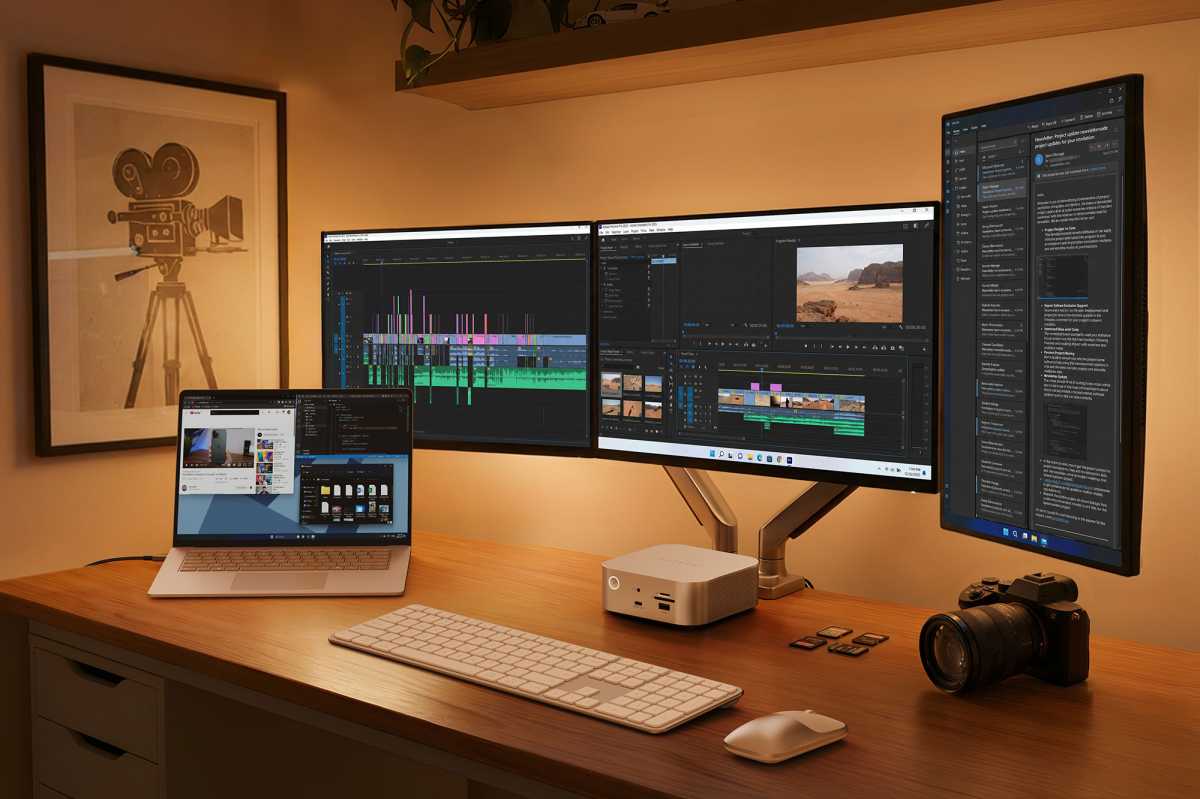
Satechi tested its forthcoming Thunderbolt 5 CubeDock—currently undergoing testing in the Macworld Labs—and confirmed to Macworld that it now supports three external displays on the M5 Pro/Max—it has only the three downstream Thunderbolt ports to play with.
Plugable’s initial testing of its Thunderbolt 5 TBT-UDT3 docking station with the new M5 MacBooks showed positive results. It confirmed that up to three displays work well, but the company is still investigating performance with refresh rates higher than 60Hz. Until it has further clarity and additional test results, it recommends a maximum of three 4K 60Hz displays when using its Thunderbolt 5 dock.
After testing its forthcoming Echo 21 Thunderbolt 5 SuperDock—also being tested by Macworld—with an M5 Pro MacBook Pro, Sonnet successfully used the dock to power three 4K 144Hz displays using two downstream Thunderbolt ports and the DisplayPort. It is currently waiting to test an M5 Max with a four-display configuration.
Finally, Kensington told Macworld that its Thunderbolt 5 docks all support up to three external displays for M5 Pro and Max, while the Thunderbolt 4 docks will continue to be capped at two displays. Again, testing hasn’t been completed with the M5 Max, but a representative reported that “support for four external displays out of M5 Max is theoretically possible from the laptop’s perspective”.
Satechi
Can M5 Macs finally run multiple displays over one cable?
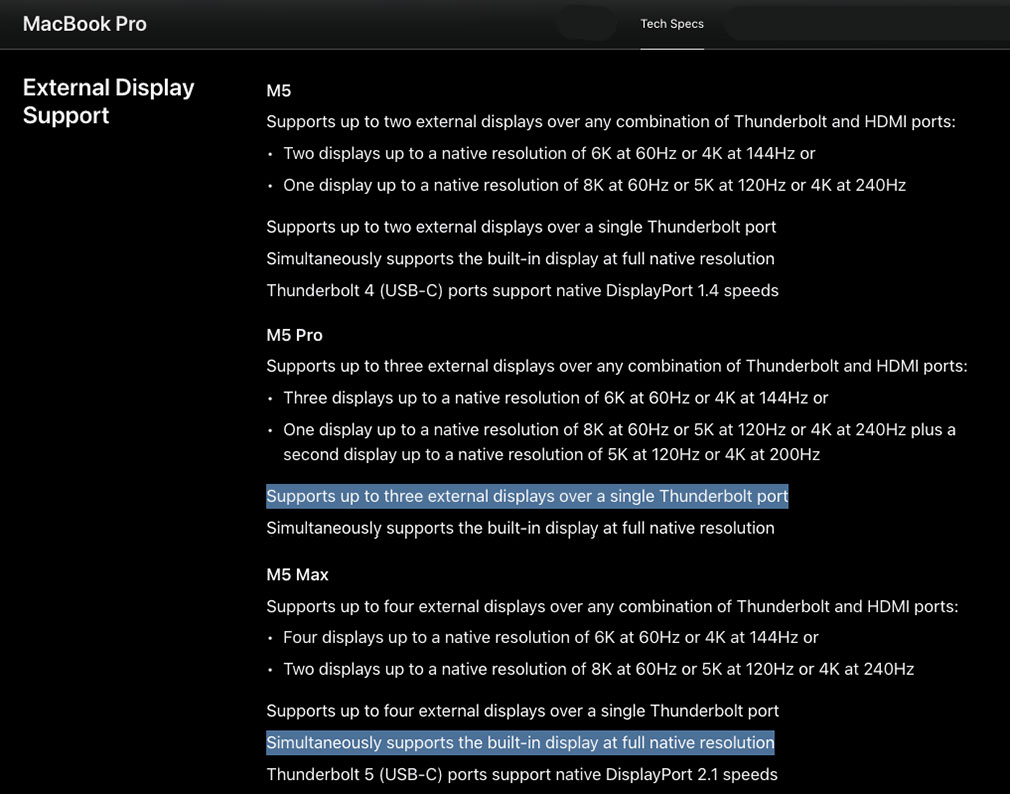
In its support document on MacBook Pro displays can be connected to MacBook Pro, Apple states the “MacBook Pro with M5 Pro chip supports … three external displays … up to a native resolution of 6K (6144 x 3456) at 60Hz or 4K (3840 x 2160) at 144Hz over Thunderbolt or HDMI” and the “MacBook Pro with M5 Max chip supports … four external displays … up to a native resolution of 6K (6144 x 3456) at 60Hz or 4K (3840 x 2160) at 144Hz over Thunderbolt or HDMI.”
The previous one- or two-monitor limitation—which continues for any Mac that doesn’t have at least an M5 Pro or M5 Max—is caused by the macOS for daisy-chaining or splitting multiple monitors via a single USB-C/DisplayPort/Thunderbolt cable. Apple limits this functionality at the operating system level (unlike Windows or Linux) by refusing to support Multi-Stream Transport (MST), but has built a proprietary solution into its latest chips: the M5 Max can now support up to 4x DisplayPort tunnels per port, and the M5 Pro three.
Thunderbolt docks don’t rely on MST to function, making them the best option for multiple screens on a Mac via a single connection, but until the M5 Pro and M5 Max, docks were still limited to two extended displays—unless you used an accessory such as the iVanky FusionDock Max 2, which can natively support three displays out of the box. The compromise with that dock is that you must use two of the Mac’s Thunderbolt ports to connect to the Max 2.
Otherwise, macOS treats multiple connected monitors as a single mirrored display, restricting it to mirroring rather than extending to three or more monitors. Instead, Mac users must connect multiple displays directly to their Mac’s individual ports or use docks that support third-party DisplayLink software, which compresses the video signals to allow more extended displays, but at a possible cost to image quality. See our reviews of the best DisplayLink docks.
Satechi
How can M5 Macs support more displays without MST?
This new ability could be a by-product of Thunderbolt 5’s daisy-chaining prowess, according to Kensington. If the user has four Thunderbolt displays, they could connect the displays to each other and enable up to four external displays.
Similarly, CalDigit believes the new M5 Pro/Max limits are by-products of Thunderbolt’s DisplayPort tunnelling, which wraps native DisplayPort video and audio signals into USB4 packets to transport them over a single USB-C cable. It acts as a sort of “repeater” that allows efficient, high-bandwidth transmission of video alongside data and power.
How Apple’s latest top-end processors bend this to their will is, as yet, unknown for sure.
Apple


