Summary created by Smart Answers AI
In summary:
- Macworld reports on a critical issue where macOS Tahoe 26.2 caused a decade-old Apple Time Capsule to report false disk full errors and reject passwords.
- Apple announced Time Capsule support will end with macOS 27, making this wireless backup device obsolete for future Mac users.
- Attempting to fix the problem by erasing the Time Capsule rendered it completely unusable for new backups due to compatibility issues.
For the past decade, my Apple Time Capsule has faithfully backed up my Mac. I’ve been through several upgrades over the past decade—my current machine is an M3 Max MacBook Pro—and I’ve never had an issue with my Time Capsule. It’s been one of the most reliable devices I’ve ever owned, and I’ve barely had to even think about it since I bought it in 2016.
Until recently, that is. I don’t know the exact date, but I installed macOS Tahoe 26.2 sometime near the end of 2025. I was hoping it would fix the lingering issues I had with Spotlight, but otherwise didn’t think much of it until I got a message from Time Machine telling me my backup disk was full.
I’ve had occasional issues with Time Machine backups over the years, but they’ve usually been fixed by simply running the backup again. This was a new persistent error that seemed to indicate something was actually wrong with my backup system. So I started to investigate the issue, and the process ended up bricking my Time Capsule.
Time keeps on spinning
Apple introduced Time Capsule in 2008 as “a backup appliance that automatically and wirelessly backs up everything on one or more Macs.” At the time, it was a novel concept, combining an AirPort base station with a “server-grade” hard drive. It was essentially a personal NAS drive before personal NAS drives were a thing.
I owned a couple over the years, and before Apple eventually discontinued Time Capsule in 2018, I bought one of the last models ever made, the 802.11ac (WiFi 5) AirPort Time Capsule mini tower. It’s been running ever since.
My Time Capsule has worked dutifully for over a decade.
Foundry
I have a 2TB Time Capsule backing up a Mac with about 250GB filled up, so space has never been an issue. Moreover, I’ve been using the same MacBook since Sonoma, so there’s no reason why it should suddenly run out of space. I routinely clean out all backups when upgrading to a new OS and start fresh, and I keep the bulk of my files backed up on a 2TB iCloud Drive, so the physical space should be more than enough.
So I went to my AirPort settings to inspect my Time Capsule. But it wouldn’t accept my password, the same password that I have used for at least five years and have saved in my password manager.
OK, that was weird, but still, I chalked it up to user error. I reset my Time Capsule using a paper clip and changed the password. I checked the space, and it said it had less than a gig available. Also strange. My Mac isn’t anywhere near 2TB, I don’t keep old backups around, and Time Machine is supposed to automatically delete the oldest backups to clear space on a full disk and keep on running.
Unfortunately, there’s no way to see what’s filling up a Time Machine “Data” file, so I was left with one option: Erase the drive.
Tahoe’s revenge
Apple announced last summer that it would no longer support AirPort or other Time Capsule disks for Time Machine backups with macOS 27 coming later this year due to deprecated support for Apple Filing Protocol. So I was already preparing for the day when I had to retire my 10-year-old drive in order to stay on the latest version of macOS.
I’ll admit that 10 years is a long time to use any device, let alone a 3.5-inch SATA drive. But I didn’t expect any issues with Tahoe. I thought I could clear the drive and simply start over while amassing eight or so months of backups until macOS 27 came along in September.
It’s easy to erase a Time Capsule disk–I just wish I wouldn’t have done it.
Foundry
At this point, I probably should have put two and two together and realized something was wrong. But somewhat naively, I pressed on.
Erasing the Time Capsule was simple. The Disks tab in AirPort Utility has a “Quick Erase” option that takes just a few seconds. I clicked through the standard, “This cannot be undone” dialogue box, but didn’t get any warnings about Tahoe specifically. The light went from amber to green, showed I now had 2TB of space, and all seemed well.
When I went to set up the disk in the Time Machine settings, however, I got a new message: “‘Data’ can only be used if it contains existing Time Machine backups for this Mac. The next major version of macOS will no longer support Time Capsule disks for Time Machine backups.”
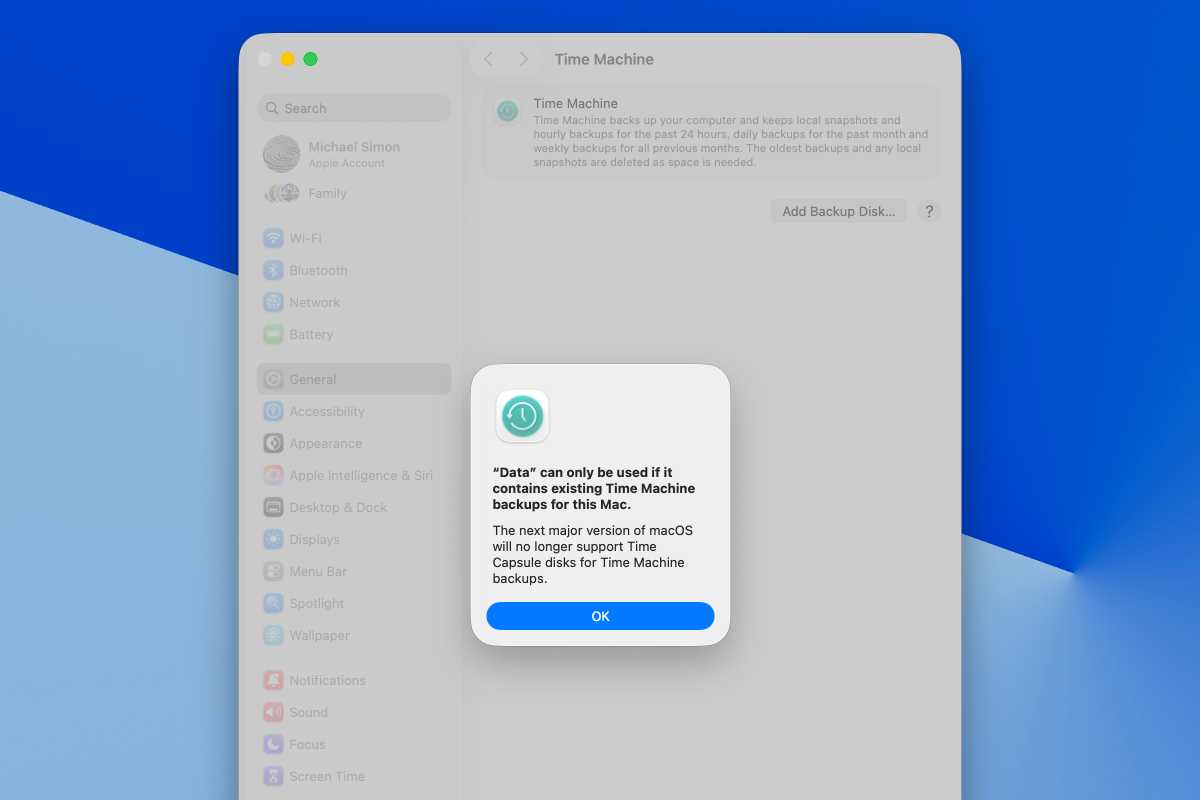
No matter how many times I try, Time Machine refuses to back up to my Time Capsule.
Foundry
The second part I already knew. The first part was information that would have been useful before I erased my disk. I’ve searched for a solution and I’ve reached the conclusion that my Time Capsule backup disk is essentially a brick. To use it I’d need to downgrade to Sequoia, back up my machine, upgrade to Tahoe, and continue the backups until the disk filled up again, at which point I’d be back where I started.
The search for a solution
To recap: Either a bug or a feature in macOS Tahoe 26.2 caused my Time Machine backups to eat up all the available space on my Time Capsule disk, and erasing it rendered it useless. I’m still not sure if the password issue was related to Tahoe, but I suspect it was. But it doesn’t matter—since Apple has already announced the Time Capsule won’t work with future versions of macOS, I’m left with a retro paperweight.
So after a decade-plus of effortless backups with Time Capsule, I’m left to find a new solution. Macworld has a roundup of the best external hard drives or SSDs for wired Time Machine backups, as well as the best NAS drives. There are some great options in there, but I want to find the best replacement for Time Capsule, so I’ll be testing a few wireless drives on my Mac with Time Machine to try to find the most affordable alternative. So stay tuned.


