Microsoft’s OneDrive cloud backup: It’s one of the more polarizing features within Windows, an annoyance as much as a utility. It’s getting better, fortunately — or at least it looks that way.
Windows Latest is getting credit for noticing that Windows is apparently allowing you to opt out of Windows Backup by way of OneDrive as part of the out-of-the-box (OOBE) process of setting up a new PC. Previously Windows simply kicked that decision down the road for a period of three days; now, you can opt out forever.
So let’s talk about how to get OneDrive to do what you want it to.
Welcome to PCWorld’s newsletter, Smart Mode! The focus of this newsletter is productivity: from software to hardware to peripherals, all with the idea to get what you need to get done, efficiently.
I’m your host, Mark Hachman, covering the productivity tips, tools, and trends that you need to know about, both from within PCWorld and beyond. If you want the latest issue in your inbox each week, just sign up right here.
OneDrive is great! Until it’s not
My gut tells me that this is all a product of loud, mouthy Windows fans (okay, me included) who manage or encounter or review a number of PCs, in which OneDrive gets in the way. OneDrive is Microsoft’s affordable cloud storage service, which typically gives you a minimum of a terabyte of online storage if you pay for Microsoft 365. I actually think OneDrive is useful for the average user!
OneDrive, once called SkyDrive, came into being as a way to store photos and videos taken with Windows Phones (RIP) and other platforms. It expanded into a home for Microsoft Office documents and then as a general cloud storage drive, where it remains today. Windows Backup (more here) is a complement to that service, by which you can back up files and settings. When you sign into a new PC with your Microsoft account, Backup’s Restore function allows you to reproduce your old PC’s setup. It can save you an enormous amount of time.
That’s the simple version. In reality, many users don’t like how OneDrive aggressively backs up files stored to your Documents, Pictures, Music, Videos, and especially your Desktop. This not only can clog your Internet bandwidth, but can count against your ISP’s data cap and gum up OneDrive with stored files you downloaded once, acted upon, and never needed again. Microsoft has even said so! In a sense, it turns the convenience of backup into something you need to constantly manage, like your Gmail email quota. And we all hate doing that. In that sense, OneDrive is really anti-productive.
So the new change — which I think I’ve noticed, though I’ve been dealing with a family crisis that has sucked up my time and attention — allows you to opt out of OneDrive backup entirely…if you want! Again, I’m not recommending you turn it off, but simply take control.
I don’t actually know what exactly this does yet — does it sever your interaction with OneDrive entirely, or simply turn off backup? If it’s the latter, that’s a good thing. But I’ve also managed to find a way to make OneDrive manageable, regardless of whether you’re seeing this new change or not.
Mark Hachman / Foundry
How to manage Windows’ backup via OneDrive
OneDrive is accessible from your Windows desktop’s taskbar, at the very bottom of your screen unless you’ve shifted your taskbar to another location. You’ll then need to click the “gear” icon to the upper right to access the settings menu.
Mark Hachman / Foundry
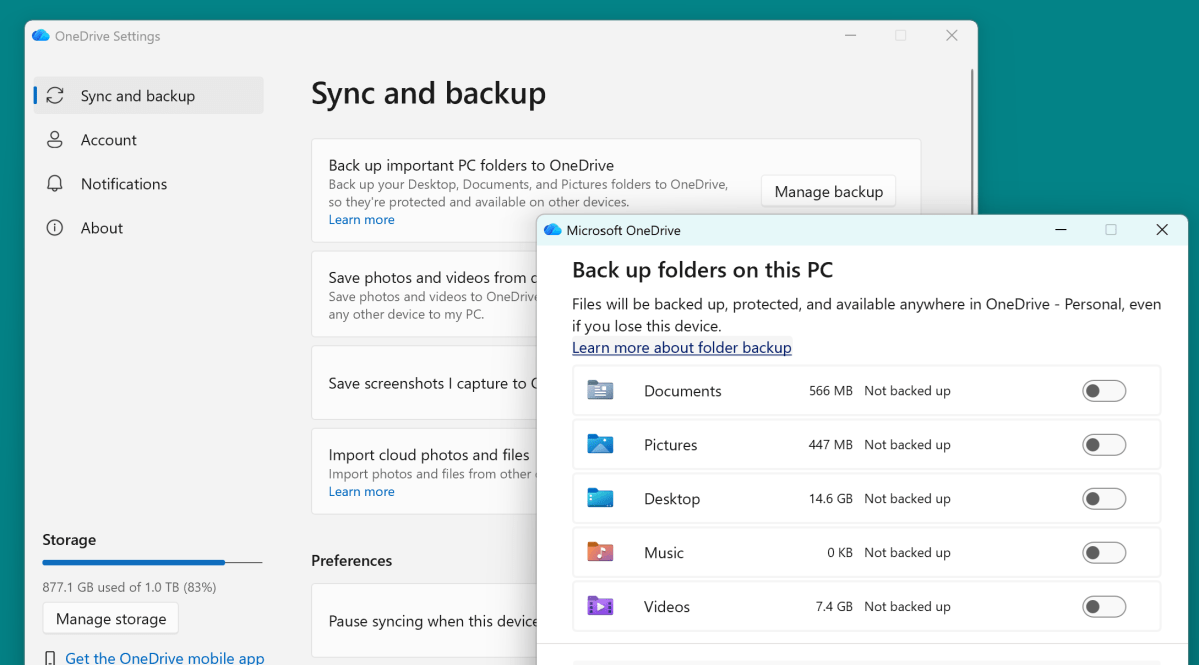
The Settings menu will then open to the OneDrive Settings page, specifically the “Sync and backup” page. The first entry should be “Back up important PC folders to OneDrive,” as well as a “Manage backup” button. Click it.
That page will open up five toggle switches for each of the folders on the PC: Documents, Pictures, Desktop, Music, and Videos. I’d recommend turning all of them off if you don’t want OneDrive backing up your files and clogging up your Internet connection. This is my main tip to force OneDrive to chill out, and the one I use on my machines.
Mark Hachman / Foundry
Manage what OneDrive shows you, too
This allows you to control OneDrive’s backup capabilities. But there’s another way to limit what files, stored on OneDrive, you’ll see on your PC.
Let’s say you have a new PC, with videos from a few years ago stored in OneDrive. By default, OneDrive doesn’t store everything in the cloud on your PC. Instead, it maintains Files on Demand, or placeholder files — basically shortcuts to those cloud files. That saves space!
Clicking that shortcut typically downloads a copy of that file to your PC, which sucks up space but also allows immediate access to the file. If you have a number of videos that you want to play immediately, maintaining a local copy might be a good idea. For a relatively small Word file, storing it in the cloud makes more sense, since you can download and access it in a snap.
On the other hand, all those placeholder files introduces visual clutter, with stuff everywhere. That takes time to wade through, and can be distracting. So you can tidy this up, if you’d like.
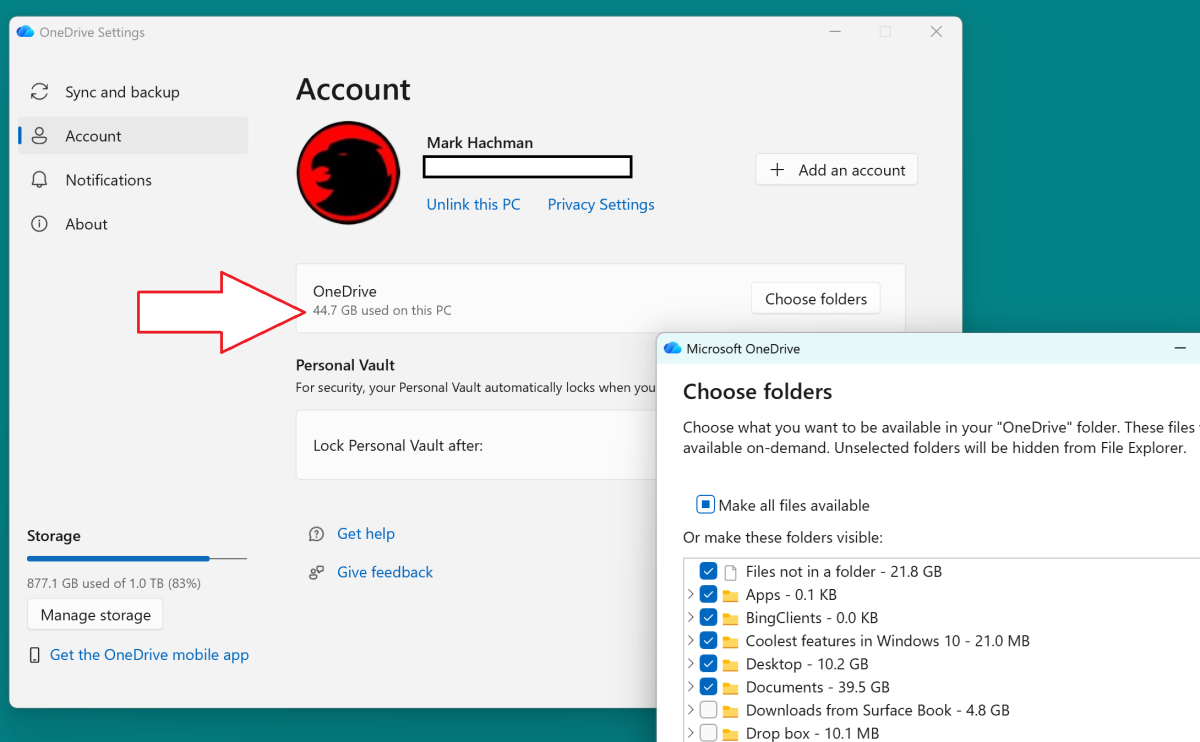
In the OneDrive Settings, there’s a OneDrive “Account” setting that oversees this. First, the Accounts page shows you how many files that you thought were stored in the cloud are actually on your PC, either as original files or just local copies. That’s good to know!
Mark Hachman / Foundry
If you click the “Choose folders” button, you can also specify which files and folders OneDrive shows on your PC, which can eliminate some of that visual clutter. If you’re trying to tidy up your PC and maximize your storage space, consider unchecking all but the most necessary folders.
Now for the important caveats:
- Unchecking a folder should hide the folder on your PC, and unchecking them all should essentially minimize OneDrive. I received error messages when I tried to eliminate a number of folders, however. It’s glitchy.
- Unchecking a folder does not delete the folder or the files stored on OneDrive. It should, however, clean up any local copies of the files you have on your PC. In addition, if you open the OneDrive app (or OneDrive on the Web) you’ll see all of the folders you currently have on OneDrive, regardless of whether or not you see the placeholder files on your PC.
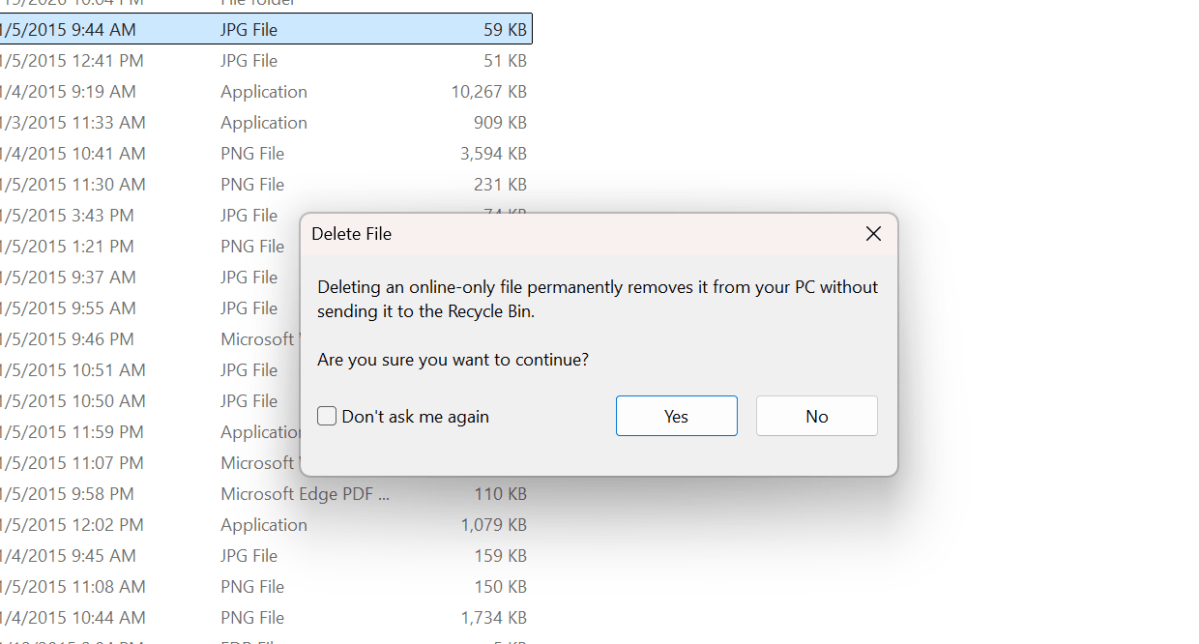
- Deleting a file within your PC’s OneDrive folder will delete it from your PC immediately. On the other hand, that file will be sent to the OneDrive Recycle Bin online, where you can rescue it before Microsoft eventually deletes it.
- If you delete a file or folder stored on OneDrive from within the OneDrive app, it should still go to the OneDrive Recycle Bin. Again, you’ll need to access this via OneDrive apps.
- If you created a local file on your PC, backed it up via OneDrive’s automatic backup option, that file will (eventually) be deleted in OneDrive.
- You can save a file to your PC, then back it up in the cloud, then delete it from your local PC without destroying the saved OneDrive file. The way to do that is to manually upload the file via the OneDrive app. I would create a dedicated folder (Stuff I Need to Save, maybe) and then store the file in that. Why? Because I don’t quite trust putting it in the main, automatically backed-up folders like Documents.
- It doesn’t hurt to take two seconds, create some dummy TESTTEST.txt file in Notepad, and then see what happens when you store and delete it. It will make you feel better.
Other OneDrive options
There are two other options to try, too, neither of which are particularly effective. In the main OneDrive menu, accessible via the Taskbar icon, there’s an option from the Settings gear called “Pause syncing.” Here, you can select the ability to pause for a certain number of hours, or even “Quit OneDrive.” Unfortunately, even “quitting” OneDrive doesn’t allow you to turn off OneDrive permanently, just until the next reboot. If you launch a game via the Windows Xbox app, it will pause backups.
Remember, there’s nothing wrong with backing up folders and files to OneDrive! If you’ve owned a single PC for a few years and are transitioning to a new one, Windows Backup and Restore via OneDrive may be really handy. You’ll just want to manage that backup appropriately, especially if you work on an older PC whose computing resources and broadband resources are limited.
Remember, too, that even the “cloud” can be vulnerable to outages, as 2023’s WD MyCloud outage demonstrated. Finally, there’s the rule of three: Your data isn’t truly safe unless there are three copies, typically in at least two locations.
Productivity in video:
- Warning: I get a little nuts describing how cool AI noise filtering is and how it works.
- If you want a visual version of my earlier newsletter on how to manage your Gmail data quota, check out this tutorial. No funny, all money.
In productivity news:
I don’t recommend that you buy TP-Link’s first Wi-Fi 8 router. My colleagues covered this as a straight news story, but here’s my take: first, the Wi-Fi 8 spec isn’t quite completed, which is why early pre-release routers are kind of a guess as to what those features might be. Call it a Wi-Fi 7+ router instead. Second, there isn’t any other Wi-Fi 8 hardware to connect to, yet. TP-Link will undoubtedly issue firmware updates to bring it as close as it can to the eventual spec, but there’s just no real reason to drop money on this right now.
Shorter takes below:
- In more hardware news, I reviewed Kensington’s Triple 4K Display Dock. Kind of a weird dock — great on a Thunderbolt 5 machine, and not so much on TB4. I don’t usually see that.
- Monitors? Cheap? Apparently miniLEDs are both cheap and the future. I’m still an OLED fan, myself, as I don’t like that “halo” effect.
- Acer’s 14-incb Swift Blade laptop weighs 1.76 pounds. Very intriguing, especially because it’s about 0.4 pounds later than its 14-inch TravelMate, which I was also impressed with. This is a category to watch…
- …But Dell’s continuing the trend of affordable (?) laptops with 8GB of RAM. Meet the Dell 14S.
- Firefox 155 adds sortable tab groups…and Switch Pro controller support?
- A nice reminder about Dynamic Lock, a Windows feature that auto-locks your PC when you step away. Handy for homes with small kids or nosy roommates, and makes even more sense in a shared office.
- Boost Mode author Michael Crider wanders into the productivity sphere by sharing a few gadgets that he’s screwed to the bottom of his desk.
Productivity tip of the week:
It’s back-to-school season (how did even state universities get so expensive??!) so Edutopia’s article on tips for teachers seems relevant. The topic in question is task batching, which I’ve actually done before in authoring previous versions of this newsletter. Task batching realizes that in certain jobs, you’ll have to perform the same tasks over and over — in this case, weekly.
Instead of performing the task once per week, you “batch” several of these tasks at once, using the same resources, workspace, even mindset. This is often related to planning: meal planning, schedule planning, and blocking out an entire unit’s worth of instruction.
This doesn’t work in all cases, since many tasks respond to new, current inputs. On the other hand, tasks like authoring an essay to open a newsletter, or hunting down multiple productivity tips at once… Well, it all saves time!
Thanks for reading!
Thanks for tuning in to this edition of Smart Mode, PCWorld’s newsletter devoted to helping you make the most of your life, smartly. Sign up and have it sent to your inbox every Thursday!


