At a glance
Expert’s Rating
Pros
- Thin & light portable screen
- Kickstand
- Three clever viewing modes
Cons
- Integrated speakers aren’t brilliant
Our Verdict
A simple but effective display solution. The Duex Float 2 and Float 2 Pro screens are lightweight and simple to setup – a great solution at home or if you are often moving between offices.
Price When Reviewed
This value will show the geolocated pricing text for product undefined
Best Pricing Today
Price When Reviewed
$299.99
Best Prices Today: Mobile Pixels Duex Float 2 Pro
Portable monitors are often units that sit separately alongside your laptop, allowing you to use them together side by side or on their own with the MacBook’s screen closed.
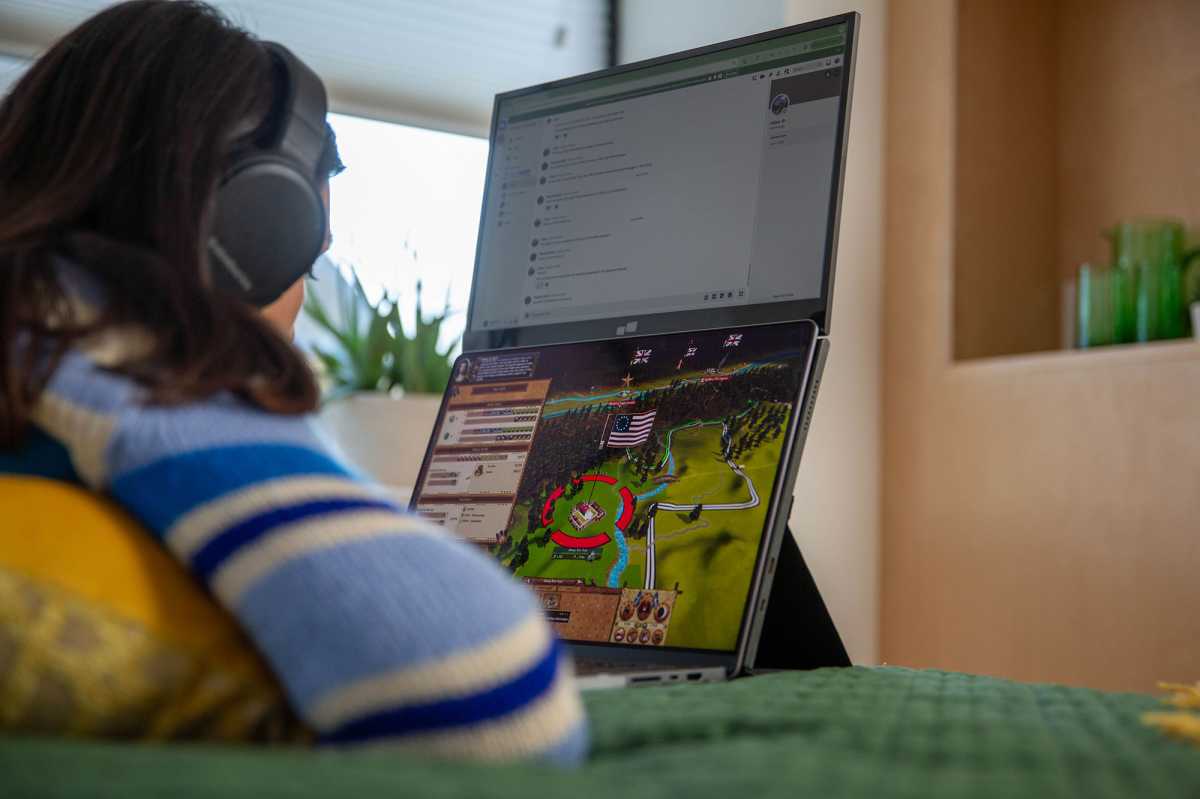
The Duex Float 2 and Float 2 Pro, from Mobile Pixels, are neater than that. It’s a single screen that is positioned in a stacked arrangement above the MacBook’s own display—as its name would like have it, it “floats”. You simply place your MacBook below the second screen and hey-presto you have two screens that mean you are not having to move your head from side to side to enjoy the extra screen space.
If you use the included magnets you can keep this stacked screen setup attached to your MacBook. It also makes the setup more stable when in use.
A few of the displays we have reviewed in our roundup of the best portable monitors for MacBook feature stacked dual screens. The Float 2 and Pro use the MacBook’s own display as the lower screen and its screen exactly above. It’s an update on the original Float display, and is lighter and of a higher resolution.
Stacked screens offer neck-strain-saving ergonomic benefits compared to two side-by-side monitors and are especially useful where space is at a premium—say in a tight home-working or co-working environment.
The Duex Float 2 Pro mirrors the 16-inch display of the top-end MacBook Pro. That model might have the largest of the MacBook displays but basically doubling the screen space is a revelation. You get the best of both worlds—a desktop-like large screen in a portable package that fits under your arm or slides into a backpack. When you’re not working or streaming TV, it packs away out of sight.
Having two screens—MacBook with Float above—is an undoubted improvement on staring down at a small laptop screen, with shoulders hunched and eyes squinting. If you use a laptop stand, this will have to be discarded when using the Float as it will remain lower than the laptop on a stand. However, the height of the Float’s screen should mean that a stand is unnecessary.
Mobile Pixels
Float 2 and Float 2 Pro differences
There are two versions available: the Float 2 and Float 2 Pro.
Mobile Pixels Duex Float 2
- Screen size: 15.6 inches
- Resolution: 1920 × 1080 pixels
- Maximum brightness: 300 nits
- Contrast ratio: 1000:1
- Color gamut: 45% NTSC / 62% sRGB
- Refresh rate: 60Hz
Mobile Pixels Duex Float 2 Pro
- Screen size: 16 inches
- Resolution: 2560 × 1600 pixels
- Maximum brightness: 350 nits
- Contrast ratio: 1200:1
- Color gamut: 72% NTSC / 100% sRGB
- Refresh rate: 120Hz
Portable design
We tested the Duex Float 2 Pro, which features the 16-inch screen above a hinge in the center of the folded-out package. The angle of the top screen can be adjusted to suit you.
Unfolded, it’s just 0.7 of an inch thick, and the whole thing weighs in at 2.9lbs (1.3kg). That’s lighter than the 15-inch MacBook Pro, which weighs in at 3.3lbs (1.5kg), or 16-inch MacBook Pro at 4.7lbs (2.15kg).
Mobile Pixels
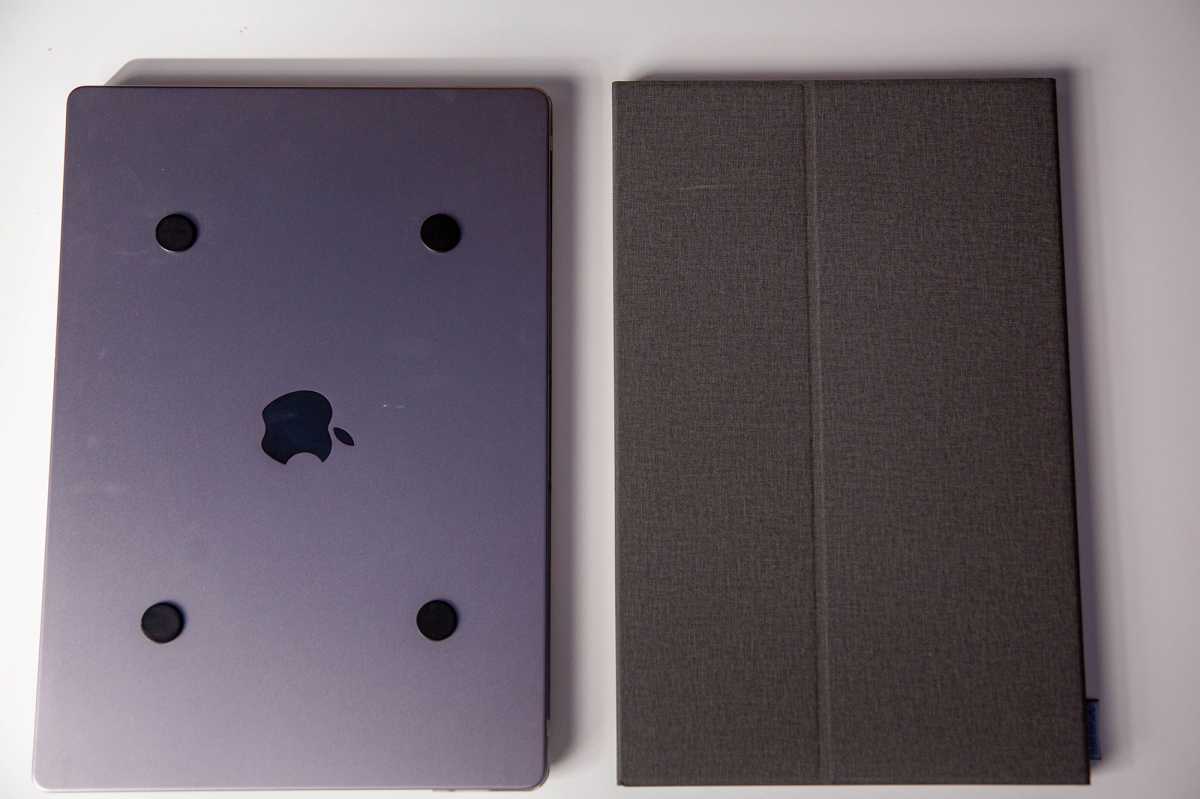
When unfolded—in what Mobile Pixels calls Free Standing Mode—the lower part of the frame has four cutouts. You have the option of affixing the included four powerful magnets to the top of your MacBook—for which a cardboard Installation Template is included. These magnets then connect with the Float’s cutouts to create a strong bond, keeping the MacBook and Float as one piece.
When closed the Float stays flat on your MacBook, making it deeper and a little heavier but still intrinsically a portable laptop. Just imagine your once-slim MacBook is an older Apple PowerBook model—younger readers can look that up.
If you prefer not to stick the (removable) magnets to your MacBook, then you can just place the laptop against the folded-out Float for the same but more temporary effect.

Mobile Pixels
This would not be much use without the magnetic fold-out kickstand at the back of the lower section of the Float. This is simple to use and reasonably stable.
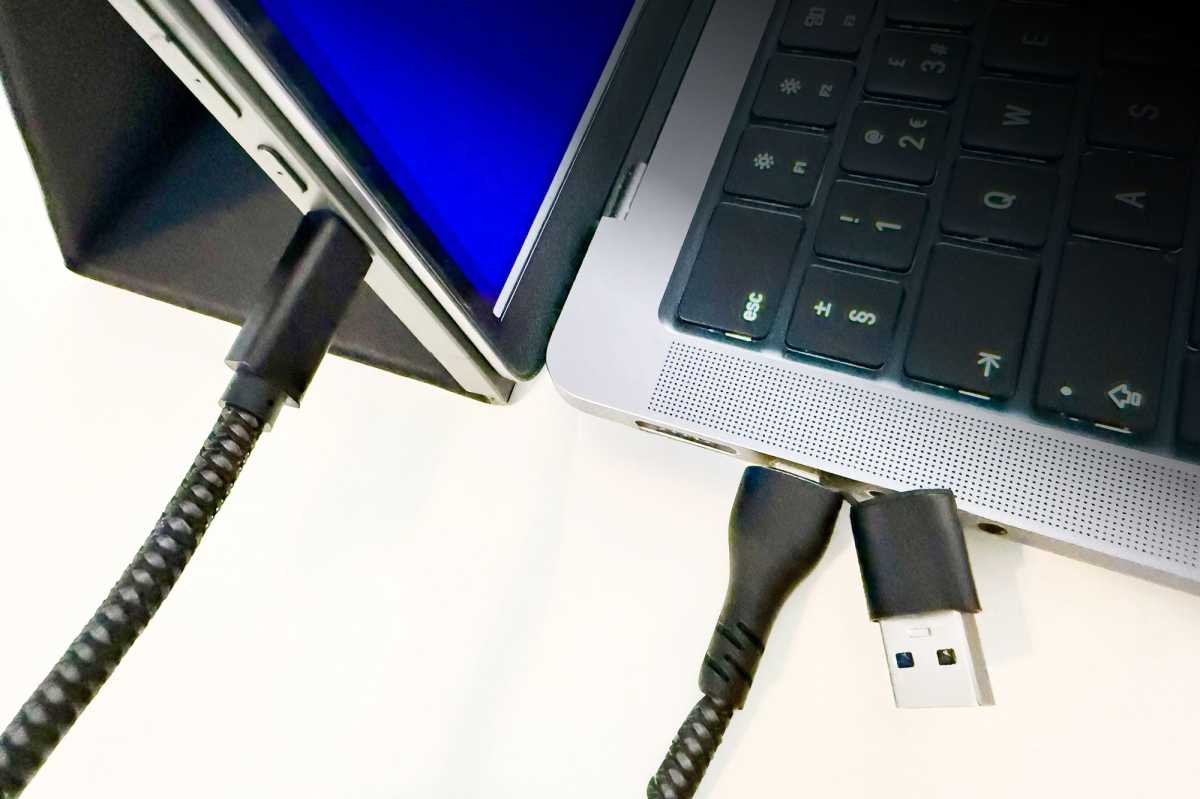
The Float 2 and Float 2 Pro come with two cables: a USB-C to USB-C cable that also includes a USB-A adapter that Mac users can ignore; and an HDMI to Mini HDMI cable. The USB-C cable should be all a Mac user requires.
Simon Jary
The Duex Float 2 displays don’t include a built-in battery. The screen will draw from 7.5W of power from the MacBook in the Limited Power Mode that caps brightness at 80%. To achieve full brightness and prevent flickering, you can connect a PD-compliant USB-C charger rated at 15W or higher. The one you use for your iPhone should be sufficient or you can use a second port from your MacBook’s charger if it has more than one. See our roundup of the best USB-C chargers for MacBook.
When connected to a wall charger the screen can pass-back up to 65W to the connected laptop.
There are three viewing modes:
You can view the Float’s screen—in Extended Mode—above your MacBook’s display by selecting the Arrange tool in System Settings>Displays.

Mobile Pixels
Another clever usage is Presentation Mode (pictured above) where you would set the Float to mirror your MacBook’s display rather than extend it. Here you tip the Float’s screen all the way back so that someone sitting opposite you would see the screen. Then all you have to do is press the Flip Screen button to have it display the correct way up for your intended audience. Although not automatic, it’s a breeze to operate.
In Free-Standing Mode the Float can also be used as a single screen by flipping the screen to use the frame as the flat stand. It’s not really living up to its floaty name when used as a more conventional portable screen, but it works just as well.
Mobile Pixels
Video quality
The 16:10 aspect-ratio Duex Float 2 Pro is a 16-inch display with a maximum 2560-x-1600-pixel resolution (QHD/2.5K). Maximum brightness is 350 nits, with a 1200:1 contrast ratio and a 120Hz refresh rate. Its sRGB color gamut is an excellent 100% (72% NTSC).
The smaller non-Pro Duex Float 2 is a 15.6-inch display with a maximum 1920-x-1080-pixel resolution (2K/HD). Maximum brightness is 300 nits, with a 1000:1 contrast ration and a 60Hz refresh rate. Its sRGB color gamut is 62% (45% NTSC).
Aim for the Float 2 Pro if you can for the superior screen quality. There is an anti-glare EyeCareMode to reduce eye strain.
As well as with laptop and desktop Mac and Windows computers, the Float displays work with iPhone (iPhone 15 or later due to the required USB-C connection) or games consoles.

Simon Jary
Side ports and power
On the left side (as you face it) is the USB-C port that you’ll use to connect to your MacBook unless it suits you to connect to the right-side USB-C port that sits below the Mini HDMI port.
Above the left-side USB-C port are four buttons: the Flip Screen button plus three On Screen Display (OSD) controls. You can quickly adjust the Float’s brightness here or access the multiple OSD settings that include Backlight, Contrast, Saturation, speaker Volume, screen Temperature, input Signal, EyeCare Mode and Orientation.
Speakers
The monitor has built-in stereo speakers, which aren’t bad but are tinny compared to the speaker in our connected M2 MacBook Pro so you’re probably better sticking with the laptop’s own.

Mobile Pixels
Price
The Mobile Pixels Duex Float 2 Pro is priced at $399.99 / £259.99 direct or from Amazon. The non-Pro Float 2 is priced at $309.99 / £219.99 direct and at Amazon. Check the sites for the best live prices.
We haven’t tested anything similar in terms of a single screen that is stacked above the MacBook’s own, but we have reviewed other portable Mac monitors if you want to explore alternatives.

Mobile Pixels
Should you buy the Mobile Pixels Duex Float 2 and Pro?
This is a simple but effective display solution with the Float 2 Pro being a great fit for owners of the 16-inch MacBook Pro in particular. Setup is simple and when connected via magnets the whole package is super portable. It works well without magnets, although it’s not as stable in use or convenient when carried around.
Having another high-quality screen positioned above the MacBook’s own offers expanded screen space that lessens the usual neck strain two side-by-side screens might induce. The fact that it’s lightweight and simple to setup makes it a great solution at home or if you are often moving between offices.
Related posts:
 EcoFlow RAPID Pro 27K Power Bank (300W) review: Fast, powerful and portable MacBook battery pack
 14-inch M3 MacBook Pro review: So close yet so far
 Anker Prime 27650mAh Power Bank (250W) review: Portable power for your MacBook
 Dell Pro 14 Plus review: A pricey portable monitor with USB-C and not much else