Is a faulty update, a corrupted driver, or a botched system setting throwing Windows off course? With the new Point-in-Time Restore (PITR) feature, Windows 11 offers an additional way to restore the Windows drive to a previous state. We’ll show you step by step how to use the feature, what gets reset in the process, and what you should bear in mind during the restoration.
What is Point-in-Time Restore?
Point-in-Time Restore automatically saves local restore points for the Windows system. By default, Windows creates a new restore point approximately every 24 hours and retains the saved states for up to 72 hours. Older restore points are automatically deleted over time.
If, for example, problems arise following a driver update, you can reset Windows to a previous state prior to the change. However, PITR goes further than traditional system restore: Not only are important Windows files and settings restored, but also installed apps and personal files on the Windows drive.
Who can use the new feature?
Point-in-Time Restore is available for Windows 11 from version 24H2 onwards. However, whether the feature is automatically enabled also depends on the size of the Windows drive and how the device is managed.
On unmanaged Windows 11 PCs, Point-in-Time Restore is enabled by default. For automatic activation, however, the Windows drive must be at least 200GB in size. The feature can also be used on smaller system drives, but it must be enabled manually: Open Settings > System > Recovery > Point-in-Time Restore and switch on the feature there.
Note: Managed devices, such as those in a corporate environment, may also have different settings applied by the administrator.
By default, Windows reserves up to 2 percent of the storage space on the Windows drive to store local restore points. And another important point: The time window for the new feature is limited. By default, PITR only goes back up to 72 hours and is therefore primarily intended for urgent problems — for example, if Windows suddenly stops working reliably after an update, a driver installation, or a change to the system configuration.
What exactly does Point-in-Time Restore revert to?
PITR restores the Windows drive to the state it was in at the selected restore point. This includes, among other things, the operating system, installed programs, system settings, and personal files that were already present at that time.
However, anything added to or changed on the Windows drive after the selected point in time will be lost. This includes, for example, new documents, programs installed subsequently or settings that have been altered.
You should therefore back up important files before performing a restore. Files that have already been synchronized to the cloud — for example, via a cloud backup or cloud storage like OneDrive — will not be affected by the restore. Other physical drives on your PC will also remain unaffected by the restore.
Important: Point-in-Time Restore is not a substitute for a regular backup ( see our roundup of the best backup software for Windows reviewed). The restore points are stored on the same Windows drive and are deleted after 72 hours at the latest.
Step by step: Restoring Windows to a previous state
Step 1: Check for point-in-time restores
Foundry
Before you start the restoration in an emergency, you should check whether the feature is enabled on your PC. To do this, open Settings using Win + I and go to System > Recovery > Point-in-time restore. Click on ‘View or edit’ there.
Here you can see whether PITR is enabled and which restore points Windows has already created. On smaller system drives, you can also enable the feature manually at this stage. Important: Only restore points created after activation will be available later — activating the feature retrospectively cannot restore previous system states.
Step 2: Open the Windows Recovery Environment
Foundry
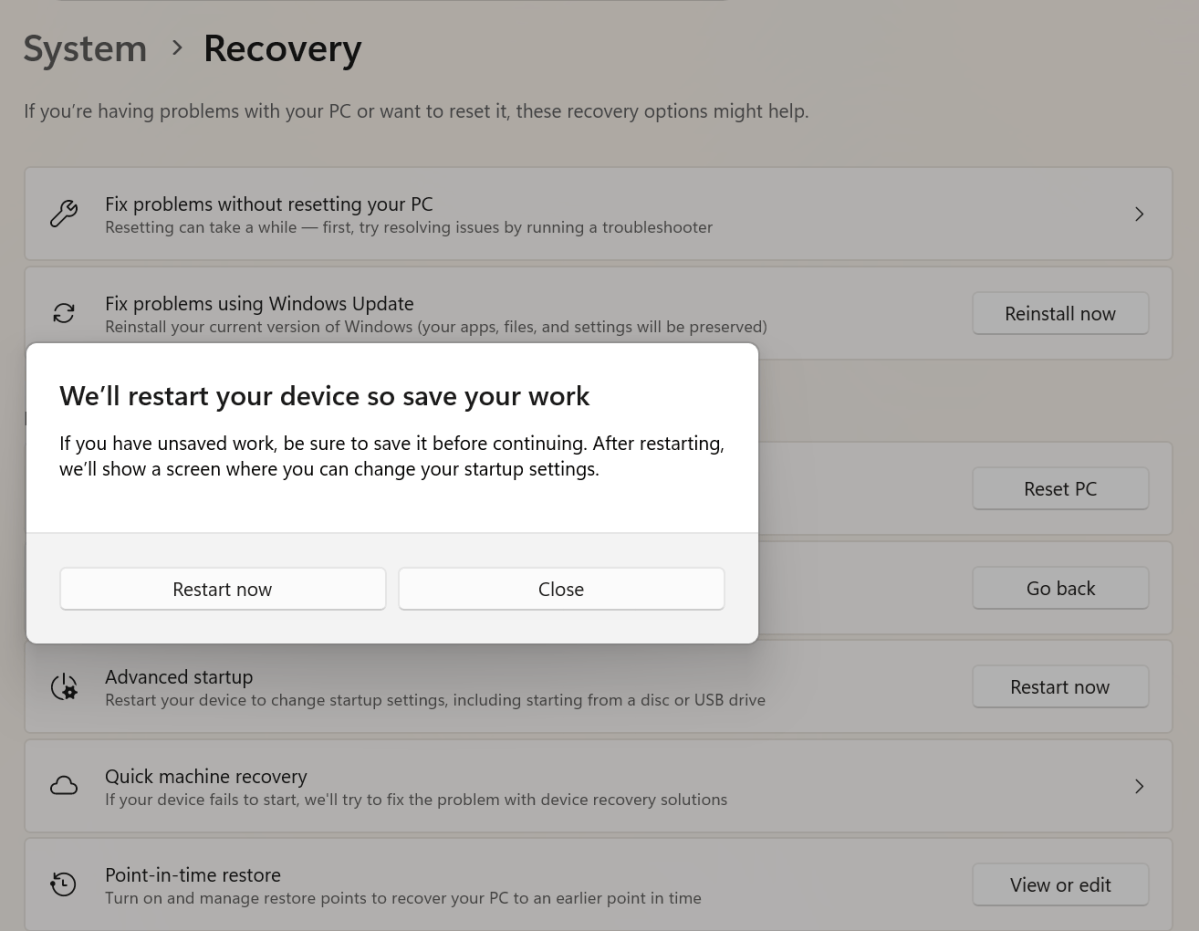
The actual System Restore process is launched via the Windows Recovery Environment (WinRE). If Windows is still functioning, open Settings > System > Recovery again and, under ‘Advanced startup,’ click ‘Restart now.’
If Windows no longer starts normally, you can also force the recovery environment to open. To do this, interrupt the start-up process twice in succession as soon as the Windows logo appears by holding down the power button until the PC switches off. The next time you start up, Windows should automatically open the recovery environment.
Step 3: Select Point-in-Time Restore
Microsoft
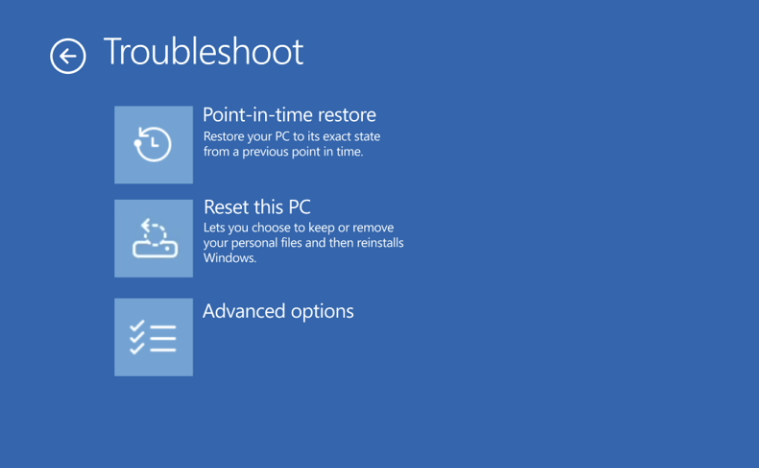
After restarting, the blue menu of the recovery environment will appear. Open Troubleshoot > Point-in-Time Restore.
Step 4: Select a restore point
Windows will now display the available restore points, along with their dates and times. Select a restore point that predates the onset of the problem.
For example, if a driver update from the previous day is causing the problems, the restore point should be prior to that. However, depending on when the last restore point was created, a restore point immediately before the error occurred may not necessarily be available.
Step 5: Start the restore
Check the information displayed and then start the restore. Windows will restore the Windows drive to the selected state and then restart the computer.
Warning: The PC must not be switched off or the power supply interrupted during the process. If the drive is encrypted with BitLocker, Windows may also request the BitLocker recovery key.
Step 6: Check Windows
After restarting, Windows should be back in the state that was saved at the selected point in time. First, check whether the original problem has been resolved. For example, if drivers, programs, and important system settings are working properly again, the selected restore point should have resolved the issue.
Conclusion
With Point-in-Time Restore, Microsoft is expanding the recovery features of Windows 11 to include a solution for current system issues. By default, restore points go back up to 72 hours and cover not only Windows but also apps, settings and personal files on the Windows drive.
If a problem occurs within this period, it is best to select the most recent restore point prior to the error occurring. This ensures that as few subsequent changes to the Windows drive as possible are lost when reverting to that state. However, for problems that occurred further back in time and as protection against drive failure, a separate backup remains essential.


