At a glance
Expert’s Rating
Pros
- Far friendlier than Windows File History
- Pay version supports imaging to VHDX
- Backs up to/from local media and network locations, and to Google Drive, One Drive and Dropbox
- Logging, notifications, and lots of other options
Cons
- Minor operational foibles
- Could support more online storage services
- No dedicated recovery disk
Our Verdict
If you’re looking for easier and more versatile backup than Windows File History, Perfect Backup is it. Fast and competent, the file-based version is free for everyone. There’s also a new pay version that offers drive imaging and applications settings backup.
Price When Reviewed
This value will show the geolocated pricing text for product undefined
Best Pricing Today
Price When Reviewed
Free
Best Prices Today: Perfect Backup
Though Windows provides its own file backup facilities in Windows File History, the OS has continually made them less obvious and less intuitive to use. Why, is anyone’s guess. There are plenty of alternatives, but they can be hard to find and/or just as difficult to use. Enter Perfect Backup.
The free version of Perfect Backup, while just shy of “perfect,” has a far more straightforward and user-friendly interface than File History. Add to that reliable performance; a cornucopia of options; plus network, FTP, and online services support, and you’ve got a winner.
There’s now a pay version that includes drive imaging to VHDX format and disaster recovery, though the latter relies on features integrated into Windows.
Read on to learn more, then see our roundup of the best backup software for Windows for comparison.
What are Perfect Backup’s free features
The free version of Perfect Backup is file backup only — i.e, it merely copies files and folder to a new location. Truth be known, with Windows and applications so easy to install and restore these days, all that most users need is a copy of their essential data.
Perfect Backup offers options — a host of them, as a matter of fact. You can specify the number of versions to keep, the number of incremental backups that will transpire before a new full backup is created, and even compress the files to standard Zip format.
The main advantage of Zip is that it will be here long after a proprietary compression scheme might have disappeared. Listening, Acronis? And you need nothing but your operating system to unpack Zip archives.
Other options include extremely granular scheduling, logging of results, reporting via email, throttling (CPU usage), and just about everything else you’d expect from a modern backup program.
My favorite feature, however, is the ability to back up to popular online services: Google Drive, OneDrive, Dropbox, and Box to be specific.
If the program supported multiple destinations for the same job, I’d be ecstatic. But I say that about all but the one or two programs that do. You can of course duplicate a job and change the destination, but that’s always seemed like a lot of bother to me.
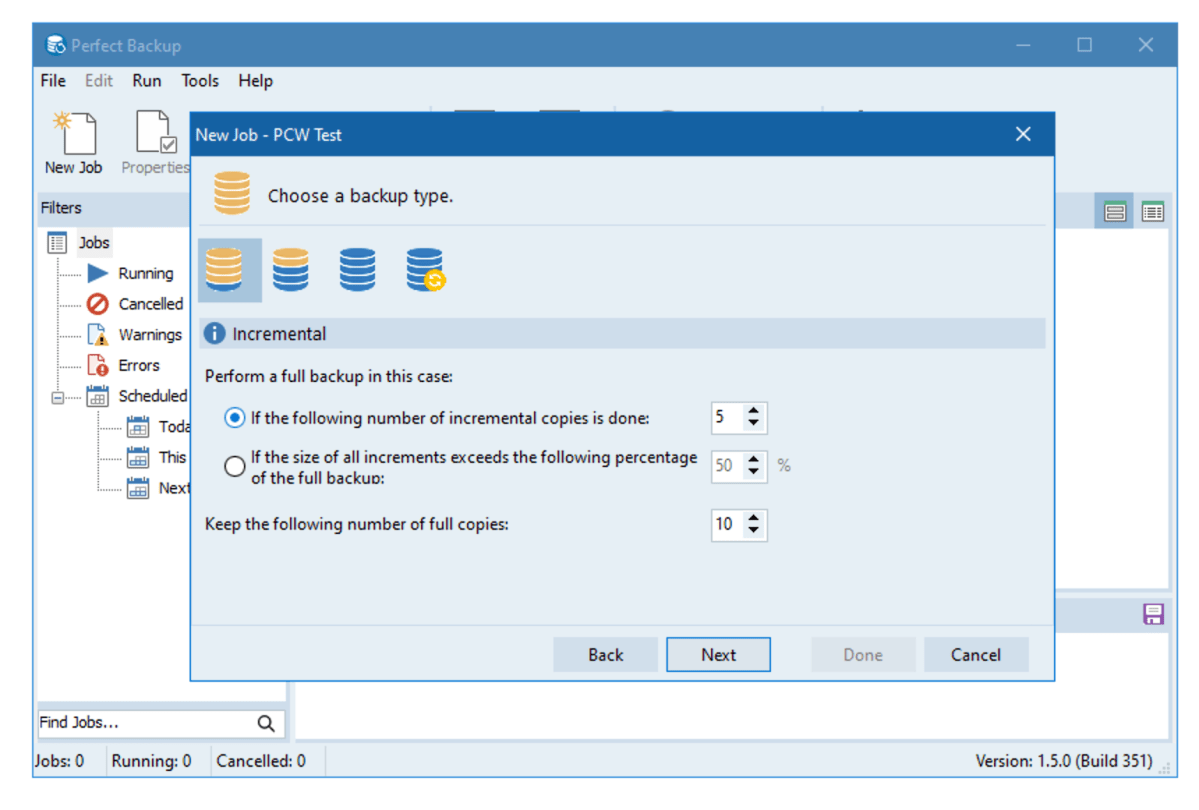
Perfect Backup
Perfect Backup will also back up to network locations, and even FTP sites. You can back up from network locations, but only if they’re mapped as local drives under Windows. No big whoop and it’s more than many free backup programs will allow.
There’s a bit of a tease here — a dialog opens that lets you see the network locations, but you can’t select them. Why? Don’t know. The programmers obviously know how to work with network resources.
What are Perfect Backup’s pay features?
In my last review, I dinged Perfect Backup slightly for not including imaging. Well, it is decidedly undinged as the program now creates drive images in the exceedingly compatible VHDX format.
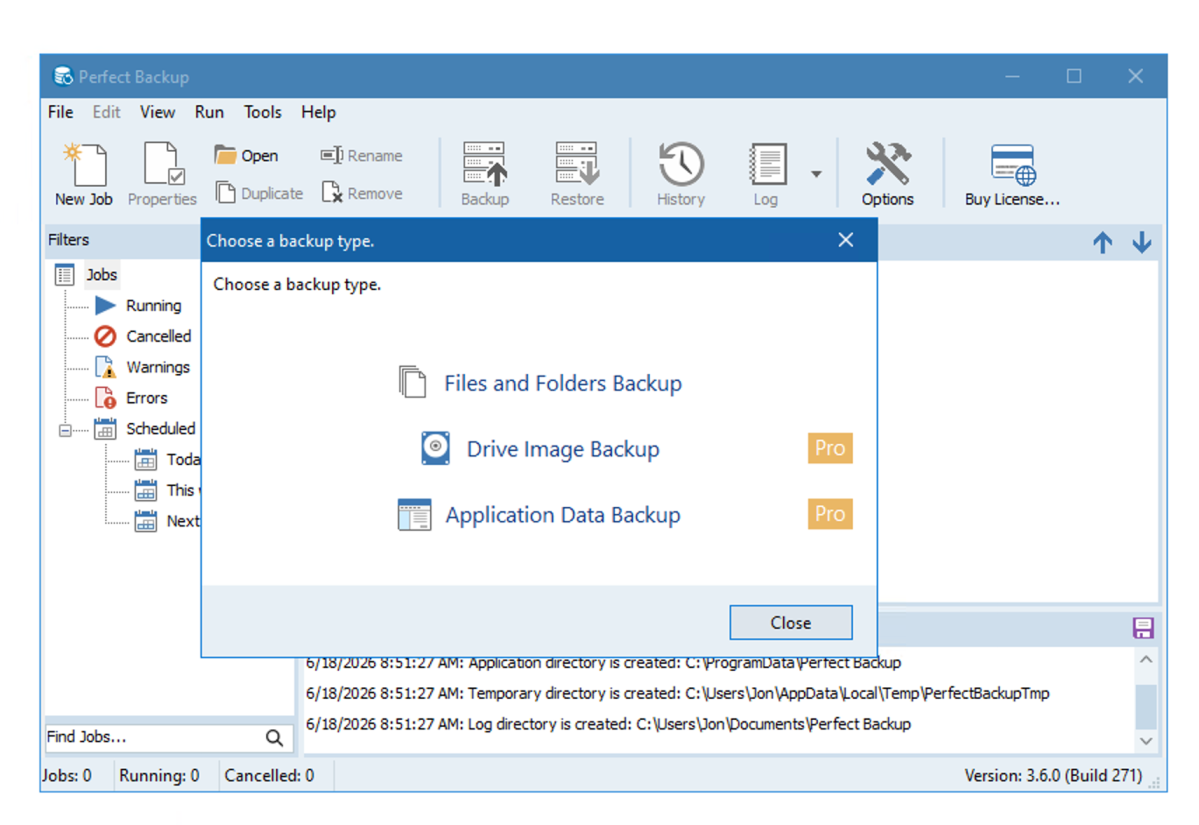
Perfect Backup creates its own catalogs for its inline restore function, but Windows itself can mount the image if you want to peruse it using Windows Explorer. You might have to deal with “Administrator” dialogs, and use Disk Utility to assign a drive letter if it’s in conflict with an existing partition, but it’s doable.
The only possible issue here is that Perfect Backup’s “disaster” recovery relies on Windows System Image recovery — a feature that is supposed to pop up when Windows won’t boot properly, but that I’ve found to be problematic at times.
What you’ll see when you select restore for system disk is the dialog below. Note that you might have to click on “See more recovery options” before you actually see System Image Recovery.
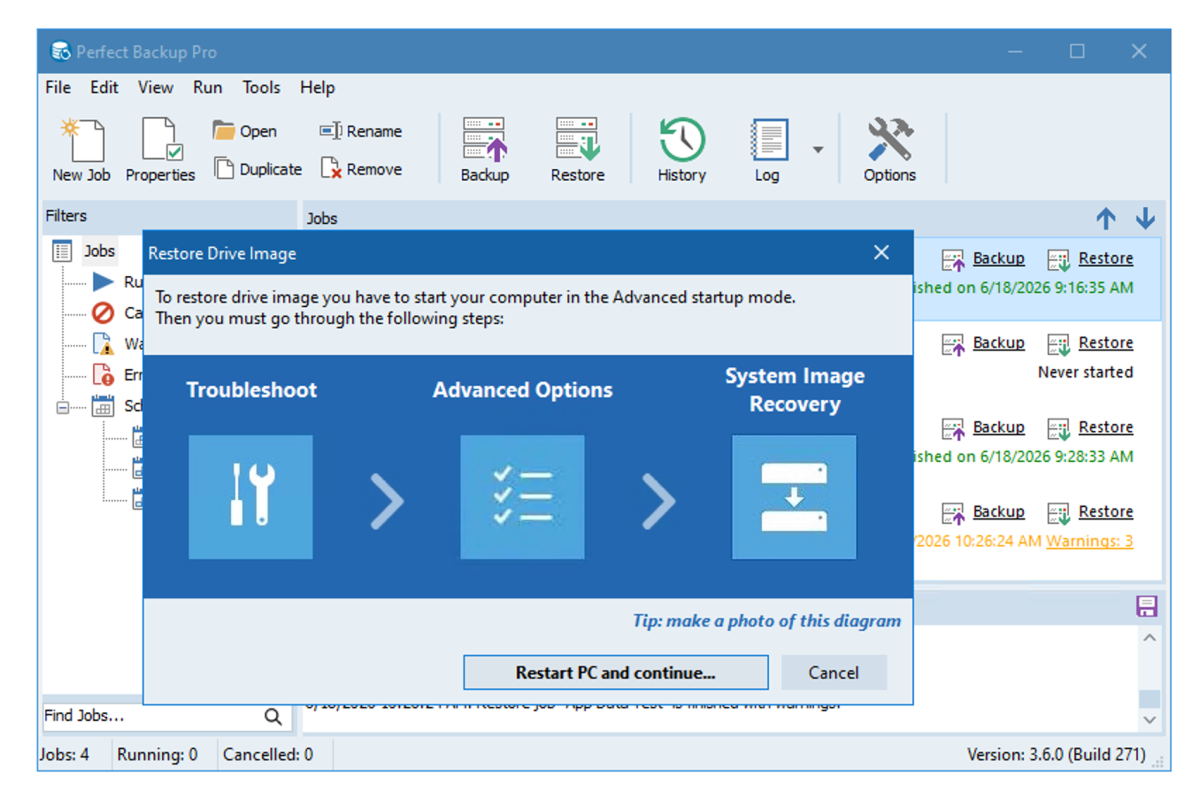
The image restore works fine, but the program never hints that you might need to create a Windows Recovery disc to boot from if the recovery environment on your disk is missing or damaged (mine was, I had to recreate it), or if you need to replace the disk entirely.
A Windows Installation disc (required for a recovery partition rebuild) might also be useful in this scenario, though that might tempt you to do a clean install. There’s something to be said for starting anew, even if it requires reinstalling programs before you restore your data.
It would be nice if Perfect Backup provided their own recovery boot disk (Windows or Linux) — which leaves me slightly preferring the free version of Macrium Reflect for disaster recovery.
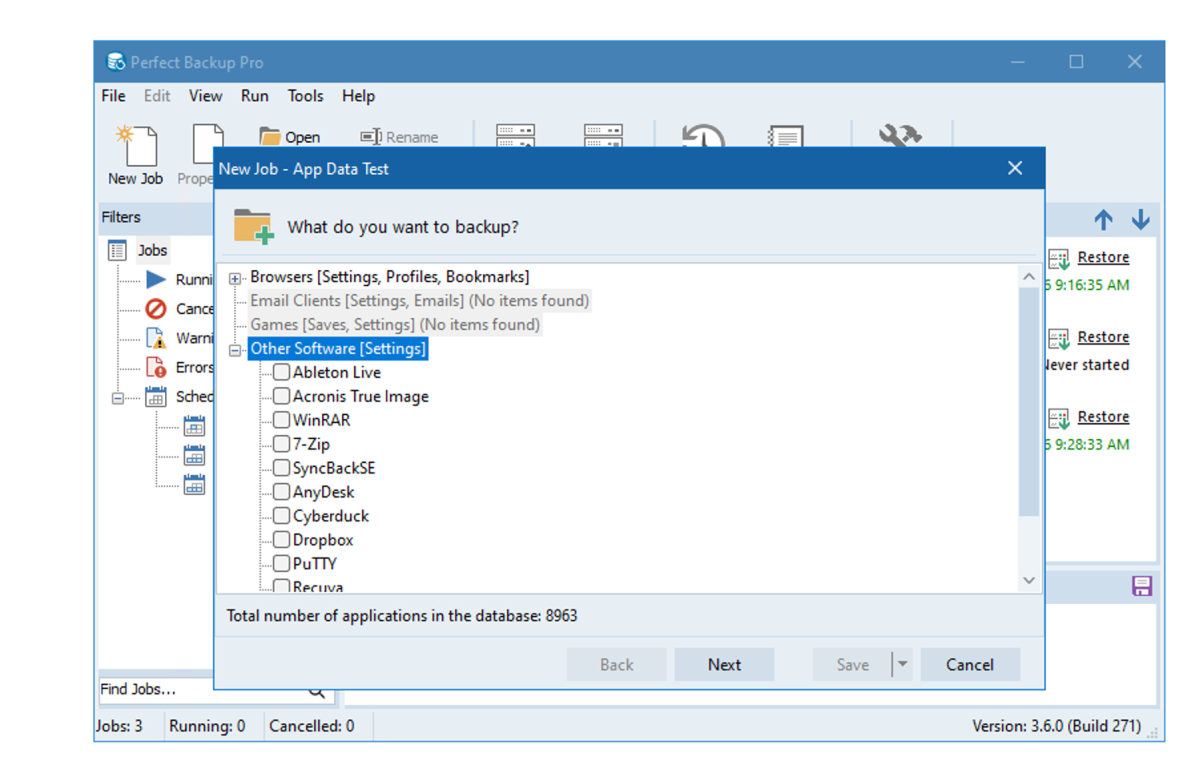
Another feature unique to the Pro version of Perfect Backup is the ability to back up application data. However, here perfection ceased. Some of my installed applications weren’t listed, and some that had already been uninstalled were.
To be fair, programs can store data in a lot of locations under Windows and many uninstall routines leave tons of detritus — long-standing weaknesses of the Windows and vendor behavior
Regardless, I consider this application settings data feature to be a work in progress, and not a strong incentive to plunk down cash.
How easy is it to use Perfect Backup?
What I really enjoy about the Perfect Backup interface is not so much its logical layout or hand-holding wizard, both of which are top-notch, but the simple intuitive labels and language. Where so many interfaces are terse, assume knowledge of terminology, or indulge in arcane concepts, Perfect Backup labels and explains things as normal humans think of them.
I did notice some operational oddities though. Along with the aforementioned tease of being presented with network locations you can’t add as a source, if you add an illegal character to a job name, it warns you but kills the dialog rather than give you a chance to correct it. You must restart the job creation and try again.
I’d also like the main window to appear when I double-click on the desktop icon whether the program is running or not. If Perfect Backup is running in the background you must click on its system tray icon for the main window to pop up.
Hardly deal-breakers, but I’m seeking perfection here.
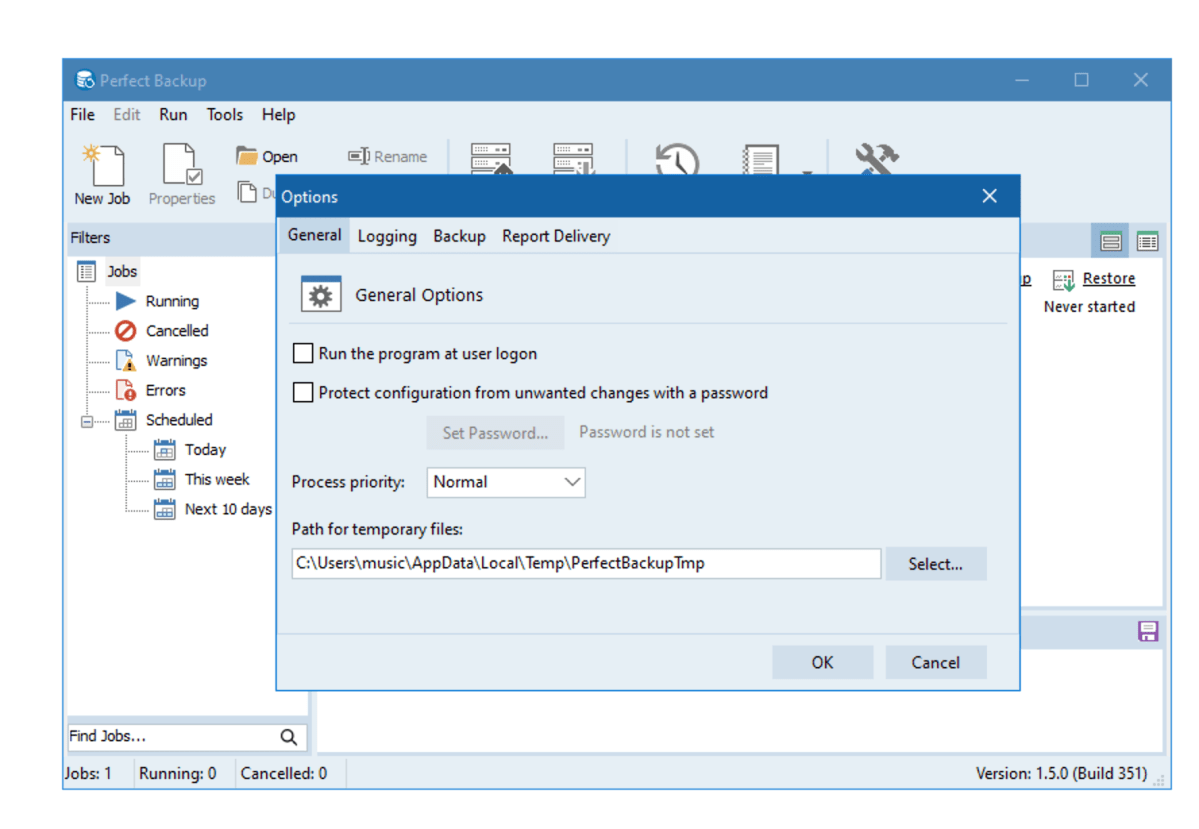
Quibbles or no, the interface’s structure and language helps new users feel less intimidated and less unsure of their actions. Again, I like it.
One thing I’d like to see is a downloadable PDF version of the online user’s guide. After all, the lack of an online connection may be part of your system issues, or backup/recovery routine. That said, Perfect Backup is intuitive enough that I never had many questions.
How does Perfect Backup perform?
Perfect Backup performed, well, perfectly during my test backups. It was a sprinter as well: very fast to local media, and as quick as anything I’ve employed across my 2.5Gbps network.
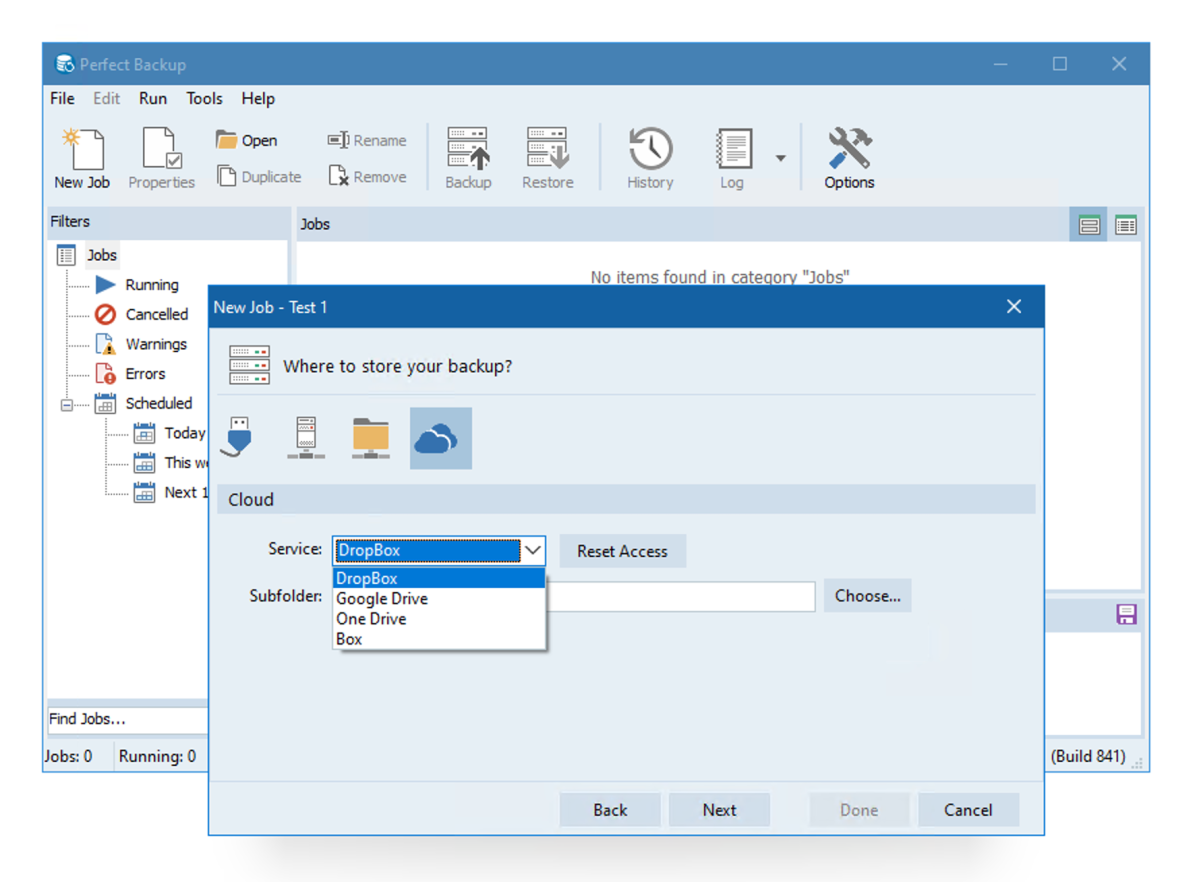
I tried both Zipped and plain file backups, and the former didn’t seem to significantly throttle what turned out to be very good performance. Restores were also quick and easy, though again, I’d prefer the term destination rather than output directory. Both are correct, the former is more common.
While all correctly configured backups went off without a hitch, I spotted another operation glitch in the job definition wizard. It lets you type in a non-existent directory as a destination, warns you about it, but lets you continue. On top of that, the job fails if you haven’t created the directory.
Perfect Backup should prevent this from trickling down to the job by either not allowing you to continue, forcing you to create the directory, or best case — simply skip the warning and create the directory when it runs the job.
Back to the positive. Image backups and restores went off without a hitch, though I have had bad experiences with Windows System Image recovery in the past. But this was only after I’d rebuilt my recovery partition, which had gone belly up for some reason also killing the ability to create a recovery disk.
To recreate this partition, you much offload files (reagent.xml and winre.wim) from a Windows Installation disk/ISO, copy them to Windows\System32\Recovery, then run reagentc /enable from the command line.
In my case, my existing recovery partition wasn’t large enough for the newer version of the Windows Recovery Environment, which is perhaps why it went bad.
I had to delete the recovery partition, shrink the main partition, then create a new recovery partition (GUID/primary/hidden/set id=de94bba4-06d1-4d40-a16a-bfd50179d6ac) size. You can find a more thorough tutorial that includes instructions for MBR disks here.
Should you use or buy Perfect Backup?
Absolutely, and perhaps. The free version is a no-brainer and a lot easier to use than Windows File History, a feature Microsoft might someday deprecate. The pay version is worth it if you want the convenience of VHD browsing, but it won’t be a no-brainer until the company provides its own disaster recovery boot disc and fine tunes the application settings and data backup.
Free or pay, I absolutely appreciate Perfect Backup’s rock solid performance once you’ve defined a file or image job properly. Job execution is, dare I say it… perfect.
Editor’s note: Because online services are often iterative, gaining new features and performance improvements over time, this review is subject to change in order to accurately reflect the current state of the service. Any changes to text or our final review verdict will be noted at the top of this article.


