When heatwaves strike in summer, any chance to cool down is welcome — whether at the lake, in an ice-cream parlor, or at home in front of a fan. What’s a relief for us is also something your computer desperately needs as soon as the thermometer hits the 30-degrees Celsius mark.
After all, the hotter the ambient air, the harder the cooling system in your PC or laptop has to work. This puts the fans under constant strain: They get louder, use more energy, and wear out much faster.
That’s why you should put your computer through a heat check: This way, you can ensure that it continues to run at its usual speed even under thermal stress and that the lifespan of its components isn’t reduced.
First, use suitable tools to check just how hot your PC or laptop actually gets. These results will reveal whether your computer has a heat problem at all and whether you can solve it with free immediate help or additional internal and external cooling components.
In most cases, a few measurements, targeted maintenance, and the correct Windows settings are enough to ensure you always keep your computer’s temperatures under control, even in the height of summer.
Heat slows things down, but it doesn’t break anything
First, the good news: An overheated PC does not, as a rule, crash immediately and without warning. Modern processors and graphics cards have built-in protection: If a chip approaches its maximum temperature, it reduces its clock speed and voltage — a process known as thermal throttling. This allows the components to reduce their power consumption, which in turn means less waste heat that the cooling system has to remove from the case.
Thermal throttling is noticeable as a drop in speed: Programs start more slowly, copying large files takes longer, and the frame rate in games plummets. In an overheated laptop, the CPU clock speed can even drop by a quarter.
Only when even this performance throttling is no longer sufficient does the hardware switch itself off as a last resort. However, this emergency shutdown (thermal shutdown) almost never occurs in practice, because users usually close computationally intensive applications or switch off the PC beforehand due to the significantly reduced performance.
Regardless of the current loss of performance, prolonged exposure to heat also causes long-term damage to the hardware. When components are constantly operating at high temperatures, they age at an accelerated rate. This is due to accelerated chemical processes inside the components: In the fans, the vital lubricant in the ball bearings liquefies, while in the capacitors on the circuit boards, the electrolyte evaporates. The result is that they swell up or, in the worst case, even burst.
In laptops, this primarily affects the battery: Lithium-ion cells age more quickly at higher temperatures, particularly when they remain fully charged for extended periods. Therefore, in summer, try not to leave the device permanently connected to power with the battery at 100 percent charge. It makes more sense to disconnect the laptop from the outlet from time to time or — if available — to activate a charge limit in the system settings.
Checking the temperature with free tools
To find out just how hot your computer really is, you’ll need specialized software. Windows’ built-in tools aren’t much help here.
We recommend the comprehensive hardware analysis tool Hwinfo. After installation, select the ‘Sensors only’ option from the drop-down menu and click ‘Start.’ This opens the sensor list directly, without the full hardware system report.
HWiNFO reliably displays the readings from all sensors in the system: This allows you to examine the components in detail, such as the processor in this example.
Friedrich Stiemer
In the list, the readings are organized by individual component. Four columns show the current value, as well as the minimum, maximum, and average since the start of the measurement. For the processor, the ‘CPU Package’ row in the CPU section is particularly relevant; for AMD processors, this is labelled ‘CPU (Tctl/Tdie).’ Below this, under ‘Core Temperatures,’ HWiNFO also displays the temperature trends for each individual CPU core.
The values for a graphics card can also be read in detail via the sensor readings presented by HWiNFO.
Friedrich Stiemer
For the graphics card, two values are of primary importance: ‘GPU Temperature’ for the average and ‘GPU Hot Spot Temperature’ for the hottest point on the graphics card.
You can see how hot the SSD is under the ‘Drive Temperature’ entry. The clearest indication of an existing temperature problem in the computer is provided by the ‘Thermal Throttling’ line: If the ‘Maximum’ column shows ‘Yes,’ the processor has already throttled at least once during the measurement due to overheating.
Core Temp presents the computer’s temperature readings in a less detailed, but clearer format. This mini-tool displays only the temperature of each core, the corresponding utilization, and the processor’s throttling limit under ‘Tj. Max.’ If desired, it can display the values in the Windows taskbar. Please note during installation: Be sure to deselect any additional programs offered.
HWMonitor is ideal for a very quick overview: The program displays temperature readings in a table showing the current, minimum, and maximum values. An ad-free alternative is Libre Hardware Monitor.
If you just want to keep an eye on your graphics card, the GPU-Z tool is all you need: Select the ‘Sensors’ tab to view the GPU temperature and the hot spot.
If you want to see your computer’s temperature readings at all times so you can take immediate action, use the MSI Afterburner program: Here, you can enable an overlay view that remains in the foreground at all times. In the settings under the ‘Monitoring’ tab, you can enable the display of the desired values on the overlay screen. You’ll need to manually enable CPU temperature monitoring, as the program only monitors the graphics card by default.
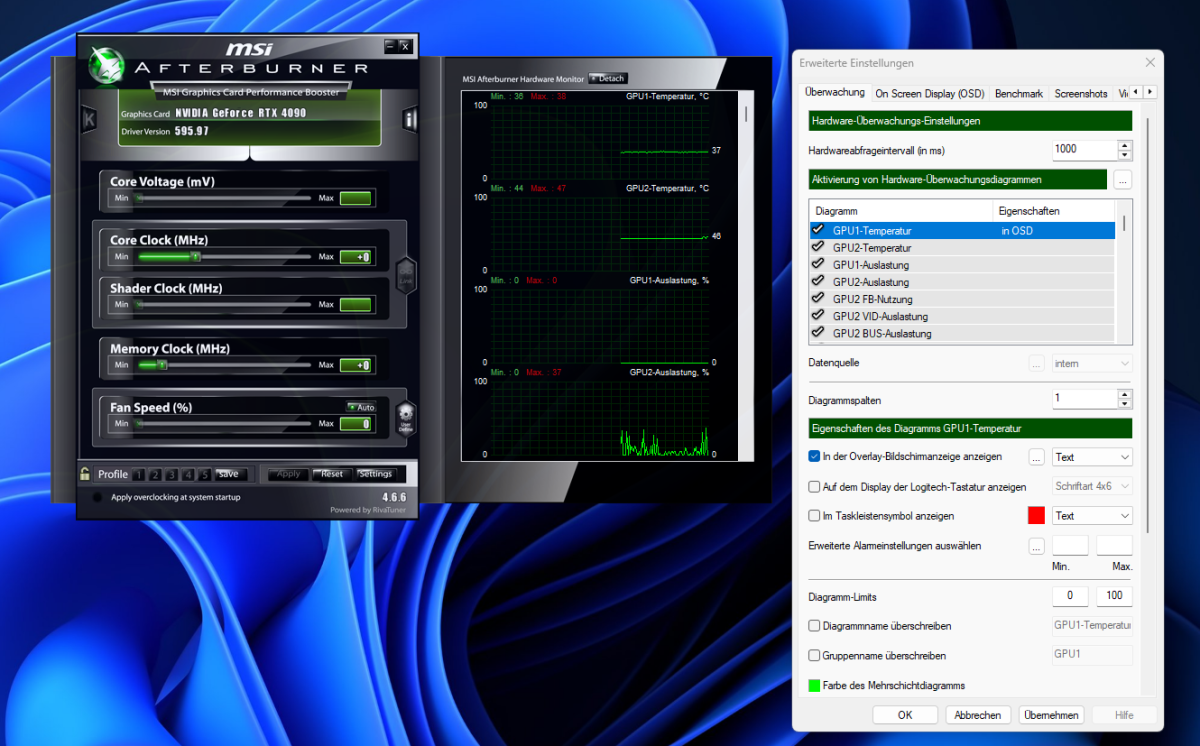
The classic MSI Afterburner also offers the option to display the data in real time via an overlay.
Friedrich Stiemer
How hot can CPUs and other components get?
Manufacturers specify temperature ranges within which processors and graphics chips should be operated. These depend on the manufacturing process, chip packaging, and build quality, and can therefore vary between different chip generations and even production batches.
A CPU usually heats up to between 30 and 45 degrees Celsius when idle. Under heavy load with many active cores, it should ideally remain below 80 degrees. Thermal throttling generally kicks in at 100 degrees for Intel processors, at 95 degrees for AMD’s Ryzen 7000 chips, and at 89 degrees for the X3D variants with larger cache.
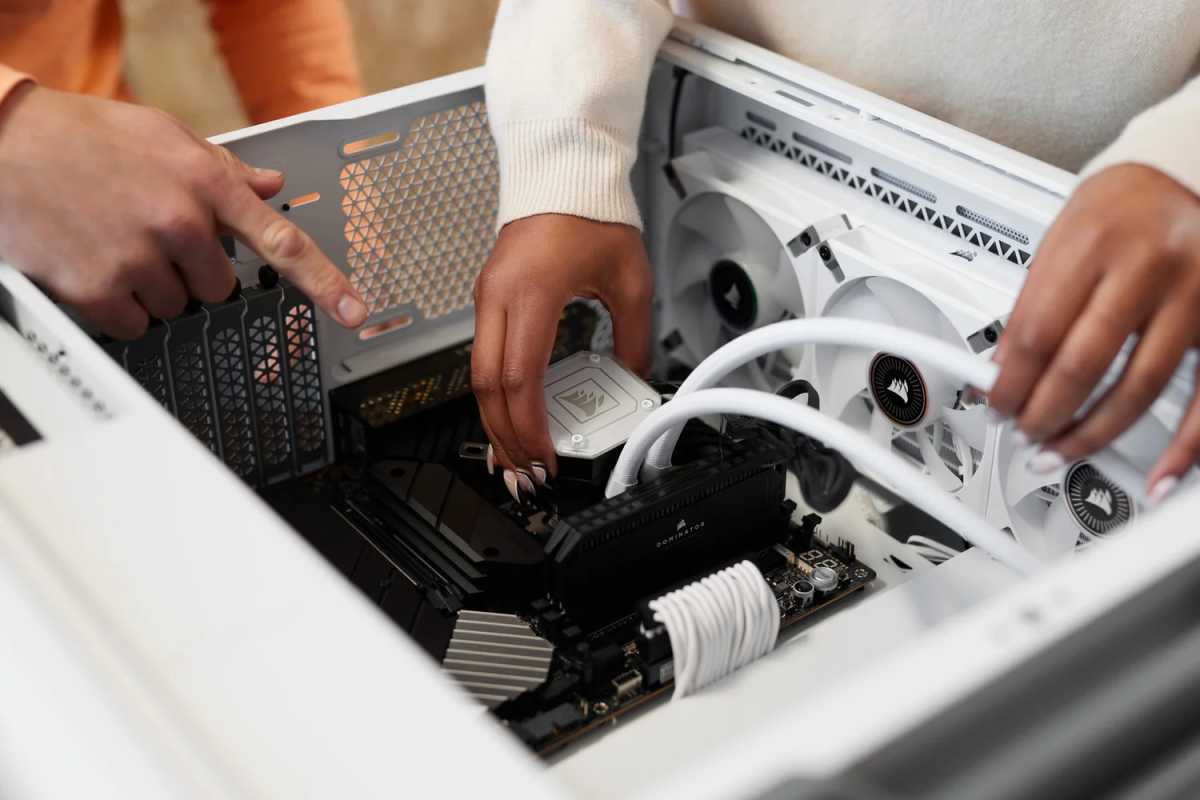
If components such as the CPU get too hot, it’s time to take action. However, the chips in a computer can withstand much more heat than many users realize.
Friedrich Stiemer
These values have been deliberately chosen: They represent a compromise between performance and lifespan — they are designed to ensure that the chip does not suffer a heat-related fault under any circumstances during the warranty period and, beyond that, continues to function without problems until it is replaced for performance reasons anyway.
Depending on the generation, Nvidia graphics cards throttle at between 90 and 93 degrees, whilst AMD Radeon cards are permitted to reach as high as 110 degrees at their hottest point, the ‘hot spot.’
An NVMe SSD throttles between 70 and 80 degrees to prevent the storage controller from overheating and to ensure no data is lost. With DDR5 RAM, things only become critical above 85 degrees — but RAM rarely reaches this temperature. This is because, before the RAM reaches these temperatures due to an inadequate cooling system, other components will already be causing problems.
The rule for you is: If the temperatures remain below the specified limits even under load, everything is fine. If the temperature regularly rises above the limit and causes, for example, thermal throttling, you need to take action.
Reducing heat via software
Before making any hardware changes, you should try to get temperature issues under control using software settings. This is because every additional program running in the background uses processing power and therefore generates heat. So, first of all, open the Task Manager using Ctrl + Shift + Esc. In the ‘Startup’ tab, disable all programs that do not need to be active straight away — such as cloud services, update tools, or chat programs.
In the ‘Processes’ tab, click on the ‘CPU’ column: Here you can see which programs are constantly generating CPU load — often it’s the browser with lots of tabs open. An unusually high load while the PC is idle, with fans running constantly, may indicate hidden mining malware: You can check for this using an antivirus scanner.
The most effective way to reduce PC heat is via Windows’ power options: Here, for example, you can cap the processor’s Turbo Boost, which is responsible for a large proportion of the heat. Open the Windows Control Panel, go to ‘Power Options’ and, for the active plan, click on ‘Change power plan settings’ and then on ‘Change advanced power settings.’
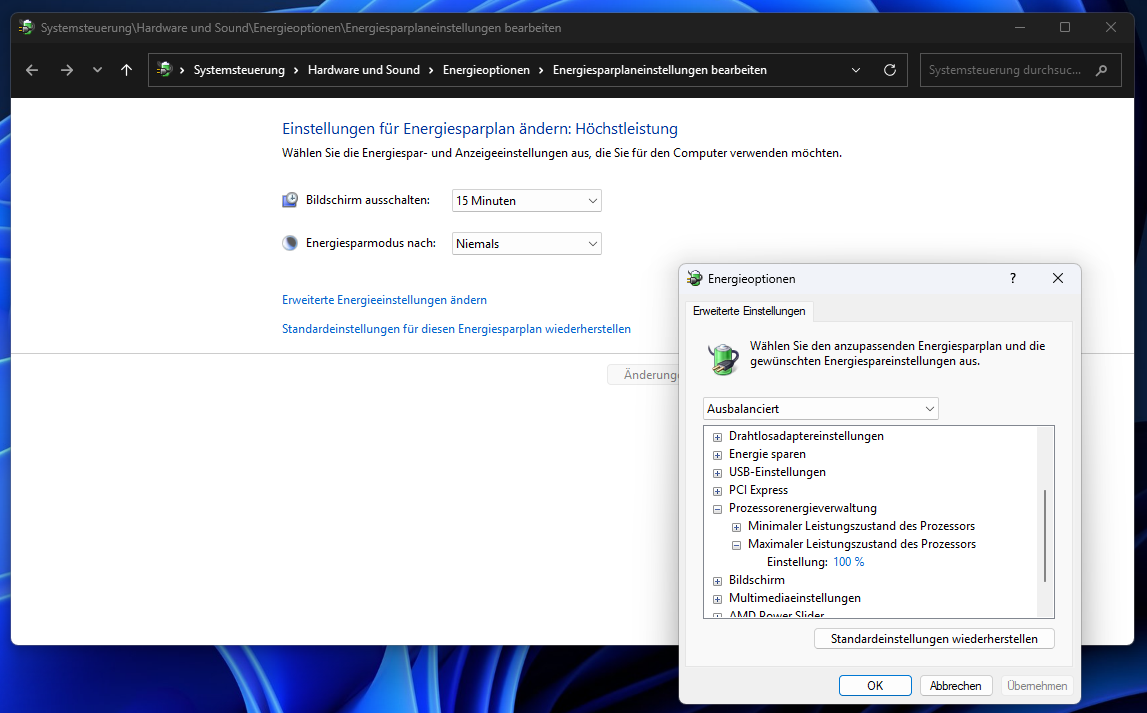
If you reduce the processor’s maximum performance level by just one percent to 99 percent, this will usually disable the Turbo Boost, which generates a lot of heat.
Friedrich Stiemer
Expand the ‘Processor power management’ section and change the value for ‘Maximum processor power state’ from 100 to 99 percent. For many processors, even this one percent is enough to switch off Turbo Boost, which briefly boosts the clock speed and consumes a disproportionate amount of power and generates excessive heat.
In everyday use, you’ll hardly notice any loss of speed, but the temperature will drop significantly — often by several dozen degrees. On a well-cooled desktop PC, this is a stopgap solution; on an older laptop, however, it’s a very effective trick.
It’s best to use this throttling in the ‘Balanced’ power plan and also keep a second plan set to full performance for situations where you need maximum processing power. In the same menu, it’s also worth taking a look at the system cooling policy: If this is set to ‘Active,’ Windows will initially increase the fan speed as the load rises, before the processor limits its performance by reducing its clock speed.
Position your computer in the right place
Simply moving your PC to a different spot can also provide quick relief. This is because every extra degree in the ambient temperature increases the thermal stress on fans and components. So don’t place the computer in direct sunlight or in the warmest room; keep it away from the wall, and don’t lock it away in a closed cupboard without ventilation.
Furthermore, do not stack warm devices such as routers or consoles on top of it, and protect the laptop’s screen from direct sunlight.
Free tip: This is the best way to combat heat
Computers that have been in use for some time are particularly prone to overheating. In many cases, these can be resolved easily and completely free of charge: by dusting. Over the years, dust accumulates on cooling fins and fan blades, settling like a blanket over the cooling surfaces and obstructing the airflow.
The result: The fans can no longer dissipate the waste heat as quickly as before; they have to spin faster — and therefore more noisily — and eventually, despite constant fan activity, thermal throttling sets in.
To clean the computer thoroughly, switch it off and unplug the power cable. For a PC, remove one of the side panels of the case: It is usually secured to the back with two knurled screws. Once you have loosened these, you can pull the panel off towards the back. Now use a can of compressed air or a mini blower to blow the dust out in short bursts from a distance of a few centimeters.
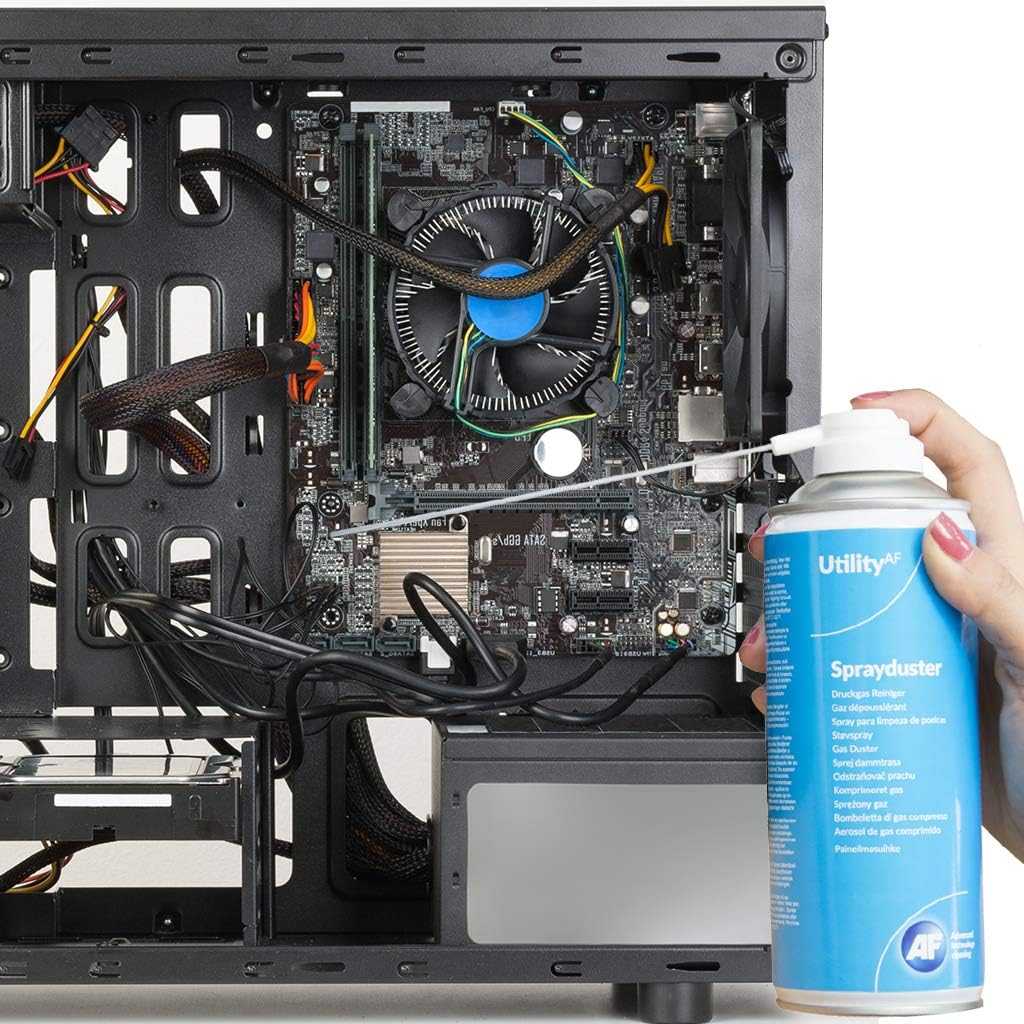
A can of compressed air can be used to gently remove dust from the cooling fins.
AF Utility
Areas such as the processor cooler, the graphics card, the power supply’s air intake and the dust filters behind the front of the case are particularly important. When blowing out fans, you must block the fan blades with a finger or a toothpick to prevent them from spinning uncontrollably.
Excessive speed can put strain on the bearing and, in the worst case, cause damage. You should not, however, use a vacuum cleaner directly on PC components, as this can cause static build-up. You can clean the removable dust filters at the front and bottom of the case under running water. It is important that they are completely dry before you reinsert them.
A thorough cleaning of the PC is generally advisable every six to 12 months. However, in households with pets or smokers, it may be necessary to clean it more frequently.
Check fans and replace thermal paste
After cleaning, you should check whether all fans are still working properly or are already showing signs of wear and tear. Listen for grinding or rattling noises, which may indicate a worn bearing. You can also check the current speed using software such as HWiNFO: A 120- or 140-millimeter case fan usually operates at a few hundred to around 1,200 revolutions per minute (rpm) under normal conditions; under heavier load, this can rise to as much as 2,000 rpm. Smaller fans in laptops, on the other hand, spin significantly faster and often reach 2,000 to 5,000 rpm.
A warning sign is a speed of 0 rpm displayed continuously, even though the system is warm and other fans are running. In this case, the fan may have stopped and is either faulty or not connected properly. Graphics card and power supply fans are an exception: Many models switch off automatically when idle or at low temperatures, which is why 0 rpm may be normal in these cases. Conversely, an unusually high speed during normal desktop operation may also indicate a problem, such as insufficient cooling or a faulty fan controller.
If temperatures remain consistently too high despite cleaning and the fans working properly, you should replace the thermal paste on the CPU or GPU. For example, if an analysis program shows that a single CPU core is consistently 10 to 15 degrees hotter than the others, or if the average and peak temperatures at the hot spot on a graphics card differ by more than 25 degrees, this suggests that the thermal paste is outdated.
Over the years, it dries out, becomes cracked, and is less effective at transferring heat to the cooler. High-quality thermal paste lasts three to five years, while the factory-applied paste in pre-built computers often lasts only two — so for a PC that’s four to six years old, replacing it is definitely worth it and costs next to nothing: A tube costs between $5 and $10.
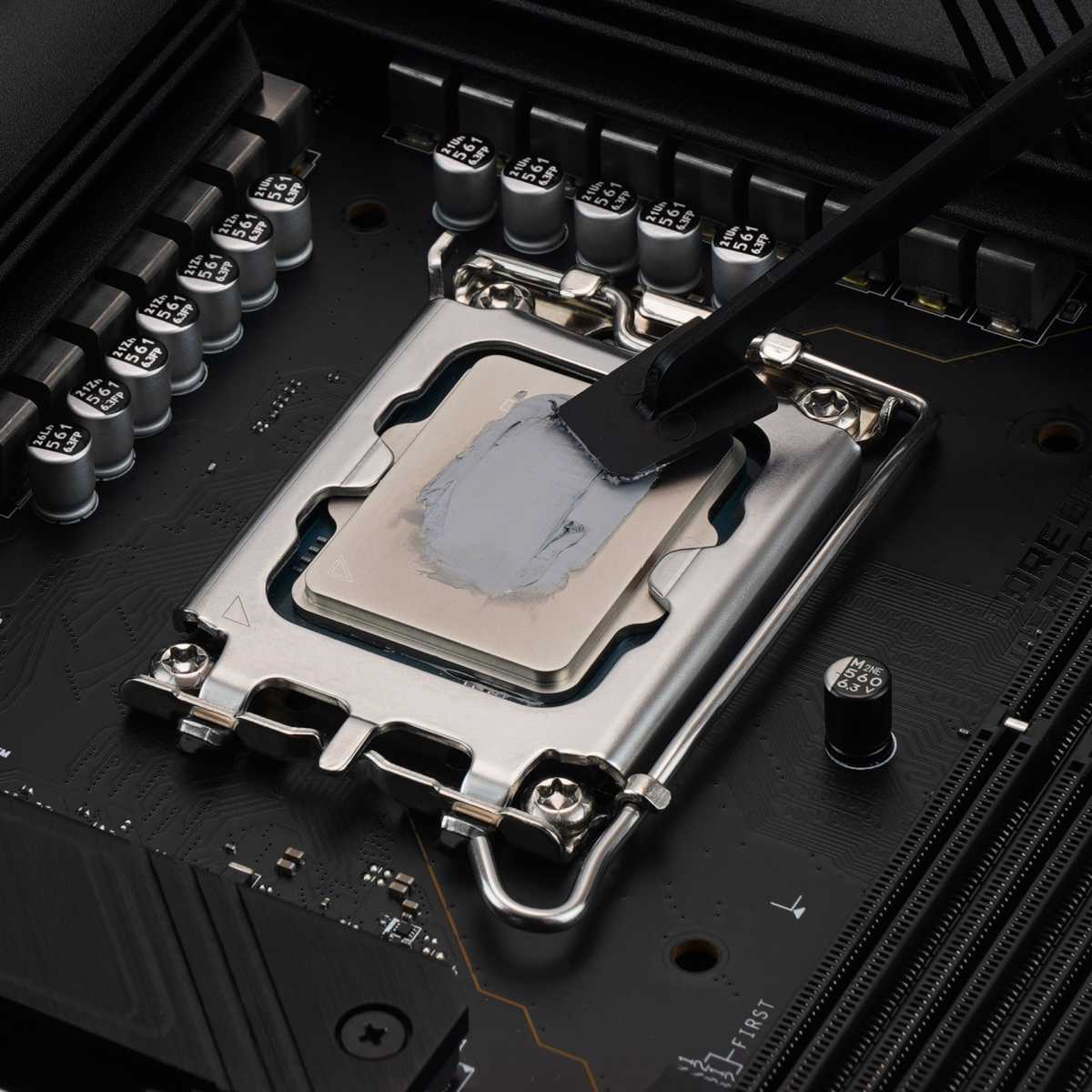
Thermal paste has a limited lifespan and should be replaced regularly – the difference is immediately noticeable afterwards.
Thermal Grizzly
To apply it, remove the cooler and wipe away the existing paste using isopropyl alcohol and a lint-free cloth. Then squeeze a pea-sized dot of fresh paste onto the center of the chip’s surface or the copper cover above it, and refit the cooler evenly in a criss-cross pattern.
With laptops, this procedure is considerably more involved: The processor is located beneath a cover from which heat pipes lead to the fan. To apply new paste, you must therefore remove the entire cooling assembly and then refit it correctly. If in doubt, leave this to a specialist workshop.
Fitting additional fans
The next step towards lower temperatures is to fit additional case fans. Models with a diameter of 120 or 140 millimeters are common — the larger they are, the more air they move at the same speed and the quieter they operate.
Bear in mind the airflow within the case: The fans draw in cool air at the front and bottom, and expel the waste heat from the components at the back and top. This creates a continuous flow that follows the natural rise of warm air.
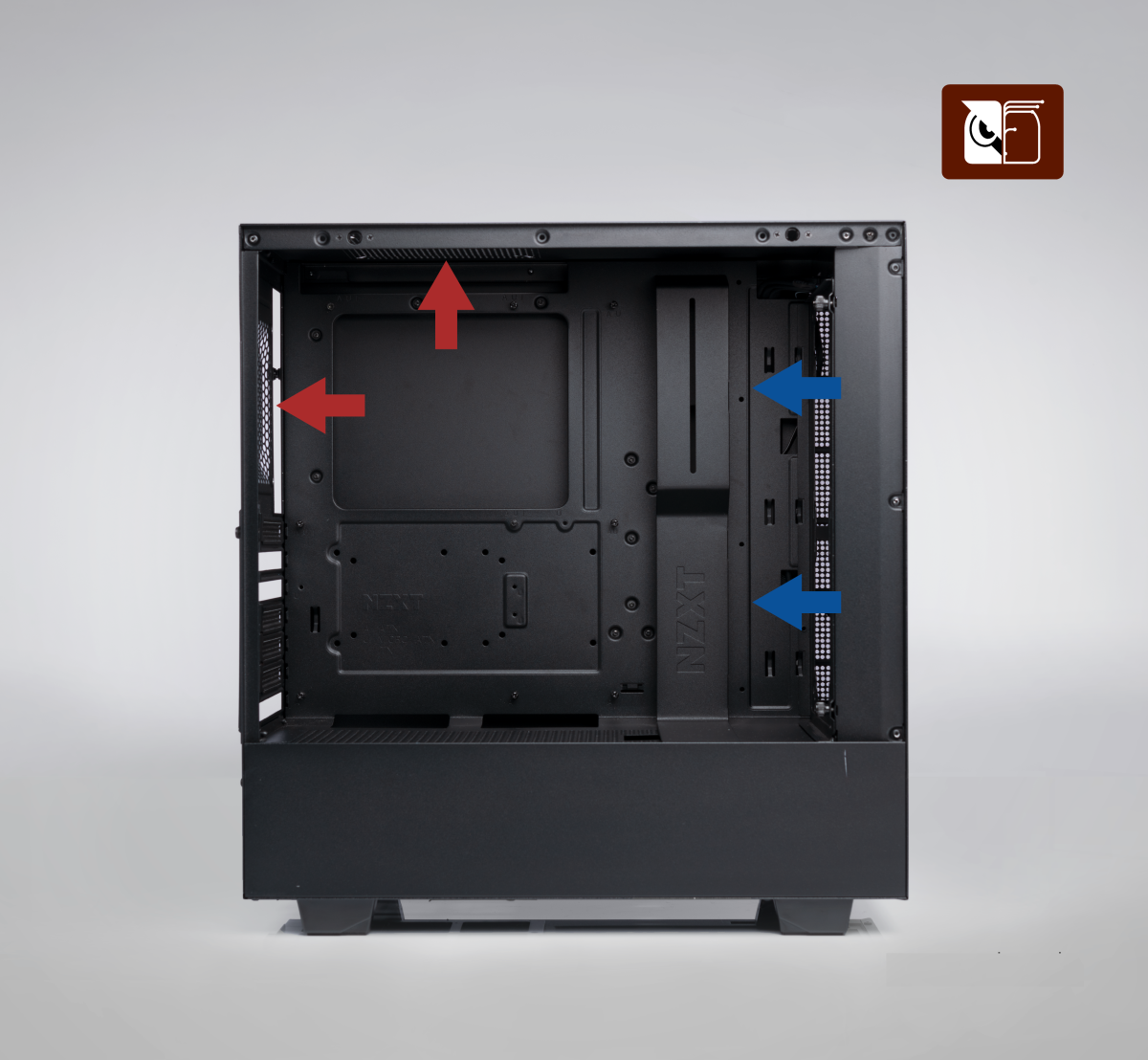
Many fans are only effective if they are correctly positioned and arranged. This diagram shows the classic airflow pattern in PC cases.
Friedrich Stiemer
For a standard PC mid-tower, three to five fans are sufficient. Plug them into the motherboard connectors labelled ‘CHA_FAN’ or ‘SYS_FAN’; leave the ‘CPU_FAN’ connector free, as this is reserved for the processor cooler. If there aren’t enough connectors, an inexpensive fan hub will do the trick.
The motherboard controls four-pin fans precisely via a pulse signal (PWM), while three-pin models are controlled via voltage; both fit standard connectors. You can then set the speed curves via the UEFI BIOS or a program such as FanControl.
However, additional fans are only beneficial if part of a well-thought-out design. If there are more intake fans at the front than exhaust fans at the rear, this creates a slight overpressure inside the case. This pushes the air outwards rather than drawing dust in through every gap, provided that all intake vents are fitted with filters. Also ensure there is a clear airflow path and route cables behind the motherboard tray. A case with a fine mesh grille at the front cools significantly better than one with a solid glass front.
Improving cooling in a laptop
You cannot retrofit additional or larger fans into a laptop. Only small fans and thin heat pipes fit into the slim chassis; often, the processor and graphics unit share a single cooling solution.
In this case, you’ll need to resort to external aids: The simplest measure is a stand that raises the rear end by two to three centimeters, so that the air intake vents on the underside can draw in more air. This reduces the temperature by five to 10 degrees under light to medium load.
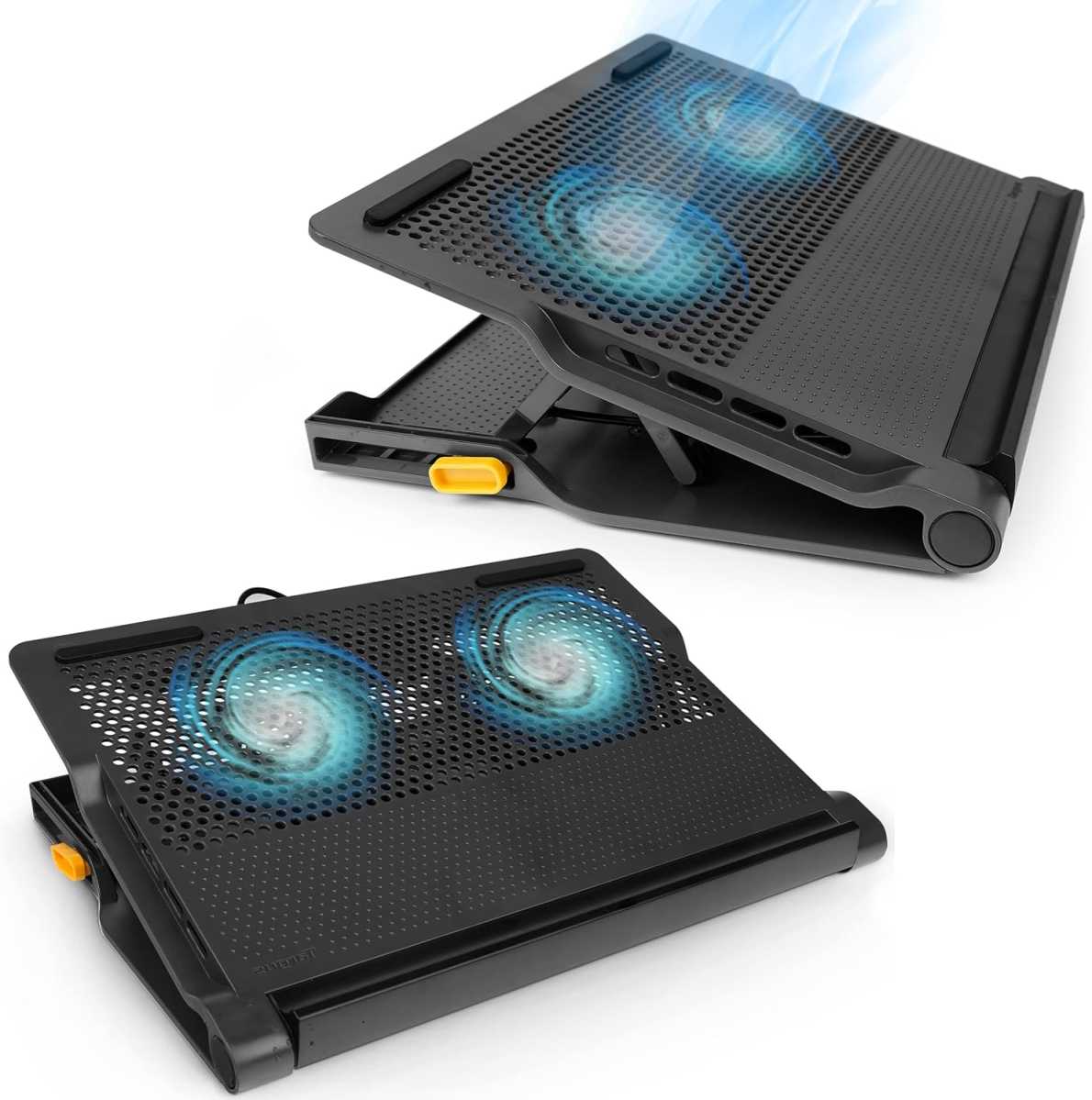
Active cooling pads use fans to supply the laptop with more cool air. This can already result in significantly lower temperatures.
Targus
A foldable aluminium stand costs around $25 to $30. Active cooling pads with their own fans offer more — but only the right ones: With cheap, open-sided models, the air escapes from the sides and does little to change the case temperature; sealed pads, on the other hand, force the air directly into the intake vents and reduce the temperature by up to 20 degrees.
Simple pads with multiple fans cost around $20 to $35, while high-performance models with turbo fans cost $45 to $70.
As a basic rule when using a laptop, always remember: Never place your laptop on a blanket, bed, or your lap, as soft surfaces block the lower ventilation slots and trap the heat. A hard, flat surface is essential. However, it’s also worth using short bursts of compressed air to clear dust from the ventilation slots on your laptop.


