I have a challenge for you. Can you spot AI-generated content? And more importantly…. Can you identify such photos and video right now?
Here’s the problem: Generative AI keeps improving, so the clues that let you know it’s not real change continually, too. Back in December, I took an NPR quiz that tested my ability to identify AI slop videos (and failed). I used what I learned there to scroll through my Instagram feed more carefully (and I did actually do better at recognizing fake content).
But last week, the BBC published a quiz for telling apart AI-generated faces from real ones in photographs. (Or arguably, “photographs.”) And suddenly I found myself once more getting tripped up, despite recently reading fresh tips on how to spot AI content.
Welcome to Safe Mode, your weekly report for pressing security and privacy news—and what steps to take next. Want this newsletter to come directly to your inbox? Sign up on our website!
If this were just about fake but heartwarming animal videos, it wouldn’t be as big of a deal. Unfortunately, scammers use deepfakes to go after ordinary people’s money. Learning to tell the difference between real and fake images can keep your bank balance intact. (And save you from an intense amount of stress, if you’re hit with an emergency scam.)
You can’t rely on deepfake detection tools yet, either. They’re not reliable enough to trust fully. At best, using one is similar to asking a lightly knowledgeable friend for their take. You still have to decide for yourself.
TikTok
So what’s the latest advice? The BBC quiz shares experts’ tips on what to look for, like facial symmetry and expressiveness. What’s encouraging is a little bit of study goes a long way—researchers discovered detection accuracy rose from 40 to 80 percent among study participants with even just an hour of exposure to real and fake images, plus tips on what to look for.
(I can’t claim that much improvement, but even between the first and second quizzes in the article, I did a lot better during the second go.)
Of course, these new tips won’t help indefinitely—it wasn’t long ago we all looked for six-fingered hands. Generative AI’s development keeps pushing along quickly. Still, awareness is a small victory in this ongoing war of fact versus fiction. Knowing that something could be fake already reduces my automatic acceptance of video and photo as truth.
In the news
You know the saying that there’s no such thing as a free lunch? Big tech offers “free” accounts so they can use us for data mining—but fortunately, they don’t hold all the cards. If people protest loud enough, they can get questionable decisions reversed. Just as they did in response to Meta’s approach to rolling out its AI image generation tool more widely.
Michael Ansaldo/Foundry
The good
- Meta withdrew plans to force Muse, its AI image generation tool, onto Instagram users. Turns out, when people are told their likenesses are fair game for any other Instagram user, they don’t like it. My advice: Keep protesting any time companies introduce “features” that let them train off our image and video data.
The bad
- Zoom says critical vulnerabilities in its desktop app could allow a hacker to take over an account. Fortunately, the fix is easy—just apply the latest updates.
- A security researcher discovered that a security weakness in his Shark robo vacuum lets him spy on other Shark robovac owners in his geographic region. The data he could access included live video feed, Wi-Fi credentials, and maps of home layouts. (This is why I still recommend putting smart devices on a guest network!)
The annoying
- If data leaks weren’t bad enough, data brokers exist, too. And as my colleague Sam Singleton explains, they gather information on you from all kinds of sources (mostly legit), then let anyone on the web purchase access to your profile. You can opt out, but it takes some effort.
Tip of the week
Joel Lee / Foundry
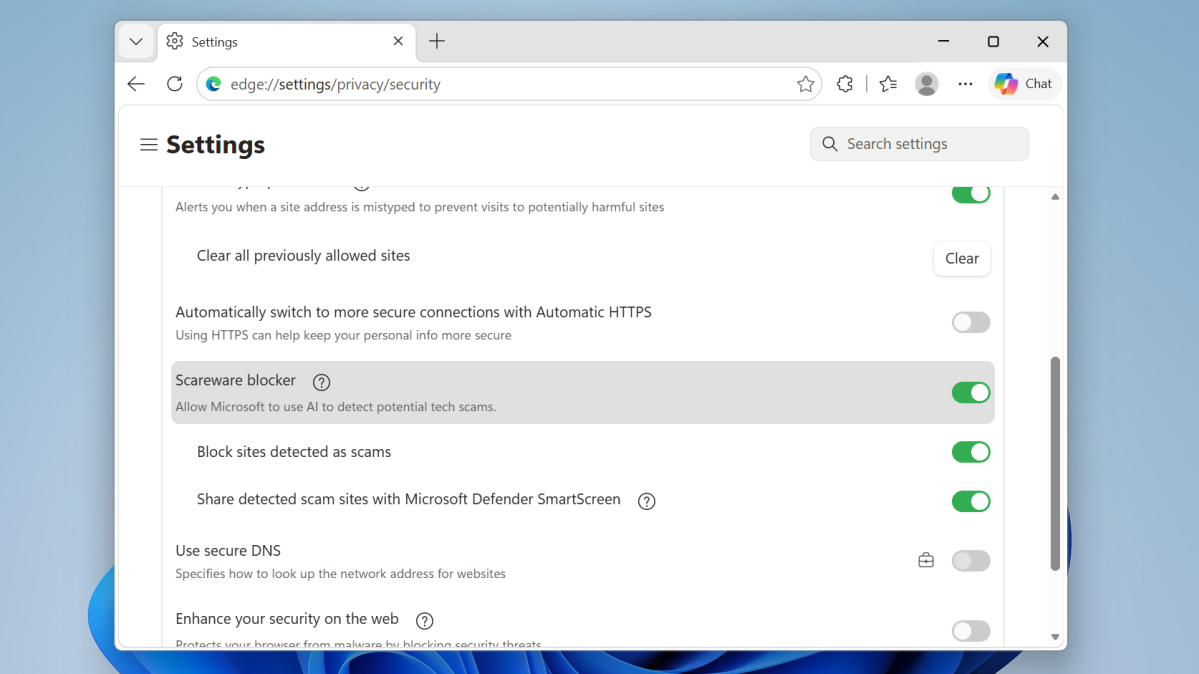
Scareware is a tactic where bad actors use apps or websites to show fake warnings about your PC, so that you’ll pay for unnecessary services. Some antivirus software blocks it automatically—but did you know that Microsoft’s Edge browser also has free built-in protection against scareware websites?
On some PCs, this feature is on by default. On others (often older), you’ll have to enable it manually. To check, head to Settings > Privacy, Search, and Services > Security. Scroll down and find Scareware blocker. The toggle will be green when on—if not, just click it to activate.


