In the shadows, evil lurks: “energy vampires” that can drain your laptop’s battery dry when you need it most. These apps can slurp up power day and night, killing your laptop — and your productivity — when you need it most.
But you don’t need garlic or even a crucifix — just knowledge of where to find these vampire apps so you can put a stake in their heart. Happy Halloween from Smart Mode!
At the beginning of this month, I told you how I doubled my laptop’s battery life in a single click. I’m mildly obsessed with battery life and running out of juice in a critical moment. (My wife and I also own a used Nissan Leaf, which — in a related but entirely separate conversation — also has its own set of power pros and cons.) In any event, my previous tip was a one-click goldmine. This week’s discussion requires a tiny bit of investigation instead.
Welcome to PCWorld’s newsletter, Smart Mode! The focus of this newsletter is productivity: from software to hardware to peripherals, all with the idea to get what you need to get done, efficiently.
I’m your host, Mark Hachman, covering the productivity tips, tools, and trends that you need to know about, both from within PCWorld and beyond. If you want the latest issue in your inbox each week, just sign up right here.
As you might imagine, however, we are once again returning to the Windows Settings menu (System > Power & battery) to track down our prey. Near the bottom is a drop-down menu (Battery usage) which. like a vampire’s coffin, needs to be opened to expose the apps within. Do so!
Below is a graph which tells you for how long your PC has been awake, either in the last 24 hours or the last seven days, as well as your screen time. Useful, but not what we’re looking for.
That information is found in the “battery usage per app” menu, below. Here, you’ll find what’s sucking up your laptop’s battery life, in a variety of scenarios. “Overall usage” will tell you the app that’s sucking up the most power, while “background” may be the hint that there’s an app that’s sneakily draining your battery.
Mark Hachman / Foundry
I find both settings are useful. In general, Edge seems to consume the most power (though with tens of tabs open, that’s not surprising). Outlook grabbed 14 percent of my laptop’s available power, which I do find unusual; all my email is just static text which periodically refreshes. I doubt you’ll find any background apps that are leeching power, though it’s worth checking if you’ve downloaded something new. (If you’re performing some tech support for a friend or family member, though, perform a quick check — you never know what “innocent” little utility is in fact slurping up power and CPU cycles.)
Most international flights have seatback power. However, if you’ve just hopped a flight from Sacramento to Seattle on an older puddle jumper, or you’re spending the day taxiing back and forth between meetings, consider shutting down an app like Outlook to preserve your laptop’s battery. You can always reply to email via your phone.
Does your laptop have insomnia?
If you owned a Microsoft Surface Book, Book 2, Book 3, or a Surface Pro 4, you know what I mean when I mention “hot bagging:” problems with Windows Modern Standby prevented these devices from shutting down or going into a sleep/hibernate state when closed and placed in a backpack. They continued to operate at full speed, murdering battery life and overheating as they circulated continually warming air. It was so serious Microsoft called in its senior Surface execs to fix it.
Don’t expect such extreme problems in 2026. Nevertheless, there’s a Windows command, called “SleepStudy,” which provides a deeply nerdy look into what your laptop is doing when it should be resting.
Most people consider the PowerCFG command to be one of the most useful tools for analyzing the battery life of your PC. I’d agree. It can let you know how long your laptop lasted before running out of power, how healthy the battery is, or how the laptop’s battery life has evolved over time.
Accessing PowerCFG requires opening the Windows Command Prompt. The “SleepStudy” command does as well, with a slight difference: Command Prompt needs to be opened as an administrator.
Otherwise, typing powercfg /sleepstudy into Command Prompt should open the tool. It will probably take several seconds to run, so be patient. (It will also bury the report in the Windows\System32 folder, so you can append /output C:\Users\Public\sleepstudy.html to store it somewhere more easily accessible.)
When you open it, “SleepStudy” will appear as the “System Power Report,” and it’s massive. Fortunately, Microsoft recognizes this, and the entirety of the report is color-coded: gray text for normal operating conditions, green for low system activity, and so on. Red highlights signal high system activity, and violet is used for rare abnormal shutdowns. (Clicking on them will move your cursor down to the relevant report.)
Mark Hachman / Foundry
In a week’s worth of time my laptop only logged about ten minutes’ worth of concerning activity, where the (plugged-in) laptop was nominally in a sleep state but the USB (Thunderbolt) functions and GPU were in operation. Otherwise, I didn’t see anything that would require me to take action. If your laptop was supposed to be in sleep mode but was consuming power, SleepStudy should tell you.
The other interesting thing that SleepStudy can be used for is a more detailed explanation of the Windows Settings battery usage data. If you pick a prolonged period of time (such as the below example, when the laptop was being used for over six hours) you can see exactly what apps are consuming power, and how much power each consumed. Here are my top five.
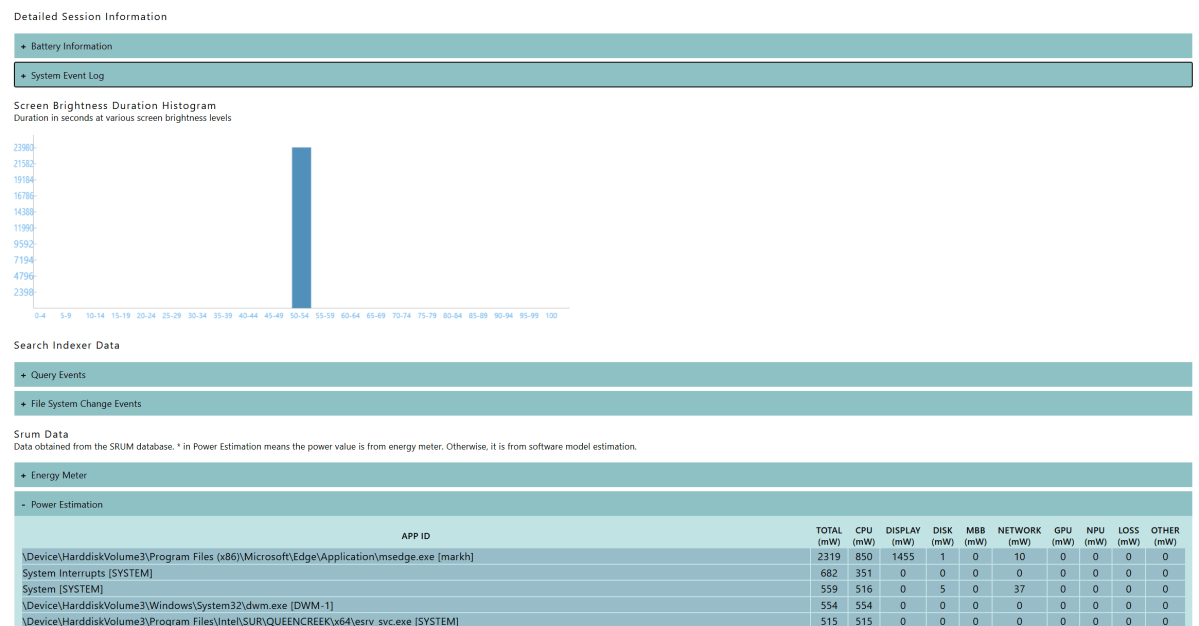
Mark Hachman / Foundry
Again, I don’t expect your laptop to be plagued by misbehaving apps, just like your home won’t really be besieged by the undead this weekend. But simply knowing what apps are quietly sucking power can help you manage it.
Productivity in the news
- Tired of Google’s AI Overviews? I am. Get rid of ’em!
- I’ve been very happy with Obsbot’s webcams. This is the Meet Flip, a 4K webcam that’s billed as a…travel webcam?
- Meta’s AI director, Rohit Patel, is leaving the company to take on Google Workspace and Microsoft 365 with Ndoc, a new startup, TechCrunch reports.
- After having partnered with a Saudi Arabian government fund for a new Humain brand of laptops, Qualcomm is now getting in bed with defense contractor Anduril for domestically-manufactured BlueChip laptops to sell to our own freedom-loving government.
- Want a free PDF editor? Our own Michael Ansaldo loves JOPDF, though maybe a rebrand could be in order.
- Logitech has a special “Developer” version of its MX Master 4 mouse. Same price, but with a visual refresh and some easter eggs.
- He’s right! Michael Crider wants laptop makers to put a Thunderbolt port on either side, not just one.
- If you have removeable storage that uses the (little-used) ReFS file system, act fast. Support goes away soon.
Productivity tip of the week:
Remember that in the United States, clocks go back on Nov. 1, while in the U.K. the clocks went back on Oct. 25. If you work with international colleagues, consider adding a time zone to your calendar via the Settings below. And, of course, double-check that you and your attendees are in the correct time zone when making appointments until everything straightens out.
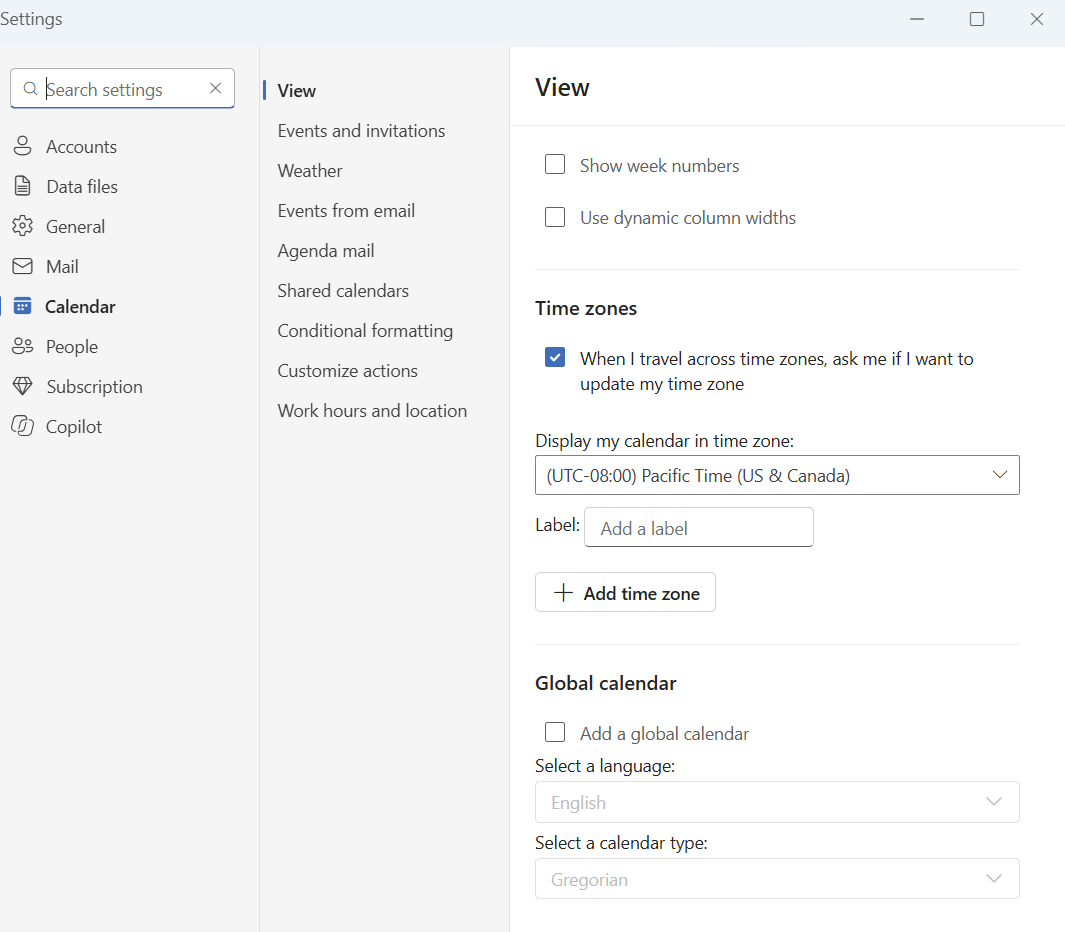
You can also ask Copilot (within Outlook) to add a time zone to a calendar event or an existing message, though I don’t have a lot of experience with that! Perhaps some old-fashioned double-checking is best for a few days.
Thanks for reading!
Thanks for tuning in to this edition of Smart Mode, PCWorld’s newsletter devoted to helping you make the most of your life, smartly. Sign up and have it sent to your inbox every Thursday!


