In the world of PC gaming, there’s a persistent myth that, to achieve maximum FPS rates (FPS, frames per second), you generally have to set all graphics settings to their maximum. However, we’ll show you that just a handful of settings are enough to massively enhance the visual experience without placing an excessive strain on modern graphics cards.
The absolute standout among these free upgrades is anisotropic filtering. This technique ensures that textures on surfaces at an acute angle to the camera — such as a road leading to the horizon or a tiled floor — remain crystal clear. Without anisotropic filtering, these surfaces appear muddy and blurred at medium and long distances, which severely disrupts immersion.
Not all graphics options automatically consume a great deal of processing power. Even simple filters can result in visibly better graphics.
Corsair
The technical reason for the low power consumption is fascinating: Modern GPUs feature specialized hardware units for texture sampling. As the required texture data is already stored in the extremely fast graphics memory (VRAM), the additional sampling from different angles takes almost no processing time. Whether you set it to ‘8x’ or ‘16x’ often makes a difference of less than one frame per second on current graphics cards, while visual clarity increases dramatically.
We therefore strongly recommend that you always force this setting in the driver, as many games use values that are too low by default. For Nvidia graphics cards, right-click on the desktop, open the ‘Nvidia Control Panel’ and navigate to ‘Manage 3D Settings.’
In the native graphics driver (in this case for Nvidia graphics cards), you can generally force the use of anisotropic filtering in applications.
Foundry
In the ‘Global Settings,’ locate the ‘Anisotropic Filtering’ option and set it to ‘16x.’ Users of AMD graphics cards should open the Adrenalin Edition software, then navigate via the ‘Gaming’ tab to the ‘Graphics’ section and expand the ‘Advanced Options.’
There, please set the anisotropic filtering mode to ‘Override application settings’ and also select the ‘16x’ level. Another important point is the overall texture quality: Many players are wary of the ‘Ultra’ setting, but a simple rule applies here: As long as your graphics card’s video memory is large enough to accommodate the high-resolution texture packs, this setting will not affect performance at all.
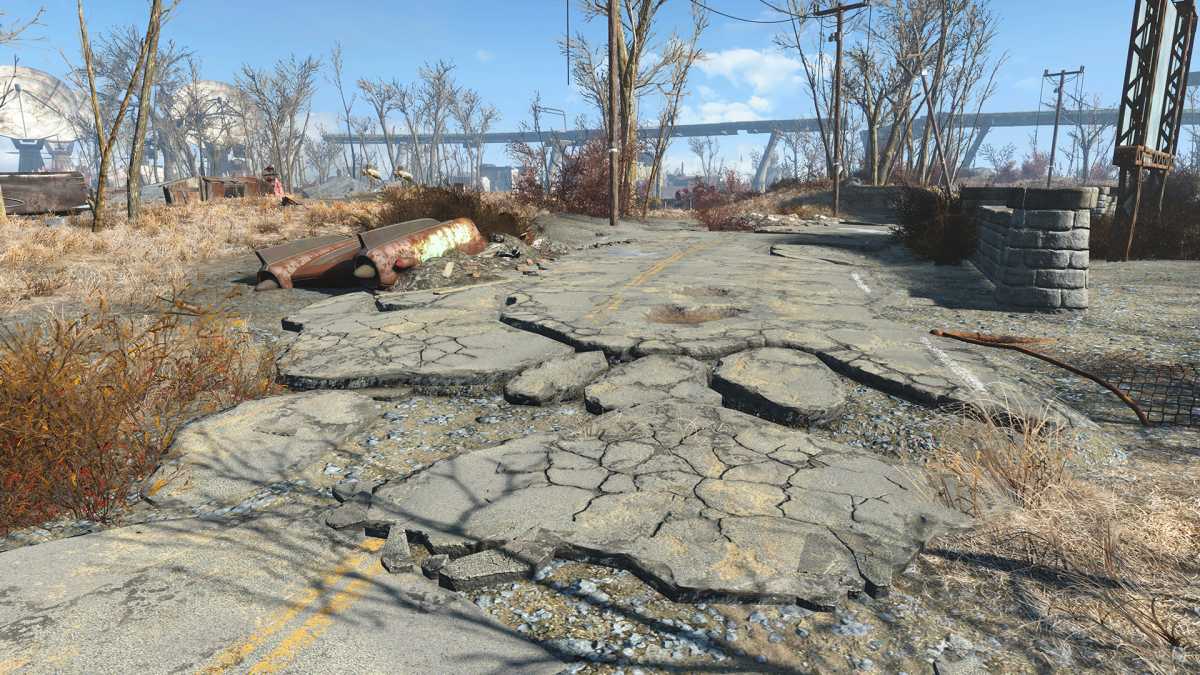
The graphics card setting ‘Anisotropic Filtering’ ensures that surfaces in games that are at an acute angle to the camera remain sharp.
Foundry
It is only when the VRAM overflows and data has to be offloaded to the slower system RAM that severe stuttering occurs. The same applies to SSAO, screen-space ambient occlusion. This technique calculates subtle shadows where objects meet. At the same time, it adds depth to the scene so that objects do not appear to be floating in mid-air.
SSAO is the resource-efficient variant of ambient occlusion and usually costs modern chips only about 1 to 2 percent of their processing power. If modern post-processing techniques such as TAA (Temporal Anti-Aliasing) make the image appear slightly too soft, you can also use the sharpening filter in the driver.
On Nvidia cards, you’ll find it under ‘Image Scaling’ in the global 3D settings. On AMD cards, it’s called ‘Radeon Image Sharpening.’ A setting of around 30 percent is often sufficient to compensate for the blurring caused by TAA and achieve a crystal-clear image without any significant loss of performance.


