If I had written this newsletter a week earlier I’d be $20 richer and have a lot more self-respect, too.
If you’re like me, you’ve been focusing on exactly the wrong aspect of managing your Google data quota: Gmail. If you’re running a free Gmail account, chances are you’ve run across the dreaded error message, warning that your data quota is about to reach its limit.
At that point, all sorts of bad things can happen: email can be throttled or halted entirely, photos won’t be backed up to Google Photos, Google Drive won’t be synced, and even your Android phone data won’t be backed up. If you happen to be part of a family plan, those limits affect not just you, but anyone on it.
Welcome to PCWorld’s newsletter, Smart Mode! The focus of this newsletter is productivity: from software to hardware to peripherals, all with the idea to get what you need to get done, efficiently.
I’m your host, Mark Hachman, covering the productivity tips, tools, and trends that you need to know about, both from within PCWorld and beyond. If you want the latest issue in your inbox each week, just sign up right here.
Ordinarily, I keep my Gmail inbox manageable. I know how to organize my Gmail inbox, but more how importantly, how to keep my Gmail inbox quota low by finding and deleting old email. What those stories ignore is that your quota now consists of all of your storage: Gmail, Drive, Photos, and more. A quick email from your uncle or a note from your pharmacist doesn’t take up nearly as much space as a photo (or video!) of the friendly neighborhood dog.
Over the past few months PCWorld has begun shooting more long-form and short-form video for both our PCWorld Tiktok channel and YouTube. They’re fun opportunities for us to tell you directly what we think, show off gear, teach you tricks, and so on. We have the option of using our own phones to give it that cinema verite aesthetic, and so we do.
The problem? All that video — all those takes — eats up space on our phones, my phone included. All that video then gets quietly backed up. All that space gets taken up. And then a certain wife, who quietly went though the roof after spending days deleting old email only to find that her “family” data quota kept growing, bit the bullet and paid Google $20 more for 200GB of additional data storage…three hours before I sat down to write this newsletter. Sigh.
But here’s the weird part: Google encourages you to use certain tools to manage your storage quota as you approach that limit…but then hides or downplays those tools otherwise. Here’s what you can and should be using to manage your storage, no matter how much you have left.
Learn to use Google’s Storage Manager
Begin by going to the Google One Storage Manager. (You can perform these tasks on your phone, but I think the PC offers a more easily navigable interface.)
I think trying to filter out all of the old email in Promotions or Social inside Gmail is still useful. Ditto for any spam which may have accumulated. However, eliminating old photos and video from Google Photos is far more productive. The graphic on top can show you how much of your storage is allocated into each service. I’d expect the bulk of it will be in Photos.
Services that also connect to Google, such as WhatsApp, may store backups on your Google account. Those will take up space, too, though how much depends on how much data you put on those other services.
(A nice feature is that Google will tell you how much data you need to delete “to resume emails,” and then adjusts that depending on what you delete.)
Underneath Google’s tally of how much data you’re consuming are its suggestions for cleaning it up, such as deleting old email with large attachments. Again, this is a great place to get started — but again, the low-hanging fruit is video.
But wait for a second! The most valuable tools — again, the ones Google thrusts at you when needed and hides when you don’t — are in Google Photos’ Quota Management page.
In Google Photos, Google collected about 600MB of “blurry photos” that I could either delete in bulk or go through, photo by photo. They were all arranged in a tile format for easy review. Some of them were obvious, where I’d stuck a finger over the lens. Others showed some haze, and a photo or two was shot through a dirty window. Still, it was a handy and convenient use of filtering.
Then there was my collection of screenshots, which Google wanted to know if I wanted to keep. As a tech reporter, I probably have more than you do…close to 1 gigabyte! Most I could safely delete.
From there, it’s off to video. Purging a three-minute video can free up a gigabyte of storage, depending upon what resolution you shoot at. The only thing annoying about this is that Google tends to want to download the video, then let you watch it, which can take a while. Still, deleting a few glitchy videos can finish this task quickly and get you back to your day.
Still, what happens when you’re in love with everything you’ve shot? That’s a separate issue.
Remember, there’s nothing that says that you have to store your photos or video in the cloud. Using a physical backup rather than the cloud is okay, though making a duplicate copy of your backup is a good idea.
TechAdvisor has a guide to moving files from an Android phone to your PC. In my experience, the process isn’t totally straightforward. As TA notes, make sure you tell your Android phone (via the drop-down menu) that you’re moving files from one device to the other. For some reason Thunderbolt doesn’t play nice here, either, so I usually just connect my laptop to a USB-C hub, and then connect my phone to the hub via a USB-C cable. I don’t really understand it, but it works.
Transferring files from an iPhone to a Windows PC is very much the same. That strategy doesn’t work just for photos, but files stored on Drive, too.
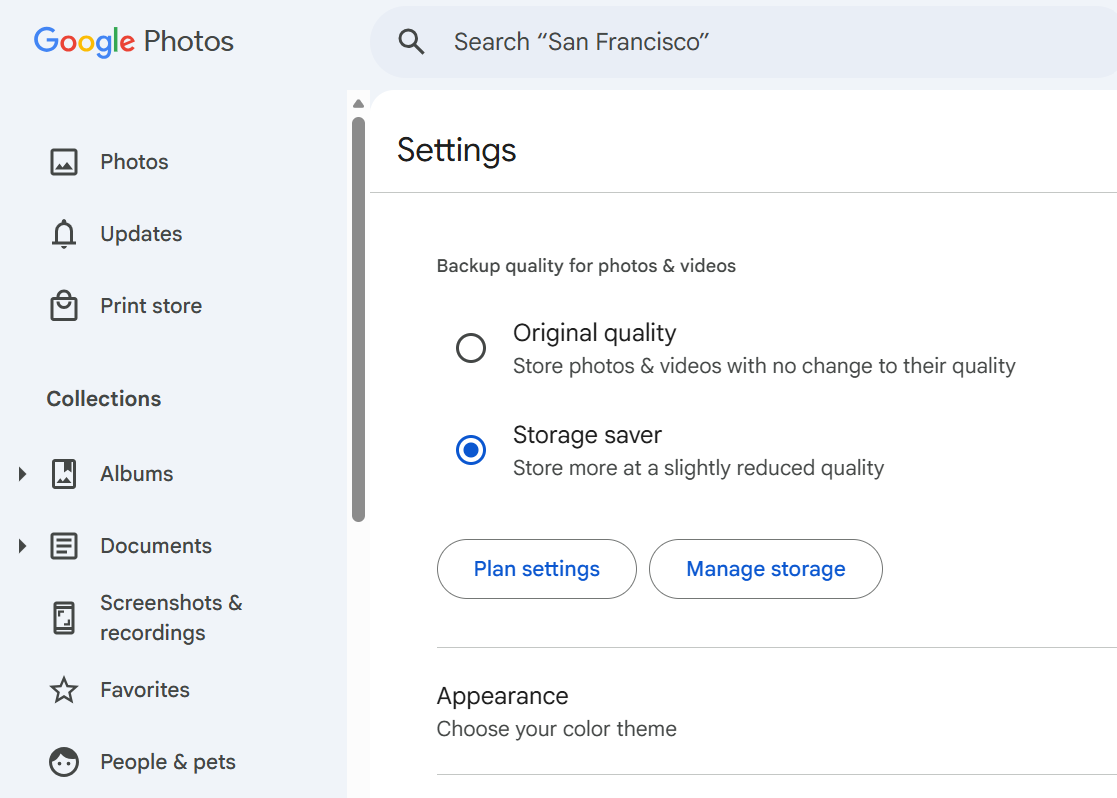
Basically, connecting Drive, Photos, Gmail, and the backups of any Android phones or connected services change how Google data should be managed. And yes, you can always pay more for a larger quota…as my wife did, sadly. Still, there’s something to be said for sticking it to the man, even if (sigh) it didn’t work out that way for me.
In productivity news:
Busy week for the middle of summer!
- Memory and its relationship to Windows has been in the spotlight of late. Microsoft’s big bombshell at the end of last week was about its Windows priorities for the remainder of 2026, including the acknowledgement that PCs with 8GB of memory would be preserved, and Windows optimized. Then Microsoft quietly deleted its recommendation that “ideal” PCs ship with 32GB of RAM.
- But wait — is this all because the market share of Linux has tripled? Is this finally the year of Linux?!
- My gut tells me that we’re back to the old days with AMD’s Ryzen serving as the budget alternative for laptops and this new crop of mini PCs. A Ryzen 5 box with 512GB of storage and 16GB of RAM for just $395 seems like an insane deal. (It’s at $407.55 with a coupon as I write, but still.)
- Incidentally, I’m testing another Ryzen 400 laptop right now, which will be filed by the deadline for the next Smart Mode newsletter. Same vibe.
- It’s not like you’re going to avoid Windows 11 26H2 this fall, but my PCWelt colleagues argue why you should get it. Meanwhile, Microsoft shoots down claims that a new Windows service is spying on you.
- My colleague Mike Crider butts in (not really) and gives a terrifically detailed explanation of his multimonitor setup. I’ve had several on my desk for years. He actually tapes his down. Insane.
- Finally, I’m aware of a further integration between a productivity app and an LLM that will be made public as this newsletter rolls out. Nothing too revolutionary, but describing what you want to do in plain English to a chatbot who then takes over is clearly a trend. (This newsletter is all generated by my brain, for better or worse.)
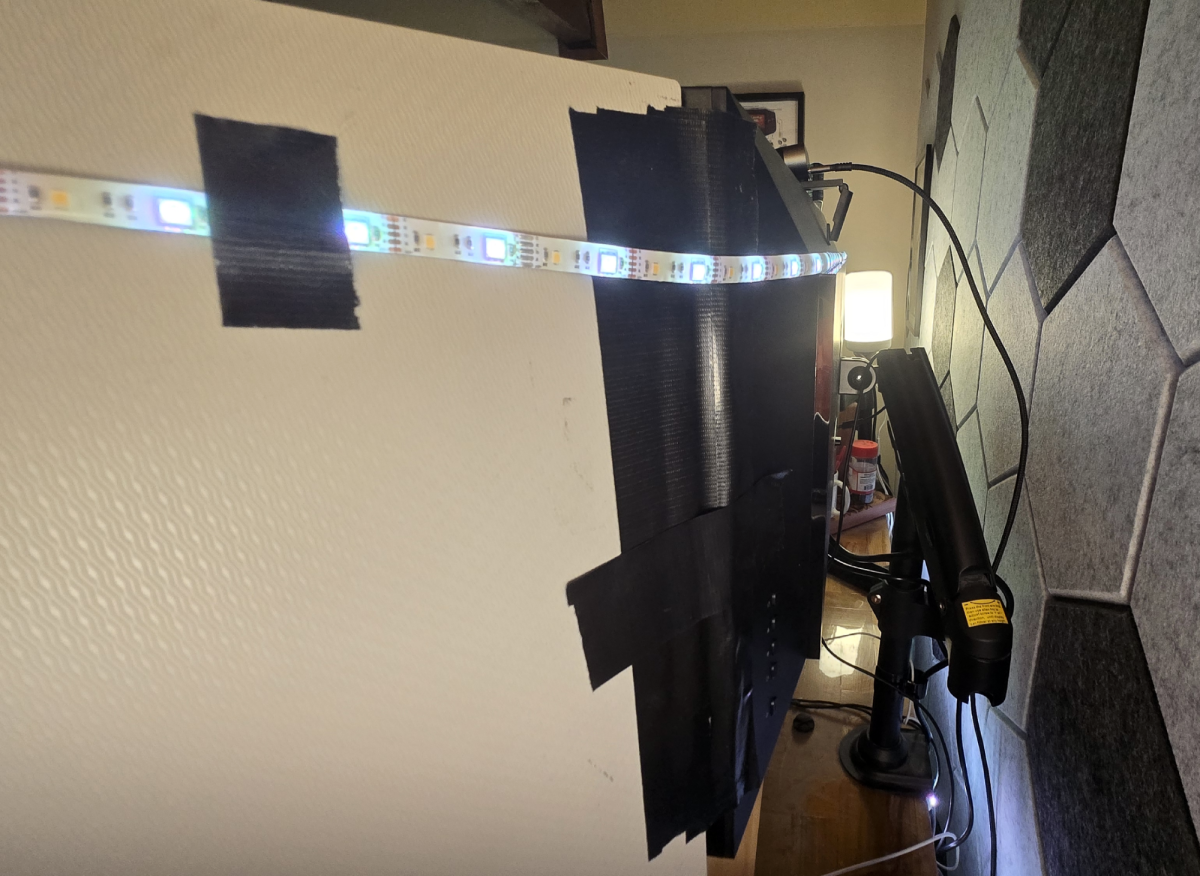
Duct tape and WD-40 can fix just about anything, according to Mike.
Michael Crider/Foundry
Productivity tip of the week
It would be quite easy to use Gmail as a jumping-off point for “inbox zero,” and that might need to be addressed in a future newsletter. I’m intrigued, though, by Psychology Today’s suggestion for minimizing email overload, especially around summer breaks. (By the way, take one.) The suggestion: set an early out-of-office message.
Why it helps: The 48 hours before leave are often chaotic. By activating your out-of-office two days early, you reduce last-minute stress.
Script: “I’ll be on leave from [date]. In the lead-up, I’m limiting new requests to wrap up key tasks. For urgent matters, please contact [colleague].
It creates space to complete your final tasks gently – rather than crashing into your time off more stressed than ever because you’ve been trying to wrap-up alongside the usual fire-fighting of tasks.”
I can see this tip working well for departments of a few dozen people — large enough that not everyone is going to be conscious of their coworkers are at any given moment, with (hopefully) enough redundancy that someone else can pick up the slack.
Thanks for reading!
Thanks for tuning in to this edition of Smart Mode, PCWorld’s newsletter devoted to helping you make the most of your life, smartly. Sign up and have it sent to your inbox every Thursday!


