Ideally, your PC will work smoothly day in and day out. But when something goes wrong, you should have a game plan for solving your problems — and there’s even some new, updated features within Windows for doing so.
I happened to live in London during the run of The IT Crowd, the Channel 4 production that helped launch the careers of Richard Ayoade and Chris O’Dowd. The two characters manned the help desk, and the show’s catchphrase was a simple one: “Have you tried turning it off and on again?” A simple reboot can often solve most of your computer problems…and it allowed the characters on the show to go back to doing nothing.
If that doesn’t work, however, it’s time to try a few other strategies. Windows 11 now offers a surprising array of repair, recovery, and troubleshooting options to keep your PC working hard for you.
Welcome to PCWorld’s newsletter, Smart Mode! The focus of this newsletter is productivity: from software to hardware to peripherals, all with the idea to get what you need to get done, efficiently.
I’m your host, Mark Hachman, covering the productivity tips, tools, and trends that you need to know about, both from within PCWorld and beyond. If you want the latest issue in your inbox each week, just sign up right here.
Troubleshooters: tried and true
I’d swear that Microsoft said that it was getting rid of its Windows 11 PC troubleshooters, but they’re still the first place I go if I have a problem with my PC. The controls can be found within the System > Troubleshoot menu within the Windows 11 Settings. Supposedly, they’re somewhat autonomous, as my PC directs Windows to ask me before running them. (To my knowledge, it never has.)
I immediately jump down to System > Troubleshoot > Other troubleshooters — which is what you want, and it feels a little odd that Microsoft is hiding them here. If my laptop is having issues connecting to the Internet, I run the “Network and Internet” troubleshooter. Occasionally I’ll have reason to run the “Printer” troubleshooter, and I’ve run the ‘Windows Update” troubleshooter once before, too.
Mark Hachman / Foundry
Each troubleshooter simply launches its own procedure to solve the problem, and usually does. (At one time, this is what I thought Copilot running locally on your PC might do, and I wonder if Microsoft could one day dedicate its own troubleshooting AI agents within Windows to solving these problems.)
If your PC somehow fails to boot, Microsoft also has what it calls Quick Machine Recovery, which is basically an automatic cloud-based troubleshooter. It should run automatically and is on by default inside the Settings menu (System > Recovery > Quick machine recovery), too.
But wait — Microsoft has other troubleshooting solutions that you might not know about!
Restore points are now more powerful
You may know about Windows restore points, which saves a snapshot of your system at a given point in time. These have existed for years — far enough back that they’re managed by the Control Panel. The idea is that if something on your PC goes wrong, you can “time travel” back to when it worked correctly.
Mark Hachman / Foundry
What’s the weakness of a restore point? It saves a snapshot of just the operating system, and nothing else. A traditional restore point is a hedge against a Windows update that you might be nervous about, as it’s a way to roll back to an earlier, “safer” release.
Microsoft now has something new: a “point in time restore” feature that goes beyond what the “system restore” offers: it backs up the OS, apps, settings, and local files (though no user data is scoped out of the restore point, Microsoft says.) It’s on by default, saving every 24 hours and automatically deleting them after 72 hours. The problem? If a.) your PC created a restore point, then b.) you created a file, and then c.) you roll back to the restore point, your new file disappears.
If you have to go deeper, the Deployment Image Servicing and Management (DISM) tool within the Command Line Interface is a sign that something is more seriously wrong with your PC. You may need to repair a Windows image using the tool, or use the related SFC command (sfc /scannow) to scan for corrupted files. DISM can get messy very quickly, which is why there have been some attempts to develop GUI-based interfaces. (Our command-line tools article has more on this.)
Alternatively, some people swear by Microsoft’s Sysinternals as a collection of troubleshooting tools, though I feel like the average user will think the collection is too nerdy for what they want to do.
The final step: reset your PC
This has traditionally been the last and final step towards fixing a borked PC: throwing up your hands and reinstalling Windows. But even then, you have multiple options!
This was traditionally the way to reset your PC: keep your personal files (but remove apps and settings) or remove everything and start over. Since then, you’ve had even more options: reload Windows from a stored copy on your hard drive or SSD, or re-download it from the cloud.
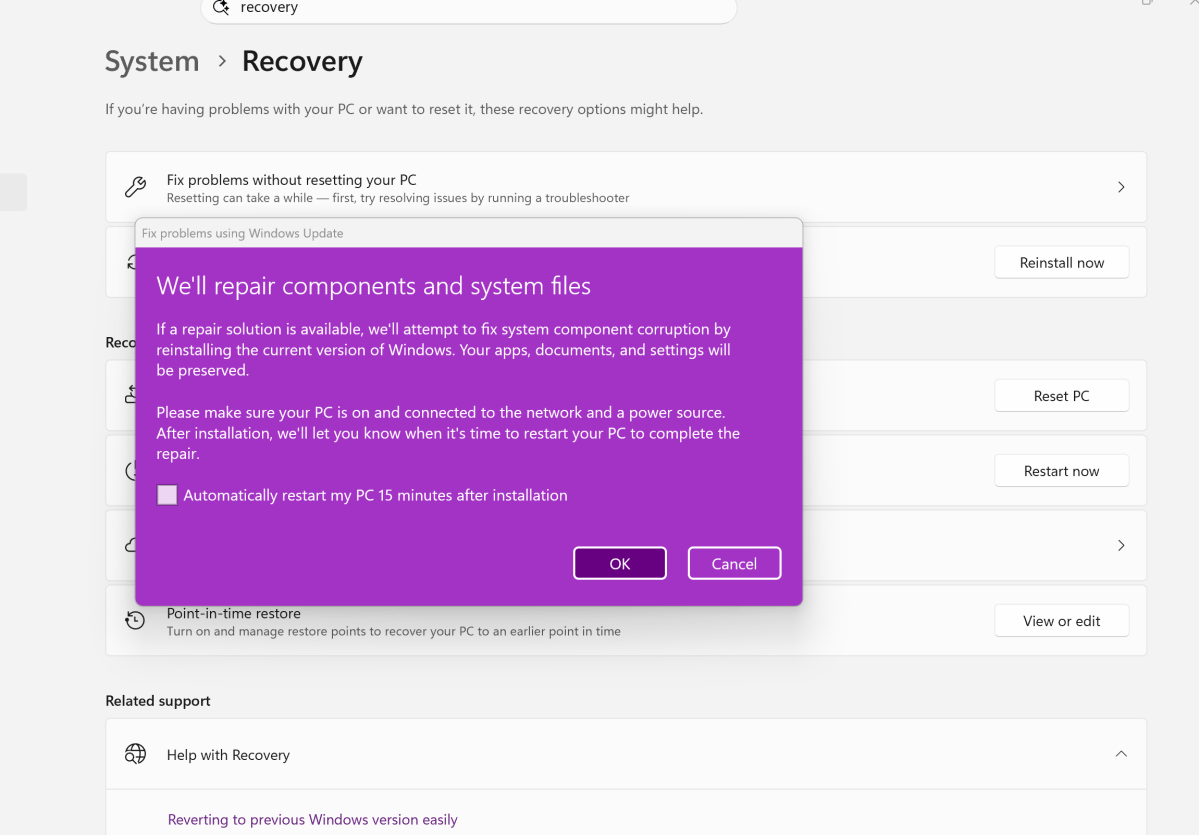
But Microsoft has even more options than what my colleagues have written about. The first, also available via the Windows settings (System > Recovery) is called “Fix problems without resetting your PC,” preserving all of your apps, files and settings. The idea is that this solution will “fix system component corruption” by reinstalling the current version of Windows.
Mark Hachman / Foundry
The oddest addition to this list isn’t within the Windows Settings menu at all. The Windows Security app now includes what Microsoft calls “Fresh start.”
“Start fresh with a clean and up-to-date installation of Windows” the app says. “This will keep your personal files and some Windows settings, and remove some of your apps. In some cases, this may improve your device’s startup and shutdown experience, memory usage, Store apps performance, browsing experience and battery life.” (Emphasis mine.)
The problem is that “Fresh start” doesn’t have an action associated with it, such as a button you can press. It’s essentially a suggestion to reset your PC, with a confusing statement that some of your settings will be preserved. I have no idea why it’s there.
Thankfully, with all of the other troubleshooting and recovery options available to you, you shouldn’t need it!
Productivity in the news:
I can’t wait to get my hands on a Googlebook, though for now I’ll have to wait. My colleague Michael Crider notes how closely Googlebooks integrate with Android, though I’ve noted how well Samsung phones and PCs do the same. Ben Patterson is a bit surprised that they’re not just Geminibooks. And, of course, there are five to choose from.
What else?
- It’s a $2,499 Mac workstation. Is it productive? Yeah, should be.
- Everyone loves free utilities. Sam Singleton has a new one: a universal file converter.
- How to use color coding to highlight informative emails in Outlook.
- Asus ProArt KD300 keyboard review: why is this being marketed at professionals?
- Alex Wawro pines for a tiling window manager. He found one in *sigh* Linux.
Productivity on camera:
The Windows Clock app includes Focus Mode…which does just that. Here’s how it works.
Productivity tip of the week:
Work-life boundaries. This was actually a topic that came up while we were planning out my son’s trip to college (UC Santa Cruz, home of the Fighting Banana Slugs). I did actually send my son to school with these tech essentials for his dorm room that I decided upon a month or so ago.
When I was at school, though, I lived in the architecture building next door to my dorm, studying and working on their massive Surface Studio-sized displays for writing papers. My father had his own little niche in an empty classroom. My wife used the library. The point is that none of us lived and studied/worked in the same space, which did make me wonder if I had wasted my money.
That’s why an office is a good idea — and why, post-pandemic, much of the world woke up to the fact that we didn’t need to actually leave the house to find one. Still, a dedicated work space is a good idea, as it trains your mind to move into productivity mode when your body enters it. Likewise, you also need a space for you, where you can recharge.
Thanks for reading!
Thanks for tuning in to this edition of Smart Mode, PCWorld’s newsletter devoted to helping you make the most of your life, smartly. Sign up and have it sent to your inbox every Thursday!


