Windows 11 comes with many hidden features that Microsoft has already built into the system, but hasn’t yet activated for general use. With the ViVeTool program, you can activate those hidden functions yourself. This small command-line tool lets you test new system elements weeks or months before their official rollout date and customize the interface to fit your needs.
The tool works on all current builds of Windows 10 and Windows 11 and uses the same internal A/B test logic that Microsoft uses for internal feature distributions. The special thing about it is that you can use it to unlock real system functions, not apply unofficial hacks.
Microsoft integrates many new features into Windows in advance, but holds them back via so-called feature flags. ViVeTool addresses these flags directly.
You can activate or deactivate individual functions or check the status without having to intervene in the system files. In this way, the system usually remains stable and you retain full control over the functional scope of your computer.
Thomas Joos
Caution: ViVeTool intervenes deeply in internal system mechanisms and is therefore falsely recognized as potentially dangerous by some security programs. This is not an indication of malicious code, but a consequence of the fact that the tool uses the same internal interfaces that Windows uses to control experimental functions.
Incorrect or incompatible feature IDs can lead to system instability, display errors, or crashes. Not every function can be activated, as Microsoft deactivates some switches in certain builds. Before making extensive changes, you should create a backup or a restore point so that you can easily reset the system in the event of a problem.
Create a restore point before using ViVeTool
A restore point can be created in PowerShell with a single command, as long as computer protection is activated for the system drive. To do this, run PowerShell as an administrator and enter the following:
Checkpoint-Computer -Description “Before ViVeTool activation” -RestorePointType “MODIFY_SETTINGS”
This command creates a system restore point with the description “Before ViVeTool activation.” If the error message “System Protection is not enabled” appears, you must enable computer protection. This can be done via the classic Control Panel:
- Open sysdm.cpl
- Select the “Computer protection” tab
- Highlight drive C: and click on “Configure”
- Select “Activate computer protection” and confirm
By default, Windows only allows one restore point every 24 hours. If you want to force another point immediately, use:
Checkpoint-Computer -Description “Previous point overwritten” -RestorePointType “MODIFY_SETTINGS” -Verbose
After successful execution, you can reset the system to this state at any time using the system restore function.
How it works
After unpacking the downloaded archive, the file “vivetool.exe” is located in the target folder, for example in “C:\vive.” Open the command prompt with administrator rights (via the context menu) and change to the directory using “cd C:\vive.” From here you can control the tool with simple commands.
The basic command is “vivetool/enable/id:XXXXX,” where the ID denotes the respective function. You can deactivate it again with “vivetool /disable /id:XXXXX.” The command “vivetool /query” shows which features are currently active and “vivetool /fullreset” resets all switches.
A restart is required after each change so that Windows loads the new components.
Thomas Joos
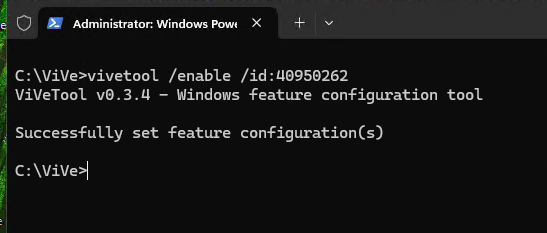
The command line work sounds technical at first, but is uncomplicated in practice. The command prompt confirms each successful activation with “Successfully set feature configuration(s).” This means that the function is available immediately after the restart.
A modern take on File Explorer
One of the most interesting tests concerns the new File Explorer, which is based on WinUI components. Use the following command to activate the revised interface:
vivetool/enable /id:40950262
Afterward, File Explorer responds noticeably more smoothly, the context menu is clearly structured, and access to network drives or OneDrive uses standardized interfaces. AI-supported suggestions are also already integrated and visible.
Thomas Joos
You can gain initial experience with the upcoming Windows interface and directly compare the differences to the standard version. If necessary, deactivate the new Explorer again with the following command:
vivetool/disable /id:40950262
Animated video backgrounds
A highlight for visually interested users is the return of animated backgrounds. Use the following command to activate the video wallpaper function, which is reminiscent of Dreamscene from Windows Vista:
vivetool/enable /id:57645315
Next, open the Settings, go to “Personalization” > “Background,” and set the type to “Image.” You can now select an MP4 or MKV file that Windows will play as a moving wallpaper. The clip starts automatically as soon as the desktop is visible.
This option is interesting for presentation systems or information monitors because it can display dynamic scenes in a corporate design or subtle ambient videos in the background. If you want to switch off the function later, use “/disable” again. This will revert the desktop to a static background.
New start menu and search functions
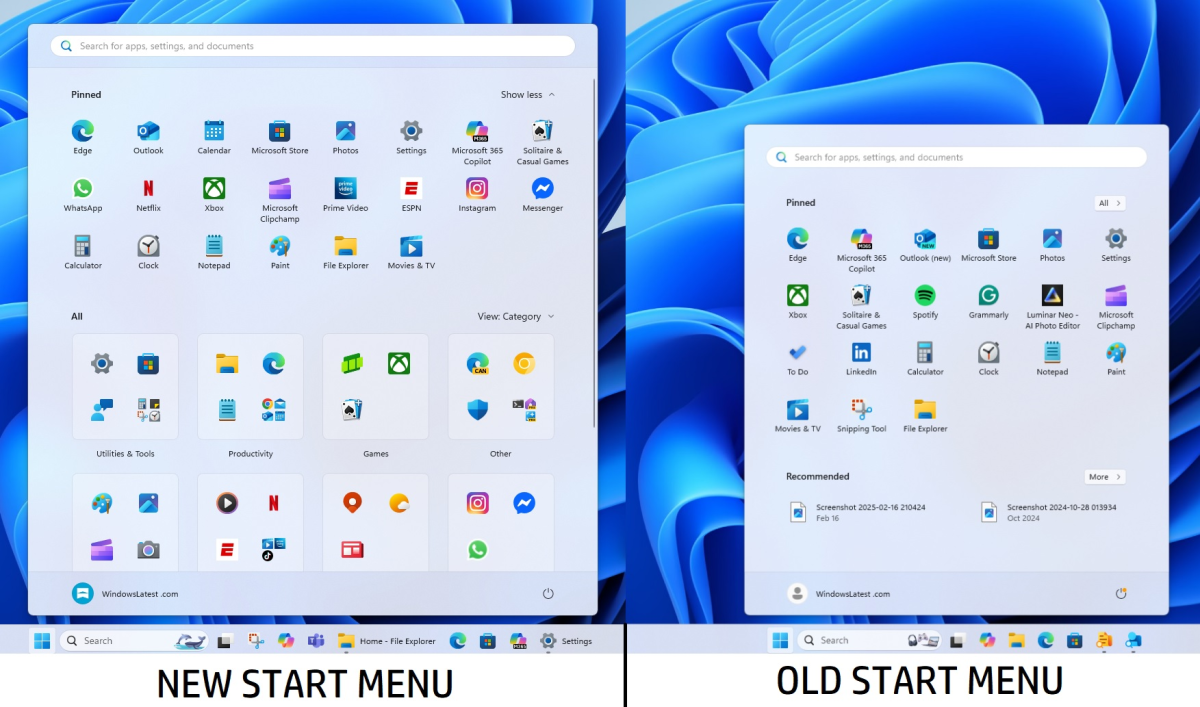
The ViVeTool can also be activated in the user interface. Use the following commands to enable experimental versions of the Start menu and taskbar search:
vivetool/enable /id:38937525
vivetool/enable /id:40887771
After restarting, the search responds faster, the results appear grouped and easier to filter, and Windows may display context-related suggestions, such as system settings or recently opened documents.
Users who rely heavily on search will benefit from the smoother interface and additional categories, while developers can test how API calls behave in the new search system.
Windows Latest
Activating feature packages
Microsoft often bundles major innovations in monthly security or function updates, but releases them in stages. This delay can be avoided with the ViVeTool. After installing the October update, activate the new functions with the following command:
vivetool/enable /id:57048226
Additional options will now appear in the system settings, including a revised hardware display, new AI areas in the “Settings” app, and an extended sharing menu that allows you to pin your favorite applications.
These changes will only appear on selected devices, but are already available in the system. By activating them manually, you can test the new features before Microsoft opens them up to all users.
Advanced use and troubleshooting
Use the following command to check which features are currently activated:
vivetool/query
This allows you to maintain an overview if you change several IDs at the same time. If an activated feature causes problems, such as display errors or instability, you can use the following command:
vivetool/disable /id:XXXXX
or, if needed,
vivetool/fullreset
This will reset all customizations. ViVeTool does not modify any system files, so changes are reversible. If a command has no effect, this is usually due to an incompatible Windows build. Updating Windows typically fixes this.
Benefits for users and IT
With the ViVeTool, private users can get an early look at upcoming features and customize their system, while developers and IT administrators can test the compatibility of their applications with new Windows components. The benefit for both groups is that changes can be tested with minimal risk.
As the tool works directly with the feature management integrated in Windows, the system generally remains stable and can return to its original state at any time. Nevertheless, creating a backup is recommended to ensure you can restore the PC if any issues arise.
In corporate environments, ViVeTool is ideal for evaluating experimental functions in test environments. It allows you to check in advance whether new operating elements, interfaces, or security options are useful for your devices. If you manage several systems in parallel, you can integrate the commands into scripts and roll them out automatically.


