At a glance
Expert’s Rating
Pros
- Imaging, file backup, sync, and disaster recovery
- Super-friendly interface
- Disaster recovery media even with the free version
- 1TB of online storage for $60 a year
Cons
- No support for third-party online storage
- Still some bugs with sync
- Interface oddities
Our Verdict
Super capable, and super easy to use, Todo Backup 2026 is still one of our favorite backup suites — despite some non-fatal bugs in the sync module and the occasional interface oddity.
Price When Reviewed
This value will show the geolocated pricing text for product undefined
Best Pricing Today
Price When Reviewed
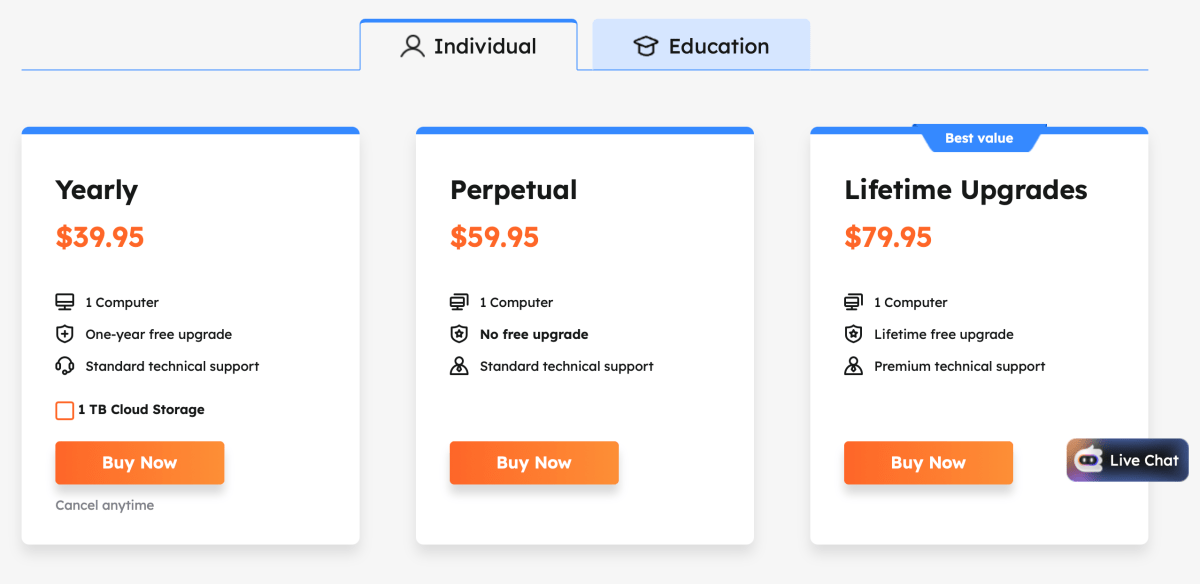
Easeus ToDo Backup 2026: Yearly: $39.95 I Perpetual: $59.99 I Lifetime Upgrades: $79.99
Easeus ToDo Backup Home 2026: $60 perpetual
Best Prices Today: Easeus ToDo Backup 2026
Though it’s been a long, slow road with enhancements, Easeus Todo Backup has gradually developed into one of the most capable backup suites on the market. It also features the most efficient workflow I’ve seen and is supremely fast.
There’s even a surprisingly competent free version that will fill many users’ needs.
Compliments aside, I do wonder about the pace of maintenance as I ran into several unfixed and new operational issues — including the Mac version crashing upon first use. Todo needs some TLC.
What are EaseUS Todo Backup Home 2026’s features?
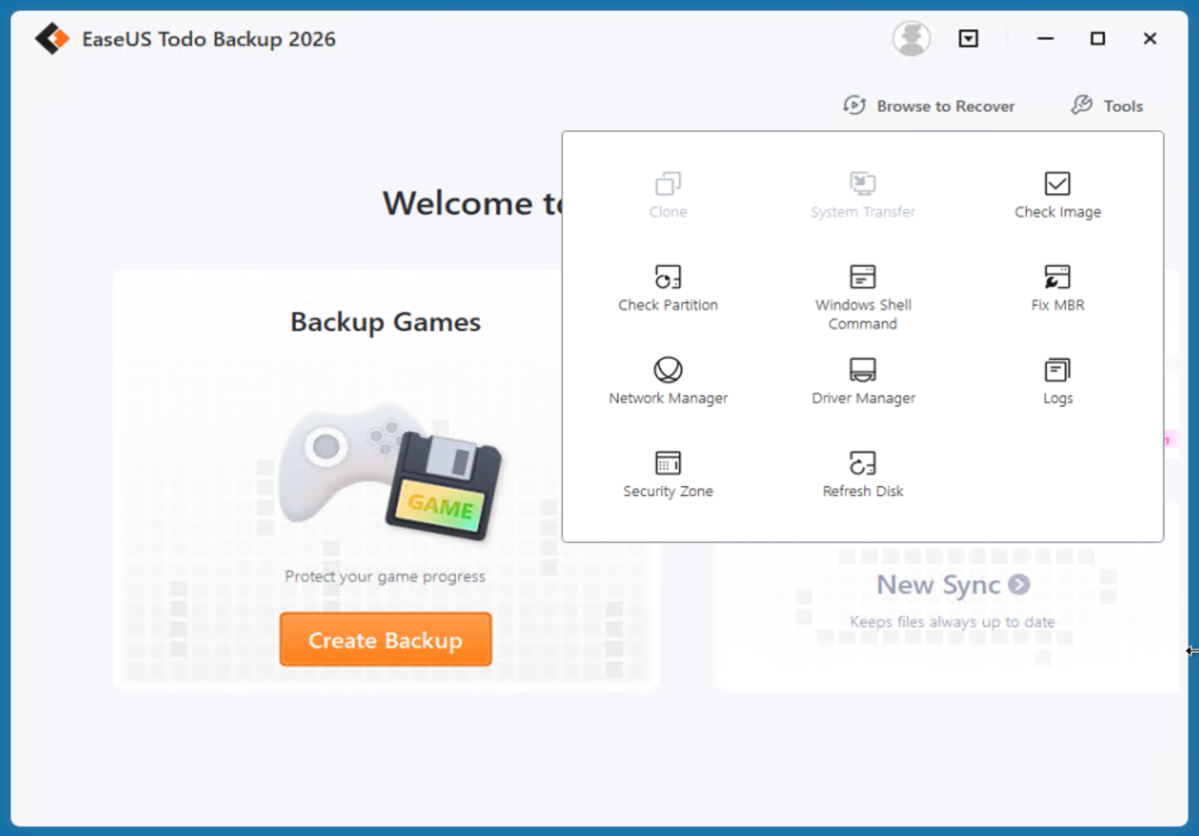
I refer to Todo Backup Home as a suite because it combines whole-drive and partition imaging, file and folder backup, as well as one-way and two-way sync. It also offers the ability to clone disks, a pre-OS recovery environment (recover the system without a boot disc), and a secure (hidden) partition for safely storing backups. Add in 1TB of online storage and voila! You’ve got yourself a backup suite.
Read on to learn more, then see our roundup of the best Windows backup software for comparison.
There’s also a WinPE recovery disc featuring a full version of the program for restoring files, or even making new backups. The ability to back up using the recovery disc can be handy if you’re looking to safeguard the data on a failing machine that you aren’t sure has been backed up recently.
When I help friends try to recover data, I always create a full image of the drive in question using a boot disc before diving in with other recovery and repair utilities.
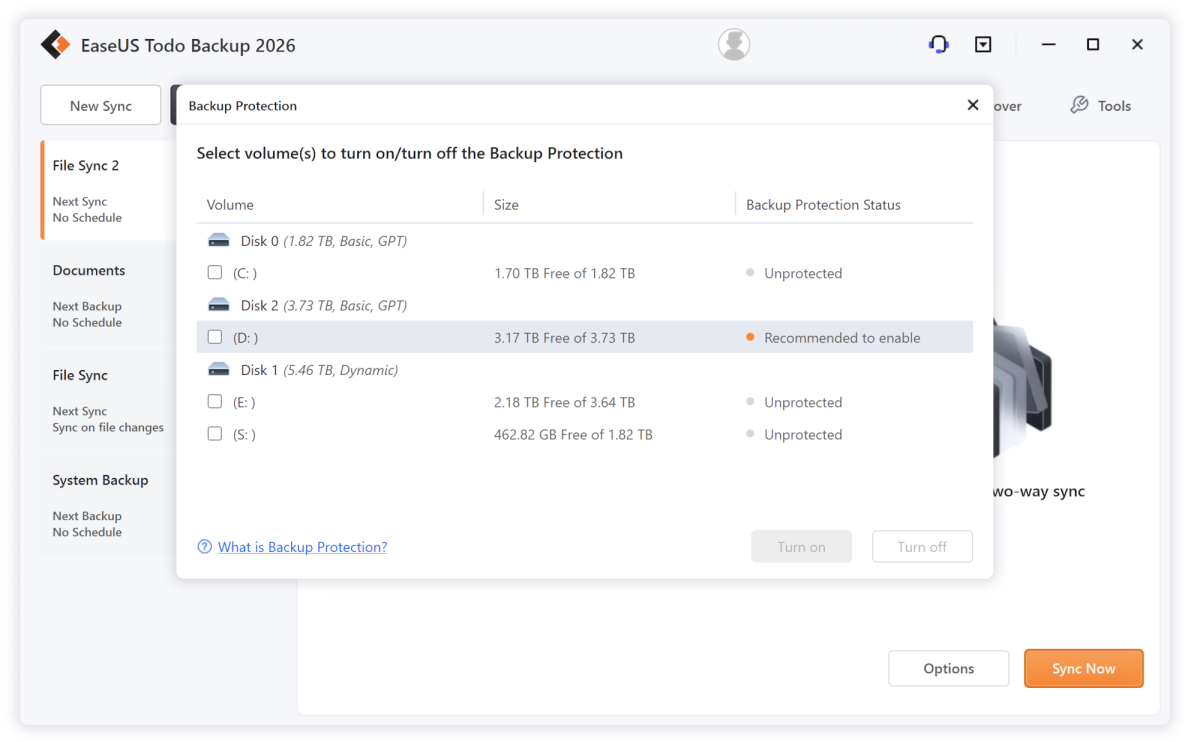
Todo Backup Home 2026 also sports one of the latest en vogue features — backup protection. As Todo Backup (like others) keeps an agent running in the background, it monitors your backed up files and warns you if there’s any attempt to delete them. Even by you. (My only issue with this feature is that when you select the drives to protect, the dialog doesn’t show you the name of the drives.)
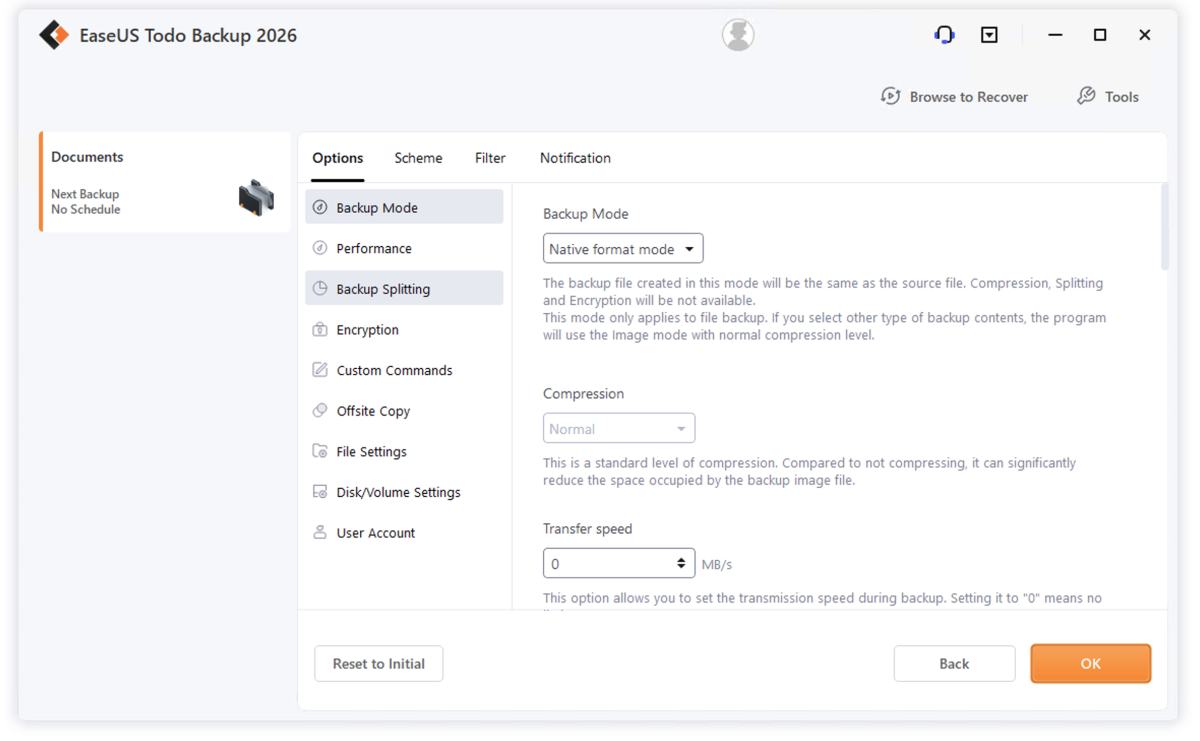
Other features include granular scheduling, full support for reading from and to network destinations, compression, encryption, task priority, splitting of images, as well as pre-run and post-run commands. There’s also an offsite copy option, which allows you to create a second copy of any backup to an FTP site. Why this doesn’t extend to the cloud, or SMB, or even another local storage location I can’t say. It would be super handy.
One neat trick Todo Backup home has up its sleeve is the ability to turn a system backup into portable Windows installation on a USB drive. I’ve seen Windows to Go creation, but never from an existing installation. This code comes courtesy of the company’s OS2Go software.
Similar, and also included, is a system transfer utility.
How easy is Easeus Todo Backup Home 2026 to use?
Generally speaking, I found the Todo Backup 2026 interface a joy. While all the options for backups are on the same page, there’s a list of general categories on the left that, when chosen, scrolls quickly to the related options.
However, while I like the way they look, I don’t like that the border drop shadows interfere with mouse clicks in that area — you can see the window beneath, but you need to move the cursor out of the shadow to select it.
Additionally, the interface offers a “native mode” option when you’re imaging, then explains why you can only use it with file copies after you select it. Come on, man… Just disable the option or remove it according to context.
While I love the Todo Backup Home interface in general, overwriting an existing file during a restore isn’t a “fail,” it’s merely skipping a file that doesn’t need to be restored.
Though I find the integrated EaseUS Cloud handy, and an exceptional deal for offsite backup, it would still be nice if EaseUS supported third-party repositories. That said, you can leverage those with any backup software by employing a cloud manager.
How much is EaseUS Todo 2026 Backup?
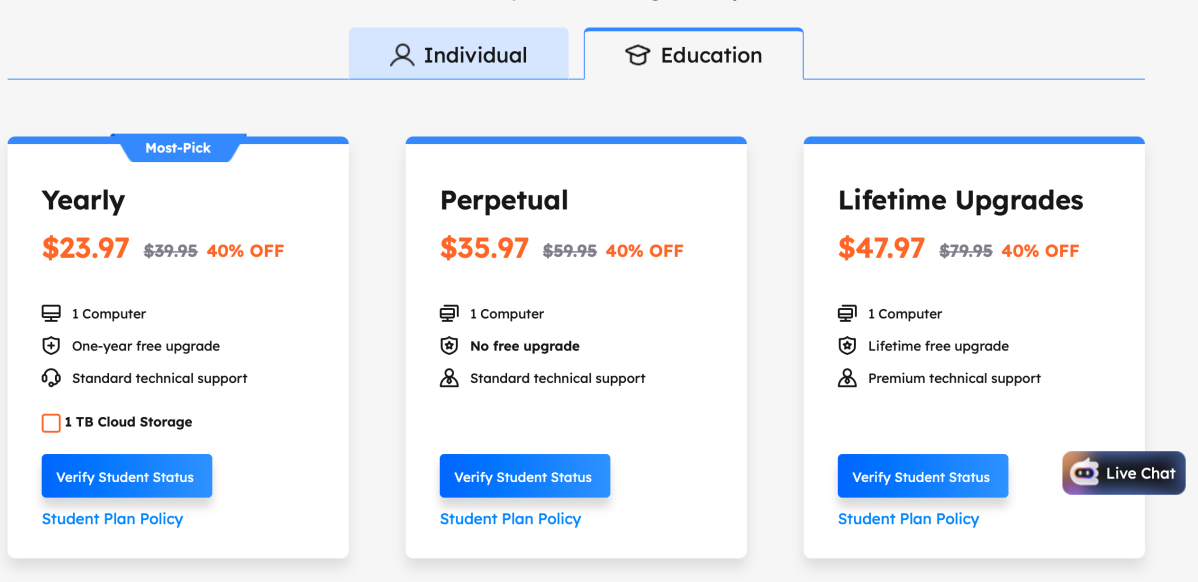
Todo Backup is available either by subscription or with a perpetual license, and there are some hefty (40 percent off) educational discounts. As noted, if you’re looking for cloud storage, $60 a year ($39.95 plus $20) for 1TB is one of the better deals out there, even forgetting the included software.
$60 will also buy you a perpetual Todo Backup license, though without cloud storage. An additional $20 on that gets you said perpetual license plus lifetime upgrades.
As backup software doesn’t evolve at the rate that, say, creative software does, a perpetual license is a major plus in my book. But by the same token, lifetime upgrades likely won’t provide anything major at this point. Especially as we’ve spotted no major additions to Todo in the last two iterations.
As noted, you can save a bit of coin on Todo Backup if you’re a student — $36 for complete backup and 1TB of online storage is a steal.
EaseUS hadn’t confirmed it, but generally speaking when a subscription runs out, you’ll have 30 days to retrieve your data from the cloud, and the software’s restore functionality remains intact. It’s unlikely the company could disable backup on the boot disc (especially without an internet connection), so this likely remains functional as well.
How does Todo Backup 2026 perform?
Todo Backup 2026 Home performed reliably, and at a rapid pace. However, there were a couple of non-fatal oddities.
Both a two-way and a one-way sync of My Documents continually complained about the My Pictures, My Videos, and My Music folders not syncing. Okay, but they’re not actually included in the original folder or mirror. See below.
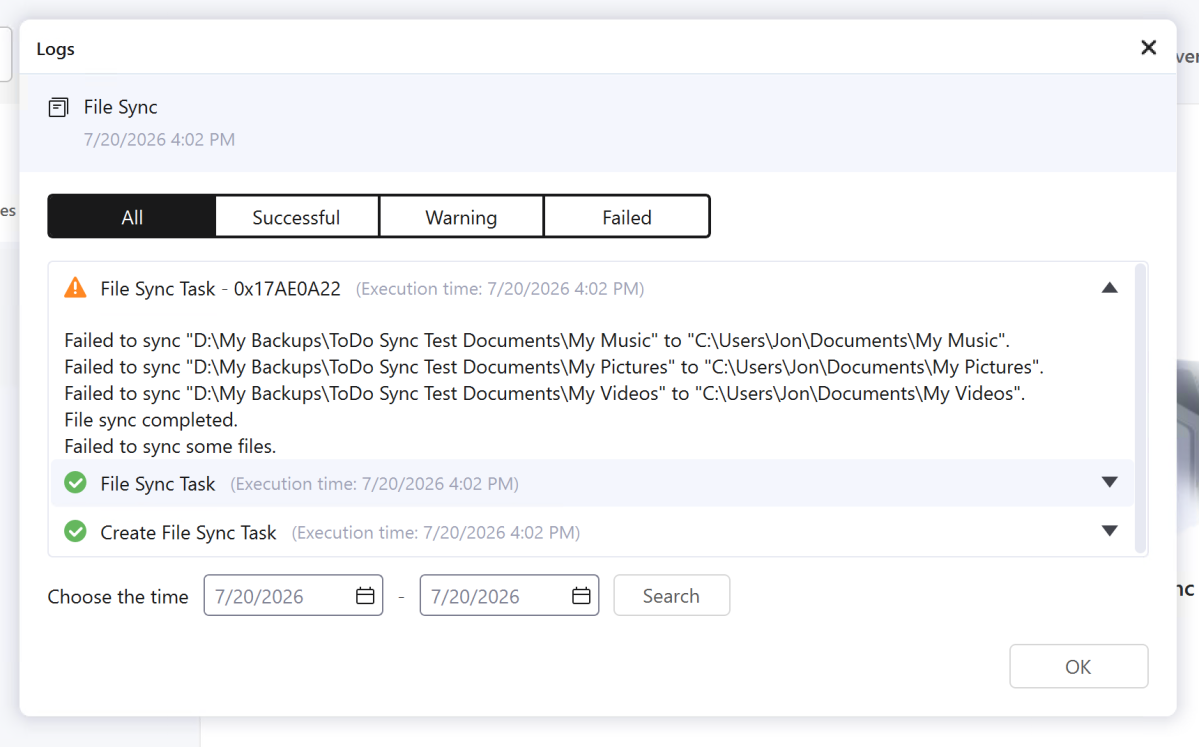
Everything syncs, it’s just ugly. And it’s been an issue over the last two versions at least. Not cool.
On the other hand, speed was exceptional and then some. It took the program around 13 minutes to create a 700GB image file using the fast compression algorithm to a second internal NVMe SSD. It took R-Drive Image over a half hour to accomplish the same task.
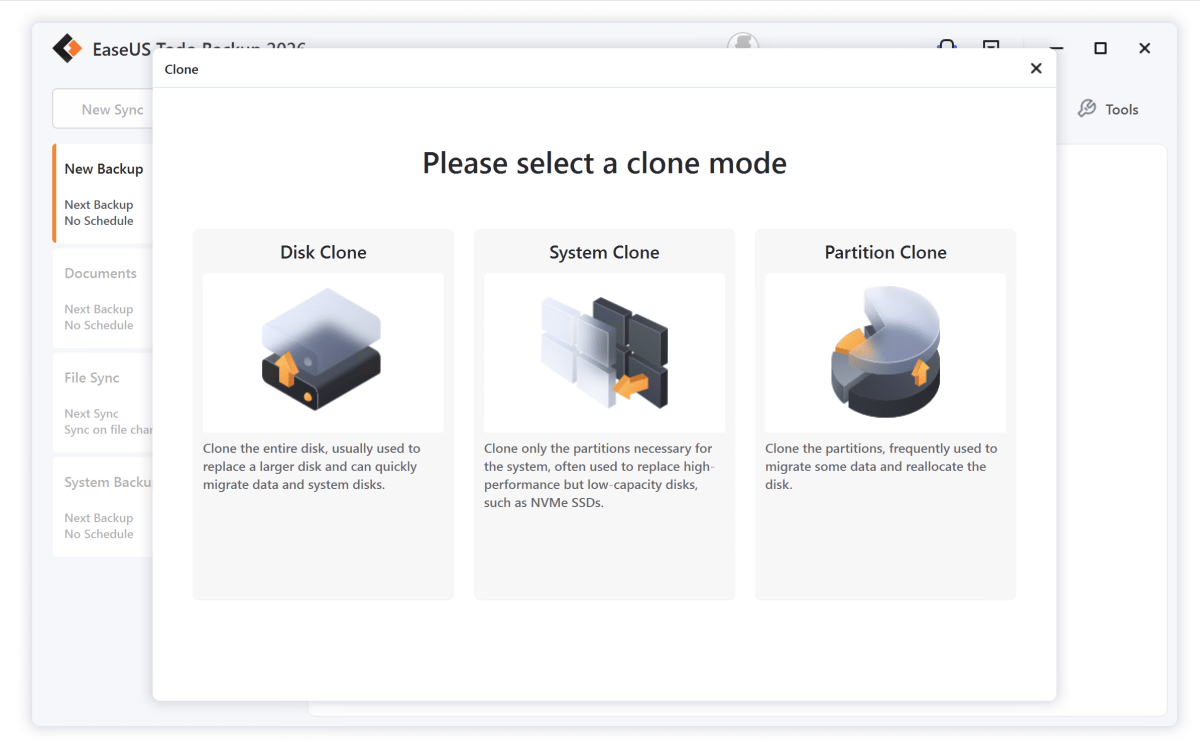
Cloning the 700GB system drive took a breezy 26 minutes, and Todo Backup didn’t mind that I was cloning a 2TB SSD to a 1TB SSD. It simply resized the partitions without complaint or my instructions. Sweet.
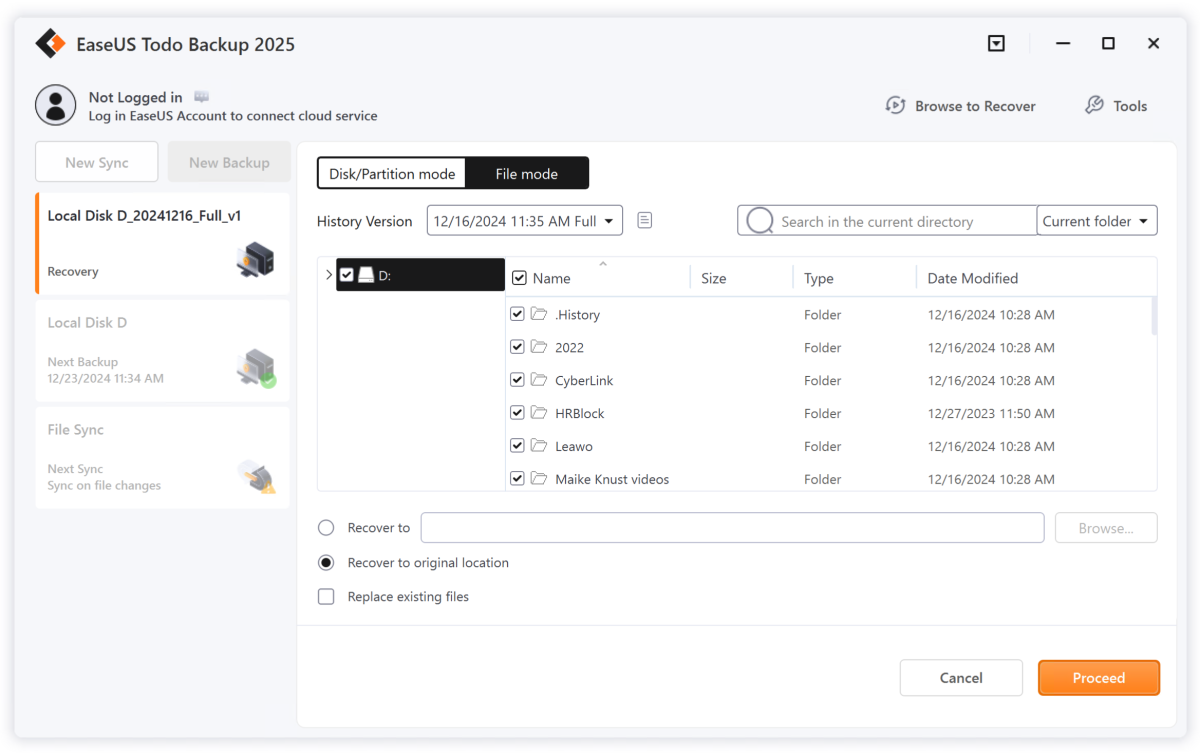
Restoring the full image was almost as fast as creating it; however, a complete restore of individual files and folders was estimated for 16 hours for the 600GB. Ahem. I recommend leaving File Mode for relatively small sets of files.
One of the reasons I might favor Todo Backup over, say, Acronis True Image, other than a perpetual license and cheaper online storage, is that there’s only one process running in the background compared to True Image’s 12.
Of course, Acronis is doing malware checking. To be fair, neither program seemingly affects system response subjectively.
Note that “real time” backup is actually near-real time. It sometimes took a couple of minutes for new documents or changes to show up in the destination. Good enough for most scenarios, but not quite real time.
Another irksome occurrence was the program’s choosing the C:\My Backups as the location for a full system backup from C: on one test system. In what world are you going to be able to use that backup to restore a failed system drive or partition? On another system the program more wisely chose the D: drive.
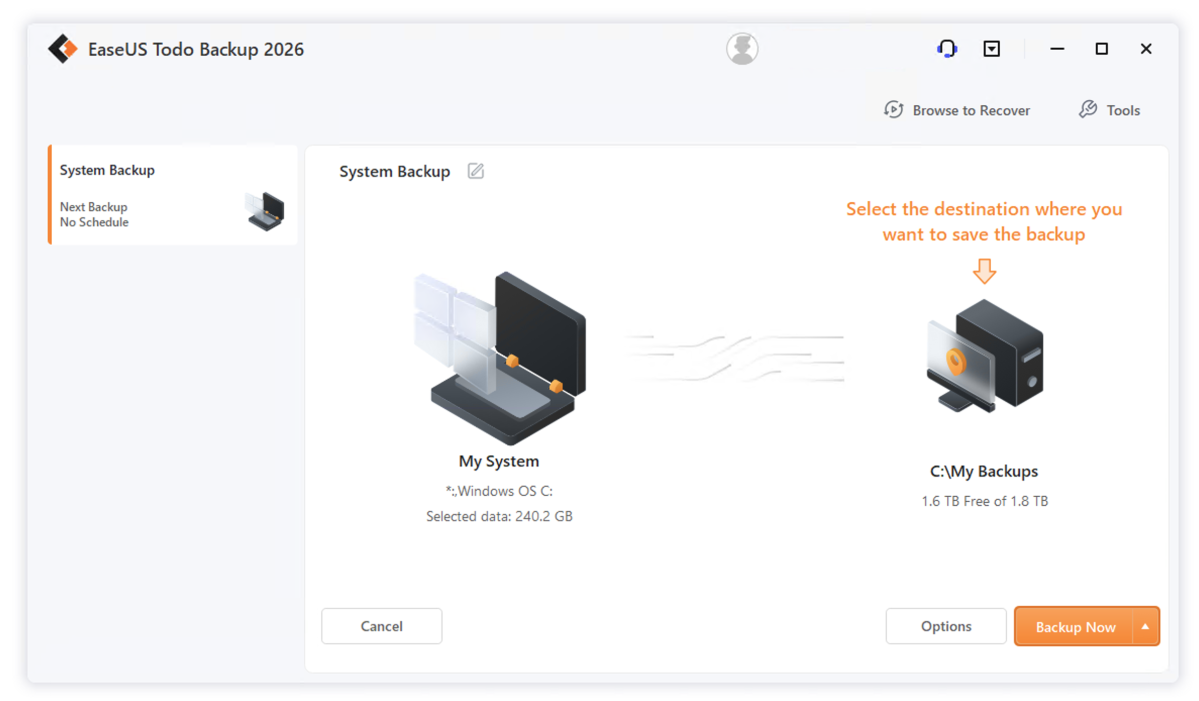
In my last review, I assumed the errors I spotted would be fixed in short order. They haven’t been, which is starting to make me question the company’s commitment to excellence. Yes, there once was such a thing.
That said, everything works — the ultimate bottom line.
Should you buy EaseUS Todo Backup 2026?
Minor issues aside, Todo Backup 2026 is easy, stable, fast, and covers all the backup bases. It’s also been very reliable in several years of testing at this point.
Additionally, the cloud storage is a bargain and there’s a real perpetual license, unlike True Image. So yes, Todo Backup Home 2026 is a recommended buy. If you already own the program, check the revisions list here before upgrading.


